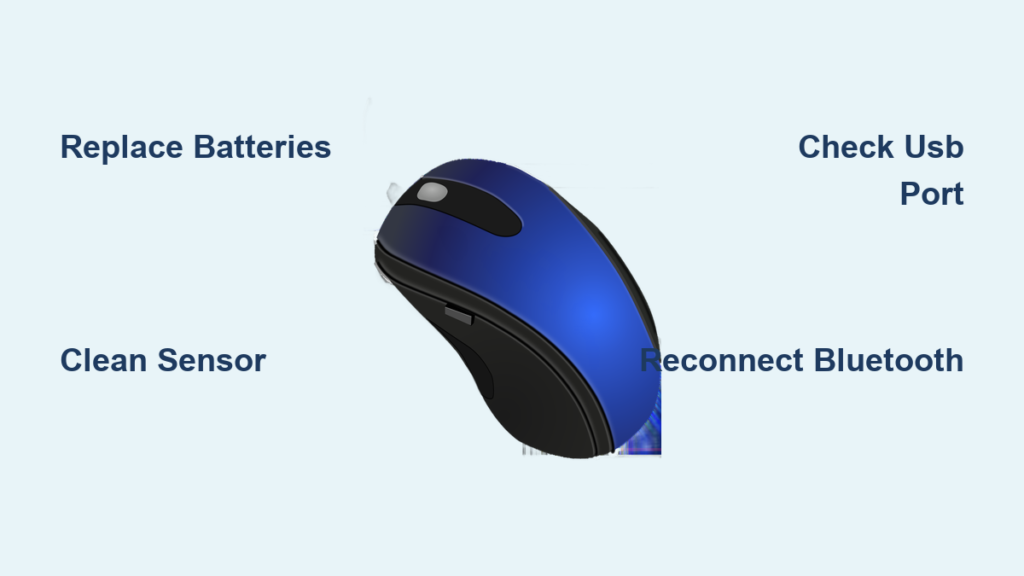
A computer mouse not working can grind your workflow to a halt in seconds. One moment you’re clicking through tasks, and the next the cursor freezes, clicks fail to register, or the device disappears from your system entirely. This frustration affects everyone from casual users to hardcore gamers, and the causes range from dead batteries to corrupted drivers.
This guide walks you through every proven fix, starting with the simplest checks and moving toward advanced troubleshooting. By the end, you’ll know exactly how to revive an unresponsive mouse on Windows, Mac, or Linux, regardless of whether it’s wired, wireless, or Bluetooth.
Verify Power and Battery Status

A silent mouse often has a simple explanation: no power. Before assuming software trouble, confirm the device is actually receiving electricity.
Replace or Recharge Batteries
Wireless mice depend on steady power to function. When batteries die, symptoms include frozen cursors, delayed clicks, or complete unresponsiveness.
For disposable battery models:
– Open the compartment on the bottom of the mouse
– Remove the old AAA or AA cells, even if they seem new
– Insert fresh batteries using the correct polarity markings
– Close the cover and test the mouse immediately
For rechargeable models:
– Plug the charging cable into a powered USB port
– Allow at least 30 minutes of charging time
– Swap cables if charging does not begin, since the original may be damaged
Pro Tip: Power cycle the mouse after charging by switching it off and back on. Some models refuse to wake up without this step.
Confirm the Power Switch Position
Many wireless mice ship with a small physical toggle on the base. Flip it to the On position and listen for a click. Toggle it off and on again to reset the internal circuit. A glowing LED near the sensor confirms power is flowing. No light usually means a drained battery or internal failure.
Clean the Mouse and Sensor Surface

Dirt, dust, and hair accumulate quietly and sabotage mouse performance over time. A clogged sensor or sticky scroll wheel can mimic serious hardware failure.
Remove Debris from Sensor and Crevices
- Power off the mouse and unplug it, or remove the batteries
- Wipe the bottom with a dry, soft cloth or cotton swab
- Clear any blockage from the red or blue optical light
- Blow debris from the scroll wheel or use compressed air
- For trackball models, pop out the ball and clean the internal rollers
Warning: Never apply liquids, alcohol, or household cleaners. Moisture can permanently damage internal circuits.
Use a Compatible Surface
Even a spotless mouse fails on the wrong desk material. Avoid glass, mirrors, glossy wood, and highly reflective surfaces. Stay away from textured fabric, rugs, or uneven materials that confuse the sensor. A solid-colored mouse pad delivers the most consistent tracking. Without a pad, try a piece of cardboard, a manila folder cover, or a hardcover book as a temporary fix.
Inspect and Fix USB Connections

Both wired and wireless mice rely on stable USB communication. A loose plug or failing port creates symptoms identical to broken hardware.
Check the Cable and Port (Wired Mice)
Examine the USB cable for frays, kinks, or bent connectors. Plug the mouse into a different USB port, ideally one on the back of a desktop or the side of a laptop. Avoid USB hubs and docking stations during testing, since they introduce extra failure points.
Look closely at the port itself for bent pins or debris. Plug in a flash drive to confirm the port works with other devices. If other gadgets fail in the same port, the port itself is the problem.
Reseat the Wireless Receiver
For mice with USB dongles, pull the receiver out gently and blow away any dust. Reinsert it firmly until fully seated, then test the mouse. Try a different USB port, especially one connected directly to the motherboard. USB 3.0 ports (typically blue inside) sometimes cause interference, so a USB 2.0 port (black) is worth trying.
Troubleshoot Bluetooth Pairing Problems
Bluetooth mice offer convenience but introduce unique connection headaches, including pairing failures and automatic switching to other devices.
Reconnect a Bluetooth Mouse on Windows
- Press Win + I to open Settings
- Navigate to Devices, then Bluetooth and other devices
- Locate your mouse in the list
- Click Connect if the status shows Disconnected
- Click Add device and select Bluetooth if the mouse is missing
- Activate pairing mode using the button on the bottom of the mouse
Reconnect a Bluetooth Mouse on Mac
- Click the Bluetooth icon in the menu bar
- Turn Bluetooth on if it is currently off
- Find your mouse in the device list
- Click Connect if the entry appears grayed out
- Open System Settings, choose Bluetooth, and click the plus icon to add a new device
- Hold the pairing button on the mouse until it appears in the list
Pro Tip: If your mouse keeps connecting to another device, forget it from every nearby phone, tablet, and laptop first. Bluetooth peripherals usually prioritize the most recent pairing.
Update or Reinstall Mouse Drivers

Corrupted or outdated drivers cause mouse failure even when the hardware works perfectly. Refreshing the driver stack often restores full functionality.
Update Drivers Through Device Manager (Windows)
- Right-click the Start button and choose Device Manager
- Expand the Mice and other pointing devices category
- Right-click your mouse entry, such as HID-compliant mouse
- Select Update driver
- Choose Search automatically for updated driver software
- Follow the prompts and restart the computer if prompted
Windows Update does not always carry the newest manufacturer drivers. Visit the Logitech, Razer, or other brand websites for model-specific updates.
Reinstall the Driver for a Fresh Start
When updates fail, a clean reinstall usually helps:
1. Open Device Manager and locate your mouse
2. Right-click it and select Uninstall device
3. Tick the box labeled Delete the driver software for this device
4. Confirm the uninstall
5. Restart the computer
Windows will detect the mouse on reboot and install a fresh default driver. For wireless models, unplug the USB receiver before restarting, then reconnect it after the system boots.
Adjust Pointer Speed and Sensitivity Settings
Sometimes the mouse works fine, but the cursor feels sluggish or jumpy. Sensitivity settings often cause this confusion.
Fix Cursor Speed on Windows
- Search for Mouse settings and open the result
- Click Additional mouse options
- Select the Pointer Options tab
- Drag the Pointer speed slider toward Fast
- Tick Enhance pointer precision for smoother motion
- Click Apply to save changes
Adjust Tracking Speed on Mac
- Open System Settings and choose Mouse
- Drag the Tracking speed slider to the right
- Test the cursor and fine-tune as needed
Increasing sensitivity helps when the cursor lags or jumps across the screen.
Resolve Touchpad Conflicts on Laptops
Laptop touchpads sometimes interfere with external mice or disable themselves accidentally.
Enable the Touchpad When the Mouse Fails
If both your external mouse and the touchpad stop responding, try these steps:
– Press Fn along with F3, F6, or F9 (depending on your laptop brand) to toggle the touchpad
– Use keyboard navigation by pressing Win + I, then Tab and arrow keys to reach Devices, then Touchpad, and press Enter to enable it
Disable the Touchpad to Prevent Interference
When an external mouse behaves erratically, palm touches on the touchpad may be the cause. Open Settings, choose Devices, then Touchpad, and toggle Touchpad off. This eliminates accidental input and stabilizes cursor behavior.
Perform a Hardware Reset on the Mouse
Wireless mice occasionally lock up in a bad state. A hardware reset clears stored connections and forces fresh pairing.
Try a Button Combination Reset
- Unplug the USB receiver from the computer
- Hold down both the left and right mouse buttons
- While holding the buttons, plug the receiver back in
- Wait 5 seconds, then release the buttons
The mouse should reconnect and resume normal operation.
Press the Physical Reset Button
Some mice include a tiny recessed reset hole on the bottom. Insert a paperclip or pin and hold the button inside for 5 to 10 seconds. Release the button, then power the mouse back on. This clears pairing data and restores factory settings.
Test the Mouse on a Different Computer
Cross-testing isolates whether the problem lies with the mouse or your system.
- Connect the mouse to another computer running Windows, Mac, or Linux
- Observe the results carefully
- If the mouse fails on the second machine, the hardware is faulty
- If the mouse works perfectly, your original system has the issue
Rule of Thumb: When a mouse shows no signs of life on multiple computers, replacement is the practical choice. Modern mice cost less than $30, making repair uneconomical.
Fix Operating System Issues That Block Mouse Function
Outdated operating systems introduce bugs and driver conflicts that disable peripherals.
Install Pending System Updates
On Windows, open Settings, choose Windows Update, and click Check for updates. Install every available update and restart the computer. On Mac, open System Settings, choose General, then Software Update, and install any pending updates. These patches often include peripheral compatibility fixes.
Restart the Computer Regularly
A reboot clears temporary glitches, resets USB controllers, and applies pending updates. Make this your first step after any driver change or setting adjustment.
Handle Special Cases and Advanced Setups
Standard troubleshooting does not always cover every scenario. These edge cases require targeted fixes.
Gaming Mice With Custom Software
High-end gaming mice from Razer, Corsair, and Logitech depend on companion apps like Razer Synapse or Logitech G Hub. Ensure the software is running and updated to the latest version. Reinstall the app if side buttons or macros stop responding. Some features, including DPI switching and gesture controls, only work when the software is active.
Multi-Device Bluetooth Conflicts
When a mouse connects to the wrong device, open Bluetooth settings on every nearby phone, tablet, and laptop. Forget the mouse from each device, then re-pair it with your current computer. This stops automatic switching and locks the connection in place.
Laptops With a Single USB-C Port
Limited ports force users into hubs and adapters that often fail. Connect the mouse directly using a USB-C to USB-A adapter. If the mouse works, the hub or dock is the culprit. Replace the hub or supply it with external power.
Know When to Replace the Mouse
Some failures cannot be repaired economically. Replacement becomes the smartest option.
Signs of Irreparable Hardware Damage
Watch for these warning signals:
– Cracked or broken outer casing
– Sticky or silent click buttons that cleaning does not fix
– No sensor light when the mouse is powered on
– Intermittent response across multiple computers
– Bent or damaged USB connector
Repairing internal circuitry costs more than buying a new mouse, so replacement is the practical path.
Smart Replacement Tips
Choose wired mice for reliability and zero battery concerns. Pick optical sensors for everyday accuracy. For wireless use, select Bluetooth models that skip the dongle or dual-mode units that offer both Bluetooth and receiver options.
Frequently Asked Questions About Computer Mouse Not Working
Why is my computer mouse not working even with fresh batteries?
Fresh batteries do not guarantee power delivery. The power switch may be off, the battery contacts may be corroded, or the charging cable (for rechargeable models) may be faulty. Try a different cable, clean the contact points with a dry cloth, and confirm the switch is firmly in the On position.
How do I fix a computer mouse not working on Windows 10 or 11?
Start with the basics: replace batteries, clean the sensor, and try a different USB port. If the mouse still fails, open Device Manager, uninstall the mouse driver, and restart the computer. Windows will reinstall a clean driver on reboot. Updating Windows through Settings also resolves many compatibility bugs.
Can a dirty surface cause a computer mouse to stop working?
Yes. Glass, mirrors, glossy wood, and reflective surfaces overwhelm optical sensors and cause the cursor to freeze or jump. Use a solid-colored mouse pad for reliable tracking. Without a pad, a piece of cardboard or a hardcover book works as a temporary substitute.
Why does my Bluetooth mouse keep disconnecting from my computer?
Bluetooth disconnections usually stem from interference, low battery, or automatic pairing with another nearby device. Charge or replace the batteries, move the mouse closer to the computer, and forget the mouse from every other paired device. Updating Bluetooth drivers through Device Manager also helps.
Is it worth repairing a broken computer mouse?
In most cases, no. Modern mice cost between $10 and $30, while professional repair often exceeds that price. Replacement is faster and more cost-effective unless the mouse is a high-end gaming or ergonomic model worth $100 or more.
How can I tell if my mouse problem is hardware or software?
Test the mouse on a second computer. If it fails on both machines, the hardware is faulty. If it works on the second computer, the problem lies with drivers, USB ports, or operating system settings on the original machine.
Key Takeaways for Fixing a Computer Mouse Not Working
Start every troubleshooting session with the simplest checks: power, batteries, and the USB connection. Move to cleaning the sensor and testing different ports before assuming software trouble. Update or reinstall drivers when hardware checks pass, and adjust pointer settings if the cursor feels sluggish. For Bluetooth mice, forget the device from every nearby computer and re-pair it fresh. Replace the mouse only when cross-testing confirms hardware failure, since modern peripherals cost less than most repair attempts.