

Imagine settling in for an important video conference only to realize your laptop’s tinny built-in speakers make you sound like you’re calling from a submarine. Or perhaps you’re trying to enjoy your favorite playlist but can’t hear the bass over your laptop’s weak audio. Connecting a Logitech Bluetooth speaker to your laptop solves these problems instantly, delivering rich, room-filling sound without messy cables. This straightforward process takes just minutes but transforms your audio experience for work, entertainment, and everything in between. By the end of this guide, you’ll know exactly how to establish a reliable wireless connection between your Logitech speaker and laptop, troubleshoot common issues, and optimize your setup for perfect sound quality every time.
Many users struggle unnecessarily with Bluetooth connections simply because they miss one critical step in the pairing sequence. Whether you’re using a Windows 10 or 11 laptop or a MacBook, the fundamental process remains consistent despite minor interface differences. The key lies in understanding the precise timing between activating pairing mode on your speaker and initiating the connection on your computer. This guide eliminates the guesswork by walking you through each step with model-specific considerations and practical troubleshooting tips that actually work. No more frustrating disconnections or audio dropouts—just seamless wireless audio that enhances your productivity and enjoyment.
Confirm Your Speaker and Laptop Compatibility Before Starting
Before attempting to connect your Logitech Bluetooth speaker, verify your laptop actually supports Bluetooth connectivity—this simple check saves wasted effort. Most Windows laptops manufactured within the last seven years include Bluetooth hardware, but budget models and some business-class machines occasionally omit this feature. To confirm your Windows laptop has Bluetooth capability, press the Windows key, type “Device Manager,” and press Enter to open the utility. In Device Manager, look for a “Bluetooth” category or “Bluetooth radios” entry in the device list; if it’s missing, your laptop lacks built-in Bluetooth.
For Mac users, click the Apple menu, select “About This Mac,” then click “System Report” and check under “Hardware” for “Bluetooth” in the sidebar. If your laptop doesn’t support Bluetooth, don’t worry—you can easily add functionality with an affordable USB Bluetooth adapter that plugs into any available port. When checking your Logitech speaker compatibility, note that all Logitech Bluetooth models work with standard Bluetooth protocols, but older speakers might have limited range or audio quality compared to newer versions. Always check your specific speaker model number against Logitech’s official specifications if you encounter persistent connection issues.
Activate Pairing Mode on Your Logitech Bluetooth Speaker Correctly
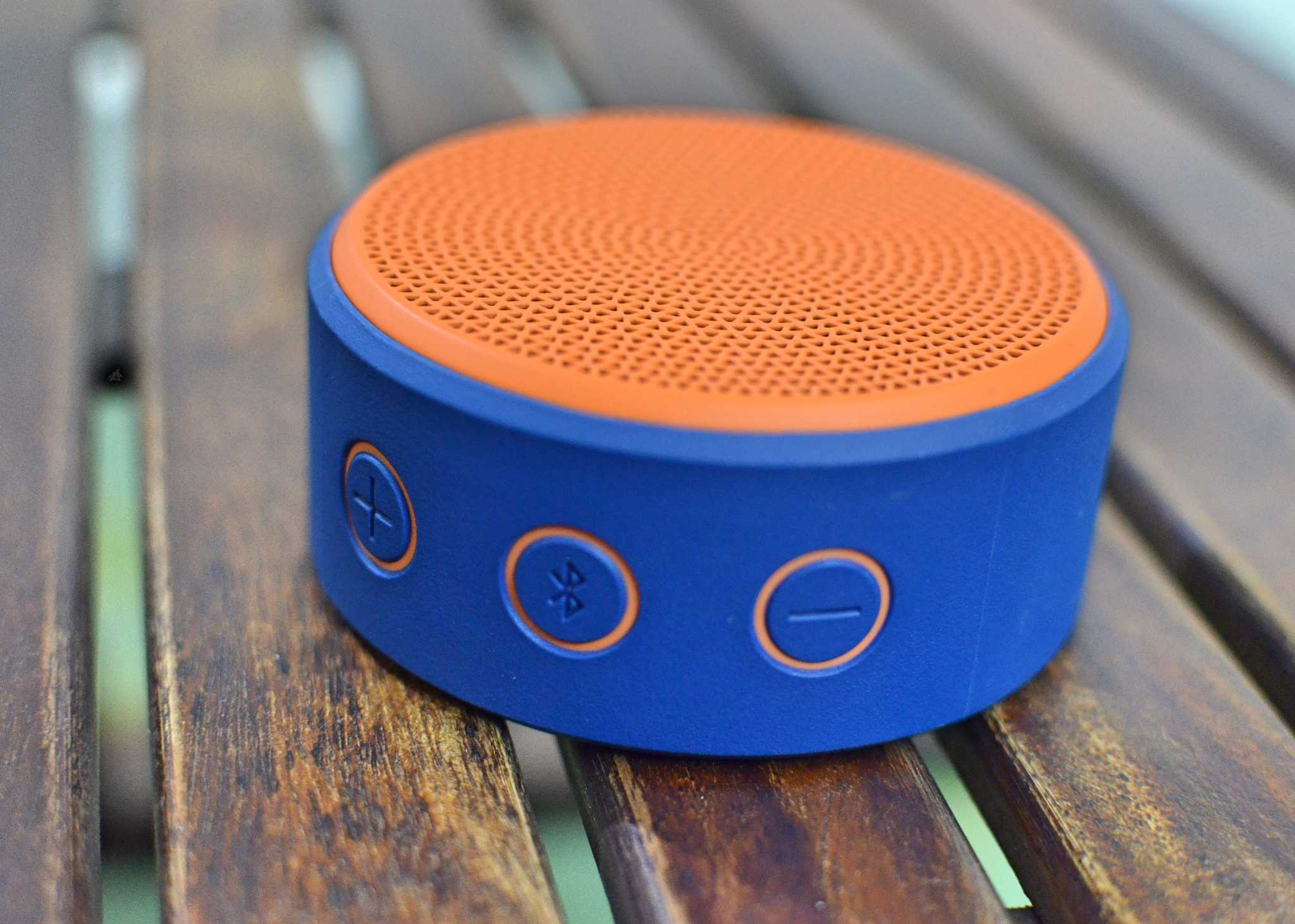
The single most common mistake users make is failing to properly engage pairing mode on their Logitech speaker, causing their laptop to never detect the device. Your specific Logitech model—whether it’s a portable UE Boom, a compact Z207, or a premium MX Sound—requires slightly different activation steps, but the fundamental process remains consistent. First, ensure your speaker has adequate battery power by checking the LED indicator; a low battery often prevents successful pairing. Then locate the dedicated Bluetooth or Pairing button, typically marked with the universal Bluetooth symbol (a stylized “B” resembling a medieval heraldic crest).
Press and hold this button for 3-5 seconds until you observe the visual or auditory pairing signal—this varies significantly by model. For example, the Logitech X100 flashes blue rapidly, the Z333 emits a distinctive double tone, and the MX Sound displays a solid white light. Consult your speaker’s quick start guide for the exact indicator pattern, as misinterpreting these signals leads to failed connections. Crucially, pairing mode is temporary—most Logitech speakers automatically exit this state after 30-60 seconds of inactivity—so have your laptop ready to search for devices immediately after activating pairing mode on the speaker.
Why Your Speaker Might Not Enter Pairing Mode Properly
If your Logitech speaker isn’t responding to pairing button presses, check three critical factors before assuming hardware failure. First, verify the speaker has sufficient charge—a completely drained battery prevents pairing mode activation regardless of button presses. Second, ensure you’re pressing the correct button; some models combine power and Bluetooth functions on a single button requiring different press durations for each action. Third, check for physical obstructions around the button that might prevent proper contact. If your speaker previously paired successfully but now won’t enter pairing mode, try a complete reset by holding the power button for 10-15 seconds until all lights flash, which clears any corrupted connection data stored in the speaker’s memory.
Establish the Bluetooth Connection on Your Windows Laptop
With your Logitech speaker actively broadcasting in pairing mode, navigate to your Windows laptop’s Bluetooth settings using the most reliable method—through the Settings app rather than the quick action menu. Press Windows key + I to open Settings immediately, then select “Devices” followed by “Bluetooth & other devices” in the left sidebar. Toggle Bluetooth to “On” if it’s disabled, watching for the status indicator to change from grayed-out to active. Click “Add Bluetooth or other device” at the top of the screen, which launches the dedicated pairing wizard that’s more reliable than the system tray Bluetooth menu.
In the “Add a device” pop-up window, select “Bluetooth” as your connection type—this tells Windows to actively scan for audio devices rather than mice or keyboards. Your laptop will now search for discoverable devices within range, typically taking 10-15 seconds. When your Logitech speaker appears in the list (usually named something like “Logitech X100” or “MX Sound”), click it once to initiate pairing. Windows will display “Connecting…” followed by “Paired” once the handshake completes successfully. If prompted for a PIN code, most Logitech speakers use “0000” (four zeros), though newer models typically connect without authentication.
Configure Audio Output Settings After Successful Pairing
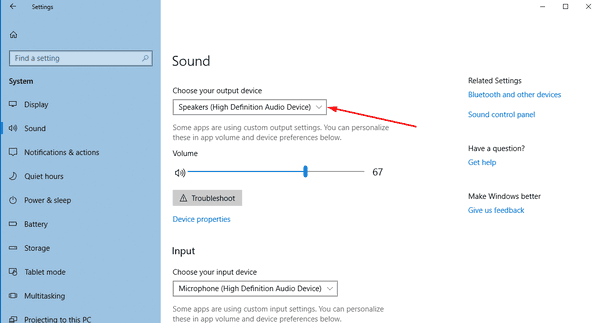
Many users complete the pairing process only to discover sound still plays through their laptop speakers—a frustrating but easily fixed issue. After pairing, you must manually set your Logitech speaker as the default audio output device since Windows doesn’t automatically switch playback sources. Click the speaker icon in your taskbar, then click the small arrow next to the volume slider to reveal available audio devices. From the dropdown menu, select your Logitech speaker name to immediately redirect sound output.
For permanent configuration, right-click the taskbar speaker icon and choose “Sounds” to open the classic audio control panel. Navigate to the “Playback” tab where all connected audio devices appear, then right-click your Logitech speaker and select “Set as Default Device.” This ensures your laptop automatically uses the Bluetooth speaker for all audio whenever it’s connected. If you experience audio dropouts during video calls, check application-specific audio settings—Zoom, Teams, and other communication apps maintain separate audio device preferences that override system defaults.
Troubleshoot Common Logitech Speaker Connection Failures
Even when following all steps correctly, Bluetooth connections can fail due to interference, software glitches, or configuration conflicts. When your laptop detects the speaker but won’t complete pairing, first disconnect any other Bluetooth devices that might be causing signal interference—your wireless mouse or headphones could be conflicting with the speaker connection. Restart both devices completely: power down your speaker, disable then re-enable Bluetooth on your laptop (Windows key + A to open Action Center, then click the Bluetooth tile twice), then retry pairing with the speaker within 3 feet of your laptop.
Fix Persistent “Paired but Not Connected” Status
This frustrating state occurs when Windows shows your Logitech speaker as “Paired” but won’t establish an active audio connection. Right-click the speaker entry in Bluetooth settings and select “Remove device,” then restart both your laptop and speaker before attempting fresh pairing. If the problem persists, update your Bluetooth drivers through Device Manager—outdated drivers frequently cause compatibility issues with newer Logitech models. In Device Manager, expand the “Bluetooth” section, right-click your adapter, and choose “Update driver” followed by “Search automatically for updated driver software.” For stubborn cases, temporarily disable your Wi-Fi connection during pairing since both technologies operate on the 2.4 GHz frequency band and can interfere with each other.
Connect Your Logitech Speaker to a Mac Laptop Successfully
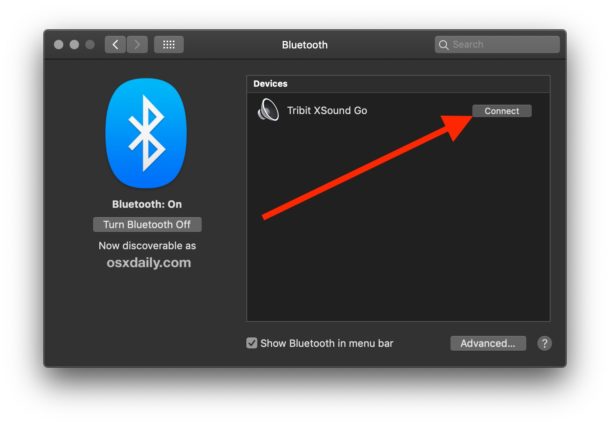
Mac users follow a similar process with macOS-specific interface elements that often confuse Windows converts. Click the Apple menu in the top-left corner, select “System Preferences,” then choose “Bluetooth” from the hardware section. Ensure Bluetooth is enabled using the master switch at the top of the window, then put your Logitech speaker into pairing mode as described earlier. Your speaker should appear in the device list within seconds—click the “Connect” button next to its name rather than “Pair” for most modern Logitech models.
If your Mac doesn’t detect the speaker, hold the Shift + Option keys while clicking the Bluetooth menu bar icon and select “Debug > Reset the Bluetooth module.” This powerful troubleshooting step clears macOS’s Bluetooth cache without affecting other system settings. After resetting, restart both your Mac and speaker before attempting pairing again. For audio output configuration on Mac, click the Apple menu > “System Preferences” > “Sound,” then select your Logitech speaker under the “Output” tab—macOS typically switches automatically but occasionally requires manual selection.
Maintain Optimal Bluetooth Performance with These Proven Tips
Maximize your Logitech speaker’s connection stability by implementing these field-tested practices that prevent common audio issues. Keep your speaker within 10 feet of your laptop with minimal physical obstructions between them—concrete walls and metal objects significantly degrade Bluetooth signals. When experiencing audio dropouts during important calls, temporarily move your laptop closer to the speaker or reposition both devices away from Wi-Fi routers, microwave ovens, and cordless phones that operate on the same 2.4 GHz frequency.
Regularly check your speaker’s battery level through its LED indicators or companion app—most Logitech models deliver weaker Bluetooth performance when battery drops below 20%. For desktop setups, consider plugging your speaker into power during extended use to maintain maximum transmission strength. Finally, periodically “forget” the Bluetooth connection on both devices and re-pair them to clear any accumulated connection data that might cause instability over time. These simple maintenance steps ensure your wireless audio connection remains as reliable as a wired one while delivering the freedom Bluetooth promises.



