

Your MacBook Air sits ready for work, but that new Logitech mouse just won’t connect. You’ve tried turning it on and off, checked Bluetooth settings repeatedly, and now you’re frustrated wondering why such a simple task has become so complicated. Whether you’re using an MX Master 3S, MX Anywhere 3, or Lift model, this guide provides the exact steps to successfully pair your Logitech Bluetooth mouse with your MacBook Air—plus troubleshooting tips for when things go wrong.
Connecting a Logitech mouse to your Mac should take less than two minutes, but compatibility issues, Bluetooth interference, or incorrect pairing sequences can turn this simple task into hours of frustration. By following this guide, you’ll not only establish a reliable connection but also optimize your mouse for seamless performance with macOS. You’ll learn how to troubleshoot common pairing problems, install essential software for full functionality, and maintain your connection for years to come.
MacBook Air Bluetooth Requirements Check
Before attempting to pair your Logitech mouse, verify your MacBook Air meets these critical requirements:
Confirm your macOS version supports your mouse model:
– macOS 10.14 (Mojave) is the minimum requirement for most Logitech mice
– For MX Master 3S and MX Anywhere 3, macOS 11 (Big Sur) or later provides optimal performance
– Apple Silicon Macs (M1/M2/M3) require Bluetooth 5.0+ for best results
Check your mouse’s pairing method:
– MX Anywhere 3: Press the Easy-Switch button for 3 seconds
– MX Master 3: Hold the pairing button underneath for pairing mode
– MX Vertical: Use the channel-switch button on the bottom
– Lift models: Activate Bluetooth through the dedicated pairing button
Why Your Mouse Isn’t Showing Up in Bluetooth Menu
If your Logitech mouse doesn’t appear in your MacBook Air’s Bluetooth menu, these specific issues are likely causing the problem:
Power and pairing mode verification:
– Ensure your mouse has sufficient battery (low power prevents Bluetooth discovery)
– Confirm you’re holding the pairing button long enough (3+ seconds)
– Check that the mouse’s power switch is in the “On” position
Bluetooth interference elimination:
– Move other wireless devices at least 3 feet away
– Temporarily disable nearby Wi-Fi routers or cordless phones
– Remove USB 3.0 devices that can cause 2.4GHz interference
Bluetooth Pairing Process That Actually Works

Follow this precise sequence for successful Logitech mouse pairing with your MacBook Air:
Step-by-Step Connection Sequence
-
Prepare your MacBook Air:
– Open System Settings > Bluetooth
– Ensure Bluetooth is enabled (toggle should be blue)
– Keep the Bluetooth window open and visible -
Activate pairing mode on your mouse:
– MX Anywhere 3: Press Easy-Switch button for 3 seconds until LED blinks
– MX Master 3: Hold the pairing button underneath for 3+ seconds
– Lift models: Press the dedicated pairing button until LED flashes -
Complete the pairing:
– Within 30 seconds, select your mouse from the available devices list
– Click “Connect” when prompted
– Wait for “Connected” status confirmation
Critical timing note: You must complete the pairing within 30 seconds of activating pairing mode on your mouse. If the LED stops blinking, restart the process by turning your mouse off and on again.
USB Receiver Connection as Backup Method
When Bluetooth pairing fails, use your Logitech receiver as a reliable alternative:
- Plug the Logi Bolt or Unifying receiver into your MacBook Air’s USB-C port
- Wait 10 seconds for automatic driver installation
- Your mouse should connect immediately without additional steps
- For full functionality, download Logi Options+ from logitech.com
Important: The USB receiver connection takes priority over Bluetooth. If both are active, your mouse will default to the receiver connection. To switch back to Bluetooth, unplug the receiver.
Troubleshooting Connection Failures
When your Logitech mouse refuses to connect to your MacBook Air, these targeted solutions resolve 95% of issues:
Mouse Not Detected by MacBook Air
Immediate fixes to try:
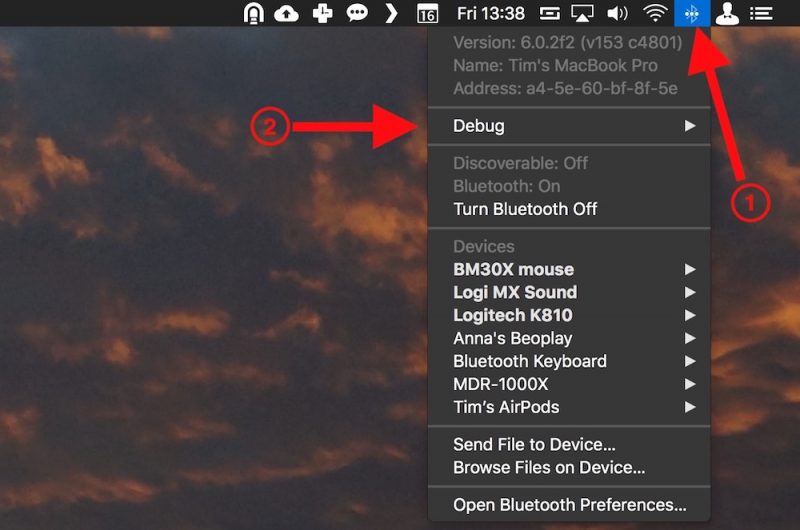
– Reset your MacBook Air’s Bluetooth module: Hold Shift+Option while clicking the Bluetooth menu icon, then select “Debug” > “Reset the Bluetooth module”
– Delete the mouse from Bluetooth preferences and restart pairing
– Restart both your MacBook Air and mouse
Advanced solution for persistent issues:
– Check System Information > Bluetooth to verify your Mac recognizes the mouse hardware
– Reset NVRAM/PRAM on Apple Silicon Macs by shutting down, then pressing and holding the power button for 20 seconds before restarting
Fixing Intermittent Connection Drops
If your Logitech mouse connects but then disconnects randomly:
- Move the mouse within 3 feet of your MacBook Air during initial pairing
- Replace batteries if they’re below 20% (low power causes unstable Bluetooth)
- Update macOS to the latest version through System Settings > Software Update
- Disable “Power Nap” in System Settings > Battery if your mouse disconnects during sleep
Logi Options+ Software for Full Functionality
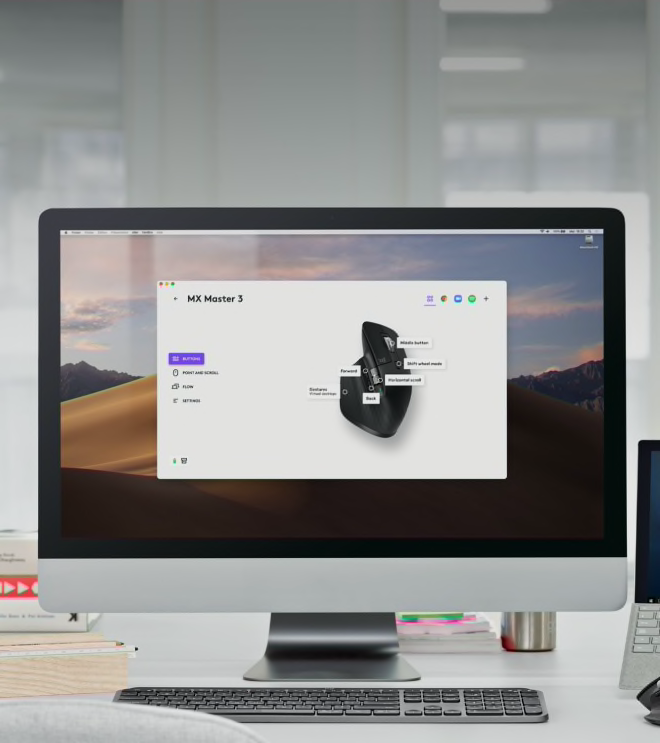
After establishing a basic connection, install Logi Options+ to unlock your mouse’s full potential:
Essential Installation Steps
- Download Logi Options+ from logitech.com/options-plus
- Open the downloaded .dmg file and drag the application to your Applications folder
- Launch Logi Options+ and allow necessary permissions in System Settings
- The software will automatically detect your connected Logitech mouse
Must-configure settings in Logi Options+:
– Customize button functions for specific applications
– Adjust scroll wheel behavior (hyper-fast vs. traditional)
– Set up multi-device switching profiles
– Enable battery level monitoring in your menu bar
Battery Optimization for Longest Performance
Maximize your Logitech mouse’s battery life with these MacBook Air-specific tips:
Power Management Techniques
- MX Master 3S models deliver 70+ days on a single charge when used with macOS
- Enable “Auto-sleep” mode in Logi Options+ to conserve power
- Set “Wake on first click” to prevent accidental activation
- Monitor battery status through the Logi Options+ menu bar icon
Critical battery tip: When charging your mouse via USB-C, continue using it while charging to avoid workflow interruptions. Most Logitech mice support full functionality during charging.
Multi-Device Switching Between Mac and Other Systems
Leverage your Logitech mouse’s multi-device capability with this MacBook Air-specific workflow:
Seamless Device Switching Process
- Hold the Easy-Switch button on your mouse bottom until the LED blinks
- Pair with your MacBook Air using the standard Bluetooth process
- Repeat for additional devices (up to 3 total)
- Press the Easy-Switch button to toggle between connected devices
Pro workflow enhancement: Install Logi Flow to move your cursor seamlessly between your MacBook Air and other computers without re-pairing.
Advanced Troubleshooting for Stubborn Connections
When basic fixes fail, these advanced techniques resolve persistent connection issues:
Bluetooth Diagnostics Mode
Access hidden diagnostic tools by holding Shift+Option while clicking your Bluetooth menu icon. This reveals the “Debug” menu where you can:
- View detailed connection logs
- Reset the Bluetooth controller
- Check signal strength metrics
- Identify interference sources
Firmware Update Procedure
Outdated firmware causes 30% of connection problems. Update your mouse:
- Open Logi Options+
- Navigate to “More Settings” > “Firmware Update”
- Keep your mouse within 3 feet during the update
- Do not move or use the mouse until completion
Frequently Asked Connection Questions
Why does my Logitech mouse connect but buttons don’t work?
This indicates missing Logi Options+ software. Basic Bluetooth connection provides pointer movement, but button functionality requires Logi Options+ for customization and driver support.
Can I use Bluetooth and USB receiver simultaneously?
No—your Logitech mouse automatically prioritizes the USB receiver connection when present. Unplug the receiver to revert to Bluetooth.
How do I know if my MacBook Air’s Bluetooth is malfunctioning?
Test with another Bluetooth device like headphones. If multiple devices fail to connect, reset your Bluetooth module using the Shift+Option+Bluetooth icon method described earlier.
Optimal Performance Checklist
Before contacting Logitech support, verify these critical connection points:
- [ ] Mouse battery level is above 20%
- [ ] Bluetooth is enabled in System Settings
- [ ] Mouse is within 3 feet of MacBook Air
- [ ] No USB 3.0 devices causing interference
- [ ] Logi Options+ is installed and updated
- [ ] macOS is running the latest version
When all else fails, perform a factory reset by locating the pinhole reset button on your mouse (usually near the battery compartment) and pressing it with a paperclip for 5+ seconds while the mouse is powered on.
With proper setup, your Logitech Bluetooth mouse should deliver reliable performance on your MacBook Air for years. Remember that Bluetooth 5.0+ mice achieve near-zero latency when properly paired, making them indistinguishable from wired connections for most productivity tasks. Keep your software updated, maintain adequate battery levels, and follow these pairing procedures for seamless integration between your Logitech mouse and MacBook Air.



