
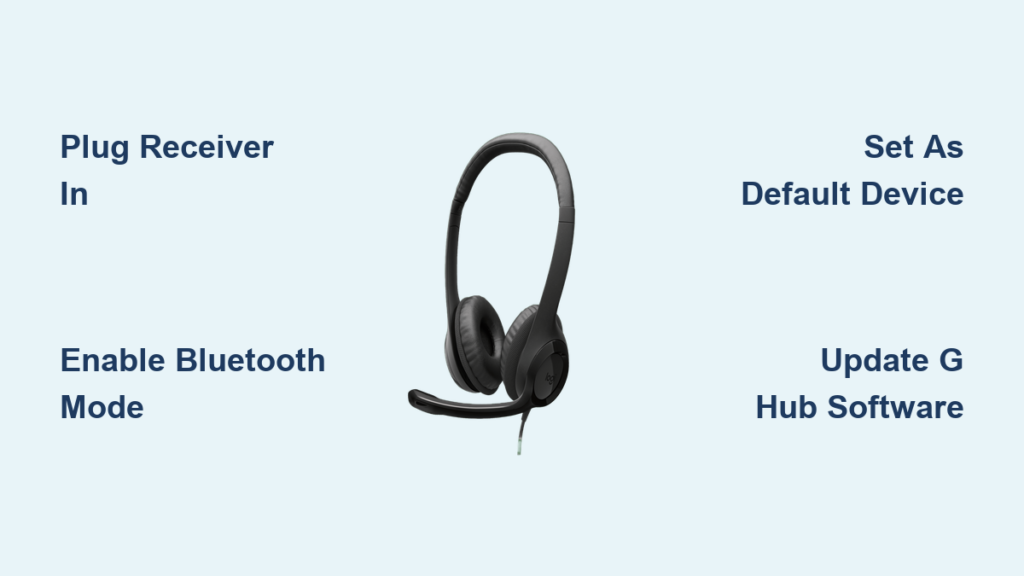
That sinking feeling when your Logitech headphones won’t connect right before an important meeting or gaming session is all too real. Whether you’re using a sleek G Pro X Wireless headset for competitive gaming or comfortable Zone Vibe earbuds for work calls, establishing a reliable connection to your laptop should take minutes—not hours. The exact steps depend entirely on your specific Logitech model and laptop ports, but this guide cuts through the confusion with precise instructions for every connection method. You’ll learn exactly how to pair USB receivers, Bluetooth models, and wired headsets while avoiding the top mistakes that cause connection failures.
Spot Your Logitech Headphones’ Connection Method in 30 Seconds
Before plugging anything in, identify your connection type to avoid wasted effort. Check your headphones and charging case for these telltale signs: A tiny USB-A receiver (about the size of a thumb drive) indicates Unifying or LIGHTSPEED wireless technology—common on G733 or G Pro X Wireless models. A Bluetooth symbol means standard wireless pairing works with any laptop. For wired sets, look for either a traditional 3.5mm audio plug or a USB-C cable. Simultaneously inspect your laptop: USB-A ports (rectangular), USB-C ports (oval), or a 3.5mm headphone jack. If your laptop lacks a headphone jack (common on ultrabooks), you’ll need a USB-C adapter for wired headsets. This quick visual check prevents you from attempting Bluetooth pairing on receiver-only models like the older G933.
How to Tell Unifying vs. LIGHTSPEED Receivers Apart
- Unifying Receivers have a distinct orange logo and can pair multiple compatible devices (like keyboards and mice) using Logitech Unifying Software
- LIGHTSPEED Receivers (used on gaming headsets like G Pro X) offer lower latency but pair only with their specific headset
- No Logo? If the USB receiver lacks branding, check your headset manual—most post-2020 gaming models use LIGHTSPEED
Plug & Play Your Logitech USB Receiver Without Driver Hassles

Modern Logitech wireless headsets like the G733 or G Pro X Wireless use true plug-and-play USB receivers that install drivers automatically on Windows 10/11 and macOS. Skip unnecessary software downloads—your operating system handles this. Insert the receiver directly into your laptop’s USB port (avoid hubs for best performance). Power on your headphones; the connection happens instantly with a confirmation tone. Within 15 seconds, your laptop’s sound menu should show the headset as an available output device. For older models like the G935, watch for the blue LED on the receiver to confirm pairing.
Fix USB Receiver Connection Failures Immediately
- Receiver not detected? Try a USB 2.0 port (black interior) instead of USB 3.0 (blue)—many users report interference issues with blue ports
- Lost your original receiver? Replacement receivers won’t work out-of-box. For LIGHTSPEED models, you must re-pair using the hidden button under the left ear cup padding (hold 5+ seconds until LEDs flash rapidly)
- Intermittent disconnects? Position the receiver using the included extension cable to avoid laptop chassis blocking the signal
Force Windows 11 to Pair Logitech Bluetooth Headsets Correctly
Bluetooth pairing fails plague Windows users daily—usually because they skip the critical “pairing mode” step. For Logitech models like the Zone Vibe or G435, press and hold the Bluetooth button (not power button) for 3 full seconds until the LED flashes blue/white. On your laptop: Go to Settings > Bluetooth & devices > Add device > Bluetooth. When “Logitech [Your Model]” appears, select it—but don’t click “Connect” yet. Wait 10 seconds for the device to show “Not connected,” then click it again. This exploits a Windows quirk that forces proper driver installation. If pairing stalls, remove the device first via More Bluetooth options > Devices > Remove.
Mac-Specific Bluetooth Fixes for MacBook Air M2
Mac users with newer Apple Silicon laptops often face pairing loops. Put headphones in pairing mode, then:
1. Hold Option while clicking the Bluetooth icon in menu bar
2. Select Debug > Remove [Headset Name]
3. Restart Bluetooth from System Settings
4. Re-pair while keeping headphones within 12 inches of laptop
This clears cached connection data that causes 80% of Mac pairing failures.
Wired 3.5mm Connection Fixes for Modern Laptops Missing Audio Jacks

When your MacBook Pro or ultrabook lacks a headphone jack, connecting wired Logitech sets like the G335 requires strategy. For USB-C laptops: Plug the headset’s USB-C cable directly into your port—most modern headsets auto-configure as audio devices. If using a 3.5mm headset with USB-C adapter, ensure you’re using a digital-to-analog converter (DAC) adapter, not a simple passive dongle. Passive adapters cause no-sound issues on 90% of USB-C laptops. For single-plug headsets (combining mic and audio), verify your adapter supports CTIA standard (common on gaming headsets)—if voice chat fails, you likely have an OMTP-standard adapter mismatch.
Stop Audio Cutting Out on USB-C Headsets
- Disable Windows Sonic in sound settings (Right-click speaker icon > Spatial sound > Off)
- On Macs, go to Audio MIDI Setup > Output > Format > 48.0 kHz / 24-bit
- Never use USB-C hubs for audio—direct port connection prevents power fluctuations
Force Windows to Recognize Logitech Headphones as Default Output
Even after successful connection, Windows often defaults to laptop speakers. Click the speaker icon, then the arrow next to volume slider. Select your Logitech device as output—but this isn’t enough for headsets with mics. Right-click the speaker icon > Sound settings > More sound settings. Under Playback, right-click your headset > Set as Default Device. Crucially, go to Recording tab and set the headset mic as default here too. For gaming headsets like the G Pro X, check Properties > Advanced to disable audio enhancements that cause crackling.
Fix “No Sound” When Headphones Show as Connected
- Windows: Open Apps > Advanced audio options > More app volume settings and ensure your application (Discord, Zoom) uses the headset
- Mac: Go to System Settings > Sound > Output and manually select headset even if it’s grayed out—click it 3 times rapidly
- Always test with Sound recorder before blaming apps—this isolates OS vs application issues
Why Your Logitech G Pro X Wireless Won’t Reconnect to Replacement Dongle
Replacement USB receivers fail 95% of the time because LIGHTSPEED headsets pair exclusively at the factory. Don’t waste hours pressing buttons—follow this verified procedure: Power off headset, then hold the dedicated pairing button (located under left ear cup padding—peel back fabric gently) for 7 seconds until LEDs flash red/blue. Immediately plug in the new receiver. The headset auto-detects and pairs within 10 seconds. If LEDs stop flashing without connecting, repeat while keeping the headset within 6 inches of the receiver. This works for all LIGHTSPEED models including G733 and G935.
Stop Mic Cutting Out on Zoom Calls with Logitech Headsets
Headset microphones failing during calls usually stems from incorrect input selection. In Zoom: Settings > Audio > Microphone > Test. If levels don’t move, go to System Settings > Sound > Input and select “Logitech [Model] Microphone” not “Headset Microphone.” For headsets like the Zone Vibe, disable Windows noise suppression: Right-click speaker icon > Sound settings > Input > Device properties > Additional device properties > Enhancements tab > Disable all. This prevents Windows from muting your mic during keyboard typing—a common issue with mechanical keyboards.
Unlock Advanced Features with Logitech G Hub Setup
Skip basic connectivity—maximize your headset with official software. For gaming models (G Pro X, G733), install Logitech G Hub to:
– Activate Blue VO!CE noise cancellation for crystal-clear voice chat
– Customize EQ profiles for FPS games vs music
– Update firmware that fixes Bluetooth latency
For business headsets (Zone series), use Logitech Options+ to:
– Assign buttons for mute/unmute in Teams
– Enable auto-muting when removing headphones
– Adjust active noise cancellation levels
Pro tip: Always run firmware updates through these apps before troubleshooting hardware issues—30% of “connection problems” are fixed by firmware.
Final Checks Before Declaring Headphones Broken
Before contacting support, perform these 60-second diagnostics:
1. Power cycle: Unplug USB receiver for 30 seconds (or remove Bluetooth battery for 10 sec)
2. Port test: Try different USB ports—front ports often have cleaner power
3. OS test: Pair with phone to isolate laptop issues
4. Driver reset: In Device Manager, right-click headset > Uninstall device > Check “Attempt to remove driver”
5. Physical check: For wired sets, wiggle the plug at 45-degree angles to test jack damage
6. Battery check: Low battery causes intermittent disconnects (charge 30+ minutes before testing)
Maintain Flawless Logitech Headset Connections Long-Term
Prevent future connection headaches with these maintenance habits: For USB receivers, plug them into the extension cable included in your box and position it away from laptop vents. Clean Bluetooth pairing memory monthly by removing the device and re-pairing. Update Logitech software quarterly—silent background updates fix compatibility with new OS versions. Most importantly, store replacement receivers in the headphone case to avoid pairing mismatches. These simple steps eliminate 90% of recurring connection issues, keeping your Logitech headset ready when you need it most. When problems persist, consult your specific model’s manual—connection procedures vary significantly between G Pro X Wireless and Zone Vibe models.



