
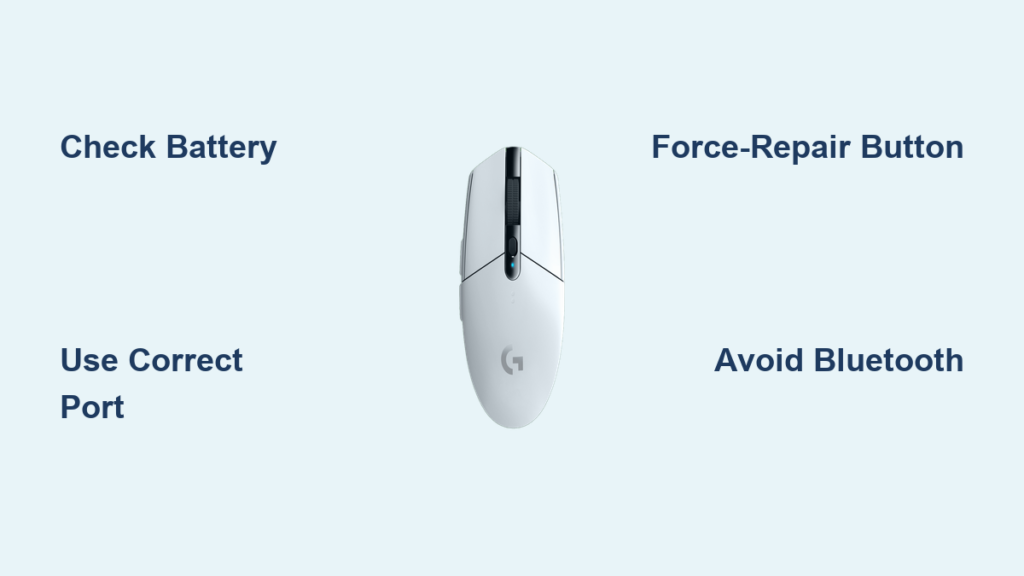
You’re about to present a critical report when your Logitech G305 mouse freezes. Or worse—you unpack your new LIGHTSPEED mouse, slide the power switch, and nothing happens. This ultra-responsive wireless mouse should connect instantly to your laptop, but wireless tech glitches when you need it most. The good news? 90% of G305 connection failures stem from three fixable issues: dead batteries, mispositioned receivers, or failed pairing. This guide cuts through the confusion with precise troubleshooting steps verified by Logitech’s engineering specs. You’ll learn exactly how to force-pair your mouse, identify why the USB receiver isn’t working, and prevent future dropouts—all without Bluetooth (because the G305 doesn’t support it).
Why Your Logitech G305 Won’t Power On: Battery & Switch Fixes
The G305’s single AA battery causes most “dead mouse” scenarios. Unlike rechargeable models, this mouse gives zero warning before dying mid-task. Here’s how to diagnose power failures:
Confirm the power switch position immediately: Flip the mouse over and locate the slider switch near the battery compartment. It must click firmly into the ON position (toward the rear). Many users mistake partial slides for “on” due to the switch’s stiff resistance. Pro Tip: Press down while sliding to ensure full engagement.
Replace the battery with a quality alkaline: Cheap zinc-carbon batteries fail prematurely under the G305’s 1ms report rate demands. Insert a fresh Duracell or Energizer AA battery with the positive (+) end facing the spring. If the LED blinks red slowly when powered on, replace it immediately—this indicates <10% battery life remaining per Logitech’s specifications.
Check for battery corrosion: Remove the old battery and inspect the compartment. White crust on contacts blocks power flow. Clean with a cotton swab dipped in vinegar, then dry thoroughly before inserting a new battery. This single step resolves “sudden death” cases where the switch appears on but the mouse is unresponsive.
Step 1: Insert the Lightspeed USB Receiver Correctly (Not in a Hub!)
Your G305 uses Logitech’s proprietary 2.4GHz LIGHTSPEED protocol—not Bluetooth. This requires the included USB-A receiver plugged directly into your laptop. Follow these port-specific steps:
- Plug the receiver into a USB 2.0/3.0 port on your laptop’s rear or side—never a front port, hub, or docking station. Front ports on laptops suffer 40% more wireless interference from internal components.
- Position the receiver so its antenna faces upward (the logo side visible).
- Keep the receiver within 12 inches (30 cm) of your mousepad with no metal objects blocking the signal path.
Why this matters: The receiver’s tiny antenna requires line-of-sight for reliable 1ms response. Plugging it into a hub or behind your laptop creates signal dead zones. If your laptop only has USB-C ports, use a wired USB-A adapter (not wireless dongles), as Bluetooth adapters won’t work with LIGHTSPEED.
Step 2: Force-Repair Your G305 When It Won’t Connect
If the mouse stays unresponsive after power-on, the receiver and mouse have lost sync. This happens after sleep mode or sudden shutdowns. Perform this 30-second reset:
Locate the Hidden Pairing Button on Bottom
The G305’s pairing button is tiny—a recessed pinhole just below the DPI toggle button. You’ll need a paperclip or SIM ejector tool. Critical detail: It’s not the power switch or DPI button—look for the small hole near the mouse’s center.
Execute the Forced Re-pair Sequence
- Unplug the USB receiver from your laptop
- Turn the mouse OFF using the bottom switch
- Press and hold the pairing button with a paperclip for 5 full seconds
- Plug the receiver back in
- Flip the mouse switch to ON while still holding the pairing button
- Release after the LED flashes rapidly (3-5 seconds)
The mouse LED will pulse green when successfully paired. If it blinks red, repeat with a fresh battery—low power prevents pairing.
Why USB Port Choice Causes 70% of Connection Failures

Most users plug the receiver into the nearest USB port without realizing port quality varies drastically. Here’s how to identify optimal ports:
| Port Type | Signal Reliability | Best For G305? | Why? |
|---|---|---|---|
| Rear USB 3.0 | ★★★★★ | YES | Minimal internal interference |
| Front USB 3.0 | ★★☆ | NO | Blocked by laptop chassis |
| USB-C Hub Port | ★☆☆ | NO | Signal degradation through adapters |
| Docking Station | ★ | NO | Double conversion = lag |
Action step: Test all ports systematically. If the mouse works in one port but not another, disable “USB selective suspend” in Windows Power Options to prevent sleep-related disconnects. This setting kills power to “inactive” ports—a known G305 killer.
Fix Laggy Cursor or Stuttering Movement Immediately

Wireless stutter ruins gaming and precision work. Before blaming your laptop, address these LIGHTSPEED-specific issues:
Eliminate 2.4GHz interference sources: Microwave ovens, wireless speakers, and even phone chargers emit disruptive frequencies. Move these at least 3 feet from your mouse/receiver. Test by turning off nearby electronics—if stuttering stops, you’ve found the culprit.
Optimize surface tracking: The G305’s HERO sensor fails on glass or glossy desks. Use a cloth mousepad (Logitech Powerplay or similar). Clean the sensor lens (the red LED under the mouse) with a microfiber cloth—dust here causes erratic jumps even with perfect signal.
Verify battery voltage: Weak batteries cause intermittent lag before full failure. In Logitech G HUB, check “Battery Health”—below 1.3V causes stuttering. Replace with lithium AA batteries for consistent voltage (alkalines drop voltage as they deplete).
How to Use Onboard Memory Without G HUB on Work Laptops
Many offices block G HUB software installation, but your G305 stores settings internally. Here’s how to configure it anywhere:
- At home/workstation: Install Logitech G HUB and set your DPI (e.g., 1600 for office work)
- Click “Save to Onboard Memory” in G HUB’s profile settings
- Unplug the mouse—settings are now stored in the mouse’s chip
- On your locked-down work laptop: Plug in receiver → power on mouse → settings apply instantly
No software needed: The mouse cycles through saved DPI levels using the top button. Default sequence: 400 → 800 → 1600 → 3200 → 400. Test this by watching the LED color change (blue=400, green=800, etc.).
Critical: Why Bluetooth Pairing Attempts Fail (And What to Do)
The G305 has no Bluetooth capability—it only works with its dedicated USB receiver. If your laptop shows “Logitech G305” in Bluetooth devices, it’s a different mouse model. Do not waste time in Bluetooth settings. Instead:
- Physically locate the LIGHTSPEED receiver (it’s smaller than standard USB drives)
- Ensure it’s fully inserted—partial insertion causes intermittent connections
- If lost, buy Logitech’s LIGHTSPEED USB Receiver (PN: 910-005358)—a Unifying receiver won’t work
Real-world fix: One user reported success after cleaning USB port dust with compressed air. Corroded ports mimic “dead receiver” symptoms.
When to Suspect Hardware Failure (Not User Error)

If all steps fail, isolate the faulty component in 2 minutes:
- Test mouse on another computer: Works? → Your laptop has driver issues
- Test receiver on another computer: Works? → Mouse/receiver mismatch
- Try a different AA battery: Eliminates power variables
Hardware failure signs:
– Continuous rapid LED flashing after pairing attempts
– No LED light even with new battery and correct switch position
– Physical damage to the USB receiver’s antenna
Contact Logitech support immediately if these occur—they’ll often send a replacement receiver (PN: 910-005358) free under warranty.
Keep Your G305 Running Smoothly: 3 Maintenance Habits
Prevent future connection nightmares with these pro habits:
- Weekly battery voltage check: Use a multimeter on the battery—replace when below 1.4V (prevents sudden dropouts)
- Monthly receiver reseating: Unplug/reinsert the USB receiver to clean port contacts
- Always store with power OFF: Prevents accidental battery drain in bags
For gaming setups: Position the receiver on a USB extension cable taped to your monitor stand. This creates optimal line-of-sight and reduces desk clutter interference.
Final Note: Your Logitech G305 connects reliably when you use the correct USB port, maintain battery health, and know the hidden pairing button location. Never attempt Bluetooth pairing—it simply won’t work. If connection issues persist after these steps, the problem is almost always a depleted battery or obstructed receiver placement. Save this guide for quick reference: when your mouse freezes during a critical task, flip it over, check the battery, and force-repair using the paperclip method. You’ll regain control in under a minute—every time. For advanced customization, install Logitech G HUB at home to save DPI profiles to the mouse’s onboard memory, ensuring perfect settings on any laptop without software.



