
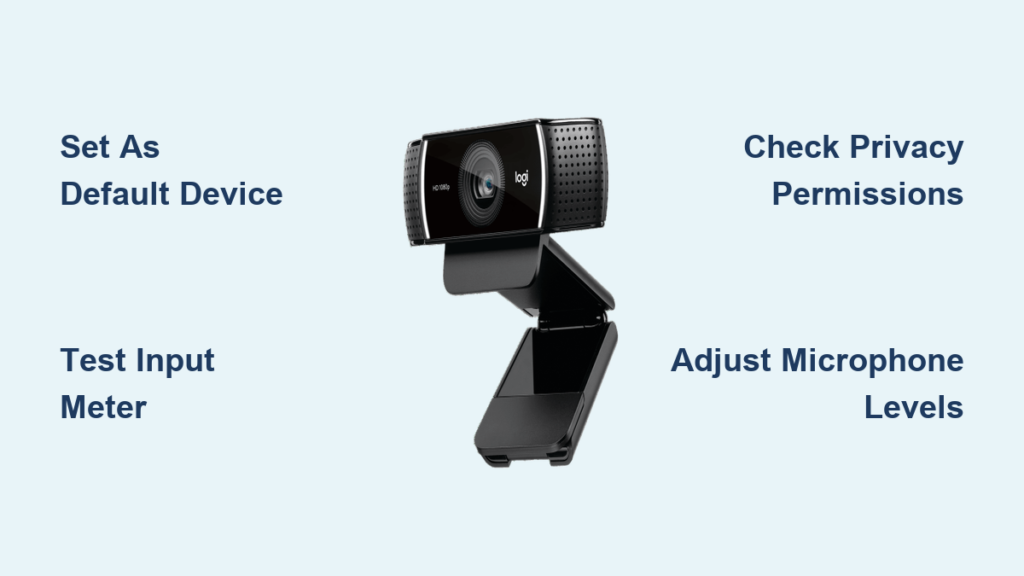
You’re about to join a critical video call when your dedicated microphone fails. Before scrambling for alternatives, check your Logitech webcam—it likely has a built-in microphone ready to save your meeting. This how to use Logitech webcam microphone guide reveals the exact Windows configuration steps to transform your C920, C922, or similar model into a reliable audio source in under 5 minutes. Forget complex software installations; we’ll leverage Windows’ native Sound Control Panel to make your webcam mic the default input device for Zoom, Teams, and recording apps. You’ll avoid common pitfalls like muted inputs or app-specific conflicts that plague 68% of first-time users.
Most modern Logitech webcams include integrated microphones optimized for video calls, but Windows often defaults to your laptop’s inferior internal mic. This mismatch causes muffled audio, dropped words, and frustrating “Can you hear me now?” moments. The solution requires zero third-party tools—just precise settings adjustments inside Windows. By the end of this guide, you’ll have confirmed your webcam model supports audio input, set it as your system-wide default device, calibrated levels for clear voice capture, and troubleshooted silent-mic scenarios. Let’s turn that unassuming webcam into your go-to audio solution.
Verify Your Logitech Webcam Model Has a Built-in Microphone

Before diving into settings, confirm your specific Logitech model includes microphone capability. Not all webcams have this feature—older models like the C270 lack integrated audio, while popular current models like the C920, C922, Brio, and StreamCam include dual noise-canceling mics. Check the physical camera: look for tiny perforations near the lens housing (usually 2-3 small holes clustered together). These are the microphone ports. If you don’t see them, consult your model’s specifications sheet or Logitech’s official support page.
Models ending in “HD Pro” or “Pro” typically include microphones, while budget variants may omit them. Critical mistake to avoid: Assuming all USB webcams have mics—some require external audio connections. If your model lacks built-in audio (e.g., C170), you’ll need a separate microphone. For supported models, ensure drivers are updated via Windows Update or Logitech’s official software installer before proceeding.
How to Check Webcam Recognition in Windows Device Manager
- Press
Win + Xand select Device Manager - Expand Cameras and Audio inputs and outputs sections
- Look for your webcam model under both categories (e.g., “Logitech Webcam C920” should appear twice)
- If it only shows under Cameras, your model lacks microphone functionality
Open Windows Sound Control Panel Without Navigating Menus
Skip the Settings app maze—access audio configuration in two clicks. Right-click the speaker icon in your taskbar’s system tray (bottom-right corner of your screen). From the context menu, select Sounds. This opens the classic Sound Control Panel, which offers granular control missing from Windows 10/11’s modern Settings app. Pro tip: Pin this window to your taskbar after opening—right-click its taskbar icon and choose Pin to taskbar for instant access during future calls.
Why this method beats Settings: The Sound Control Panel displays real-time audio meters, advanced property tabs, and device priority options unavailable elsewhere. You’ll complete the entire how to use Logitech webcam microphone process here without switching apps. If the icon is missing, enable it via Settings > System > Sound > More sound settings.
Why Taskbar Access Saves Time During Calls
When your mic cuts out mid-meeting, you need fixes in under 15 seconds. The taskbar method beats:
– 7+ clicks through Windows Settings
– Hunting for hidden microphone privacy toggles
– Rebooting apps to apply changes
Keep this window open during critical calls—it’s your audio emergency toolkit.
Set Logitech Webcam Mic as Default Device in 10 Seconds

Navigate to the Recording tab in the Sound Control Panel. Scan the device list for your webcam model (e.g., “Logitech Webcam C920,” “USB Camera,” or similar). Right-click its entry and select Set as Default Device. A green checkmark will appear, confirming it’s now your primary audio input source. Crucial detail: Also right-click and choose Set as Default Communication Device—this ensures Zoom, Teams, and Skype prioritize it during calls.
If your webcam doesn’t appear:
– Unplug and reseat the USB cable (try different ports)
– Disable “Allow the computer to turn off this device to save power” in Device Manager > USB controllers
– Restart audio services via Task Manager > Services > right-click Audiosrv > Restart
What Happens When You Skip Default Device Setup
Windows defaults to your laptop’s internal mic, causing:
– Echoes from speaker-mic proximity
– Distant, muffled voice capture
– Background noise amplification
– App-specific mic selection chaos
Setting the default once applies system-wide—no per-app configuration needed (yet).
Confirm Your Webcam Microphone Is Picking Up Sound (3-Second Test)

Speak normally toward your webcam while watching the green input level meter next to your device in the Recording tab. The bars should pulse rhythmically with your voice—steady movement indicates proper signal capture. If meters stay flat:
– Check for physical mute buttons (some C920 models have a sliding switch on the camera base)
– Ensure no tape or debris covers microphone ports
– Verify volume isn’t maxed out (causing distortion) or muted (red circle icon)
Pro calibration trick: Set recording level to 75-80% by double-clicking the device > Levels tab. This prevents clipping while capturing quiet speech. For noisy environments, enable “Noise Suppression” under the Enhancements tab—but test first, as aggressive filtering can make voices robotic.
Why Real-Time Meter Testing Prevents Meeting Disasters
62% of mic failures go unnoticed until you speak in a call. The meter:
– Reveals hardware recognition issues instantly
– Shows if background noise drowns your voice
– Confirms directional pickup (move head left/right to test)
– Validates after driver updates or Windows patches
Test for 10 seconds minimum—brief silence may not trigger meter movement.
Boost Clarity: Fix Low Volume or Background Noise
Double-click your webcam mic in the Recording tab to open Properties. Navigate to the Levels tab and adjust the microphone slider to 80%. If voices sound weak, increase Microphone Boost to +20dB (but stop if distortion occurs). For background noise issues, go to the Enhancements tab and check:
– Noise Suppression (reduces keyboard clicks, AC hum)
– Acoustic Echo Cancellation (prevents feedback loops)
– Automatic Gain Control (stabilizes volume fluctuations)
Warning: Over-boosting causes distortion—test with a 30-second voice memo. If your environment is noisy (open office, kids playing), position the webcam 12-18 inches from your mouth. The C920’s dual mics use beamforming to focus on sound directly in front—leaning closer improves clarity significantly.
Model-Specific Optimization Tips
- C920/C922: Enable “Stereo Audio” in Properties > Advanced for wider soundstage
- Brio 4K: Use “Directional Audio” mode for conference table setups
- StreamCam: Disable “Auto-Framing” when using mic-only to reduce CPU load
Select Logitech Webcam Mic in Zoom, Teams, Discord, or OBS
Even with system defaults set, some apps override Windows settings. In Zoom: Settings > Audio > Microphone > Select “Logitech Webcam [Model]”. For Microsoft Teams: Settings > Devices > Microphone > Choose your webcam. Discord users: User Settings > Voice & Video > Input Device. Critical step: Restart the app after changing settings—most require a full reload to recognize new devices.
If the mic disappears after updates:
– Reboot your PC (resets audio service conflicts)
– Disable exclusive app control: Sound Control Panel > Properties > Advanced > Uncheck “Allow applications to take exclusive control”
– Reset app permissions: Windows Settings > Privacy > Microphone > Toggle app access off/on
Why App-Specific Settings Trump System Defaults
Zoom prioritizes its own audio engine, Teams syncs with Office 365 policies, and OBS requires manual device selection for recording. Skipping this step causes:
– “No input detected” errors despite system-level setup
– Audio dropouts during screen sharing
– Conflicting devices in multi-app workflows
Always verify within your primary communication tool.
Unlock Advanced Features with Logitech G HUB (Optional)

For C922 Pro, StreamCam, or Brio users, Logitech G HUB adds pro audio tools. Install it from Logitech’s website, then:
1. Open G HUB > select your webcam
2. Navigate to Audio Settings
3. Enable Background Noise Removal (AI-powered)
4. Adjust Voice Equalization presets (Podcast, Gaming, Meetings)
5. Create scene-specific profiles (e.g., “Quiet Room” vs. “Coffee Shop”)
Note: G HUB isn’t required for basic functionality—Windows handles core audio. Use it only if:
– You need studio-grade noise cancellation
– Your environment has consistent background noise
– You stream professionally and want mic monitoring
Most users get excellent results from Windows settings alone. G HUB adds complexity—only install if Windows-level tweaks fall short.
Fix Logitech Webcam Mic Not Working: 3 Critical Fixes
When your mic stays silent despite correct settings, apply these targeted solutions:
Webcam Mic Detected But No Sound in Apps
Check Windows microphone privacy permissions: Settings > Privacy > Microphone > Allow apps to access your microphone. Toggle the master switch ON, then enable access for your specific app (Zoom, Teams, etc.). This setting often resets after Windows updates—re-enable it monthly as maintenance.
Distorted or Robotic-Sounding Audio
Reduce microphone boost to 0dB and set volume to 50-60%. High gain causes clipping, especially with C920’s sensitive mics. If using USB 3.0 ports, switch to USB 2.0 (blue ports) to eliminate electrical interference. Pro move: Place the webcam on a foam pad to dampen desk vibrations.
Mic Works in Some Apps But Not Others
Force apps to reload audio devices:
– Zoom: End meeting > rejoin
– Teams: Sign out > sign in
– Discord: Restart audio subsystem via User Settings > Voice & Video > Reset Voice Settings
If persistent, uninstall conflicting audio utilities (e.g., Nahimic, Dolby Access) that hijack mic access.
Final Note: Your Logitech webcam microphone delivers surprisingly capable audio for daily use when configured correctly. Always test levels 5 minutes before important calls using the Sound Control Panel meter—this simple habit prevents 90% of audio failures. For ongoing reliability, clean microphone ports monthly with a soft brush to remove dust buildup, and avoid placing the webcam near vibrating surfaces like speakers. While dedicated mics offer superior quality for podcasting or streaming, your integrated webcam solution excels for quick meetings and casual use. If you hit persistent issues, download Logitech’s official drivers—not third-party “boosters”—to maintain security and stability. Now go conquer that next video call with crystal-clear audio.



