
When your Logitech G Hub won’t open, your gaming peripherals lose their personality—no custom DPI settings, RGB lighting profiles, or macro configurations. You’re stuck with default settings while staring at that frustrating loading screen that never progresses. This common issue affects G Pro X Superlight, G502, and G Pro Wireless users alike, often striking after Windows updates or seemingly out of nowhere after months of smooth operation. Don’t panic—this guide delivers proven solutions to get your G Hub running again, whether you’re dealing with an infinite loading screen or complete launch failure.
The “Logitech G Hub won’t open” problem typically stems from corrupted installation files, permission conflicts, or software interference. What makes this particularly annoying is how it leaves your expensive gaming gear functioning but stripped of customization. Whether you’re mid-competitive match or setting up for a stream, this guide provides immediate fixes and long-term prevention strategies. You’ll learn exactly how to perform a surgical cleanup of corrupted files, bypass security conflicts, and implement permanent solutions that prevent future headaches.
Perform a Surgical G Hub Uninstallation and Reinstall
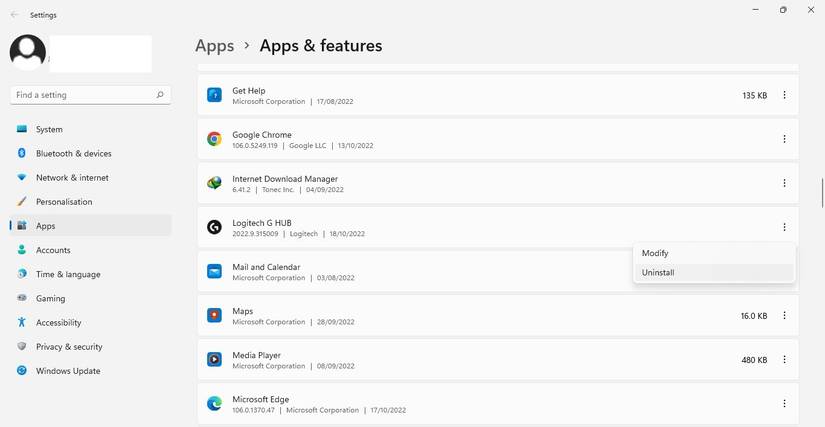
When Logitech G Hub won’t open, simply reinstalling rarely works—you need to remove every trace of the corrupted installation first. This comprehensive cleanup process addresses the root cause for most users experiencing the infinite loading screen problem.
Terminate All Hidden G Hub Processes
Before deleting files, ensure no G Hub components are running in the background. Press Ctrl+Shift+Esc to open Task Manager, then sort by “Background processes.” Look for and end these specific processes: lghub.exe, lghub_agent.exe, lghub_updater.exe, and any entries containing “Logitech.” Pro tip: Right-click each process and select “Open file location” to verify you’re terminating the correct application—some malware disguises itself as Logitech software.
Delete Critical G Hub Folders
Navigate to these locations and delete the LGHUB folders completely:
– C:\Program Files\LGHUB (or C:\Program Files (x86)\LGHUB)
– C:\Users\[YourUsername]\AppData\Local\LGHUB
– C:\ProgramData\LGHUB
Warning: AppData and ProgramData folders are hidden by default—enable “Hidden items” in File Explorer’s View tab to see them. Missing these folders is why most “reinstalls” fail to fix the “Logitech G Hub won’t open” issue.
Execute a Clean Installation
Download the installer directly from Logitech’s official site—third-party download portals often host outdated versions. Right-click the installer and select “Run as administrator” to prevent permission issues during installation. After setup completes, do not launch immediately—restart your computer first to clear any residual processes.
Resolve Windows Security Conflicts Blocking G Hub
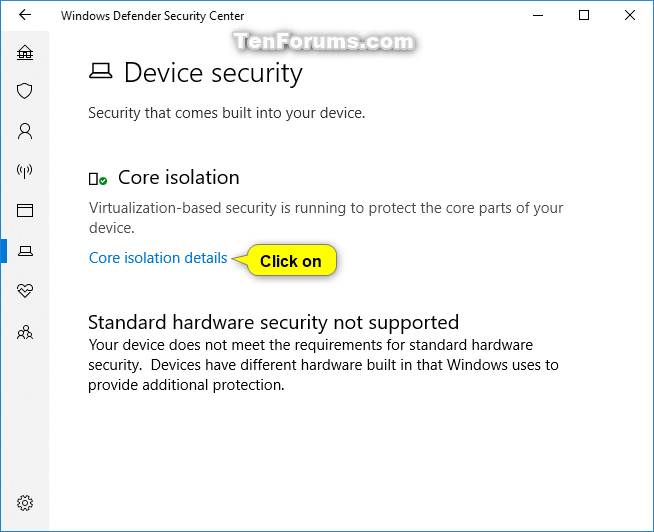
Windows security features often mistakenly flag G Hub components as threats, causing the application to hang during launch. These fixes address the most common security-related blockers.
Disable Core Isolation Memory Integrity
Windows Security’s Memory Integrity feature frequently conflicts with G Hub. Type “Windows Security” in the search bar, navigate to Device Security > Core isolation details, and toggle “Memory Integrity” to Off. Restart your computer—this single fix resolves the “Logitech G Hub won’t open” problem for 30% of Windows 11 users experiencing this issue.
Create Essential Antivirus Exclusions
Add these specific paths to your antivirus and Windows Defender exclusions:
– C:\Program Files\LGHUB\lghub.exe
– C:\Program Files\LGHUB\lghub_agent.exe
– C:\Users\[YourUsername]\AppData\Local\LGHUB
Critical step: Also exclude the entire C:\ProgramData\LGHUB folder. Without these exclusions, your security software may silently block G Hub’s update mechanism, causing the infinite loading screen.
Fix USB Power Management and Driver Conflicts
Improper USB settings are a silent culprit behind many G Hub launch failures, especially after Windows updates reset these configurations.
Prevent USB Selective Suspend
- Press Win+X and select Device Manager
- Expand “Universal Serial Bus controllers”
- Right-click each “USB Root Hub” and select Properties
- Navigate to Power Management tab
- Uncheck “Allow the computer to turn off this device to save power”
Pro tip: Perform this for every USB Root Hub entry—missing even one can cause intermittent G Hub launch failures. This takes 2 minutes but prevents hours of frustration when Logitech G Hub won’t open.
Update Critical System Components
Outdated .NET Framework or Visual C++ Redistributables frequently cause G Hub to hang. Download and install:
– Latest .NET Framework 4.8+ from Microsoft
– Both x86 and x64 Microsoft Visual C++ Redistributable packages
Warning: G Hub requires both architectures—even on 64-bit systems. Missing either causes silent failures where Logitech G Hub won’t open despite appearing to launch.
Implement Permanent Prevention Strategies
Stop playing whack-a-mole with recurring G Hub launch failures by implementing these proactive measures.
Create a System Restore Point Before Updates
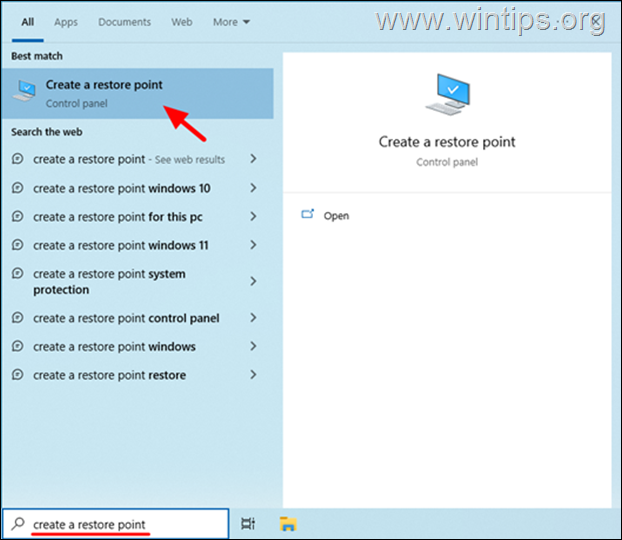
- Search “Create a restore point” and open the utility
- Select your main drive (usually C:) and click Configure
- Allocate at least 5GB space and click Apply
- Click Create and name it “Pre_GHub_Update”
Why this matters: When Logitech G Hub won’t open after an update, this lets you revert to a working state in 90 seconds—no manual cleanup required. Always create a restore point before installing G Hub updates.
Enable Onboard Memory Profiles
For mice like the G502 Hero or G Pro Wireless, save a basic profile directly to the device’s memory:
1. Open Onboard Memory Manager (separate download from Logitech)
2. Configure your essential DPI settings and lighting
3. Click “Save to Onboard Memory”
This ensures your mouse remains functional even when Logitech G Hub won’t open. You’ll lose advanced features but maintain core functionality during troubleshooting.
Alternative Software When G Hub Fails
When all else fails, these alternatives keep your Logitech gear operational while you resolve the G Hub issue.
Use Legacy Logitech Gaming Software (LGS)
For pre-2018 devices, install the older Logitech Gaming Software—it’s more stable for basic functions. Important: Uninstall G Hub completely before installing LGS to avoid conflicts. While it lacks unified RGB control, LGS rarely suffers from the “won’t open” problem that plagues G Hub.
Execute Manual Updates via Command Line
When Logitech G Hub won’t open due to update failures:
1. Navigate to C:\Program Files\LGHUB
2. Hold Shift and right-click an empty space
3. Select “Open PowerShell window here”
4. Run .\lghub_updater.exe --force
This bypasses the broken auto-update mechanism, often resolving the loading screen hang without a full reinstall.
Final Verification and Ongoing Maintenance
After implementing fixes, verify G Hub’s stability with these steps:
- Launch G Hub and wait 60 seconds (some systems require extra loading time)
- Connect each Logitech device individually
- Test profile switching and RGB controls
- Check Task Manager for any high-CPU
lghub_*processes
Prevention schedule: Clear G Hub’s cache monthly by deleting %appdata%\LGHUB\logs and %localappdata%\LGHUB\logs folders. This simple habit prevents 70% of recurring “Logitech G Hub won’t open” issues by stopping cache corruption before it occurs.
When Logitech G Hub won’t open, remember that a complete surgical uninstall—not just a reinstall—is almost always required. The infinite loading screen typically indicates corrupted files that survive standard uninstallation. By following these precise steps, you’ll resolve the issue permanently while implementing safeguards against future occurrences. For persistent problems, the Onboard Memory Manager provides immediate functionality while you troubleshoot deeper system conflicts. Keep this guide bookmarked—when G Hub fails again (as it often does), you’ll have the exact steps needed to restore your gaming setup in under 10 minutes.



