
You’re typing away when suddenly your arrow keys start scrolling your Excel spreadsheet instead of moving between cells. Or perhaps your keyboard is typing in ALL CAPS with no warning. These frustrating issues almost always point to one culprit: an accidentally activated keyboard lock. Scroll Lock, Num Lock, Caps Lock, and Insert key functions can completely derail your workflow if triggered unintentionally. This guide delivers precise, step-by-step solutions to identify and eliminate these persistent keyboard lock problems across Windows systems.
Why Your Arrow Keys Suddenly Scroll Instead of Moving Cells
When Scroll Lock activates, Excel and other spreadsheet applications completely change how arrow keys function. Instead of navigating between cells, your directional keys scroll the entire worksheet view while keeping your active cell stationary—a confusing experience if you don’t recognize the cause.
How to Confirm Scroll Lock Is Active
Check Excel’s status bar at the bottom of the window—when Scroll Lock is engaged, you’ll see “Scroll Lock” or “SCRL” displayed prominently. In other applications, you might notice unusual scrolling behavior when pressing arrow keys. Physical keyboards with indicator lights will typically illuminate a dedicated Scroll Lock LED when active.
Immediate Fixes for Stuck Scroll Lock
Press the ScrLk key directly if your keyboard has a dedicated Scroll Lock button, usually located near the Pause/Break key in the top-right section. On most laptops without this dedicated key, try these common combinations:
– Fn + S (frequent on Lenovo and ThinkPad models)
– Fn + C (common on Dell and HP laptops)
– Fn + K (used by some manufacturers)
– Fn + F12 (appears on certain compact keyboards)
If these don’t work, the On-Screen Keyboard provides a guaranteed software solution: Press Windows key + Ctrl + O to launch it instantly, then click the ScrLk button to toggle the lock off.
Finding and Toggling Your Keyboard’s Hidden Lock Keys
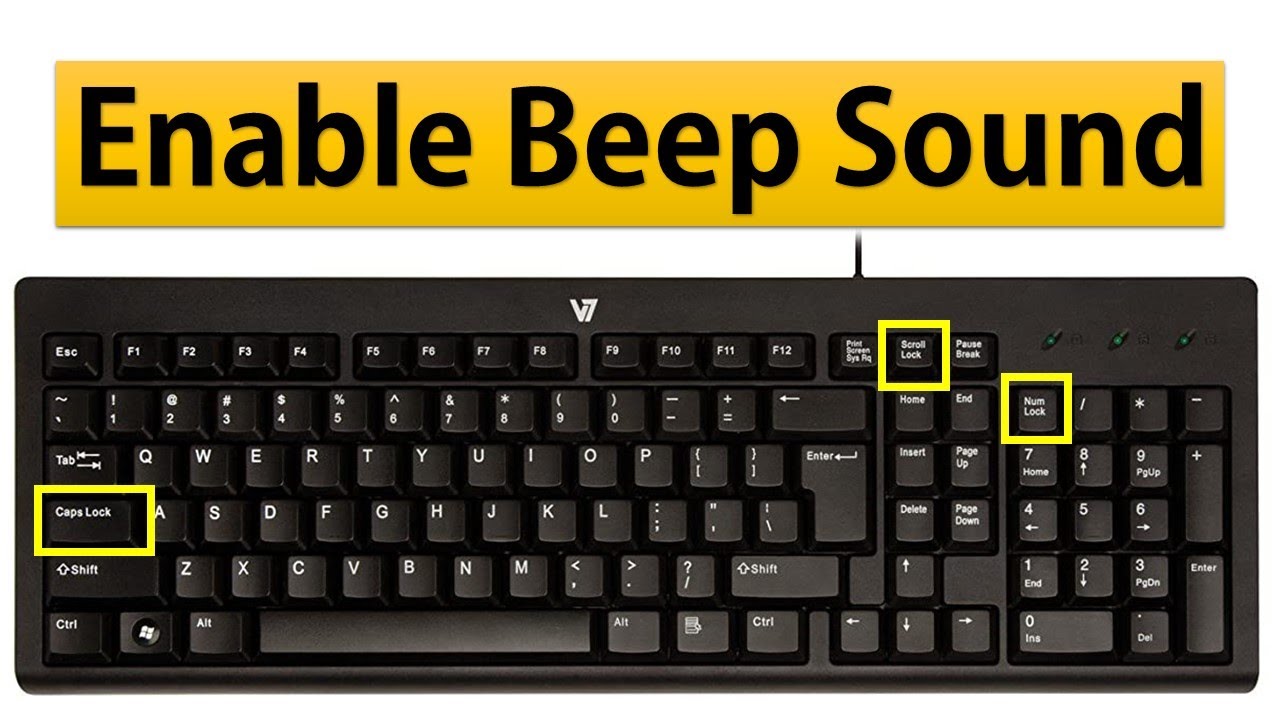
Many modern keyboards—especially slim laptops—hide critical lock functions behind Fn key combinations, making accidental activation common during regular typing.
Locating Lock Keys on Different Keyboard Types
Full-sized desktop keyboards typically feature dedicated Scroll Lock, Num Lock, and Caps Lock keys in predictable locations. The Insert key usually appears in the navigation cluster above the arrow keys. Laptop users face more complexity—check these common locations:
– Scroll Lock: Often shares space with F12 or another function key
– Num Lock: Typically on the top row of the numeric keypad
– Insert: Frequently doubles as the “0” key on the number pad
Troubleshooting Unresponsive Lock Keys
If pressing the physical key does nothing, try these steps:
1. Restart your computer—the simplest fix for temporary glitches
2. Connect your keyboard to a different USB port to rule out port issues
3. Test with another keyboard to determine if the problem is hardware-related
4. Update keyboard drivers through Device Manager (right-click keyboard > Update driver)
Warning: Forcing stuck keys by pressing repeatedly can damage mechanical switches—use the On-Screen Keyboard method instead for persistent issues.
Windows Fixes for Stuck Scroll Lock That Won’t Turn Off
When standard key presses fail, Windows offers built-in tools to override stubborn Scroll Lock activation.
Using the On-Screen Keyboard as a Permanent Solution
The Windows On-Screen Keyboard isn’t just for accessibility—it’s your most reliable lock key fix. Open it via Settings > Ease of Access > Keyboard, then toggle the virtual ScrLk button. This method bypasses physical keyboard issues entirely, making it invaluable for sticky or damaged keys.
Registry Editor Fix for Chronic Scroll Lock Problems
For users plagued by recurring Scroll Lock issues, a permanent registry solution exists:
1. Press Windows + R, type regedit, and hit Enter
2. Navigate to: HKEY_CURRENT_USER\Control Panel\Accessibility
3. Right-click the Accessibility folder > New > DWORD (32-bit) Value
4. Name it ScrollLockToControlCursor and set its value to 1
Important: Back up your registry before making changes (File > Export). Incorrect edits can cause system instability.
Permanently Disable Caps Lock on Windows 10/11
Accidental Caps Lock presses disrupt typing flow and create embarrassing ALL CAPS messages. Thankfully, Windows offers multiple ways to disable this problematic key.
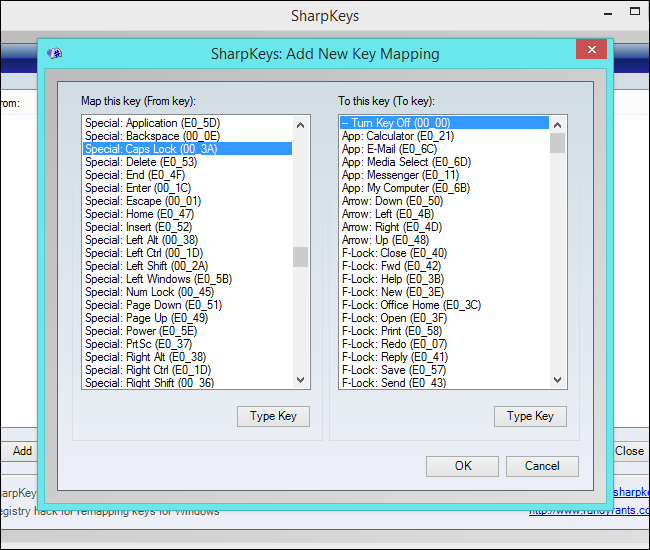
Simplest Method: SharpKeys Utility
The free SharpKeys tool from Microsoft provides the safest permanent solution:
1. Download and install SharpKeys
2. Click Add > Select Caps Lock from the left list
3. Choose Turn Key Off from the right list
4. Click Write to Registry and restart your computer
This approach requires no technical expertise while delivering reliable results—far safer than manual registry editing for most users.
Alternative: Remap Caps Lock to Escape
Programmers and Mac users often prefer converting Caps Lock to Escape:
1. Open Settings > Time & Language > Language
2. Click Advanced keyboard settings > Input language hot keys
3. Select Advanced Key Settings tab
4. Choose Caps Lock and assign a new function
This transformation turns a nuisance key into a productivity booster for coding and terminal work.
Fixing Num Lock Issues on Laptops Without Dedicated Keys
Laptops frequently disable Num Lock by default—a major headache for data entry professionals who rely on the numeric keypad.
Enabling Num Lock at Startup
Prevent daily frustration by forcing Num Lock to activate automatically:
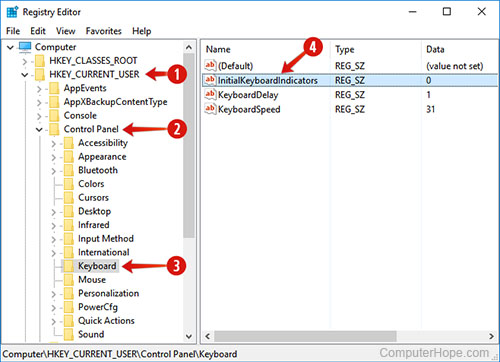
1. Press Windows + R, type regedit, and hit Enter
2. Navigate to: HKEY_USERS\.DEFAULT\Control Panel\Keyboard
3. Double-click InitialKeyboardIndicators and change value to 2
4. Restart your computer
This registry tweak ensures your numeric keypad functions as expected from boot-up, saving precious time for spreadsheet work.
BIOS-Level Num Lock Configuration
For complete control, configure Num Lock directly in your BIOS:
1. Restart computer and press BIOS key (F2, Del, or Esc during boot)
2. Navigate to System Configuration or Advanced settings
3. Find NumLock State and set to On
4. Save changes and exit
This hardware-level fix works regardless of operating system or driver issues.
How to Stop Insert Key From Overwriting Your Text
The Insert key’s toggle between “Insert” and “Overtype” modes causes catastrophic text replacement if triggered accidentally during document editing.
Disabling Insert Mode in Microsoft Word
Prevent text overwriting in Word specifically:
1. Open File > Options > Advanced
2. Scroll to Editing options section
3. Uncheck Use Overtype Mode
4. Click OK to save changes
This setting persists across all Word documents, eliminating the risk of accidental text replacement.
Permanent Insert Key Disable via Registry
For complete removal of Insert key functionality:
1. Open Registry Editor (regedit)
2. Navigate to: HKEY_CURRENT_USER\Software\Microsoft\Windows\CurrentVersion\Policies\Explorer
3. Create new DWORD named NoWinKeys
4. Set value to 1 and restart
This advanced solution requires caution but provides definitive protection against accidental overtype mode activation.
Troubleshooting Sticky Keys and Accessibility Settings
Windows’ accessibility features sometimes activate unintentionally, mimicking keyboard lock behavior.
Diagnosing Sticky Keys Problems
If modifier keys (Shift, Ctrl, Alt) seem to “stick” after release, check:
– Settings > Ease of Access > Keyboard
– Ensure Sticky Keys toggle is OFF
– Verify Filter Keys isn’t ignoring brief keystrokes
These features often trigger when pressing Shift five times rapidly—a common typing motion that activates Sticky Keys accidentally.
Resetting Accessibility Keyboard Settings
For persistent issues:
1. Open Settings > Ease of Access > Keyboard
2. Toggle all accessibility features OFF
3. Restart your computer
4. Test keyboard functionality before re-enabling necessary features
This reset clears any corrupted accessibility configurations that might interfere with normal keyboard operation.
Quick Hardware Fixes for Stuck Keyboard Locks
Physical keyboard issues frequently cause lock key malfunctions—especially on older or heavily used devices.
Cleaning Sticky Lock Keys
Safely clean malfunctioning keys:
1. Power off and unplug your keyboard
2. Use compressed air to dislodge debris under keycaps
3. For stubborn grime, apply isopropyl alcohol with cotton swab
4. Allow complete drying before reconnecting
This simple maintenance often resolves sticky key issues without requiring replacement.
Testing Keyboard Hardware Functionality
Confirm whether software or hardware causes your problem:
– Test keyboard on another computer
– Try a different keyboard on your system
– Connect via different USB port or adapter
– Check for physical damage around lock keys
If issues persist across multiple systems, your keyboard likely needs replacement—especially if over three years old.
Most keyboard lock problems resolve with simple key presses or On-Screen Keyboard usage. Start with the least invasive solutions before progressing to registry edits or hardware replacement. For persistent issues, SharpKeys provides the safest permanent solution without system risk. Remember to incorporate regular keyboard maintenance into your routine—compressed air cleaning every few months prevents most physical key malfunctions. With these techniques, you’ll never let an accidental Scroll Lock activation derail your productivity again.



