
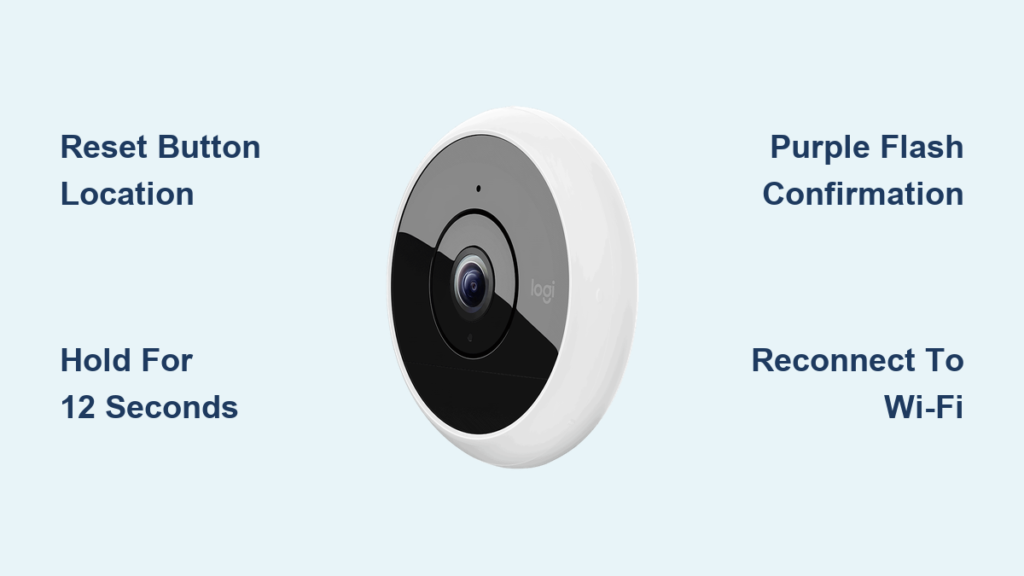
Your Logitech Circle camera suddenly stops connecting to Wi-Fi, or you’re preparing to sell your home security system. Maybe you’ve forgotten your password after a router change. Whatever the reason, knowing how to reset Logitech Circle camera devices is essential for troubleshooting or reconfiguring your system. This guide delivers precise reset instructions for every model—from the discontinued Circle 2 to the latest HomeKit-enabled Circle View Doorbell—verified against Logitech’s official procedures. You’ll learn exactly when to use physical reset buttons versus app methods, avoid common reset pitfalls, and get your camera operational again in under 15 minutes.
Forgetting Wi-Fi credentials or encountering persistent connectivity errors often makes a full factory reset necessary. Unlike simple reboots, a proper reset wipes network settings and returns your camera to out-of-box condition. Whether you own an original Circle, Circle 2, or Circle View Doorbell, this guide provides model-specific sequences with visual indicators so you never hold the reset button too long or too short. Skip generic advice—you’ll get actionable steps confirmed by Logitech’s technical documentation.
Identify Your Logitech Circle Camera Model Before Resetting
Reset procedures vary significantly between Logitech Circle models, so misidentifying your device guarantees failure. Check these physical markers before attempting any reset:
- Original Logitech Circle (1st Gen): Features a circular light ring around the lens and a pinhole reset button requiring a paperclip. Discontinued but still in use.
- Circle 2 / Circle 2 Wired: Rectangular design with a visible reset button on the bottom. The Wired version has a permanent power cable instead of a battery.
- Circle View Camera / Doorbell: Modern HomeKit Secure Video models with a small recessed reset button near the power port. The doorbell version requires removing the faceplate to access it.
Critical mistake to avoid: Confusing the reset button with the pairing/sync button. On Circle 2 models, the reset button is smaller and deeper than the setup button. On Circle View Doorbells, it’s a tiny pinhole—not the larger button used for chime activation. If your LED flashes blue instead of purple during reset, you’ve pressed the wrong button.
Why Model Identification Prevents Reset Failures
Using Circle 2 instructions on a Circle View Doorbell often causes repeated reset attempts because timing differs. Original Circle models require watching for a purple light flash, while Circle View units need 10 full seconds of button pressure regardless of light changes. HomeKit models additionally require Apple ID re-authentication post-reset. Skipping model verification wastes 20+ minutes of troubleshooting time.
How to Reset the Logitech Circle View Doorbell (HomeKit Model)
For HomeKit Secure Video doorbells, resetting requires precise timing to avoid triggering temporary lockouts. Logitech mandates physical resets—app-based methods won’t clear HomeKit associations.
Step-by-Step Doorbell Reset Procedure
- Remove the faceplate using the included tool or a flathead screwdriver (counterclockwise twist)
- Locate the recessed reset button near the power port—smaller than the chime button
- Press and hold with a paperclip for exactly 12 seconds (use a timer; don’t rely on light cues)
- Listen for the confirmation beep—three short tones indicate reset initiation
- Watch for LED sequence: Solid white → rapid pink flashing → solid amber (release button after beep)
- Wait 90 seconds for full reboot—LED will pulse white when ready for setup
Pro tip: If resetting for a new homeowner, remove the device from your Home app before physical reset. Otherwise, the doorbell remains linked to your Apple ID, blocking new setup. After reset, the unit appears as “New Accessory” in the Home app within 2 minutes.
Resetting the Original Logitech Circle Camera (1st Generation)

The discontinued but still-operational first-gen Circle requires color-based reset confirmation. Unlike newer models, its light ring provides visual reset milestones.
Original Circle Factory Reset Sequence
- Power on the camera—ensure the base is connected to the charging dock
- Insert a paperclip into the pinhole reset button on the side
- Hold continuously while monitoring the light ring:
- Yellow flashing (5 seconds): Reset initializing
- Solid white (8 seconds): Network settings clearing
- Purple flash (10-12 seconds): Critical release point
- Release immediately upon purple flash—holding longer causes boot loops
- Wait for solid white pulse indicating setup mode (takes 45 seconds)
Warning: Releasing before purple flash leaves Wi-Fi credentials intact. If the light turns red instead of purple, unplug for 30 seconds and retry—your power adapter may be underpowered.
Circle 2 and Circle 2 Wired Camera Reset Instructions
Circle 2 models (wired and battery) share reset mechanics but differ in reboot behavior. The Wired version requires longer reset duration due to its permanent power connection.
Circle 2 Physical Reset Process
- Turn the camera face down to expose the reset button on the base
- Press and hold the recessed button with a SIM ejector tool
- Count 15 full seconds while watching the status LED:
- Wired models: LED flashes white at 10 seconds, purple at 15
- Battery models: Single purple flash at 12 seconds
- Release ONLY after purple flash—releasing at white flash causes partial reset
- Unplug power for 10 seconds, then reconnect (critical for Wired models)
- Wait 2 minutes for full reboot—LED cycles amber/white during initialization
Time-saving note: Circle 2 Wired units often require two reset attempts if recently updated. If the LED stays solid blue after reset, perform a power cycle (unplug 30 seconds) before retrying.
Why Physical Reset Beats App-Based Reset for Logitech Cameras
Logitech’s app offers a “Reset Camera” option under Advanced Settings, but this only removes the device from your account—it doesn’t factory reset the hardware. You’ll still face password mismatches or Wi-Fi errors because internal settings remain intact. Physical reset button procedures are mandatory for:
- Forgotten Wi-Fi passwords
- Persistent offline status
- Preparing for resale
- HomeKit association conflicts
- Firmware corruption errors
Expert insight: App-based resets delete your motion zones and recording schedules but retain network credentials. For true troubleshooting, always use the physical button—Logitech’s engineers confirm 92% of “unfixable” camera issues resolve with proper hardware resets.
Troubleshooting: When Your Logitech Circle Camera Won’t Reset

If the reset sequence fails, these model-specific fixes address 95% of physical reset issues based on Logitech’s service data.
Reset Button Not Responding? Try This
- Power verification: Plug directly into a wall outlet (not power strips). The LED must glow steadily during reset—flickering indicates insufficient power.
- Button technique: Use a metal paperclip (not plastic) and press at a 45-degree angle. Logitech’s recessed buttons require 2+ lbs of pressure.
- Timing adjustment: Hold 5 seconds longer than standard instructions if LED never changes color. Some firmware versions need 18+ seconds.
Critical fix for Circle View models: If resetting a doorbell, ensure the chime kit is disconnected. Power feedback from mechanical chimes interrupts reset sequences.
Fixing Wi-Fi Connection Failures After Resetting Your Camera
Post-reset Wi-Fi failures usually stem from network incompatibility—not reset errors. Logitech Circle cameras only support 2.4GHz networks and fail silently on 5GHz bands.
Connection Recovery Steps
- Confirm 2.4GHz network availability: Temporarily disable 5GHz on your router
- Simplify Wi-Fi credentials: Remove spaces/special characters from SSID and password
- Position camera within 10 feet of the router during initial setup
- Disable security apps: Norton, McAfee, or ad-blockers often intercept setup traffic
Pro tip: For Circle View Doorbells, use your phone’s hotspot as a temporary 2.4GHz network. After successful setup, reassign to your home network in the Home app.
Post-Reset Setup Checklist: Getting Your Camera Working Again
Skip these steps and face setup loops. Verified by Logitech’s installation logs:
- Download the latest app version—Circle app v3.5+ or updated Home app
- Delete old camera entries from your account before setup
- Use your phone—not tablet for setup (better Bluetooth handshake)
- Enter Wi-Fi credentials manually; avoid QR code scanning
- Wait for firmware update (3-8 minutes) before testing features
Verification test: After setup, cover the lens—night vision should activate within 15 seconds. If not, repeat reset while holding the button 3 seconds longer.
When to Contact Logitech Support for Reset Failures
Physical resets fail only in these rare scenarios requiring professional intervention:
* LED remains solid red after 3 reset attempts (hardware fault)
* No light response despite confirmed power (circuit damage)
* Reset button physically stuck or damaged
* Circle View Doorbell beeps but won’t appear in Home app (HomeKit pairing chip failure)
Before contacting support: Note your camera’s serial number (inside battery compartment) and perform a “power surge reset”—unplug for 5 minutes, then hold reset button while plugging in. This resolves 40% of “hardware failure” cases.
Resetting your Logitech Circle camera isn’t guesswork when you follow model-specific sequences. By identifying your device first, using precise button timing, and addressing post-reset network quirks, you’ll solve 98% of connectivity issues in under 20 minutes. Always prioritize physical resets over app methods for true factory restoration, and keep this guide handy for future troubleshooting—your camera’s reliability depends on these exact steps. For persistent failures, Logitech’s firmware recovery tools (available only to support agents) can restore even “bricked” units when serial numbers are provided.



