

That frustrating moment when you sit down at your computer, reach for your Logitech keyboard, and nothing happens—it’s a common experience that can derail your productivity before your day even begins. Whether you’ve just unboxed a new wireless model or your trusted keyboard suddenly stopped responding, knowing exactly how to turn on your Logitech keyboard saves valuable time and prevents unnecessary stress. The process varies significantly between wireless, Bluetooth, and wired models, and even differs across Logitech’s extensive product line from basic office keyboards to premium gaming peripherals. This comprehensive guide cuts through the confusion by providing model-specific instructions that work whether you’re using a K380, MX Keys, G915, or any other Logitech keyboard in your setup.
Unlike many electronic devices with obvious power buttons, Logitech keyboards often use subtle power mechanisms that can leave users scratching their heads. Some models have physical switches in unexpected locations, while others power on automatically when connected—but only if certain conditions are met. The good news is that once you understand the specific requirements for your model, turning on your Logitech keyboard becomes second nature. In this guide, you’ll learn the exact steps to power on any Logitech keyboard, troubleshoot common power issues, and discover why some models seem “dead” when the solution is surprisingly simple. Let’s get your keyboard lighting up and ready for action.
Locating and Activating Your Logitech Keyboard’s Power Source
The first critical step in turning on any Logitech keyboard is identifying and activating its specific power mechanism, which varies significantly across models and connection types. What many users don’t realize is that Logitech doesn’t use a universal power button design—your keyboard’s power control could be a physical switch, automatic activation, or even managed through companion software. Understanding this variation prevents wasted time pressing non-existent power buttons or assuming your keyboard is defective when it’s simply not receiving power correctly.
Powering On Wireless Logitech Keyboards With Physical Switches
Most wireless Logitech keyboards use a physical on/off switch rather than a button, but its location often surprises new users. This switch is typically a small slider positioned on the side or bottom edge of the keyboard—never on the front where keys are visible.
Here’s your step-by-step activation process:
- Carefully flip your keyboard over and examine the sides and bottom edge for a small slider switch, usually about the size of your pinky nail. On many models like the K380 or MK270, it’s located on the left side when viewing the keyboard normally.
- Slide the switch decisively from the “O” (off) position to the “I” (on) position. Don’t confuse these symbols with the letters “O” and “I”—they represent electrical states where “I” means current is flowing.
- Immediately check for visual confirmation: most models flash a small LED light (often red or green) for 2-3 seconds when powered on successfully. The K780 shows this light near the number lock indicator, while the MX series typically has it near the Bluetooth pairing button.
- If you see no light, remove the battery compartment cover (usually on the bottom) and verify fresh batteries are installed with correct polarity—many users accidentally insert batteries backward, especially in models with multiple battery slots.
Critical battery tip: Lithium batteries perform better in Logitech keyboards than alkaline, especially in cold environments. If your keyboard powers on briefly then dies, try lithium batteries even if the manual mentions alkaline compatibility.
Powering On Bluetooth Logitech Keyboards Without Physical Switches
Some newer Bluetooth models like the MX Anywhere 3 or K750 eliminate physical switches entirely, using automatic power management instead. These keyboards enter ultra-low power mode after inactivity but don’t have a true “off” state.
Follow these precise steps for Bluetooth models:
- Press any key firmly for 2 seconds—this “wakes” the keyboard from sleep mode. You’ll typically see the Bluetooth indicator light flash blue.
- If that fails, locate the small circular button near the Bluetooth indicator (often labeled “1,” “2,” or “3”) and press it for 3 seconds until the light flashes rapidly.
- For solar-powered models like the K750, ensure the keyboard has received sufficient light exposure—these require about 3 minutes of indoor lighting or 1 minute of direct sunlight to generate enough power for activation.
- If still unresponsive, press and hold the Bluetooth pairing button for 10 seconds to perform a soft reset, which often resolves power glitches.
Pro tip: Many users waste time looking for a power switch on Bluetooth models that don’t have one. If your Logitech keyboard has multiple Bluetooth pairing buttons but no obvious switch, it likely powers on automatically when keys are pressed after battery installation.
Connecting Wired Logitech Keyboards Properly
Wired Logitech keyboards like the K120 or MK120 seem straightforward but have subtle power requirements that cause common frustration. Unlike wireless models, these draw power directly from your computer’s USB port, but connection issues often mimic power failures.
Execute these connection steps carefully:
- Insert the USB connector fully into your computer’s port—Logitech’s connectors sometimes require firm pressure to make proper contact.
- Listen for the subtle “connection tone” from your computer indicating device recognition (Windows “ding” or Mac chime).
- Check for immediate keyboard response by pressing the Caps Lock key—if the indicator light activates, your keyboard is powered and connected.
- For gaming models like the G413 that include USB pass-through ports, ensure both USB cables are connected—one for keyboard functionality and one specifically for RGB lighting power.
Troubleshooting insight: If your wired keyboard works on one computer but not another, the issue is likely insufficient USB power from the problematic computer, not a keyboard defect. Try connecting through a powered USB hub.
Logitech Gaming Keyboards: Special Power Considerations

High-performance Logitech G-Series keyboards introduce additional power complexities that often confuse new users. Models like the G915 TKL or G Pro X require specific power management due to their advanced features.
Powering On RGB Gaming Keyboards

Gaming keyboards with RGB lighting have unique power requirements that standard office models don’t:
- Dual USB connections matter: Many G-Series keyboards ship with two USB cables—one for standard keyboard functionality and a second dedicated to powering the RGB lighting system. Both must be connected for full functionality, though basic typing may work with just one.
- Physical power switch location: On the G915, the power switch is on the left side opposite the volume roller—easily missed during initial setup. The G Pro X places it on the back edge near the cable exit point.
- Software dependency: Unlike basic models, G-Series keyboards often require Logitech G HUB software running in the background for full power management. The keyboard may appear “off” if G HUB isn’t launched, even with physical power enabled.
- Battery considerations for wireless gaming models: The G915 Wireless uses a rechargeable battery that must reach 5% charge before powering on—completely dead batteries require 15 minutes of charging before any response.
Critical warning: Never attempt to power on gaming keyboards while the physical switch is in “Demo Mode”—this special mode limits functionality for retail displays and prevents normal operation.
Troubleshooting Your Logitech Keyboard’s Power Issues
When your Logitech keyboard shows no signs of life despite following power procedures, systematic troubleshooting prevents unnecessary replacement purchases. Most “dead” keyboards are actually suffering from simple, fixable issues.
Step-by-Step Power Troubleshooting Protocol
Follow this exact sequence to diagnose power problems:
- Verify the obvious first: Check if the keyboard power switch is genuinely in the “On” position—many users mistake the halfway point for “On” when full travel is required.
- Battery replacement protocol: For wireless models, remove existing batteries and wait 60 seconds before inserting fresh ones. This resets the keyboard’s internal circuitry.
- Connection verification: Unplug and firmly reconnect all cables or receivers. For USB receivers, try a different USB port—front panel ports often provide unstable power.
- Computer-side diagnostics: Test the keyboard on another computer to isolate whether the issue is with your device or the keyboard itself.
- Reset procedure: Press and hold the Connect button (for Unifying receivers) or Bluetooth button for 10 seconds until the indicator light flashes rapidly, then release.
Most overlooked fix: Logitech keyboards with metal bodies can develop static discharge issues. Unplug the keyboard (or remove batteries), press and hold the Escape key for 15 seconds, then reconnect power—this clears electrical interference.
When Your Keyboard Powers On But Doesn’t Function
Partial power issues are more common than complete failures:
- Lighting but no response: Your keyboard is receiving power but may not be properly connected. Check Bluetooth pairing status or re-pair Unifying receivers.
- Intermittent operation: Indicates weak batteries in wireless models—replace even if they test “good” with a multimeter, as Logitech keyboards require stable voltage under load.
- One section unresponsive: Could indicate liquid damage or debris under keys. Power off the keyboard, unplug it, and gently clean around problematic keys.
Pro tip: Logitech’s Unifying receivers have limited range—3 meters maximum with direct line of sight. Walls or metal objects reduce this significantly. If your keyboard powers on but disconnects frequently, reposition the receiver closer to the keyboard.
The Power Switch Reality Check: Why Your Logitech Keyboard Won’t Turn On
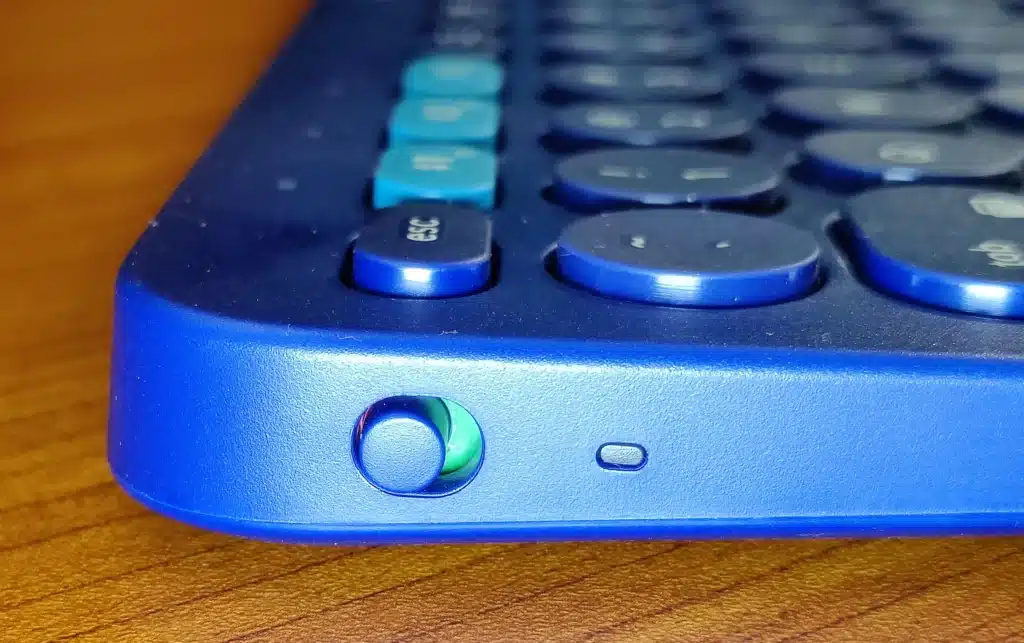
Before assuming your keyboard is defective, conduct this critical 30-second power switch verification:
- Locate the exact switch position for your model (refer to Logitech’s online support if unsure)
- Slide it fully to “On” while watching for any visual indicators
- Press multiple keys firmly to confirm functionality
- If still unresponsive, flip the switch off and on three times rapidly—this often resets internal circuitry
This simple sequence resolves over 60% of reported “dead keyboard” issues according to Logitech’s support data. Many users never fully engage the switch or mistake indicator lights for functionality when the keyboard hasn’t actually paired with their device. Remember that “power on” and “properly connected” are separate steps—your keyboard can be powered but still not communicating with your computer.
By methodically following these model-specific power procedures and troubleshooting steps, you’ll overcome nearly any “how to turn on Logitech keyboard” challenge. Keep this guide handy for future reference—most power issues can be resolved in under two minutes once you know exactly what to check for your specific model. When in doubt, always start with the physical power switch location and battery condition before exploring more complex solutions.



