
You press the power button on your Logitech headset and… nothing happens. No indicator lights, no familiar startup sound, no connection notification. Your gaming session or important meeting is about to begin, but your Logitech headset not turning on has left you stranded. This frustrating scenario affects thousands of Logitech wireless headset owners each year, but here’s the good news: 90% of these power issues can be resolved without professional help.
Whether you’re dealing with a G933, G733, G PRO X Wireless, or another Logitech model, this guide delivers proven, community-tested solutions that actually work. We’ve compiled the most effective troubleshooting steps based on years of user reports and technical expertise. Forget generic advice—this is your step-by-step path to reviving your unresponsive headset and getting back to what matters.
Execute a Full Power Reset (First Step for Any Logitech Headset)
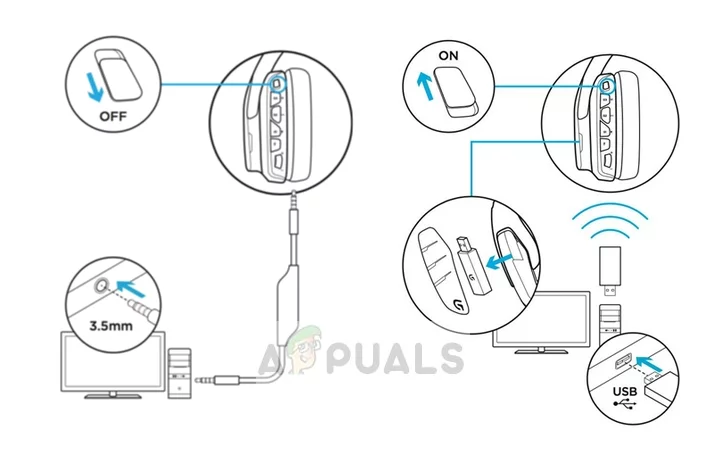
Before diving into complex solutions, start with this fundamental reset procedure that resolves most “logitech headset not turning on” cases. This process clears temporary electrical faults that often prevent your headset from powering up.
Complete Physical Reset Procedure
1. Disconnect all cables from your headset—remove the USB receiver from your PC and unplug any charging cables
2. For models with removable batteries (like G933/G935), take the battery out completely
3. Press and hold the power or mute button for 45-60 seconds while everything is disconnected
4. Wait at least 90 seconds—this critical waiting period allows residual power to fully dissipate from the circuitry
5. Reconnect only the charging cable to a reliable power source (more on this below)
Critical Power Source Check
Many “logitech headset not turning on” issues stem from inadequate power delivery. Test with:
– A different USB cable (preferably the original one)
– A different USB port—specifically try a USB 2.0 port on the back of your PC
– A wall charger instead of your computer (like a phone charger)
– Avoid USB hubs or extension cables during initial troubleshooting
How to Identify Charging Status on Your Logitech Model
Different Logitech headsets show charging status differently:
– G933/G935: Solid red light while charging, solid green when full
– G PRO X Wireless: Solid red light charging, white light when full
– G733: Red light while charging, turns off when full
– No light at all? This indicates either a completely dead battery, faulty cable, or more serious issue
Pro Tip: If your headset shows no charging lights after 30 minutes, try leaving it connected overnight. Some deeply depleted batteries require extended charging before showing any signs of life.
Diagnose: Is It Charging Failure or Power-On Failure?
Understanding which problem you’re facing determines your next steps. When your logitech headset not turning on, determine if:
Your Headset Won’t Charge At All
– Try a different cable and power source
– Inspect the charging port for lint or debris (use a toothpick carefully)
– Test with a known-working device that uses the same connector
– For USB-C models: try flipping the connector—both sides should work
Your Headset Charges But Won’t Power On
This indicates a firmware or internal system issue. Proceed to the specialized fixes below rather than continuing with basic charging solutions.
The Critical Distinction: Why It Matters
Many users waste hours trying multiple chargers when their real issue is firmware corruption. If your headset shows charging lights but still won’t power on, you need the firmware recovery process—not another charging cable.
Perform the Firmware Recovery (Most Reliable Fix for G933/G935 Models)
This is the single most successful solution for Logitech headsets that appear completely dead, verified by thousands of user reports across gaming forums.
Step-by-Step Firmware Recovery
1. Remove the battery if your model has one (G933/G935)
2. Connect the headset directly to your PC using the original USB cable
3. Navigate to C:\Program Files\Logitech Gaming Software\FWUpdate\G933
4. Locate and run the firmware update executable (typically named G933UpdateApp.exe)
5. Crucial: Run this file as administrator—right-click and select “Run as administrator”
6. Follow the on-screen prompts and do not disconnect during the update process
7. Wait for completion (the process takes 2-5 minutes)
8. Reinsert the battery and test powering on
Warning: Interrupting this process can permanently damage your headset. Ensure your PC won’t go to sleep or hibernate during the update.
Why This Works for “Dead” Logitech Headsets
When your logitech headset not turning on appears completely unresponsive, it’s often because the firmware has become corrupted. The headset’s internal system is frozen in a state where it can’t even show charging indicators. The firmware recovery process bypasses the normal startup sequence and forces a system reboot at the lowest level.
Resolve G HUB Software Conflicts (For All Wireless Models)
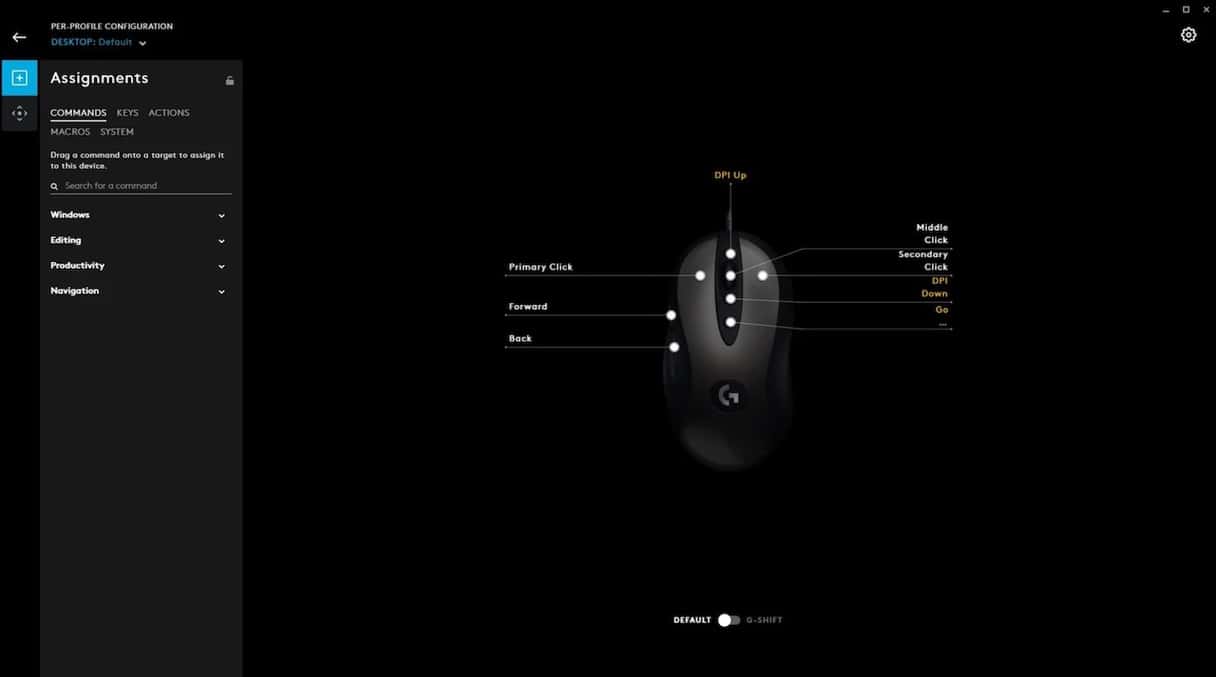
Logitech’s G HUB software is essential for functionality but frequently causes power and connection issues.
Complete G HUB Reset Procedure
1. Uninstall G HUB through Windows Control Panel
2. Press Win+R, type %AppData%, and delete the entire LGHUB folder
3. Also delete C:\Program Files\LGHUB
4. Restart your computer
5. Download the latest G HUB installer directly from Logitech’s website
6. Right-click the installer and select “Run as administrator”
7. Connect your headset only after G HUB is fully installed
Critical Windows Setting Adjustment
After reinstalling G HUB:
1. Open Device Manager
2. Expand “Universal Serial Bus controllers”
3. Right-click each “USB Root Hub” and select Properties
4. Go to the Power Management tab
5. Uncheck “Allow the computer to turn off this device to save power”
6. Click OK to save changes
How to Identify G HUB Conflicts
If your logitech headset not turning on issue coincides with any of these:
– Recent Windows updates
– Installation of other peripheral software (Razer Synapse, Corsair iCUE)
– G HUB showing error messages before the headset stopped working
…then software conflicts are likely the culprit.
Check for Physical Damage and Perform Hardware Inspection

When software fixes fail, inspect for physical issues that prevent your logitech headset not turning on.
Critical Hardware Checkpoints
– Charging port: Look for bent pins or debris (use compressed air to clean)
– Power button: Does it feel stuck or mushy? Try pressing it repeatedly
– Battery compartment: For removable batteries, check for corrosion or swelling
– Cable integrity: Inspect for fraying near connectors
Warning Signs of Serious Hardware Failure
– Visible damage to the USB port on the headset
– Burning smell when attempting to charge
– Battery swelling (makes the ear cup bulge)
– Moisture or liquid damage signs
Pro Tip: For stubborn power buttons, try gently pressing around the edges while powering on. Sometimes the contact point is misaligned but still functional with precise pressure.
Prevent Future Power Issues With Proper Maintenance
Once you’ve fixed your logitech headset not turning on problem, implement these preventative measures:
Battery Care Best Practices
– Avoid leaving your headset plugged in 24/7—unplug once fully charged
– Store at 50% charge if not using for extended periods
– Use only the original cable or certified replacements
– Keep firmware updated through G HUB
Environmental Factors to Monitor
– Avoid extreme temperatures (don’t leave in hot cars)
– Keep away from moisture and excessive sweat
– Store in a dry place with moderate humidity
– Clean charging ports monthly with a soft brush
When Professional Help Is Necessary
If you’ve completed all troubleshooting steps and your logitech headset not turning on remains unresponsive:
Contact Logitech Support If:
– Your headset is still under warranty (typically 2 years)
– You notice physical damage like battery swelling
– The headset shows signs of liquid damage
– Multiple firmware attempts fail
Warranty Tip: Have your purchase receipt ready and note the exact model number (found on the bottom of the ear cup). Logitech’s warranty covers manufacturing defects but not physical damage.
Final Power-On Checklist Before Giving Up
Before concluding your logitech headset not turning on is beyond repair, verify you’ve completed this critical sequence:
- Performed a full 90-second power cycle with battery removed
- Tried multiple charging cables and power sources
- Completed the firmware recovery process as administrator
- Reinstalled G HUB with all residual files deleted
- Checked Device Manager settings for USB power management
- Inspected for physical damage in all critical areas
This systematic approach resolves the vast majority of “logitech headset not turning on” cases. By methodically working through these steps, you’ll likely revive your headset and avoid unnecessary replacement costs. Remember that most “dead” Logitech headsets are actually suffering from recoverable firmware issues rather than permanent hardware failure.



