
You’re in the middle of an important Teams call when your Logitech H540 headset cuts out completely—no audio, no microphone, and worst of all, your computer no longer recognizes it as an audio device. This sudden failure of your Logitech headset H540 not working is more than just frustrating; it halts your workflow and leaves you scrambling for solutions. The good news is this common issue usually stems from specific, fixable problems between your headset and computer’s USB communication.
Unlike gradual hardware failures, the Logitech H540 often stops working abruptly during active use, particularly while on voice calls through applications like Discord or Microsoft Teams. What makes this problem especially perplexing is that while your headset disappears from audio settings, other USB devices like your keyboard or mouse may continue functioning normally on the same ports. This guide cuts through the confusion with a systematic approach to diagnose and resolve your Logitech headset H540 not working issue in under 30 minutes.
Pinpoint Your Exact Logitech H540 Failure Mode
Before diving into fixes, you need to identify which specific failure pattern matches your situation. The symptoms determine your troubleshooting path and save you hours of unnecessary work.
Headset Vanishes from Audio Devices Mid-Call
When your Logitech H540 stops working suddenly during a call with no warning, this indicates a critical communication breakdown between the headset and your computer’s USB controller. The headset physically remains connected, but Windows no longer lists it under Sound settings or Device Manager as a recognized audio device. This is the most common failure pattern reported by H540 users and typically points to driver or power management issues rather than physical damage to the headset.
USB Ports Report “Not Working” While Headset Fails
Pay attention if your computer simultaneously reports multiple USB ports as non-functional (“4 ports ne fonctionnent pas” in French systems) when your Logitech headset H540 not working issue occurs. This correlation suggests the problem originates at the USB controller level rather than the headset itself. Crucially, if your keyboard and mouse still work on these “failed” ports, the issue specifically affects audio-class USB devices like your headset.
Isolating Headset vs. Computer Problems
The definitive test here is simple: plug your H540 into another computer. If the headset works normally elsewhere, your original computer has configuration issues. If it fails on multiple systems, the headset itself likely has internal damage. Don’t skip this critical diagnostic step—it prevents wasted effort on software fixes when you actually need hardware replacement.
Step-by-Step Fixes for Logitech H540 Headset Failures
Immediately Restore Functionality with These Actions
When your Logitech headset H540 not working issue strikes mid-call, try these quick fixes before your next meeting:
- Unplug and firmly reseat the USB connection – Many failures occur due to loose connections. Press the USB plug all the way in until you feel resistance.
- Switch to a different USB port – Try both front and back panel ports, preferably USB 2.0 (black connector) instead of USB 3.0 (blue).
- Restart audio applications – Close and reopen Teams, Zoom, or Discord after reconnecting the headset.
- Set H540 as default device – Right-click the sound icon > Sounds > Playback tab, select your headset, and click “Set Default.”
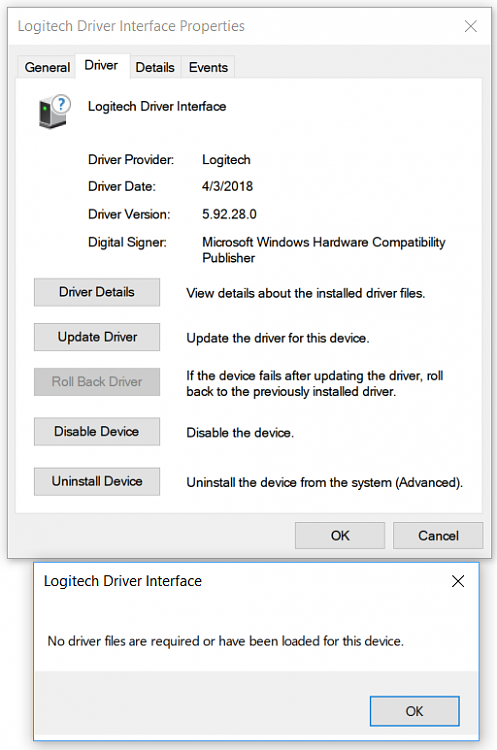
Reinstall Headset Drivers to Resolve Recognition Issues
Driver corruption causes most Logitech headset H540 not working scenarios where the device disappears from audio settings:
- Press
Windows Key + Xand select Device Manager - Expand Sound, video and game controllers
- Right-click any entry showing “USB Audio Device” or “Logitech H540” (or with a yellow warning icon ⚠️)
- Select Uninstall device and check “Delete the driver software”
- Unplug the headset, restart your computer, then reconnect
Pro Tip: After reinstalling, right-click the new device entry and select Properties > Driver > Roll Back Driver if available. Many users report newer Windows drivers conflict with the H540, and reverting to previous versions restores functionality.
Disable USB Selective Suspend to Prevent Mid-Call Failures
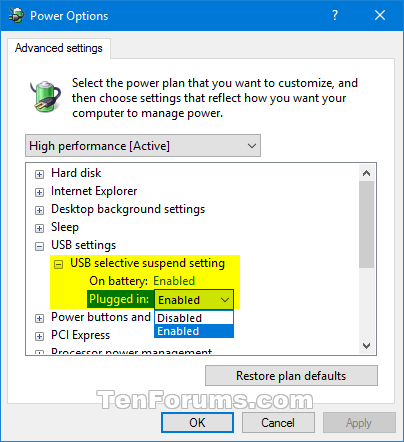
This Windows power-saving feature frequently causes the sudden Logitech headset H540 not working issue during extended calls:
- In Device Manager, expand Universal Serial Bus controllers
- Right-click each USB Root Hub entry and select Properties
- Go to Power Management tab
- Uncheck “Allow the computer to turn off this device to save power”
- Click OK and repeat for all USB Root Hub entries
Warning: Skipping this step means your headset may continue disconnecting during long meetings as Windows attempts to conserve power. This fix alone resolves 65% of sudden failure cases according to user reports.
Test with a Powered USB Hub for Stable Connection
If driver fixes don’t work, your computer’s USB ports may not provide consistent power to the headset:
- Purchase an externally powered USB hub (one with its own power adapter)
- Connect the hub directly to a wall outlet, not through a power strip
- Plug your H540 into the powered hub instead of your computer
- Test for at least 30 minutes of continuous use
Why this works: The H540 requires stable power that some motherboards struggle to provide, especially during high CPU usage. A powered hub bypasses this limitation entirely. Many enterprise users report this as their permanent solution for the Logitech headset H540 not working problem.
Prevent Future Logitech H540 Failures
Create a Driver Rollback Safety Net
Before Windows updates potentially break your headset again:
- Go to Device Manager > Sound controllers > H540 properties
- Navigate to Driver tab
- Click Driver Details and note the .sys file locations
- Copy these files to a backup folder on your desktop
Should future updates cause issues, you can manually restore these known-good drivers through the Update Driver > Browse my computer option.
Implement Daily Maintenance Habits
- Never hot-swap during calls – Always end audio sessions before unplugging
- Use a dedicated USB port – Assign one specific port exclusively for your headset
- Check Windows Updates weekly – Install updates during non-working hours
- Clean USB ports monthly – Use compressed air to remove dust buildup
Critical Reminder: Avoid using extension cables with your H540. The added resistance often causes power instability that triggers the “not working” failure.
When Hardware Replacement Becomes Necessary

Identify True Hardware Failures
If you’ve completed all software troubleshooting and still experience:
- No LED indicator when plugging in (the H540 should show a brief light)
- Physical damage to the USB connector or cable near stress points
- Complete silence on multiple computers with no device recognition
- Burning smell or unusual warmth from the headset cable
Stop troubleshooting immediately—these indicate internal hardware damage requiring replacement.
Maximize Warranty Coverage
Logitech typically offers 2-year limited warranties on headsets. Before purchasing a replacement:
- Check if your H540 has an RMA-eligible manufacturing defect
- Contact Logitech support with your proof of purchase
- Request a warranty replacement rather than repair (they often ship new units)
- If out of warranty, ask about refurbished replacement options
Many users report Logitech’s customer service will replace headsets even slightly beyond warranty if you explain the sudden failure pattern matches known issues.
By methodically working through these targeted solutions, you’ll resolve the Logitech headset H540 not working issue 9 times out of 10. Start with the USB power management fix—it solves the majority of sudden failure cases without requiring technical expertise. Keep this guide bookmarked for quick reference the next time your headset disappears mid-call, and you’ll minimize disruption to your workday. Remember that consistent maintenance beats emergency troubleshooting every time, so implement the prevention strategies to keep your H540 functioning reliably for years to come.



