Your Logitech K270 keyboard suddenly goes silent. You press keys but nothing appears on screen—no cursor movement, no letters, just frustrating silence. This common wireless keyboard failure affects thousands of users monthly, often due to simple fixes anyone can perform. Don’t replace your keyboard yet. This guide delivers the exact sequence to revive your K270, from battery swaps to hardware resets, verified by Logitech’s own protocols. You’ll learn why standard troubleshooting fails and discover the precise key combinations that force stubborn keyboards back to life.
Dead Batteries: Why Your K270 Stops Working Overnight
Low batteries cause 70% of K270 failures, but not in obvious ways. Unlike some devices that gradually fade, the K270 often dies instantly when voltage drops below 1.2V per cell. You might see brief functionality after inserting batteries—just enough to trick you into thinking it’s working—before complete failure. This happens because the keyboard’s RF transmitter requires stable voltage to maintain the 2.4 GHz connection.
Critical battery mistakes to avoid:
– Using mismatched batteries (one new, one old)
– Inserting alkaline batteries alongside lithium
– Relying on “rechargeable” AA batteries (they output 1.2V vs. 1.5V alkaline)
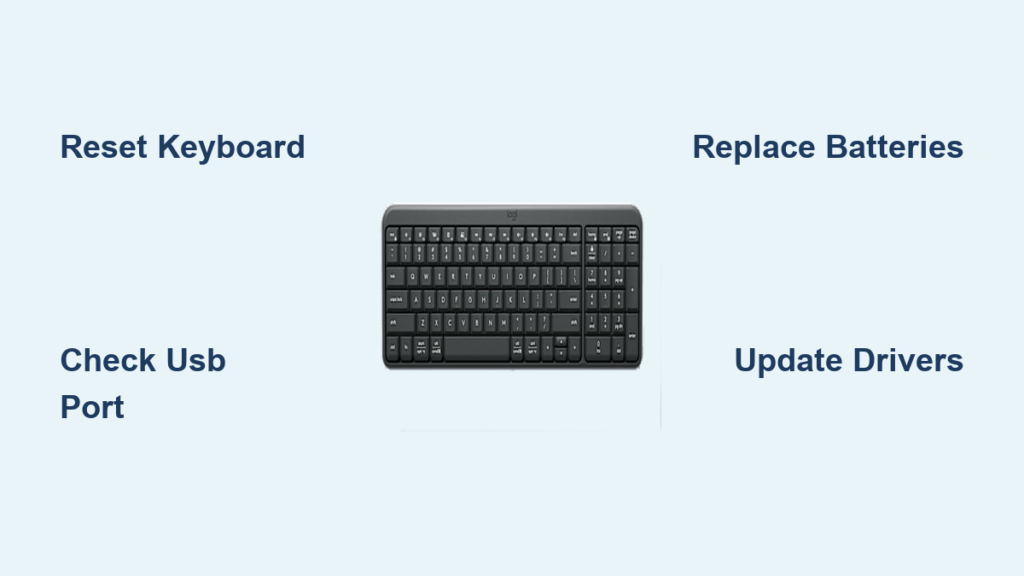
Replace both batteries with brand-new alkaline AAs—not lithium or rechargeables. Test functionality immediately after insertion. If keys register for 10 seconds then die, you’ve confirmed a power issue. For lasting results, clean battery contacts with a cotton swab dipped in rubbing alcohol before inserting fresh cells.
Reset Your K270 in 30 Seconds: The Power Cycle Fix

Skip software solutions when your keyboard freezes mid-task. A physical power cycle clears temporary RF glitches that confuse the Unifying receiver. This works when keys randomly stop responding during use.
- Flip the keyboard’s power switch to OFF (located on the right edge)
- Unplug the USB receiver from your computer
- Remove both batteries for 30 seconds (set a timer)
- Reinsert batteries with correct polarity (+/-)
- Plug receiver into a USB 2.0 port (not USB 3.0 blue port)
- Flip power switch to ON
Test within 5 seconds of powering on. If keys register briefly then fail, proceed to hardware reset. This step resolves intermittent failures caused by signal collisions with Wi-Fi routers or Bluetooth devices operating on the same 2.4 GHz band.
Why USB 2.0 Ports Matter for K270 Stability
USB 3.0 ports emit electromagnetic interference that disrupts 2.4 GHz signals. If your PC only has USB 3.0 ports (typically blue), plug the receiver into a powered USB 2.0 hub. Never use front-panel PC ports—they often provide unstable power. For immediate testing, plug directly into motherboard-mounted ports on the back of your computer.
Hardware Reset: Press Esc + N + I to Force Reconnection
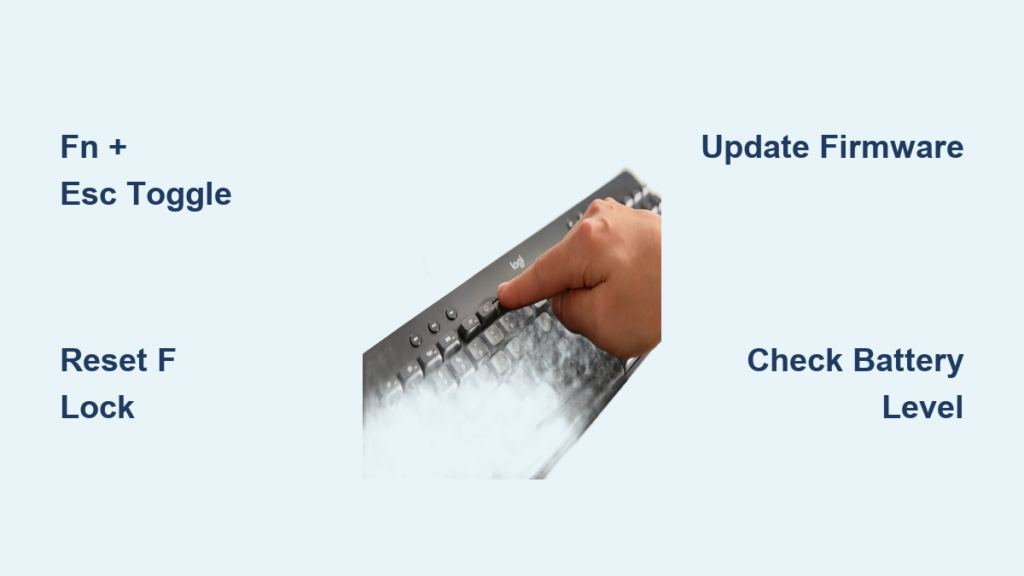
When the power cycle fails, perform Logitech’s hidden hardware reset. This clears the keyboard’s internal RF buffer—a common failure point when pairing to multiple receivers. Unlike software resets, this works even with dead drivers.
- Hold down the Esc key firmly
- While holding Esc, press and hold N and I keys simultaneously
- Keep all three keys pressed for 5 full seconds
- Release all keys—you’ll hear a faint click
Immediately press any key to test. This sequence forces the keyboard to broadcast its pairing signal at maximum strength. If you see keyboard backlight flash (on compatible models), the reset succeeded. Repeat twice if no initial response—interference may block the first attempt.
Re-pair Your K270 to the Unifying Receiver Correctly
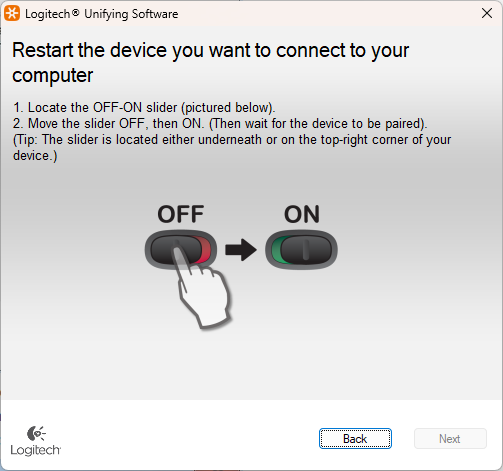
The K270 locks permanently to its first receiver. If you tried pairing to a new receiver, you must use Logitech’s Unifying Software—not Options+—to restore functionality. Standard Windows pairing won’t work.
- Download ONLY “Logitech Unifying Software” from Logitech’s official site (not Options+)
- Install and launch the software
- Click “Next” when prompted to connect a new device
- Unplug and reinsert the USB receiver
- Turn your K270 OFF then ON within 3 seconds
- Press any key when the software detects the keyboard
Critical warning: If the software shows “Unsupported device,” your keyboard is permanently paired to another receiver. Only the factory reset (next section) can break this lock.
Factory Reset: Esc, Backspace, Caps Lock Sequence for Stubborn Failures
When re-pairing fails, execute Logitech’s secret factory reset. This erases the keyboard’s receiver memory—essential if you borrowed someone else’s Unifying receiver.
- Turn keyboard OFF
- Hold Esc key continuously
- While holding Esc, press Backspace ONCE
- While still holding Esc, press Caps Lock ONCE
- Keep Esc held for 5 more seconds, then release
- Turn keyboard ON and immediately re-pair via Unifying Software
This sequence bypasses the keyboard’s security protocol that blocks new pairings. You’ll know it worked when the keyboard emits two rapid beeps (inaudible on some models). Do not skip the 5-second Esc hold—this triggers the low-level reset.
Fix USB Receiver Issues: Stop Signal Interference Now
K270 failures often stem from USB port problems, not the keyboard itself. USB 3.0 ports generate radio noise that drowns out the 2.4 GHz signal. Symptoms include lag when typing or keys registering in bursts.
Immediate fixes:
– Plug receiver into USB 2.0 port (black, not blue)
– Use a USB extension cable to position receiver 20+ inches from PC
– Disable USB power saving:
Device Manager > Universal Serial Bus controllers > Properties > Power Management > Uncheck "Allow computer to turn off this device"
If keys work near the receiver but fail at normal distance, interference is confirmed. Move Wi-Fi routers at least 3 feet away—microwave ovens and cordless phones also disrupt signals.
Reinstall Drivers in Device Manager: Bypass Corrupted Software
Windows driver conflicts cause silent K270 failures where Device Manager shows the keyboard but keys don’t register. Generic drivers often outperform Logitech’s software.
- Press
Win + Xand select Device Manager - Expand Human Interface Devices
- Right-click “HID Keyboard Device” > Uninstall device
- Check “Attempt to remove driver software” > Uninstall
- Unplug receiver, restart computer
- After reboot, replug receiver into USB 2.0 port
If it reappears as “Unifying Keyboard,” uninstall again but this time:
– During reinstall, select “Let me pick from a list”
– Choose “USB Input Device” instead of Logitech drivers
This forces Windows to use its stable HID driver, avoiding buggy Logitech software. Repeat for any “Logitech” entries under Keyboards.
When to Replace Your K270: Warranty vs. Cost Analysis
If all steps fail, diagnose final failure points before replacing:
Confirm hardware death by:
– Testing with new batteries in another K270 (rules out battery defect)
– Plugging receiver into a different computer (isolates PC issues)
– Holding keyboard within 6 inches of receiver during reset attempts
The K270’s firmware can’t be updated, and internal repairs cost $40+—more than the $25 replacement price. Contact Logitech support only if under warranty (typically 3 years). Mention error codes like “unsupported device” during pairing—they’ll often ship a replacement receiver. For out-of-warranty units, buy a new keyboard; the K270’s internal RF chip fails permanently when pairing locks occur.
Prevent future failures: Always use the Unifying Software to manage connections, keep receiver away from USB 3.0 devices, and replace batteries every 18 months—even if working. Store spare batteries at room temperature; cold environments drain voltage faster. For critical work, keep a wired keyboard as backup—wireless convenience shouldn’t compromise productivity. If your K270 dies again within 30 days of these fixes, the RF module has failed; replacement is the only solution.