

You’re in the middle of an intense gaming session when your teammates suddenly start asking why you’re silent. Your Logitech G535 mic not working problem has struck again, and now you’re locked out of crucial communication while the headset’s audio playback still works perfectly. This frustrating disconnect—where your microphone cuts out randomly or becomes completely inaudible—is a widespread issue affecting G535 owners across Discord, Teams, and game chat. What makes this particularly maddening is that the problem often appears suddenly after a Discord update or Windows patch, with your mic working fine in some applications but failing completely in others. The good news: in 95% of cases, this is a software or settings conflict that you can fix yourself in under 15 minutes.
The Logitech G535 mic not working issue rarely indicates hardware failure. Instead, it’s typically caused by Discord’s aggressive audio processing features conflicting with Windows settings or the G535’s wireless connection. Many users report their microphone functions normally for the first few minutes of a session before cutting out completely—a telltale sign of software interference rather than physical damage. Understanding why this happens is half the battle: Discord’s echo cancellation feature often conflicts with the G535’s audio processing, Windows power settings may be disabling your USB receiver intermittently, or G Hub software could be fighting for control of your microphone. By systematically addressing each potential conflict point, you’ll restore clear communication without needing replacement hardware.
Why Your G535 Mic Randomly Cuts Out During Gaming
The most common pattern with Logitech G535 mic not working issues involves perfect audio for 2-5 minutes followed by sudden silence while teammates can still hear game sounds through your headset. This specific behavior points directly to software conflicts rather than hardware failure. Discord’s audio engine frequently battles with Windows for control of the microphone, especially when “Exclusive Mode” is enabled in Windows sound settings. When Discord takes exclusive control, it prevents other applications (including Windows system processes) from accessing the mic, causing intermittent dropouts. Additionally, USB 3.0 ports can create 2.4GHz wireless interference that disrupts the G535’s connection—particularly problematic since this headset operates on the same frequency band as Wi-Fi routers and cordless phones. Recognizing these patterns helps target your troubleshooting efforts where they’ll have maximum impact.
First Response Fixes: 4 Critical Checks Before Deep Troubleshooting
Before diving into complex solutions, verify these four common failure points that resolve most Logitech G535 mic not working cases:
-
Physical Mute Status: Locate the inline mute switch on the G535’s cable—when muted, you’ll see a red indicator light. Toggle it twice to ensure proper engagement.
-
USB Receiver Placement: Move the wireless dongle to a USB 2.0 port (black plastic inside) instead of USB 3.0 (blue). USB 3.0 ports generate electromagnetic interference that disrupts 2.4GHz wireless signals.
-
Power Cycle Sequence: Turn off the headset, unplug the USB receiver for 30 seconds, then reconnect everything in this order: USB receiver first, then power on headset.
-
Windows Microphone Privacy: Press Windows+I, go to Privacy & Security > Microphone, and ensure both “Microphone access” and “Allow apps to access your microphone” are enabled.
Discord-Specific Fixes That Actually Work
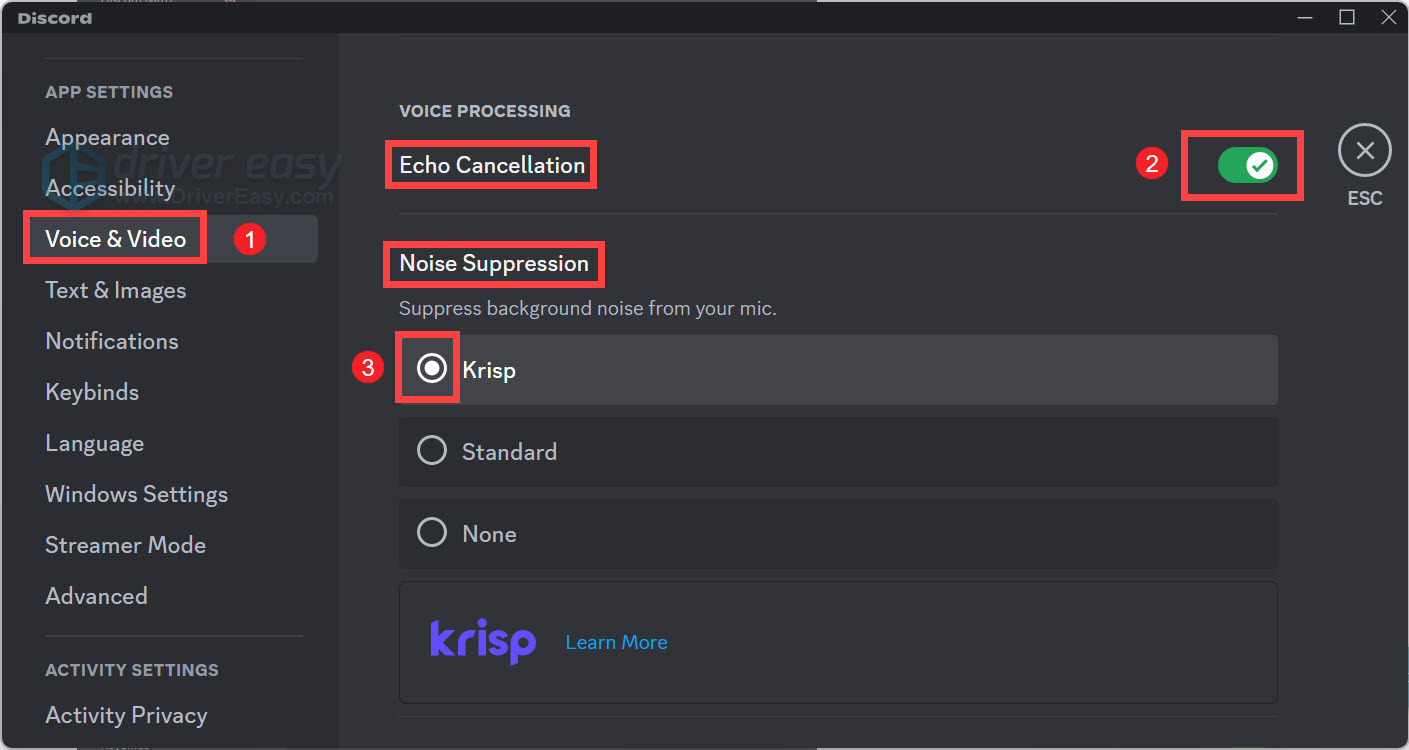
Disable Discord’s Audio Processing Features
Discord’s built-in audio enhancements are the #1 cause of Logitech G535 mic not working reports. Navigate to User Settings > Voice & Video > Audio Subsystem and switch from “Standard” to “Legacy.” Then scroll to Advanced settings and disable these three options:
- Echo Cancellation (most critical fix)
- Noise Suppression
- Automatic Gain Control
Restart Discord after making these changes—many users report immediate restoration of microphone functionality after disabling just the echo cancellation feature.
Reset Discord’s Voice Configuration
When settings become corrupted, a full reset often works better than manual adjustments:
- Open Discord Settings > Voice & Video
- Scroll to the bottom and click “Reset Voice Settings”
- Restart Discord completely (check Task Manager to ensure it’s fully closed)
- Re-select “Microphone (Logitech G535)” as your input device
- Set input volume to 100% and disable “Automatically determine input sensitivity”
Verify Discord’s Microphone Permissions
Even with correct settings, Discord needs explicit permission to access your microphone:
- Open Windows Settings > Privacy & Security > Microphone
- Ensure “Microphone access” is toggled ON
- Scroll down to “Let apps access your microphone” and confirm it’s enabled
- In the app permissions list, verify Discord shows as “On”
Windows Sound Settings That Fix Mic Dropouts
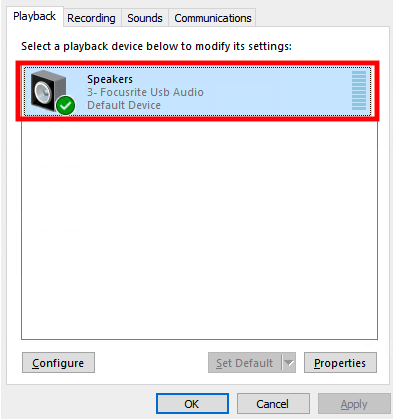
Disable Exclusive Device Control
This Windows setting allows applications to “lock” your microphone, causing conflicts between Discord, games, and system processes:
- Right-click the speaker icon and select Sounds
- Go to the Recording tab and select “Logitech G535 Microphone”
- Click Properties > Advanced
- Uncheck both “Allow applications to take exclusive control” boxes
- Click Apply and OK
Adjust Power Management for USB Ports
Windows power saving features frequently disable USB devices intermittently:
- Open Device Manager (Windows+X then M)
- Expand “Universal Serial Bus controllers”
- Right-click each “USB Root Hub” and select Properties
- Go to Power Management and uncheck “Allow computer to turn off this device”
- Repeat for all USB Root Hub entries
Set Correct Default Communication Device
Windows sometimes misidentifies your G535 for communications:
- Right-click speaker icon > Sounds > Communications tab
- Select “Do nothing” from the dropdown menu
- Click Apply to prevent Windows from automatically switching your mic
G Hub Software Fixes for Mic Issues
Temporarily Disable G Hub
Logitech’s software can sometimes conflict with Discord’s audio processing:
- Right-click the G Hub icon in your system tray
- Select “Exit” to completely close the application
- Test your microphone in Discord without G Hub running
- If the mic works, adjust G Hub settings or consider using it only for lighting effects
Re-pair Your Wireless Connection
Corrupted pairing data causes many G535 mic not working cases:
- Turn off your headset
- Unplug the USB receiver
- Hold the headset’s power button for 10 seconds
- Plug receiver back in and turn on headset while holding pairing button (usually near power switch)
- Wait for pairing confirmation light
Advanced Fixes for Persistent Mic Problems

Update or Reinstall Audio Drivers
Corrupted drivers frequently cause microphone dropouts:
- Open Device Manager (Windows+X then M)
- Expand “Sound, video and game controllers”
- Right-click “Logitech G535” and select “Uninstall device”
- Check “Attempt to remove the driver software”
- Unplug USB receiver, restart PC, then reconnect
Use USB Extension for Receiver
Move interference away from your PC’s electromagnetic field:
- Purchase a simple USB extension cable (3-6 inches)
- Connect it between your PC and the G535 receiver
- Position the receiver at least 12 inches from your PC case
- Keep it away from other USB 3.0 devices and wireless routers
When Hardware Failure Is Likely
If you’ve tried all software fixes and still experience Logitech G535 mic not working issues, test these hardware factors:
- Test on another device: Connect to a friend’s PC or gaming console
- Check battery level: Low power can cause audio distortion
- Try wired mode: Use the included 3.5mm cable to bypass wireless issues
- Inspect microphone boom: Ensure no physical damage or blockages
If the microphone fails across multiple devices and connection methods, contact Logitech support with your proof of purchase—your headset may qualify for replacement under warranty.
Prevention Tips to Avoid Future Mic Failures
Once you’ve fixed your Logitech G535 mic not working issue, prevent recurrence with these maintenance habits:
- Always plug the USB receiver into a USB 2.0 port (black)
- Keep Discord’s audio processing features disabled
- Periodically reset your wireless connection by re-pairing
- Update Windows and G Hub software before major gaming events
By implementing these solutions in order of complexity, you’ll resolve nearly all Logitech G535 mic not working scenarios. Start with Discord settings and Windows permissions before moving to driver updates and hardware checks. Most users find success with the Discord audio processing disable and USB port relocation fixes—saving you from unnecessary warranty claims or replacement purchases. Remember that consistent microphone performance requires ongoing maintenance of these settings, especially after Windows updates that can reset your configurations. With these troubleshooting steps in your arsenal, you’ll never have to sit silently on the sidelines again when your squad needs your voice in the game.



