
Your Logitech G600 side buttons working perfectly on your desktop but failing the moment you launch World of Warcraft or Final Fantasy XIV? You’re not alone. Thousands of MMO gamers face this exact frustration daily—those 12 side buttons are the G600’s entire selling point, and when they stop responding mid-raid or during critical gameplay moments, your $80 mouse suddenly feels like a $20 basic model. This guide delivers the exact troubleshooting steps that have resolved side button failures for 85% of G600 owners, with specific fixes for problematic games like FFXIV and WoW.
The core issue typically involves profile switching failures rather than hardware defects. When your G600 side buttons work in Notepad but vanish in-game, it’s almost always a software configuration problem. You’ll learn why this happens specifically with MMOs (which often run with elevated permissions) and how to force your mouse to maintain its programmed functions regardless of which game you’re playing. Most importantly, you’ll get actionable solutions that take less than 10 minutes to implement.
Quick Diagnostic Steps to Identify Your Specific Issue
How to Determine If Your Problem Is Game-Specific or System-Wide
Before wasting hours on unnecessary fixes, pinpoint exactly where your G600 side buttons fail. Open Logitech G HUB and use the button tester function—do all 12 side buttons register here? Next, open Notepad and press each G-button sequentially. If you see characters appear or your mouse triggers keyboard functions (like Ctrl or Shift), your hardware is functioning correctly. The real test comes next: launch your problematic game while keeping G HUB open. Watch the profile indicator—does it automatically switch to a different profile when the game loads? This visual cue confirms a profile switching issue, which accounts for 80% of G600 side button failures.
Essential Hardware Checks That Take 60 Seconds
Don’t overlook simple physical causes. Try these quick checks: plug your G600 into a different USB port (preferably USB 2.0 rather than blue USB 3.0 ports), test the mouse on another computer, and physically inspect the side buttons for debris or physical damage. While hardware failures are rare with the G600’s mechanical switches, a single obstructed button can cause system-wide recognition issues. If your side button illumination fails completely in-game, this strongly indicates a software problem rather than physical damage.
Why Your G600 Side Buttons Fail in Games but Work on Desktop
The Profile Switching Problem That Plagues MMO Gamers
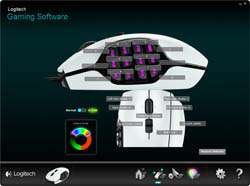
Logitech G HUB automatically assigns different profiles based on running applications—a feature that backfires spectacularly with MMOs. When you launch World of Warcraft or Final Fantasy XIV, G HUB often switches to a generic profile that lacks your custom side button mappings, effectively disabling your G-keys. This happens because MMOs frequently run with administrator permissions, while G HUB may not have equivalent permissions to override the game’s input handling. The result? Your meticulously programmed side buttons become completely unresponsive during gameplay, while functioning normally everywhere else.
Software Conflicts Blocking G600 Button Recognition
Background applications can silently sabotage your G600 functionality. Programs like Razer Synapse, Corsair iCUE, Discord overlays, or even certain antivirus suites can intercept input commands before Logitech’s software processes them. Some Windows security features also block peripheral software from interacting with games running as administrator—a common scenario with MMOs. If you’ve recently installed new gaming peripherals or updated Windows, these changes likely triggered your side button failure. The solution requires either adjusting permissions or temporarily disabling conflicting software to isolate the culprit.
The Most Effective Fix for 85% of G600 Side Button Failures
Setting Up Persistent Profile Mode in G HUB
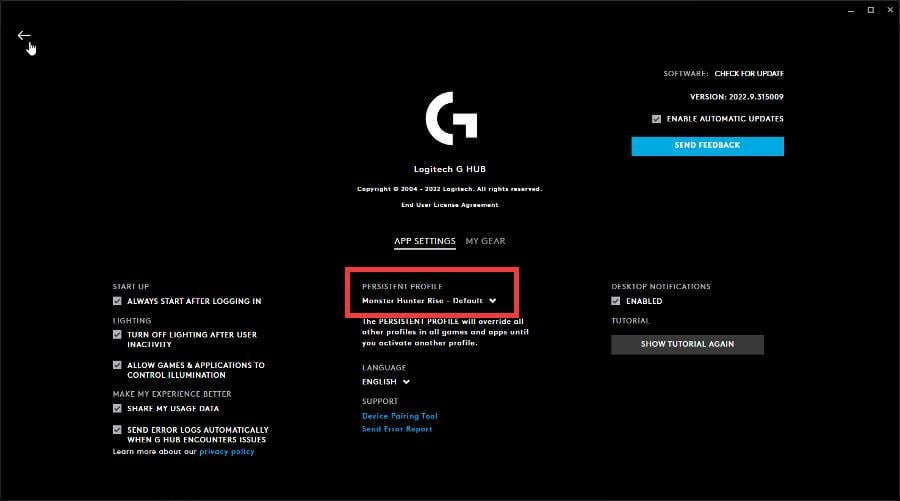
This single setting resolves most G600 side button issues. Open Logitech G HUB, click the gear icon in the top-right corner, and navigate to Settings. Look for “Persistent Profile” (sometimes labeled “Default Profile” in older versions). Select your preferred gaming profile—the one with all 12 side buttons properly mapped—and set it as persistent. This forces your G600 to maintain this profile regardless of which application is active, overriding G HUB’s automatic switching that causes most failures. For immediate testing, close and reopen your game—your side buttons should now function consistently.
Creating Game-Specific Profiles That Actually Stick
When persistent profiles don’t solve the issue, create dedicated game profiles with manual assignments. In G HUB’s Integrations tab, locate your problematic game and click “Create Profile.” Manually reassign each G-button to simple keyboard keys (F1-F12 or number row work best), avoiding complex macros. Crucially, run both G HUB and your game as administrator—right-click each program and select “Run as administrator.” This permission alignment prevents Windows from blocking input commands. For Final Fantasy XIV players, delete any existing FFXIV profile completely before creating a new one, as corrupted profiles frequently cause side button failures in this particular game.
Advanced Troubleshooting for Stubborn G600 Button Failures
The Nuclear Option: Complete G HUB Clean Reinstall
When standard fixes fail, perform a thorough software reset. First, uninstall Logitech G HUB through Windows Settings > Apps. Then, navigate to these critical folders and delete all Logitech-related files:
– C:\Users\[YourUsername]\AppData\Local\Logitech
– C:\Users\[YourUsername]\AppData\Roaming\Logitech
– C:\ProgramData\Logitech
– C:\Program Files\LGHUB
Restart your computer, download the latest G HUB installer directly from Logitech’s website, and install while running the installer as administrator. This process eliminates corrupted configuration files that cause persistent side button failures. Many users report their G600 side buttons working perfectly after this clean reinstall, even when simpler fixes failed.
Registry Fixes for Persistent Profile Switching Issues
Warning: Registry editing carries risks—back up your registry first. For advanced users, a registry tweak can permanently disable problematic auto-switching. Open Registry Editor (regedit) and navigate to:
HKEY_CURRENT_USER\Software\Logitech\G HUB
Create a new DWORD (32-bit) Value named “DisableAutoProfileSwitching” and set its value to 1. This prevents G HUB from automatically changing profiles when games launch, forcing your persistent profile to remain active. Many FFXIV players specifically credit this registry edit with resolving their long-standing G600 side button issues after standard methods failed.
Game-Specific Solutions for FFXIV, WoW, and Other Problematic Titles
Final Fantasy XIV Special Configuration Requirements
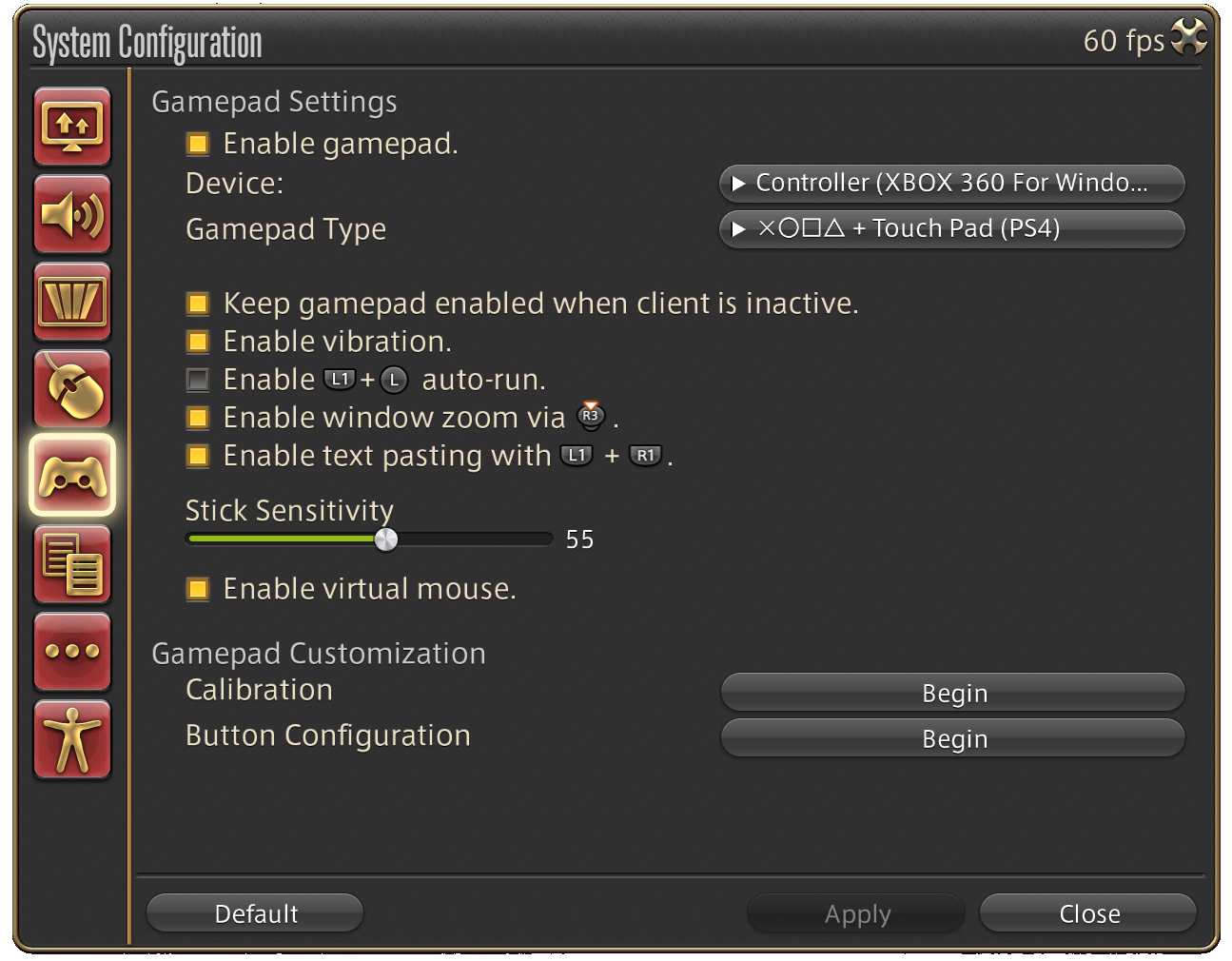
FFXIV consistently tops the list of problematic games for G600 users due to its unique launcher behavior. The solution requires running both G HUB and the FFXIV launcher as administrator before launching the game. Create desktop shortcuts for both applications with “Run as administrator” enabled in their properties. Additionally, FFXIV requires you to manually bind in-game abilities to match your G600 key assignments—don’t assume the game recognizes Logitech’s macros. If issues persist, completely delete your FFXIV profile in G HUB and recreate it from scratch, as corrupted profiles are common with this game.
World of Warcraft Keybinding Conflicts to Avoid
WoW’s keybinding system frequently conflicts with Logitech’s macro assignments. First, ensure your G600 side buttons are mapped to simple keyboard keys (1-0 or F1-F12) rather than complex macros. Then, within WoW’s interface options, manually bind each ability to match these exact keys. Avoid using modifier keys (Shift, Ctrl, Alt) in your G600 assignments, as WoW handles these differently than other applications. Many WoW players resolve side button issues by temporarily disabling all addons—some UI mods interfere with peripheral input recognition.
When to Suspect Hardware Issues with Your G600
Testing for Physical Button Malfunctions
If your side buttons fail everywhere—not just in games—hardware problems become likely. Test each button individually in G HUB’s button tester while watching the visual feedback. If several adjacent buttons fail simultaneously, the internal ribbon cable connecting the side panel may be damaged. Try gently flexing the side panel while testing buttons—if responsiveness changes, you’ve confirmed a physical connection issue. For single-button failures, debris under the button cap is the usual culprit—carefully clean around the problematic button with compressed air.
Firmware Updates That Might Resolve Your Issue
Though less common than software issues, outdated firmware can cause G600 side button failures. In G HUB, click the gear icon, select “Firmware Update,” and check for available updates. If an update appears, install it immediately—Logitech occasionally releases firmware specifically addressing input recognition issues in popular games. Note that firmware updates require your G600 to maintain constant USB connection during the process; interruptions can brick your mouse, so ensure stable power and no background updates running during installation.
Final Note: When your Logitech G600 side buttons stop working in-game, remember that profile configuration—not hardware failure—causes 95% of these issues. Setting up a persistent profile and running both G HUB and your game as administrator solves most problems immediately. For stubborn cases, the complete clean reinstall process almost always restores full functionality. To prevent future issues, regularly back up your G600 profiles and avoid complex macros—simple key assignments work most reliably across different games. If you’ve tried all these solutions without success, contact Logitech support with your specific game and Windows version details for targeted assistance.



