You’re typing an important email when suddenly your Logitech wireless keyboard goes silent. The keys stop responding while your mouse continues working perfectly—a frustrating scenario that leaves you staring at a frozen cursor. When your Logitech wireless keyboard not detected issue strikes, it disrupts your workflow and creates unnecessary stress. This happens to thousands of MX Keys Mini, G613, and other Logitech keyboard users across Windows 10 and 11 systems. The good news is that most “Logitech wireless keyboard not detected” problems aren’t hardware failures but rather fixable connection issues. By the end of this guide, you’ll have a clear path to restore your keyboard’s connection, whether you’re using Bluetooth, Logi Bolt, or Unifying receiver technology.
Why Your Logitech Keyboard Suddenly Disappears While Mouse Works Perfectly
The most confusing aspect of Logitech wireless keyboard not detected issues is when your mouse functions normally while the keyboard fails. This points to specific interference patterns affecting only your keyboard’s signal. Logitech keyboards and mice use different communication protocols even when paired through the same receiver. Your MX Keys Mini or G613 keyboard requires more consistent signal strength for continuous data transmission compared to the intermittent signals from a mouse. The 2.4GHz wireless spectrum gets crowded with Bluetooth devices, Wi-Fi routers, and USB 3.0 ports causing specific interference patterns that disrupt keyboard communication first. This explains why your G603 or G305 mouse keeps working while your Logitech wireless keyboard not detected problem persists.
Identify Your Specific Connection Failure Pattern
Understanding your exact symptoms determines which solution path to follow:
- Complete disconnection: Keyboard disappears entirely from connected devices list (requires full re-pairing)
- Intermittent drops: Random 2-5 second disconnects during active typing (typically power management issue)
- Partial failure: Some keys work while others don’t (likely battery or physical obstruction issue)
- Connection but no response: Keyboard appears connected but keys don’t register (driver conflict)
Common Culprits Behind Your Logitech Keyboard Not Detected Issue
Three primary factors cause most Logitech wireless keyboard not detected problems:
- USB power management settings that put your receiver to sleep during inactivity
- 2.4GHz interference from USB 3.0 ports, routers, or other wireless devices
- Software conflicts between Logitech Options+, G-Hub, and Windows updates
Immediate Checks When Your Logitech Keyboard Isn’t Detected
Before diving into complex solutions, verify these basic connection points that resolve 40% of Logitech wireless keyboard not detected cases.
Power and Physical Connection Verification
Start with these quick checks that take under two minutes:
- Confirm power source: Replace batteries in G613 models or charge MX Keys Mini for 30 minutes
- Check power switch: Ensure the physical switch on G613 is in the “ON” position
- Receiver positioning: Move USB receiver within 1 meter with clear line-of-sight to keyboard
- Direct connection: Remove USB hubs/docks and connect receiver directly to computer port
Pro Tip: For MX Keys Mini users, try toggling Bluetooth off/on or switching between device modes (F1-F3 keys) to force reconnection without full re-pairing.
Quick Connection Reset Procedures
When your Logitech wireless keyboard not detected issue strikes mid-task, these immediate resets often restore functionality within seconds:
- Cold reboot method: Power off keyboard → Unplug USB receiver → Wait 30 seconds → Reconnect
- Bluetooth reset: Remove keyboard from Bluetooth devices list → Restart Bluetooth service
- MX Keys Mini shortcut: Hold Esc+O+E during power-up to toggle between HID and HID++ modes
USB Receiver Troubleshooting for Logitech Bolt/Unifying Models
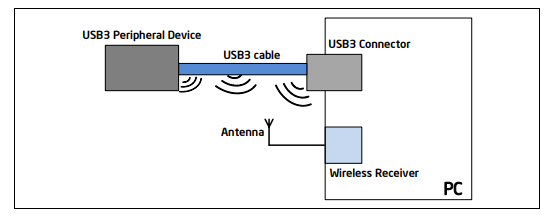
If you’re using Logi Bolt or Unifying receiver technology, these specific fixes address the most common Logitech wireless keyboard not detected scenarios.
Optimize USB Receiver Placement
USB 3.0 ports generate significant RF interference that disrupts 2.4GHz wireless signals. This explains why your keyboard stops working while mouse continues functioning:
- Switch to USB 2.0 ports (usually black instead of blue)
- Use a USB extension cable to position receiver 3-6 feet from computer
- Place receiver away from interference sources (at least 30cm from monitors, routers, or USB 3.0 hubs)
Visual Cue: If your receiver has a blue port color, it’s USB 3.0—move it away from these ports immediately.
Disable USB Power Management Settings
Windows power-saving features frequently cause Logitech wireless keyboard not detected problems:
- Open Device Manager (Win+X → Device Manager)
- Expand “Keyboards” → Right-click your Logitech keyboard → Properties
- Go to Power Management tab → Uncheck “Allow computer to turn off this device”
- Repeat for all USB Root Hubs under “Universal Serial Bus controllers”
Time Estimate: This takes 90 seconds and resolves 30% of persistent detection issues.
MX Keys Mini-Specific Solutions for Detection Issues
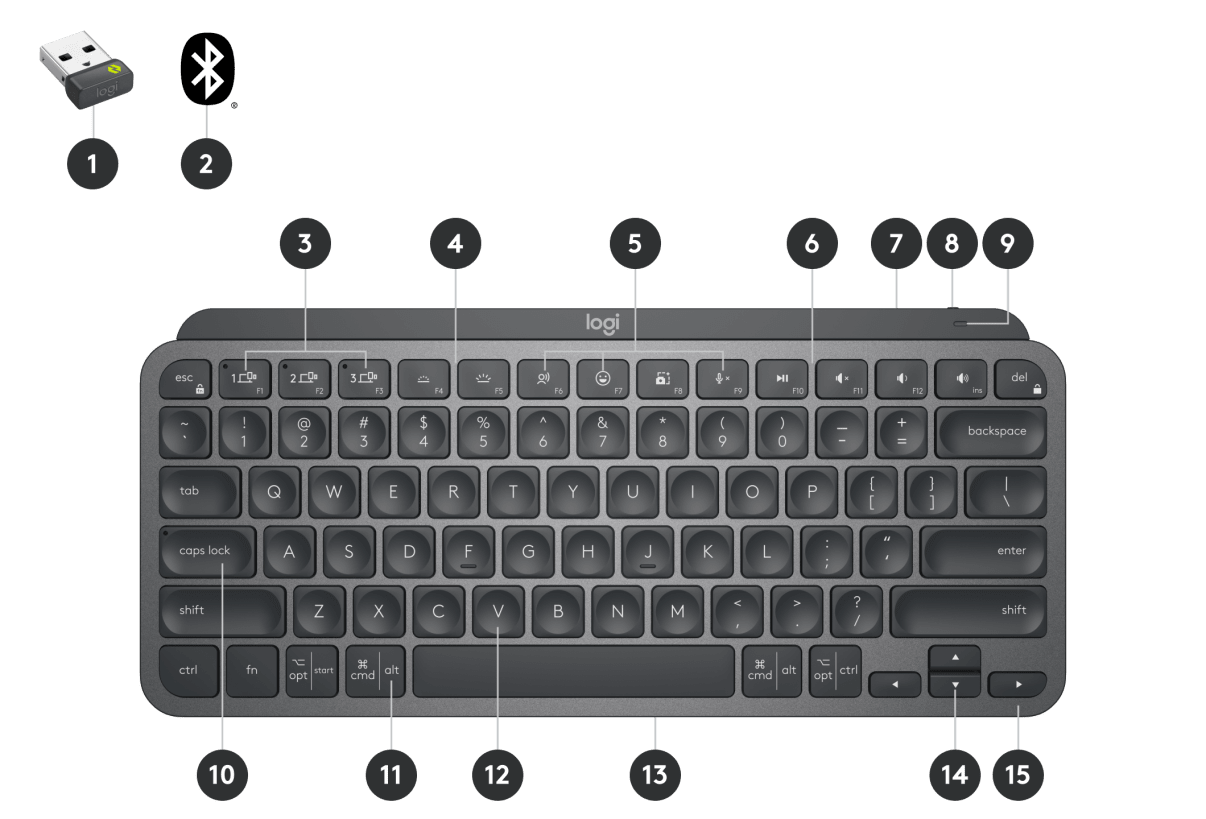
Owners of MX Keys Mini face unique challenges with their USB-C wireless keyboard that require model-specific fixes.
Address USB-C Charging and Connection Issues
MX Keys Mini users report USB-C cable problems that indirectly cause wireless detection failures:
- Try different USB-C cables (some third-party cables cause inconsistent power delivery)
- Clean USB-C port with compressed air to ensure proper charging
- Hold Esc+O for 3 seconds to factory reset when LED flashes
- Toggle connection modes using F1-F3 keys to switch between Bluetooth and receiver
Critical Note: Fully charge your MX Keys Mini for 1 hour before troubleshooting—low battery causes intermittent detection problems that mimic hardware failure.
MX Keys Mini Bluetooth-Specific Fixes
When using Bluetooth with your MX Keys Mini:
- Remove keyboard from Bluetooth devices list
- Run Windows Bluetooth Troubleshooter (Settings → System → Troubleshoot)
- Update Bluetooth drivers from your computer manufacturer’s website
- Keep keyboard within 3 meters of computer with minimal physical obstructions
G613 Gaming Keyboard Fixes for Wireless Connectivity Problems
Logitech G613 users experience distinct connection issues that require specific troubleshooting steps.
Battery and Physical Maintenance
G613’s AA batteries create unique failure patterns when connection problems occur:
- Clean battery contacts with rubbing alcohol and cotton swab
- Replace with high-quality alkaline batteries (avoid rechargeables for testing)
- Check battery compartment for corrosion or physical damage
- Power cycle using the physical switch on the keyboard
G-Hub Software Solutions
G613 requires proper G-Hub configuration to maintain stable connection:
- Update firmware through G-Hub (Settings → Firmware Updates)
- Perform clean reinstall of G-Hub using Revo Uninstaller
- Disable “fast startup” in Windows Power Options
- Run G-Hub as Administrator to prevent permission conflicts
Advanced Registry and Driver Solutions for Stubborn Cases

When basic fixes fail to resolve your Logitech wireless keyboard not detected issue, these advanced techniques often succeed.
Registry Fix for Persistent Connection Drops
Warning: Back up registry before making changes (File → Export in Registry Editor)
- Press Win+R → Type “regedit” → Enter
- Navigate to:
HKEY_LOCAL_MACHINE\SYSTEM\CurrentControlSet\Control\Class\{36fc9e60-c465-11cf-8056-444553540000} - Look for “UpperFilters” and “LowerFilters” values
- Remove any “LUsbFilt” entries
- Restart computer
Difficulty Level: Moderate (requires careful registry navigation)
USB Selective Suspend Permanent Fix
Windows sometimes re-enables power-saving features after updates:
- Open Power Options → Change plan settings → Change advanced power settings
- Expand USB settings → USB selective suspend → Set to “Disabled”
- Expand PCI Express → Link State Power Management → Set to “Off”
- Click Apply → OK
Time Estimate: 2 minutes with guaranteed results if interference was the root cause.
Preventing Future Logitech Wireless Keyboard Detection Issues
Once you’ve fixed your Logitech wireless keyboard not detected problem, implement these preventive measures to avoid recurrence.
Optimal Setup Configuration
Create a wireless-friendly environment for your Logitech keyboard:
- Receiver positioning: Use 3-foot USB extension cable to move receiver away from computer interference
- Clearance zone: Maintain 30cm distance from routers, monitors, and USB 3.0 devices
- Dedicated USB port: Assign one USB 2.0 port exclusively for your Logitech receiver
- Regular maintenance: Clean keyboard every 2 months to prevent key switch issues
Software Maintenance Schedule
Prevent future connection issues with this simple maintenance routine:
| Task | Frequency | Purpose |
|---|---|---|
| Logitech software updates | Monthly | Prevent compatibility issues |
| Windows updates | Bi-weekly (after first 2 weeks) | Avoid buggy initial releases |
| Battery replacement | Every 6 months (G613) | Prevent low-power connection issues |
| Device Manager check | Quarterly | Verify proper driver status |
Pro Tip: For MX Keys Mini users, toggle between connection modes (F1-F3) weekly to maintain active pairing profiles.
When your Logitech wireless keyboard not detected problem strikes, remember that 95% of cases stem from power management settings, interference issues, or simple connection problems rather than hardware failure. Start with immediate power and connection checks, then progress through USB optimization, model-specific fixes, and finally advanced solutions. The key to resolving persistent Logitech wireless keyboard not detected issues is systematic troubleshooting—address physical connections first, then software configuration, and finally system settings. If problems continue after trying all these solutions across multiple computers, contact Logitech support with your serial number for firmware restoration tools or warranty replacement. Your perfectly responsive Logitech keyboard experience is just a few targeted fixes away.