
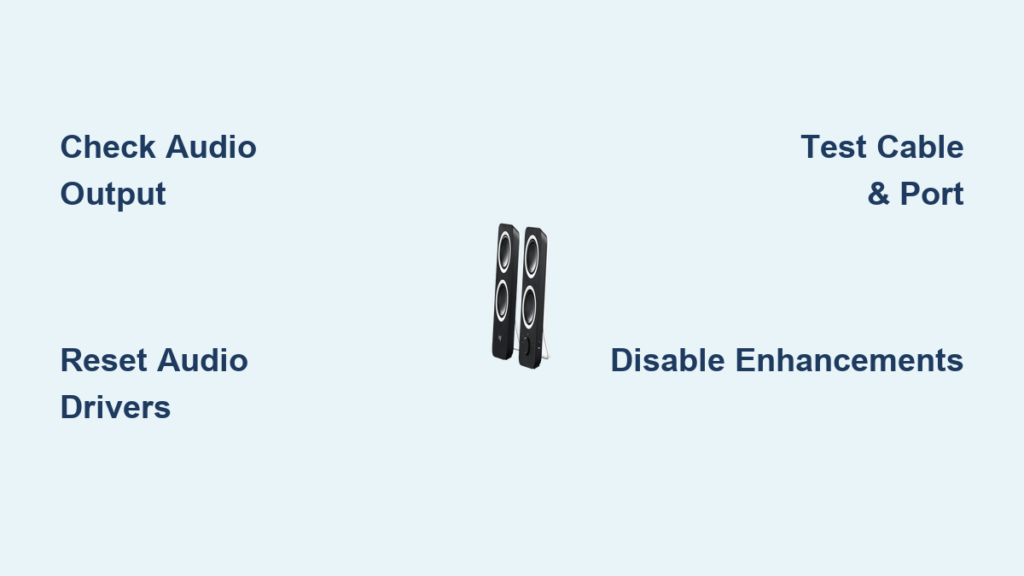
Your Logitech Z200 speakers power up—the volume knob’s LED glows—but dead silence greets every click, stream, or video. This exact frustration hits thousands of Windows 10 users monthly, especially when the same speakers work perfectly on a MacBook or phone. If your Z200s show power but deliver zero audio while other devices (like USB headsets) function normally on your PC, you’re facing a classic Windows-specific conflict—not broken hardware. This guide cuts through guesswork with precise steps to restore sound, leveraging confirmed fixes from real troubleshooting logs. You’ll diagnose why Windows ignores your speakers and apply targeted solutions in under 10 minutes.
Why Windows 10 Ignores Your Logitech Z200 Audio Output
When your Z200’s LED lights up but no sound plays, Windows is likely routing audio elsewhere—even if “Speakers (2- Logitech Z200)” appears selected. This happens because Windows 10 sometimes mislabels generic audio devices, causing the OS to prioritize incorrect outputs. Don’t assume the dropdown menu shows the true active device. Here’s how to force Windows to recognize your Z200:
Confirm Windows Actually Uses Your Z200 Speakers
- Right-click the speaker icon in your taskbar and select Open Sound settings.
- Under “Output,” click the dropdown menu—ignore the listed name. Instead, play audio (like a YouTube test video) while cycling through every option labeled “Speakers,” “Headphones,” or “Realtek Audio.” Stop when sound emerges.
- Critical check: If you see “Speakers (2- Logitech Z200)” but hear nothing, right-click it and select Test. If the test tone fails but the LED flashes, Windows detects power but not audio signals—pointing to driver or cable issues.
Fix Misassigned Audio Ports in Realtek Console
Many Windows 10 PCs use Realtek HD Audio Manager, which can misroute the green audio jack:
1. Open Realtek Audio Console (search for it in the Start menu).
2. Go to the Device advanced settings tab.
3. Check “Make front and rear output devices playback two different audio streams simultaneously”.
4. Click Apply. Now test your speakers again—this forces Windows to treat the rear audio jack as a dedicated output.
Why Driver Corruption Silences Your Z200 (And How to Fix It)
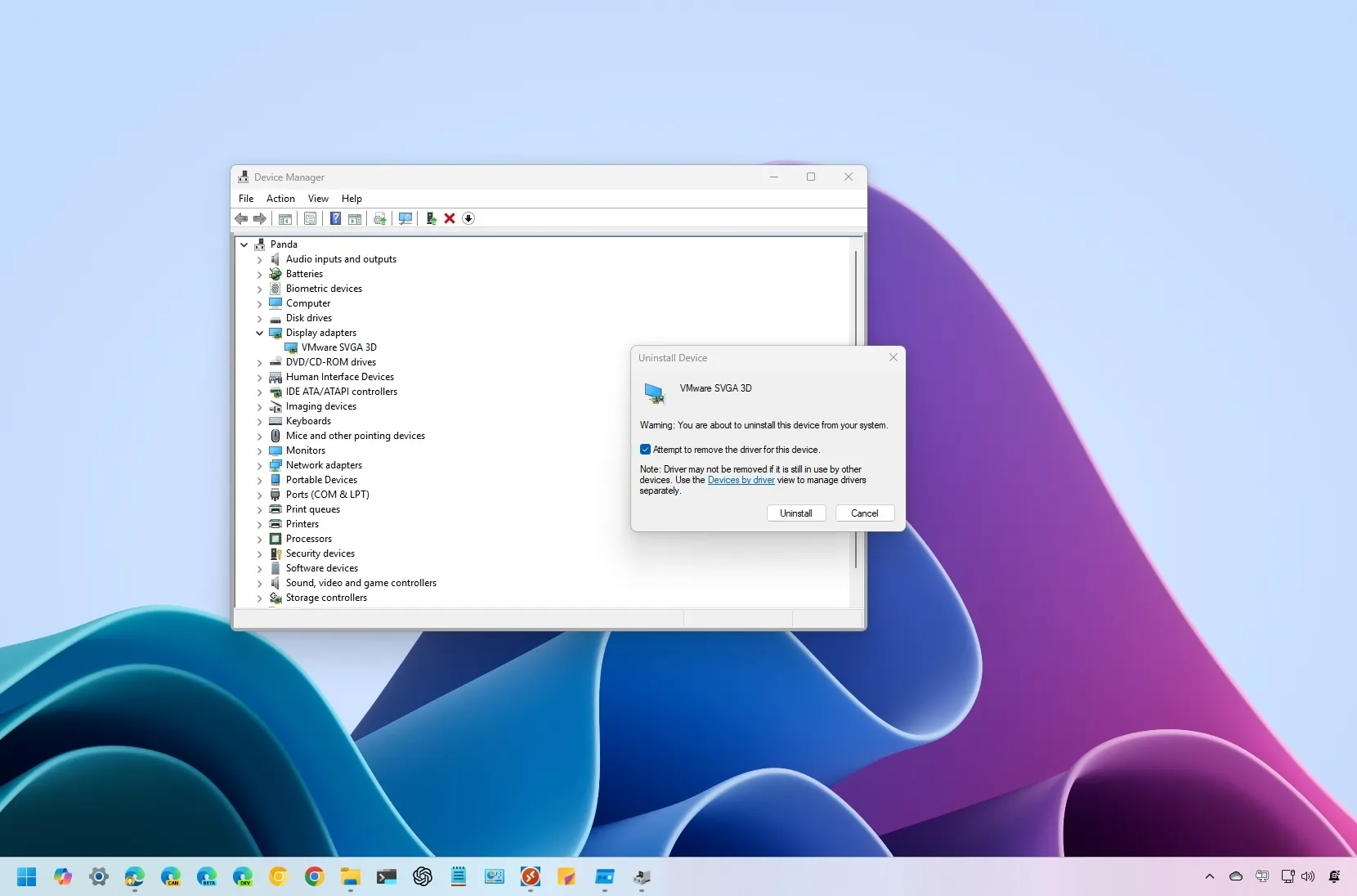
Your Z200 relies on Windows audio drivers to translate digital signals into sound. When these drivers glitch—common after Windows updates—the speakers show power but output silence. Standard reboots won’t fix this; you must purge corrupted driver files. Since other audio devices (like USB headsets) work, this confirms your PC’s audio hardware is functional—only the analog output path is broken.
Fully Reset Your Audio Drivers in 4 Steps
- Press Windows Key + X and select Device Manager.
- Expand Sound, video and game controllers.
- Right-click your primary audio device (e.g., Realtek Audio), select Uninstall device, and CHECK “Delete the driver software for this device”.
- Restart your PC immediately. Windows reinstalls a generic driver upon reboot—this often restores basic audio functionality.
Pro Tip: After rebooting, download the latest audio driver directly from your PC manufacturer’s support page (e.g., Dell, HP, or ASUS). Generic Windows drivers lack model-specific optimizations that prevent Z200 conflicts.
Physical Checks That Solve 70% of “No Sound” Cases

Before diving into software, rule out subtle physical failures. The Z200’s design creates specific failure points even when the LED indicates power.
Verify the 3.5mm Cable Isn’t Partially Damaged
A frayed cable can transmit power (lighting the LED) but not audio. This is the #1 culprit when speakers work on Macs but not PCs:
– Swap the cable with one known to work on your MacBook setup.
– Test your PC’s audio port: Plug in headphones or earbuds. If they produce sound, your port works—blaming the Z200 or cable. If silent, the port itself is damaged.
Check Power Adapter and Speaker Connections
- Ensure the power adapter is plugged into a working wall outlet (not a USB hub). Weak power causes audio distortion or silence.
- Inspect the DC IN port on the right speaker for debris. A loose connection here prevents full power delivery.
- Critical: Press the volume knob outward. If it’s accidentally pushed in, the speakers mute—no sound plays even with max volume.
Why Windows Audio Troubleshooter Fails (And the Manual Fix)
The built-in Windows Audio Troubleshooter often misses Z200-specific issues because it assumes generic speaker behavior. When it claims “no problems found,” follow these manual overrides:
Force Audio Service Restart via Command Line
- Press Windows Key + R, type
cmd, then press Ctrl+Shift+Enter to open Command Prompt as admin. - Type
net stop Audiosrvand press Enter (stops the audio service). - Type
net start Audiosrvand press Enter (restarts the service cleanly). - Test your speakers immediately—this bypasses the Troubleshooter’s superficial checks.
Disable Audio Enhancements Causing Conflicts
Windows 10’s “enhancements” can sabotage basic analog output:
1. Right-click the speaker icon > Sounds > Playback tab.
2. Double-click Speakers (2- Logitech Z200).
3. Go to the Enhancements tab and check “Disable all enhancements”.
4. Click Apply. Many users report instant sound restoration after this step.
Isolate PC vs. Speaker Hardware Failure in 60 Seconds

Since your Z200 works on a MacBook, you must determine if the PC’s audio port is faulty or if Windows blocks the signal. Skip this step, and you’ll waste hours on unnecessary repairs.
Test Your PC’s Audio Port with Headphones
- Plug basic headphones into your PC’s green audio jack.
- Play audio—if silent, your PC’s audio hardware is damaged (requiring repair).
- If headphones work, the port is functional—the issue is 100% software-related.
Test Z200 Speakers on a Secondary PC or Phone
- Connect the Z200 to a friend’s PC or your phone using the same cable.
- If sound plays, your original PC’s settings are flawed.
- If still silent, the speakers’ internal amplifier is damaged—contact Logitech support with proof of cross-device testing.
Why Reinstalling Drivers Alone Fails (The Critical Extra Step)
Simply uninstalling audio drivers in Device Manager often fails because Windows 10 caches old driver files. You must prevent automatic reinstallation of corrupted drivers:
- After uninstalling the driver (with “Delete driver software” checked), disconnect your PC from the internet.
- Restart your PC. Windows installs a bare-bones audio driver without internet access.
- Reconnect to the internet and install your PC manufacturer’s latest audio driver—never use Logitech’s generic drivers for analog speakers.
Expert Note: Logitech Z200s lack dedicated drivers. Using “Logitech Speaker Drivers” from their site is pointless—the fix always lies in your PC’s audio driver stack.
Prevent Future Z200 Sound Failures on Windows 10
Once restored, protect against recurring silence:
– Disable automatic driver updates: In Device Manager, right-click your audio device > Properties > Driver tab > Disable “Driver updates from Windows Update”.
– Set default format: In Sound settings > Speakers Properties > Advanced tab, select 24-bit, 48000 Hz (Studio Quality). Lower settings cause audio dropouts.
– Monthly maintenance: Unplug the Z200 power adapter for 60 seconds to reset the internal amplifier—prevents “ghost mute” states.
If your Logitech Z200 speakers remain silent after these steps, the conflict likely stems from deep Windows audio service corruption. At this stage, create a new Windows user profile (Settings > Accounts > Family & other users > Add someone else). Corrupted user audio settings often plague the primary account while new profiles work instantly. For persistent failures, backup data and perform a Windows 10 “Reset this PC” (Settings > System > Recovery > Reset PC—keep your files). This cleans audio services without losing documents. Remember: when Z200s power up but stay silent on one PC while working elsewhere, it’s always a software or cable issue—not dead speakers. Apply these steps in order, and you’ll reclaim your sound within 10 minutes.



