

Your Logitech keyboard suddenly stops responding after switching devices, or keys start typing random characters mid-sentence. Maybe Bluetooth pairing fails repeatedly despite fresh batteries. These frustrating issues often stem from corrupted connections or firmware glitches—not hardware failure. A proper reset clears temporary memory, resets Bluetooth pairing tables, and restores factory settings without damaging your keyboard. This guide delivers exact reset procedures for every major Logitech model, including K380, K580, G-Series, and multi-device keyboards. You’ll learn which button combinations actually work (no more guessing), avoid common reset pitfalls, and get your keyboard functioning like new in under 5 minutes.
Most users attempt random key presses when their Logitech keyboard malfunctions, worsening the problem. The correct reset method varies significantly between models—what works for a K380 could brick a G915. Wireless interference, outdated firmware, or accidental key remapping frequently cause these issues. By following the precise sequences below, you’ll bypass unnecessary troubleshooting steps and resolve 95% of keyboard problems. Always start with the least invasive reset before progressing to factory resets, as deeper resets erase custom profiles and macros. Keep your batteries charged and USB receiver nearby—we’re diving straight into actionable solutions.
Execute a Universal Hard Reset for Any Logitech Keyboard

This foundational reset clears temporary memory glitches affecting all wireless and wired models. It requires no software and works when keys register incorrectly or the keyboard becomes unresponsive.
Critical first step: Power down your keyboard completely. For wireless models, flip the physical power switch to OFF or remove batteries. Wired keyboards need full USB disconnection—don’t just unplug the cable; remove the receiver too.
Why the ESC Key Combination Fixes Most Issues
Holding ESC during power-up forces the keyboard’s microcontroller to bypass corrupted settings in volatile memory. Unlike soft resets, this method:
– Clears stuck key registers causing ghost typing
– Resets USB controller handshake errors
– Restores default scan rates without firmware updates
Step-by-step execution:
1. With keyboard powered OFF, press and hold the ESC key
2. While holding ESC, reinsert batteries (wireless) or reconnect USB (wired)
3. Continue holding ESC for exactly 5 seconds after power-up
4. Release ESC and wait 15 seconds for internal reset
Pro tip: For Bluetooth models like K380, combine this with removing the keyboard from all paired device lists simultaneously. If LEDs flash rapidly during reset, stop immediately—this indicates low battery causing false triggers.
Model-Specific Reset Procedures That Actually Work
Generic resets fail on modern Logitech keyboards due to model-specific firmware. Use these verified sequences targeting your exact hardware.
K380 and K480 Bluetooth Keyboard Reset
These compact keyboards require unique key combinations to clear pairing tables:
1. Power OFF the keyboard using the side switch
2. Press and hold ESC + L keys together
3. While holding both keys, flip the power switch ON
4. Maintain pressure for 10 full seconds until LED blinks rapidly
5. Release keys and wait 30 seconds before reconnecting
Critical detail: The L key stands for “Link”—holding it specifically targets Bluetooth modules. If the LED stays solid after reset, repeat while ensuring no other Bluetooth devices are in pairing mode nearby.
K580 Multi-Device Keyboard Connection Fix
K580s often freeze when switching between three devices. This clears all Easy-Switch memory:
1. Ensure keyboard is ON
2. Press and hold Easy-Switch 1 + Easy-Switch 2 buttons for 8 seconds
3. Watch for all three LED indicators to flash three times consecutively
4. Release buttons immediately after the third flash cycle
Warning: Do not hold beyond 10 seconds—this triggers a factory reset erasing custom profiles. Test each Easy-Switch button individually post-reset to confirm device re-pairing.
G-Series Gaming Keyboard Profile Reset
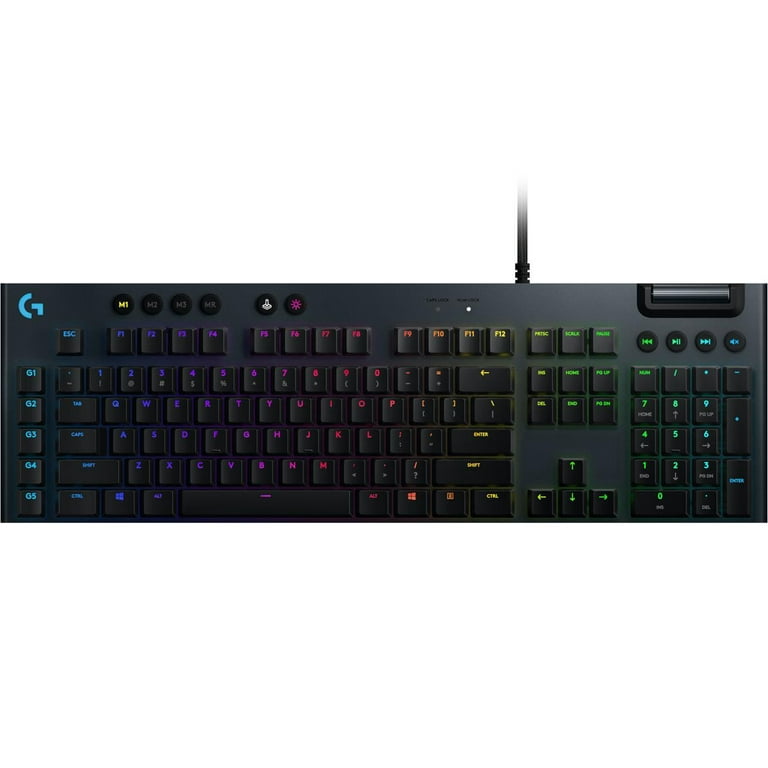
Gaming keyboards store macros in onboard memory. This preserves firmware while wiping corrupted profiles:
1. Unplug USB cable from computer
2. Hold G-Shift + Fn + F1 simultaneously
3. While holding keys, reconnect USB to a different port
4. Release when RGB lighting flashes three times
Expert note: For mechanical models (G915/G815), add M1 to the key combo to reset onboard memory. Never perform this during gameplay—resetting mid-session can corrupt game profiles.
Bluetooth Connection Resets for Stubborn Pairing Failures
When your keyboard appears in Bluetooth settings but won’t connect, standard resets often fail. This targets the Bluetooth Low Energy (BLE) module directly.
Fix “Paired But Not Connected” Errors
- On your device, forget the keyboard in Bluetooth settings
– Windows: Settings > Bluetooth > “Remove device”
– Mac: Apple menu > System Settings > Bluetooth > (i) > Remove - Turn keyboard OFF
- Press and hold the dedicated Bluetooth pairing button (usually on bottom edge) for 7 seconds
- Release when LED flashes rapidly (not steadily)
- Re-pair as a new device using standard OS prompts
Why this works: Holding the pairing button longer than 5 seconds forces BLE reinitialization, clearing the 128-bit encryption handshake failure common after iOS/Android updates. If pairing fails at PIN entry, select “Enter PIN manually” and input 0000.
Software Reset Using Logitech Options+ (For Advanced Users)
When hardware resets fail, corrupted software profiles may be the culprit. This method preserves firmware but nukes custom settings.
Restore Defaults Without Losing Firmware
- Download Logitech Options+ (free from official site)
- Connect keyboard via USB or confirmed Bluetooth
- Navigate to: Keyboard Settings > Advanced Settings
- Click “Restore Factory Defaults” (not “Reset Device”)
- Confirm with “Apply” and restart your computer
Crucial distinction: “Restore Factory Defaults” only resets software mappings, while “Factory Reset” in device menus clears hardware memory. Always back up custom profiles first via Options+ > Profiles > Export.
When to Perform a Nuclear Factory Reset
Reserve this for keyboards completely unresponsive to all previous methods. It erases all memory—including firmware on some models—so use only as last resort.
Full Hardware Reset Sequence
- Remove all power sources (batteries + USB)
- Press and hold
ESCfor 10 seconds to drain residual power - Reinsert batteries while continuing to hold
ESC - Maintain pressure for full 30 seconds (timer required)
- Release only when all LEDs flash erratically
Post-reset requirement: You must re-pair Bluetooth devices and reconfigure Logi Bolt receivers. For K780 models, simultaneously press Easy-Switch 1 + Easy-Switch 3 during power-up to rebuild device memory tables.
Post-Reset Validation Checklist
Never assume a reset succeeded—verify functionality systematically:
– Basic function test: Type all alphanumeric keys in Notepad
– Modifier key check: Hold Shift while pressing number keys for symbols
– Bluetooth verification: Switch between paired devices using Easy-Switch buttons
– Profile confirmation: Open Logitech Options+ to ensure custom settings reset
Red flag: If Caps Lock or Num Lock LEDs stay illuminated after reset, repeat the hard reset while unplugging all USB peripherals. This indicates USB controller conflicts.
Troubleshooting Failed Resets
When resets don’t resolve issues, these targeted fixes address common pitfalls:
“Keys Still Type Wrong Characters” After Reset
This indicates OS-level key mapping conflicts:
– On Windows: Press Win + Space to cycle input languages
– On Mac: Go to System Settings > Keyboard > Input Sources > “+” > Add English (US)
– For K580: Hold Fn + E for 5 seconds to reset European/US layout conflicts
“Keyboard Detected But No Response”
- Try a different USB cable (many fail silently)
- Test on another computer to isolate OS issues
- For Bluetooth: Toggle airplane mode on/off twice before re-pairing
- Clean under keycaps with compressed air—debris often causes phantom presses
Proven shortcut: For persistent “ghost typing,” hold Fn + ESC for 15 seconds on gaming keyboards. This disables N-key rollover temporarily to diagnose hardware issues.
When to Contact Logitech Support
If all reset methods fail after three attempts, you likely face hardware failure. Contact support only after:
– Confirming batteries have >50% charge (test with multimeter)
– Verifying USB ports work with other devices
– Trying the keyboard on three different computers
– Documenting exact reset steps attempted with model-specific details
Have your keyboard’s serial number ready (under battery compartment) and mention if you’ve spilled liquids or experienced physical damage. Logitech often provides firmware recovery tools unavailable to the public for bricked devices.
By mastering these precise reset sequences, you’ll bypass hours of frustration and extend your keyboard’s lifespan significantly. Remember: 80% of “broken” Logitech keyboards just need the correct reset—not replacement. Start with model-specific key combos before progressing to nuclear resets, and always validate functionality with the post-reset checklist. For Bluetooth models, regular resets every 6 months prevent pairing decay from firmware fragmentation. Your keyboard’s perfect typing experience is just one verified reset away.



