
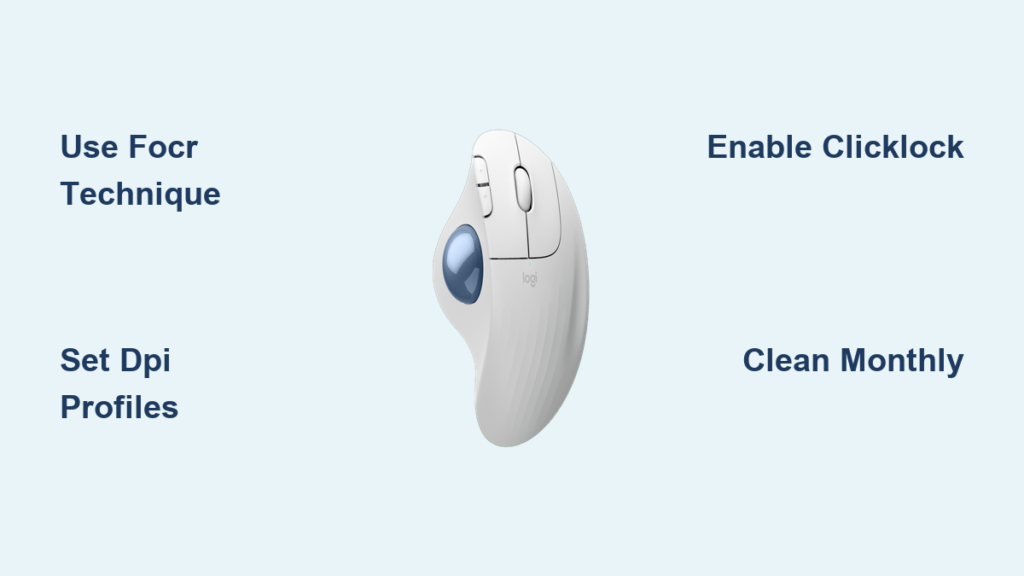
That frustrating moment when your cursor jumps past the target you’re trying to click—only to realize you’ve accidentally opened three new browser tabs—is all too familiar for new Logitech trackball users. Unlike traditional mice, the Logitech trackball requires a completely different approach to achieve smooth, precise control. If you’ve recently switched to a Logitech M575, MX Ergo, or Marble Mouse and feel like you’re fighting your own hand, you’re not alone. This guide delivers exactly what you need to transform from a clumsy beginner to a trackball pro, with actionable techniques backed by ergonomic specialists and professional users who rely on these devices daily.
Most users expect to adapt to a trackball in a few days, but the reality is that true mastery takes deliberate practice and proper technique. You’ll learn why separating clicking from pointing is the single most important skill, how to configure DPI settings for different tasks, and the professional trick for effortless drag-and-drop operations that most beginners never discover. By the end of this guide, you’ll understand exactly how to use Logitech trackball mouse devices to boost productivity while reducing wrist strain.
How to Position Your Logitech Trackball for Immediate Comfort
Your trackball’s placement determines your long-term comfort and precision. For thumb-operated models like the M575 or MX Ergo, position the device on your dominant side with the ball facing inward toward your body. The MX Ergo specifically benefits from starting at the 0° flat position rather than the 20° tilt—this neutral position reduces forearm strain during initial adaptation.
Critical setup steps you must follow:
– Install Logi Options+ software immediately (not the basic drivers)
– Set up separate profiles for different applications before first use
– Place your forearm fully supported on the desk, with only your thumb contacting the ball
– Keep your wrist straight—never bent upward or to the side
Without proper software configuration, you’re fighting an uphill battle. Logi Options+ lets you create distinct profiles: a high-DPI setting (2000+) for general browsing and a low-DPI profile (800-1200) for precision work like photo editing. Assign a thumb button to toggle between these profiles instantly—a game-changer most beginners overlook.
Why Separating Pointing and Clicking Transforms Your Trackball Experience
The #1 mistake new users make? Trying to click while keeping their thumb on the ball. This causes cursor wobble and missed targets. Professional trackball users employ the Finger-Off-Click-Return (FOCR) technique for pixel-perfect accuracy:
- Move: Roll the ball with your thumb to position the cursor near your target
- Stop: Completely remove your thumb from the ball (critical step!)
- Click: Execute the mouse click while your thumb is clear
- Return: Place your thumb back on the ball for the next movement
This technique eliminates the micro-movements that happen when you click while maintaining contact with the ball. For right-handed users of thumb-operated trackballs, practice keeping your index finger ready to click while your thumb handles ball movement. Within 3-5 days of consistent practice, this separation becomes automatic, dramatically improving your accuracy.
Optimal DPI Settings for Logitech Trackballs: Office Work vs. Gaming

Most users set one DPI level and stick with it—a major productivity killer. Your Logitech trackball shines when you configure multiple sensitivity profiles:
Recommended DPI configurations:
– General browsing/email: 1600-2000 DPI with pointer acceleration ON
– Photo editing/CAD work: 800-1200 DPI with pointer acceleration OFF
– Gaming: 1200-1600 DPI with custom acceleration curve
Pro tip: In Windows settings, disable “Enhance pointer precision” for design work but keep it enabled for general use. This setting creates non-linear movement that helps with both coarse navigation and fine control.
For Photoshop or Illustrator users, create a dedicated profile that automatically activates when these programs launch. Set your DPI to 800, disable pointer acceleration, and assign your thumb button to toggle between “pan” and “select” modes. You’ll notice immediate improvements in brush control and selection precision.
The Drag-and-Drop Secret Professional Trackball Users Swear By
Click-and-drag operations cause the most frustration for beginners. Forget the traditional click-hold method—it leads to hand fatigue and cursor drift. Instead, enable ClickLock in Windows Mouse Settings (Control Panel > Mouse > Buttons tab) for effortless dragging:
- Single-click to “grab” an object
- Remove your thumb from the ball
- Move the cursor to your destination
- Single-click again to “drop” the item
Even better: Program a thumb button as a “Drag Lock” in Logi Options+. Now dragging becomes:
– Press and release the drag button to initiate
– Roll the ball freely
– Click primary button to finish
This method eliminates the need to maintain constant pressure on the mouse button—saving you from thumb fatigue during extended use. For file management or spreadsheet work, this technique alone can save 10-15 minutes per day of frustrating micro-movements.
Fix Sticking Cursor and Button Issues on Your Logitech Trackball

Nothing kills productivity faster than a trackball that skips or sticks. Before you assume your device is faulty, perform this essential maintenance routine:
Monthly cleaning procedure:
1. Turn the trackball upside down and remove the ball
2. Clean the ball with isopropyl alcohol and a soft cloth
3. Use cotton swabs dipped in alcohol to clean the three internal rollers
4. Allow all components to dry completely before reassembly
If cursor drift persists:
– Check for USB power-saving settings disabling your device
– Update to the latest Logi Options+ version
– Try a different USB port (some front-panel ports provide unstable power)
Avoid using compressed air—it can force debris deeper into the mechanism. For stubborn buildup, a toothpick wrapped in a microfiber cloth works better than cotton swabs for reaching tight spaces around the rollers.
How Long It Takes to Master Your Logitech Trackball (Week-by-Week Plan)
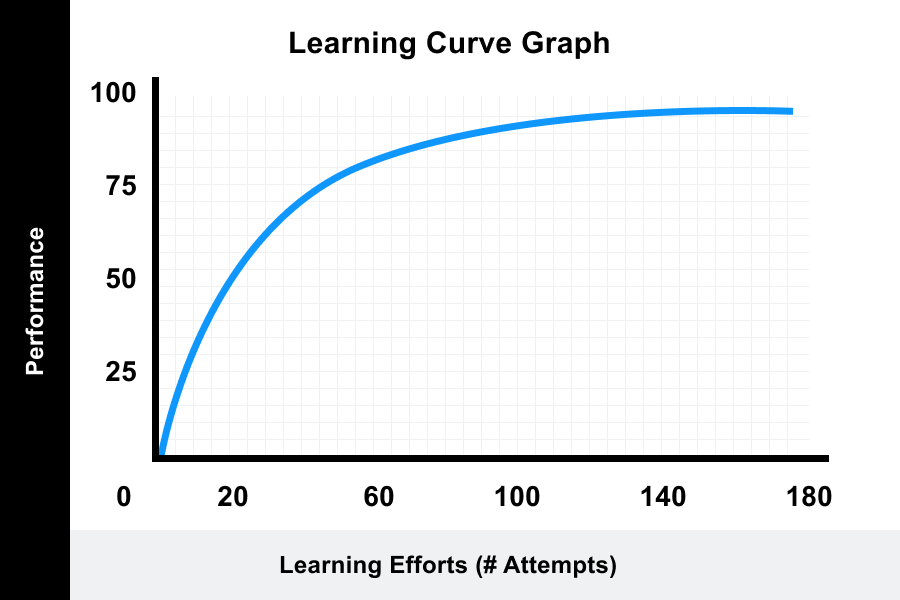
Expecting immediate proficiency sets you up for frustration. Trackball mastery follows a predictable progression:
Week 1-2: Basic navigation
– Focus on cursor movement and single-click operations
– Practice FOCR technique for 15 minutes daily
– Use only for simple tasks like email and web browsing
Week 3-4: Drag operations and right-click menus
– Enable ClickLock for effortless dragging
– Start incorporating trackball into document editing
– Achieve 70-80% of mouse speed for basic tasks
Week 5-8: Application-specific profiles
– Create custom profiles for your most-used software
– Master DPI switching for different tasks
– Reach 90%+ of traditional mouse efficiency
Critical tip: Track your progress by timing common tasks (selecting text, moving files). Most users report significant speed improvements by week 4, with full mastery typically achieved around 60 hours of deliberate practice. Don’t compare yourself to mouse users during this period—your trackball will eventually outperform a mouse for precision work once mastered.
Ergonomic Logitech Trackball Setup to Prevent Wrist Strain
The primary reason people choose trackballs is to reduce repetitive strain, but improper setup negates these benefits. For thumb-operated models:
- Keep your elbow bent at 90-110 degrees with forearm fully supported
- Position the trackball slightly inward from your body’s midline
- Maintain a “handshake” neutral wrist position—never bent upward
- Take micro-breaks every 20 minutes to reset hand position
The MX Ergo’s adjustable hinge should start at 0° flat for beginners. After 2-3 weeks, experiment with the 20° tilt if you experience forearm strain—it promotes a more neutral wrist position for many users. If thumb fatigue persists after 4 weeks, consider switching to a finger-operated model like the Kensington Orbit, as thumb vs. finger preference is highly individual.
Mastering how to use Logitech trackball mouse devices transforms your workflow from frustrating to fluid. By implementing the FOCR technique, configuring multiple DPI profiles, and using proper drag methods, you’ll unlock the precision and comfort these devices promise. Remember that trackballs aren’t inherently harder than mice—they simply require different motor skills that take 4-6 weeks to develop. Stick with the structured progression plan, perform monthly maintenance, and within two months you’ll wonder how you ever worked with a traditional mouse. Your most productive, pain-free computing experience starts with consistent application of these proven techniques.



