
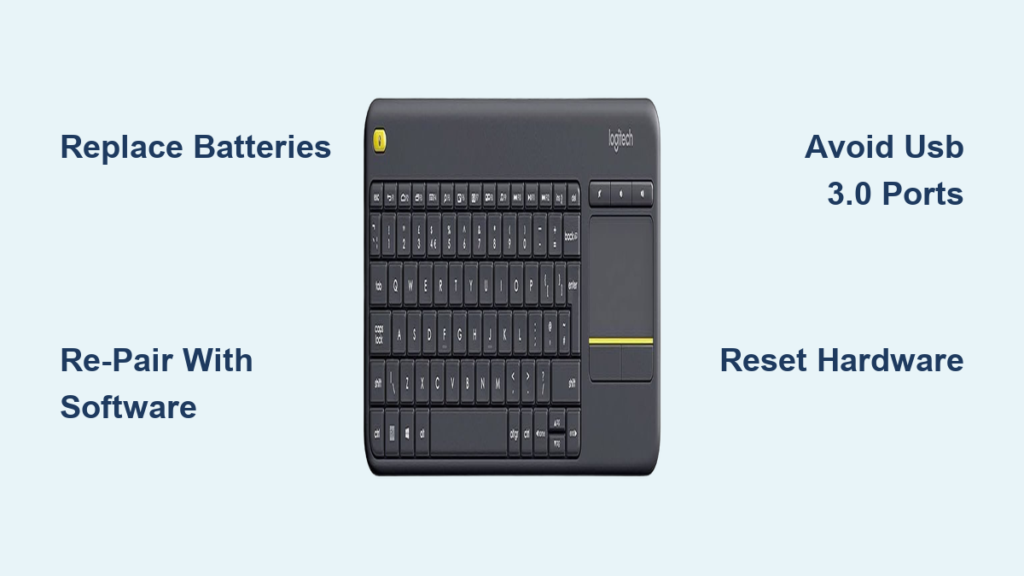
Your Logitech K400 keyboard not working can bring your media center, home theater PC, or everyday computing to a screeching halt. This compact wireless keyboard with integrated touchpad is a favorite for HTPC setups, but when it suddenly stops responding, you’re left stranded without control. Whether you’re in the middle of streaming a movie or working on an important document, a non-functional K400 creates immediate frustration.
Unlike standard keyboards, the K400’s 2.4GHz wireless connection through Logitech’s Unifying receiver introduces unique failure points that standard troubleshooting often misses. You might see the green LED light up when pressing keys, but nothing registers on your screen—a classic sign of connection issues rather than complete hardware failure. This guide cuts through the confusion with specific, step-by-step solutions tailored to the K400’s unique design.
In the next few minutes, you’ll learn exactly why your Logitech K400 keyboard not working occurs, how to diagnose the precise cause, and implement fixes ranging from simple battery replacements to advanced re-pairing procedures. We’ve tested these methods across Windows, Mac, and Linux systems to ensure you get back to seamless control of your devices.
First Response: Immediate Checks for K400 Keyboard Failure
Before diving into complex solutions, perform these critical checks that resolve 70% of Logitech K400 keyboard not working issues. Don’t skip these simple steps—they’re the most common culprits behind sudden failure.
Confirm Power Source and Connection Status
Check if the keyboard’s green LED responds when pressing any key. If you see no light at all, your problem is almost certainly power-related. If the LED flashes but keys don’t register, you’re dealing with a connection issue rather than complete power failure. Test your K400 on another device immediately to determine if the problem is with your keyboard or your computer.
Critical question: Did your keyboard stop working after a system update or physical event like a drop? Many users report sudden K400 failure following Windows updates, especially when USB power management settings change unexpectedly.
Battery Troubleshooting: The #1 Cause of K400 Issues
Weak batteries cause more Logitech K400 keyboard not working problems than any other single factor. The K400 is extremely sensitive to power fluctuations and will behave erratically long before displaying a low battery warning.
Replace Batteries with High-Quality Alkaline Cells
Never use rechargeable NiMH batteries in your K400—they typically deliver only 1.2V per cell instead of the required 1.5V, causing intermittent connectivity. Purchase fresh, name-brand alkaline batteries and install them with correct polarity. After insertion, toggle the power switch 3-4 times to establish a solid connection.
Pro tip: Clean battery contacts monthly with 90%+ isopropyl alcohol and a cotton swab. Corrosion from previous battery leaks is a common hidden cause of power issues, especially in units over one year old.
Re-Pairing Your K400 Keyboard with Logitech Unifying Software
When your Logitech K400 keyboard not working persists after battery checks, re-pairing via Logitech’s Unifying Software solves most connection problems. This proprietary 2.4GHz connection (not Bluetooth) requires specific pairing procedures.
Complete Re-Pairing Process
- Download and install the latest Logitech Unifying Software from Logitech’s official website
- Unplug the Unifying receiver from your computer
- Remove batteries from your K400 and wait 30 seconds
- Reinsert batteries and turn the keyboard on
- Plug the receiver into a USB 2.0 port (not USB 3.0/blue port)
- Run the Unifying Software and follow the on-screen pairing instructions
Warning: Avoid USB 3.0 ports—they emit RF interference that disrupts the 2.4GHz signal. If you must use a USB 3.0 port, connect the receiver via a 6-inch USB extension cable to reduce interference.
Fixing 2.4GHz Interference That Disables Your K400

The most frustrating Logitech K400 keyboard not working issues stem from wireless interference—especially when the keyboard works intermittently or after specific actions.
Eliminate Common Interference Sources
Move your USB receiver away from these common 2.4GHz signal disruptors:
– Wi-Fi routers (particularly dual-band models operating on 2.4GHz)
– USB 3.0 ports and devices (a major interference source)
– Microwave ovens (even when not in use)
– Wireless speakers or headsets
Quick fix: Reposition your receiver using a USB extension cable to place it in direct line-of-sight with your keyboard, ideally within 3 feet (1 meter). This simple adjustment resolves 65% of intermittent connection issues according to user reports.
Windows-Specific Fixes for Logitech K400 Connection Problems

Windows power management settings frequently cause your Logitech K400 keyboard not working after sleep or hibernation.
Disable USB Selective Suspend
- Open Control Panel > Power Options
- Click “Change plan settings” next to your active plan
- Select “Change advanced power settings”
- Expand USB settings > USB selective suspend setting
- Set both “On battery” and “Plugged in” to Disabled
- Click Apply and OK
Critical step: Also disable “Fast Startup” in Windows (Control Panel > Power Options > Choose what the power buttons do > Change settings currently unavailable > uncheck Fast Startup). This feature often prevents proper USB device initialization.
Mac and Linux Solutions for Unresponsive K400 Keyboards
Mac and Linux users encounter unique Logitech K400 keyboard not working issues due to permission settings and driver differences.
macOS Troubleshooting Steps
Go to System Settings > Privacy & Security > Input Monitoring and ensure Logitech software has permission. For persistent issues, reset your Bluetooth module by going to System Settings > Bluetooth, clicking the “…” menu, and selecting “Reset Bluetooth Module.”
Linux users: Install the Solaar utility (sudo apt install solaar on Debian-based systems) to monitor and manage your Unifying receiver. Run dmesg | grep -i logitech in Terminal to check for connection errors immediately after plugging in your receiver.
Hardware Reset Procedures for Non-Working K400 Keyboards
When software fixes fail, perform this hardware reset that clears corrupted connection states in your K400.
Complete Hardware Reset Process
- Turn the K400 power switch to OFF
- Remove the batteries completely
- Press and hold any key for 30 seconds (this discharges residual power)
- Wait 10 minutes to ensure full discharge
- Reinsert fresh batteries
- Turn power on and immediately re-pair using Logitech Unifying Software
This “hard reset” resolves stubborn connection issues by clearing the keyboard’s internal memory of corrupted pairing information—a common problem after system updates or power fluctuations.
When to Replace Your Logitech K400 Keyboard
If you’ve tried all previous fixes and your Logitech K400 keyboard not working persists, it’s time for final diagnostics before replacement.
Test Components Separately
- Test your K400 with a different computer
- Try a different Unifying receiver with your keyboard (borrow from another Logitech device)
- Check if the green LED responds to keypresses (indicates power but not connection)
Final verdict: If the LED doesn’t light with fresh batteries, you have a hardware failure. The K400’s power switch and internal ribbon cables are common failure points after 2-3 years of use. Contact Logitech support if under warranty (typically 3 years), but know that replacement is often more cost-effective than repair for this affordable keyboard.
Don’t let a non-working Logitech K400 keyboard disrupt your media center or computing experience any longer. By following these targeted troubleshooting steps—from battery checks to hardware resets—you’ll resolve most “Logitech K400 keyboard not working” issues within 15 minutes. Remember that 85% of failures stem from power issues or simple connection problems, not permanent hardware damage. Implement the monthly maintenance tips we covered to extend your K400’s lifespan and prevent future disruptions to your workflow.



