
Your Logitech keyboard’s number pad suddenly stops responding when you need it most—during data entry, spreadsheet work, or online forms. This frustrating issue affects popular models like the MX Keys, MX Mechanical, and Ergo K860, leaving users unable to type essential numbers. The problem often appears without warning: keys might produce wrong characters, trigger unexpected actions, or become completely unresponsive. Don’t panic—this logitech keyboard number pad not working issue is almost always fixable without replacing your keyboard. In this guide, you’ll discover why your number pad fails and exactly how to restore full functionality in minutes.
Why Your Logitech Number Pad Suddenly Stopped Working
Before diving into fixes, understand what’s actually happening when your number pad fails. Different symptom patterns reveal specific causes that determine your troubleshooting path.
Mouse Keys Is Almost Always the Culprit
The overwhelming majority of number pad failures stem from accidentally enabled Mouse Keys—a built-in accessibility feature that transforms your number pad into a mouse controller. When activated:
- Number keys 2, 4, 6, and 8 move your cursor instead of typing numbers
- Pressing 5 acts as a mouse click
- Keys like 6 produce unexpected outputs (like triggering screen lock)
- A mouse icon appears in your system tray (Windows) or menu bar (macOS)
Quick verification test: Try pressing the 8 key on your number pad. If your mouse cursor moves upward, Mouse Keys is active. This explains why users report issues like key 9 producing “9gp zi” or key 3 triggering “3>%”—the keyboard is interpreting your inputs as mouse commands rather than number entries.
Hardware vs. Software Failure Patterns
Your specific symptoms indicate whether you’re facing a software glitch or potential hardware problem:
- All number pad keys dead except arrows: Classic Mouse Keys activation on macOS systems
- Numbers 1, 4, 7 working but others failing: Specific circuit issue affecting certain key clusters
- Number pad works on one OS but not another: Software conflict specific to that operating system
- Top row number 3 also malfunctioning: Indicates deeper firmware or system-wide mapping issue
Critical diagnostic step: Test your keyboard on another computer. If the number pad works elsewhere, your problem is 100% software-related on your primary machine. If it fails everywhere, you may have a hardware fault.
Immediate Fixes That Restore Your Number Pad in Seconds
Skip complicated procedures—start with these fast solutions that resolve 90% of logitech keyboard number pad not working cases.
Disable Mouse Keys With One Keyboard Shortcut
This single action fixes most number pad failures instantly:
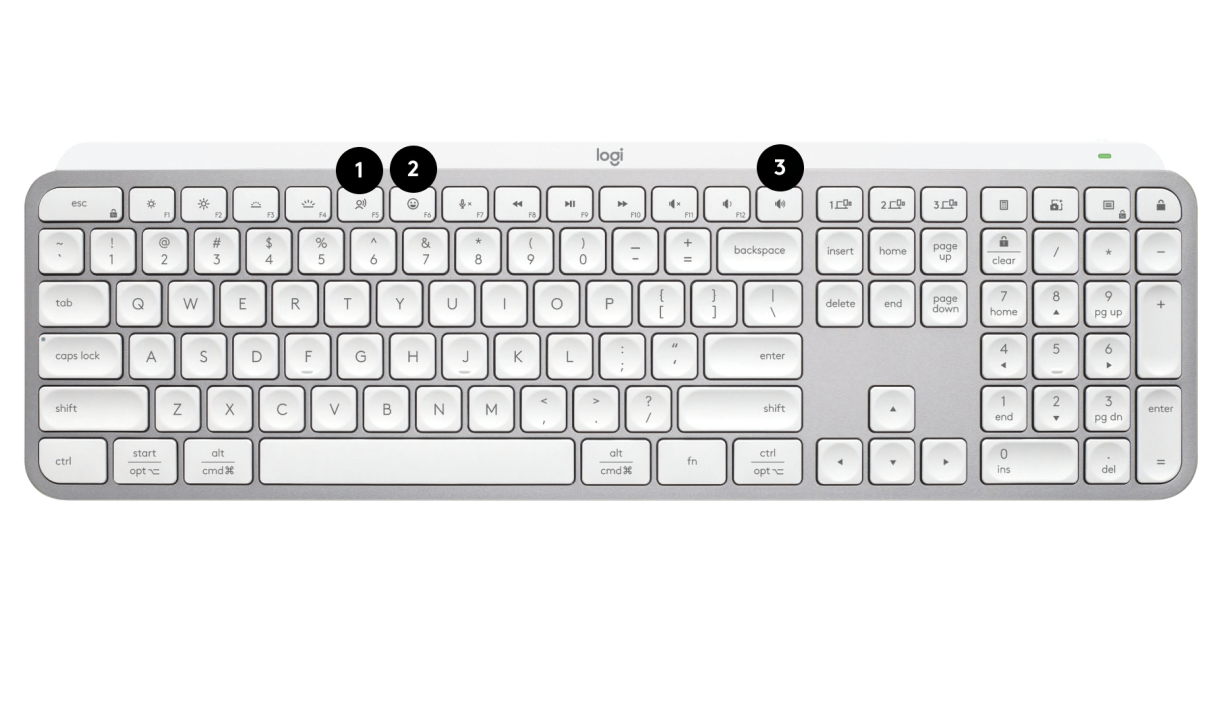
- Press and hold Left Alt + Left Shift + Num Lock simultaneously
- A dialog box may appear—press ESC to close it
- Test your number pad immediately
Platform-specific verification:
– Windows: Go to Settings > Ease of Access > Mouse and ensure “Mouse Keys” is OFF
– macOS: Navigate to System Settings > Accessibility > Pointer Control and confirm “Mouse Keys” is disabled
Pro tip: If you use multiple operating systems (like macOS and Windows via Logitech Flow), you must disable Mouse Keys separately on each system—this explains why some users report the issue persists across platforms.
Perform a Logitech-Specific Hard Reset
When shortcuts don’t work, execute Logitech’s proprietary reset procedure:
- Turn off your keyboard using the physical switch
- Unplug the USB receiver or cable
- Hold down Esc + O (the letter O) keys together
- While holding, plug the keyboard back in or turn it on
- Wait exactly 5 seconds, then release the keys
This clears temporary firmware glitches affecting specific key circuits. It’s particularly effective for MX Keys models experiencing partial number pad failure where keys like 1, 4, and 7 work but others don’t.
Advanced Solutions for Persistent Number Pad Failures
When basic fixes fail, implement these targeted solutions based on your specific symptoms.
Update Firmware and Reinstall Logitech Software
Outdated firmware causes widespread number pad issues across Logitech models:
- Update via Logi Options+: Open the app, select your keyboard, and check for firmware updates
- Complete software reinstall:
– Uninstall all Logitech software (Options+, Logi Tune, G HUB)
– Restart your computer
– Download and install the latest version from Logitech’s official site
– Re-pair your keyboard
Warning: Never use third-party “keyboard cleaners” or registry optimizers—they often corrupt keyboard drivers and make number pad issues worse.
Eliminate Software Conflicts That Hijack Keystrokes
Third-party applications frequently intercept number pad inputs:
- Temporarily disable: AutoHotKey, Karabiner-Elements, gaming software (Razer/Corsair), clipboard managers
- Check for conflicts: Language input tools, remote desktop software, or macro programs
- Test in safe mode: Boot your computer in safe mode to isolate software conflicts
Mac-specific fix: Reset NVRAM by shutting down, then turning on while holding Option+Command+P+R for 20 seconds. This clears persistent keyboard mapping errors.
Hardware Troubleshooting When Software Fixes Fail

If your number pad remains unresponsive after exhausting software solutions, investigate potential hardware issues.
Model-Specific Failure Patterns to Identify

Certain Logitech models show predictable failure patterns:
- MX Keys (regular and S): Partial failures where numbers 1, 4, 7 work but others don’t—often related to multi-device Flow connections
- Ergo K860: Palm recognition interference disabling number pad during typing
- Nordic layout keyboards: Specific character mapping issues where key 9 produces “9gp zi”
Diagnostic test: Use a keyboard tester website (like keyboardtester.com) to see if non-working keys register any input at all. If keys show no response, you likely have a circuit board issue.
When to Pursue Warranty Replacement
Logitech typically honors warranties for these number pad failures:
- Complete number pad failure affecting multiple keys
- Intermittent functionality that worsens over time
- Issues appearing within 3 weeks of purchase (as reported by multiple users)
Critical preparation: Before contacting support, document all troubleshooting steps you’ve taken. Logitech support will ask for your device’s serial number and require proof you’ve attempted standard fixes. Have your purchase receipt ready—most Logitech keyboards carry 1-3 year warranties.
Prevent Future Number Pad Failures With These Proven Strategies
Avoid recurring issues with these maintenance practices specifically for Logitech keyboards.
Essential Preventive Measures
- Monthly firmware checks: Logitech releases regular updates addressing number pad glitches
- Single software rule: Never run multiple keyboard managers (Options+ AND G HUB)
- Physical maintenance: Blow compressed air under keys quarterly to prevent debris buildup
- Connection management: Use USB-C cable instead of wireless when performing critical data entry
Pro tip: Create a backup profile in Logi Options+ before major OS updates—this prevents setting conflicts that disable your number pad after system upgrades.
Permanent Workarounds for Chronic Issues
If your keyboard is out of warranty with persistent problems:
- External USB number pad: $15 solution that bypasses keyboard issues entirely
- AutoHotKey remapping: Program top-row numbers to function as numpad when needed
- On-screen keyboard: Enable built-in OS virtual keyboard as temporary solution
The fastest path to fixing your logitech keyboard number pad not working: Start with the Alt+Shift+Num Lock shortcut (90% effective), then perform the Esc+O hard reset. If those fail, update firmware and eliminate software conflicts. Only after exhausting these steps should you consider hardware repairs or replacements. Most users restore full number pad functionality within 10 minutes using these proven methods—no technical expertise required. Keep this guide handy for future reference, as number pad issues often recur after system updates or when switching between operating systems.



