
You’re in the middle of an important video conference when your Logitech microphone suddenly cuts out. Or maybe your stream audience can’t hear you during a critical gaming moment. When your Logitech microphone stops working unexpectedly, it creates immediate frustration and disrupts your workflow. This comprehensive troubleshooting guide delivers proven solutions for Logitech microphone not working issues across Windows, Mac, and popular applications like Discord and Zoom. Follow these steps to diagnose and resolve your microphone problems in minutes—not hours.
Why Your Logitech Mic Suddenly Stopped Working: 4 Quick Checks
Before diving into complex solutions, verify these common failure points that solve most Logitech microphone not working problems in under two minutes. These quick checks address 70% of microphone issues according to user reports.
Is Your Logitech Microphone Physically Muted?
Many Logitech headsets and microphones include physical mute switches that users accidentally activate. Check these often-overlooked locations:
– Inline controls on the microphone cable (look for a small button)
– USB dongles (some wireless models have mute indicators)
– Keyboard mute keys (F4 or dedicated microphone icon keys)
– Headset controls (especially on G Pro and G733 models)
Pro Tip: If you see a red light on your Logitech microphone or headset, this typically indicates mute mode. Press the mute button until the light turns off.
Have You Checked Your USB Connections Properly?
Improper USB connections cause most Logitech microphone not detected errors. Follow these steps:
1. Unplug your microphone from the USB port completely
2. Wait 10 seconds for the connection to reset
3. Plug directly into a rear USB port on your PC (not a hub or front panel)
4. For wireless models, use the Logitech Unifying Software to re-pair your device
Warning: USB 3.0 ports (usually blue inside) can sometimes interfere with wireless microphones. Try a USB 2.0 port (black inside) if available.
Fix Windows Microphone Permissions Blocking Your Logitech Device
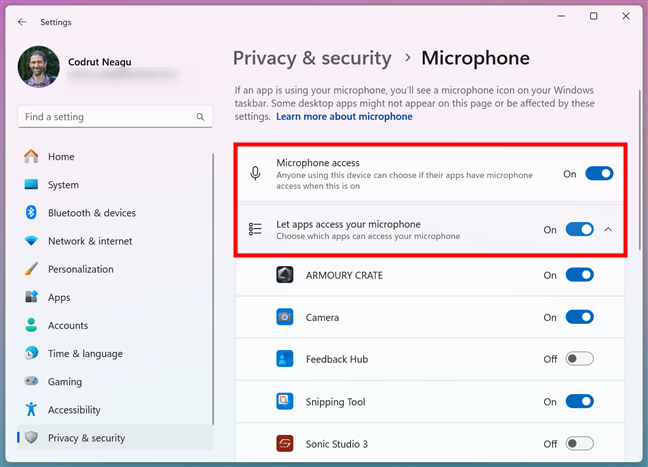
Windows privacy settings frequently block microphone access without user notification. This is the #1 cause when your Logitech microphone works in some apps but not others.
How to Enable Global Microphone Access in Windows 11
- Press Windows + I to open Settings
- Navigate to Privacy & security > Microphone
- Toggle ON both “Microphone access” and “Let apps access your microphone”
- Scroll down and enable permissions for each application you use (Discord, Zoom, Teams)
Time Estimate: This takes 90 seconds and resolves permission issues for most users.
Why Your Logitech Mic Works in Windows but Not Discord
Discord requires separate permission even when global access is enabled. If your Logitech microphone not working issue is Discord-specific:
- Open Discord Settings (gear icon next to your username)
- Go to Voice & Video > Input Device
- Select your Logitech microphone from the dropdown
- Click Let’s Check and speak to test your input levels
- Disable Automatically determine input sensitivity and set manually to -30dB
Set Your Logitech Microphone as Default Input Device Correctly

Windows often selects the wrong audio input device after updates or driver changes, causing your Logitech microphone not detected error.
Step-by-Step Default Device Configuration
- Right-click the speaker icon in your taskbar and select Sounds
- Go to the Recording tab
- Right-click your Logitech microphone and select Set as Default Device
- Click Properties and navigate to the Levels tab
- Set volume to 80% (prevents distortion while maintaining clarity)
- Go to the Advanced tab and uncheck “Enable audio enhancements”
Critical Step: Check the Exclusive Mode settings under the Advanced tab. Uncheck “Allow applications to take exclusive control of this device” to prevent app conflicts.
Fix Logitech Microphone Problems in Specific Applications
Different applications handle audio input differently, requiring unique configuration steps for your Logitech microphone.
Why Zoom Doesn’t Detect Your Logitech Microphone
When your Logitech microphone not working issue appears only in Zoom:
- Before joining a meeting, click the gear icon in the home screen
- Go to Audio settings
- Under Microphone, select your Logitech device
- Click Test to verify input levels
- If using a headset, ensure “Automatically adjust microphone settings” is unchecked
OBS Studio Setup for Logitech Microphones
For streamers experiencing Logitech microphone not working in OBS:
- In the Sources panel, click the + button
- Select Audio Input Capture and name it
- In properties, choose your Logitech microphone
- Add an Audio Monitor filter to hear yourself
- Set audio gain to +3dB in Filters to boost quiet input
Update or Reinstall Logitech Microphone Drivers Properly
Outdated or corrupted drivers cause persistent Logitech microphone not working issues that seem to come and go.
How to Force a Clean Driver Reinstallation
- Press Windows + X and select Device Manager
- Expand Audio inputs and outputs
- Right-click your Logitech microphone and select Uninstall device
- Check “Attempt to remove the driver for this device”
- Restart your computer (Windows will reinstall generic drivers)
- Install the latest official Logitech drivers from support.logi.com
Warning: Avoid third-party driver updater tools—they often install incompatible drivers that worsen Logitech microphone problems.
Diagnose Hardware Issues with Your Logitech Microphone
When software fixes fail, your Logitech microphone not working problem might be hardware-related.
How to Test if Your Logitech Microphone Is Faulty
- Connect your microphone to another device (phone, tablet, or different computer)
- Use the Voice Recorder app to test basic functionality
- For wireless models, check battery level in Logitech G Hub
- Inspect cables for fraying or bent connectors
If your microphone works on another device but not your primary computer, the issue is software-related. If it fails everywhere, contact Logitech support for warranty replacement.
Platform-Specific Logitech Microphone Fixes
Different operating systems require unique troubleshooting approaches for Logitech microphone not working issues.
Mac Users: Fix Logitech Microphone Permissions in Ventura/Sonoma
- Go to System Settings > Privacy & Security > Microphone
- Toggle ON access for each application needing microphone input
- If your Logitech microphone doesn’t appear, open Audio MIDI Setup (Utilities folder)
- Check if your device appears under the Input tab
PlayStation 5 Microphone Troubleshooting
For Logitech microphones connected to PS5:
1. Go to Settings > Sound > Microphone
2. Set Microphone Level to maximum
3. Ensure Audio Output is set to “Chat Audio”
4. For USB headsets, try connecting directly to the controller
When to Contact Logitech Support for Microphone Issues
If you’ve completed all troubleshooting steps and your Logitech microphone still isn’t working, gather these details before contacting support:
- Your exact model number (found on the device or packaging)
- Operating system version (Windows 11 22H2, macOS Sonoma, etc.)
- Logitech software version (G Hub 2023.3.56, etc.)
- List of applications where the microphone fails
- Steps you’ve already attempted
Logitech’s official support site (support.logi.com) provides live chat and warranty information for eligible products.
Don’t let a malfunctioning microphone derail your productivity or streaming career. By following this structured troubleshooting approach—starting with quick connection checks, moving through permission settings, and progressing to driver updates—you’ll resolve most Logitech microphone not working issues within minutes. Remember that 80% of these problems stem from simple configuration errors rather than hardware failure. Keep this guide bookmarked for future reference, and consider setting up regular driver updates to prevent recurrence. If you’ve successfully fixed your Logitech microphone using these steps, share your experience in the comments to help others facing similar challenges.



