
Your Logitech C920e webcam’s microphone isn’t broken—it’s intentionally disabled by default. This common “logitech webcam c920e microphone not working” issue affects nearly every new C920e unit, causing frustration for remote workers and students who expect plug-and-play functionality. The microphone remains completely invisible to Windows Sound Settings, Zoom, Teams, and Device Manager until you complete a specific activation process. Don’t waste time troubleshooting drivers or assuming hardware failure—this guide reveals the exact steps to permanently enable your C920e microphone using Logi Tune, plus troubleshooting tips when the standard process fails.
Confirm Your C920e Microphone Is Disabled by Design
The C920e microphone doesn’t appear in your system because Logitech ships it disabled at the firmware level—a deliberate design choice, not a defect. When you connect a new C920e to your Windows PC, the camera works immediately while the microphone remains completely absent from all audio input menus.
How to Verify the Default Microphone State
Check these locations to confirm your C920e microphone issue matches this specific scenario:
– Windows Sound Settings: Right-click the speaker icon > Sounds > Recording tab—your C920e won’t appear here
– Device Manager: Look under “Audio inputs and outputs” and “Sound, video and game controllers”—no C920e microphone entry
– Video Conferencing Apps: Zoom/Teams audio settings show no C920e option despite camera working
If your C920e exhibits these symptoms, you’re facing Logitech’s default microphone disablement, not a hardware failure. This affects all new C920e units regardless of operating system version or USB port used.
Activate C920e Microphone Using Logi Tune (One-Time Fix)
Enabling your C920e microphone requires Logi Tune software to modify the webcam’s firmware—a permanent fix that follows the camera to any future computer. This one-time activation takes 5 minutes and works across Windows, macOS, and Linux once completed.
Prepare Your System for Microphone Activation
Before starting the logitech webcam c920e microphone not working fix, ensure you have:
– A Windows 10/11 (64-bit) PC with administrator access
– The official Logi Tune application (downloaded directly from Logitech’s website)
– Your C920e webcam connected via USB (no hubs or docking stations)
– 10 minutes of uninterrupted time (do not disconnect during firmware update)
Critical note: Logitech G HUB and Logitech Capture won’t work for this process—they lack the necessary firmware control. Only Logi Tune can activate the microphone.
Complete Microphone Activation in 4 Steps
Step 1: Install and Launch Logi Tune
Download Logi Tune from Logitech’s official support page, install normally, then launch the application. Grant all permission requests when prompted—these are essential for firmware access.
Step 2: Connect Your C920e Webcam
Plug the C920e directly into your PC’s USB port (avoid hubs). Wait 15 seconds for Logi Tune to recognize the device. If it doesn’t appear immediately, click “Add Device” in Logi Tune’s settings.
Step 3: Enable Microphone and Apply Firmware
Navigate to Settings > Microphone in Logi Tune. Toggle the C920e microphone to “Enabled.” The software will prompt for a firmware update—this is required. Click “Apply” and wait 90 seconds without disconnecting the webcam.
Step 4: Restart and Verify
Restart your computer to finalize changes. After reboot, check Windows Sound Settings—your C920e microphone should now appear as “Microphone (C920e).” Test it using Windows Voice Recorder before trusting conferencing apps.
Troubleshoot Logi Tune Activation Failures

When Logi Tune won’t activate your C920e microphone despite following the steps, these specific solutions often resolve the issue.
Logi Tune Can’t Detect Your C920e Webcam
If Logi Tune doesn’t recognize your webcam during activation:
– Try USB 2.0 ports first: Some users report better detection with older USB ports
– Run as Administrator: Right-click Logi Tune > “Run as administrator”
– Temporarily disable security software: Antivirus/firewall can block firmware communication
– Check Device Manager: Look for “Logitech Webcam C920e” under “Imaging devices”—if present but disabled, right-click > Enable device
Pro tip: Use a different USB cable if available—some third-party cables lack the data pins needed for firmware updates.
Microphone Still Missing After Activation
When the microphone remains undetected post-activation:
1. Verify Windows privacy settings: Go to Settings > Privacy & Security > Microphone > toggle “Microphone access” ON
2. Check app permissions: Scroll down to “Let apps access your microphone” and enable access for your conferencing apps
3. Inspect Device Manager: Look for “C920e” under “Audio inputs and outputs”—a yellow warning icon means firmware update failed
4. Re-run activation: The first attempt might have been interrupted—complete the process again without disconnecting
Critical mistake to avoid: Skipping the computer restart after activation. This step finalizes the firmware change—without it, the microphone stays disabled.
Enterprise IT Solutions for Bulk C920e Deployments
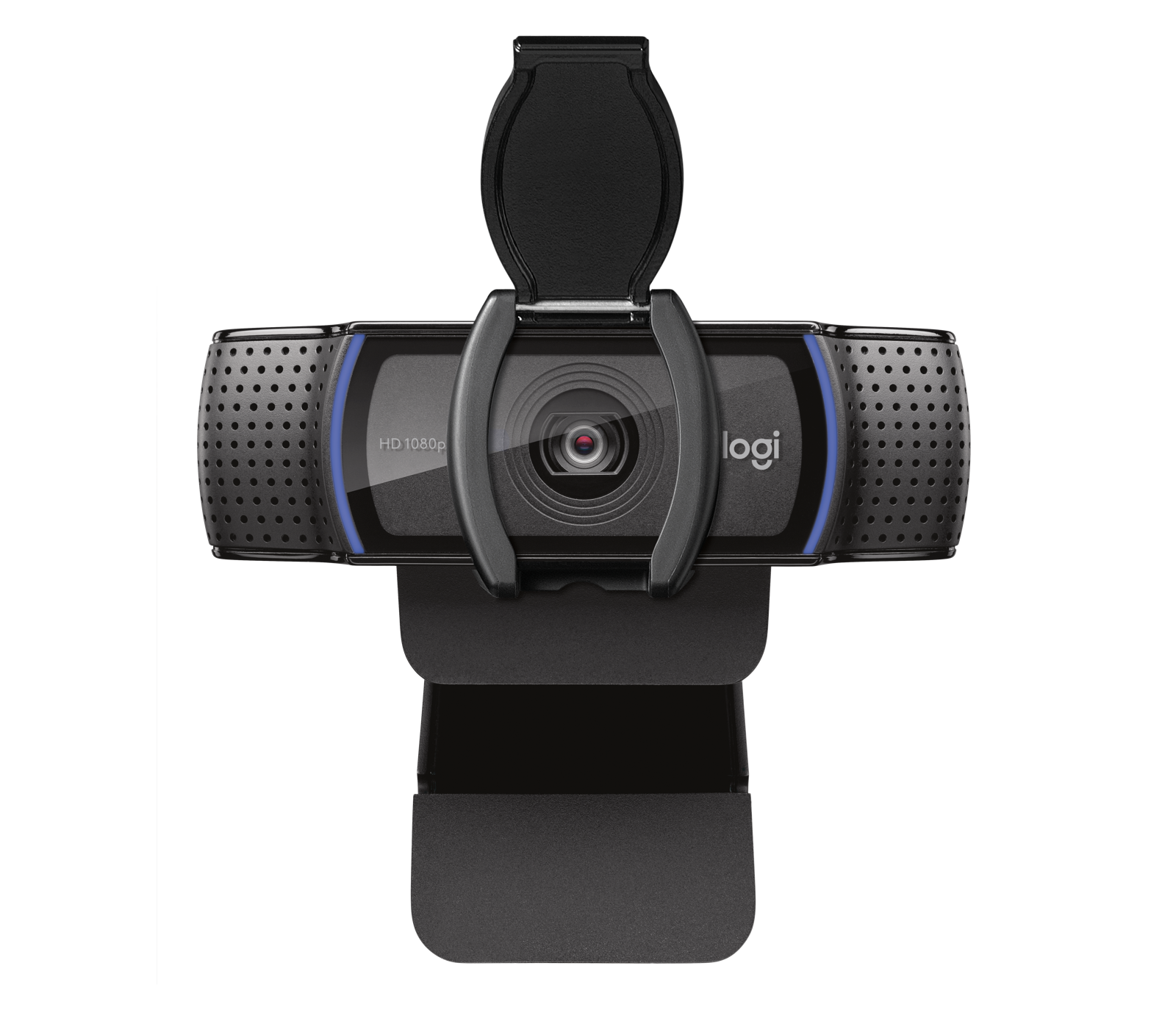
IT departments managing multiple C920e units need an efficient activation strategy to prevent the “logitech webcam c920e microphone not working” complaint from flooding help desks.
Streamline Organization-Wide Activation
Create a dedicated activation station with these components:
– One Windows PC with Logi Tune pre-installed
– USB hub for connecting multiple cameras sequentially
– Standard operating procedure document for technicians
– Verification checklist (camera detection → mic activation → restart → test)
Deployment time calculation: Budget 5 minutes per camera for first-time activation. For 100 units, this equals 8 hours of technician time—factor this into your deployment schedule.
Preferred alternative for large deployments: Consider Logitech C920x models instead. These offer identical video quality with plug-and-play microphone functionality and include a privacy shutter—eliminating the activation step entirely for new hires.
Why Logitech Disables the C920e Microphone by Default
Logitech disables the C920e microphone to meet Microsoft Teams certification requirements—a business decision that prioritizes enterprise validation over user convenience. The certification process mandates microphone disablement until explicit user activation, creating Teams Certified status that appeals to corporate buyers.
This design choice explains why the C920e ships with microphone functionality hidden despite having quality audio hardware. The same microphone that works flawlessly after activation receives positive reviews for clarity and noise reduction—proving it’s not a cost-cutting measure but a compliance requirement.
Permanent Fixes When Logi Tune Fails

If repeated activation attempts fail to resolve your logitech webcam c920e microphone not working issue, these alternatives provide reliable solutions without further troubleshooting.
Immediate Workaround Solutions
Use your computer’s built-in microphone: Select your laptop’s internal mic in conferencing apps while keeping the C920e for video. This maintains video quality while bypassing the microphone issue.
Connect an external USB microphone: A $20 USB mic provides better audio quality than most webcam microphones anyway. Models like the Fifine K669 offer superior clarity for important meetings.
Switch to a plug-and-play alternative: The Logitech C920 (non-“e” model) works immediately with no activation needed. For Teams-certified functionality without activation headaches, the C920x includes a privacy shutter and background replacement software.
Final Verification Before Calling It Fixed
After completing the activation process, perform these final checks to ensure your C920e microphone problem is permanently resolved:
- Test across multiple applications: Verify in Windows Voice Recorder, then in Zoom/Teams
- Check microphone levels: Speak into the webcam—the input level bars should move
- Confirm persistence after reboot: Disconnect and reconnect the webcam to ensure settings stick
- Test on another computer: The activation follows the physical camera—move it to a Mac or Linux machine to confirm
Important note: Once activated, your C920e microphone works on any future system without repeating the process. The firmware modification is permanent—only if you return the camera to Logitech for repair might the microphone reset to disabled.
If you still encounter “logitech webcam c920e microphone not working” symptoms after following these steps, contact Logitech support with your activation verification screenshots—they’ll often replace the unit if firmware corruption occurred during activation. For most users, however, this one-time 5-minute process permanently solves the microphone mystery, transforming your C920e from a video-only device into the complete Teams-certified solution it was designed to be.



