
Your fingers fly across the keyboard during a productive work session, then suddenly—your flow shatters. You reach for the mouse to click a browser tab, losing precious seconds and mental momentum. This tiny interruption happens dozens of times daily, creating a hidden productivity tax that most professionals never account for. Mastering keyboard shortcuts for switching tabs isn’t just a tech trick—it’s your secret weapon against workflow disruption. By eliminating unnecessary hand movements between keyboard and mouse, you’ll reclaim hours of focus time each month while reducing physical strain.
The average knowledge worker switches between applications 566 times per day according to research, yet most rely on inefficient mouse navigation. When you master tab-switching shortcuts, you maintain continuous typing position, keep your eyes on content, and preserve cognitive flow. This guide delivers the exact shortcuts you need for every major operating system and browser, plus proven techniques to build muscle memory so tab navigation becomes automatic. You’ll learn to jump between specific tabs, rescue accidentally closed windows, and customize your workflow—transforming a mundane task into a productivity superpower.
Why Tab-Switching Shortcuts Crush Mouse Navigation
Every time you lift your hands from the keyboard to click a browser tab, you trigger a cascade of productivity killers. First, you break your typing rhythm. Then you must visually locate the tiny tab target, position the cursor precisely, and click—all while your original thought process begins to fade. For professionals managing 10+ browser tabs during research or multitasking, this constant context switching creates significant cognitive load.
Keyboard navigation keeps your hands anchored to the home row where they belong during productive work. Your eyes stay fixed on content rather than hunting for small interface elements. Most importantly, your brain maintains focus on the task rather than the mechanics of switching. Power users report reclaiming 20-30 minutes daily by eliminating tab-switching friction—a hidden time savings that compounds dramatically over weeks and months. The physical toll reduction matters too: fewer repetitive mouse movements mean less strain on your wrist and forearm muscles.
Jump Between Tabs Without Touching Your Mouse
These fundamental shortcuts work across Chrome, Firefox, Edge, and Safari on both Windows and Mac systems. Master these first before advancing to browser-specific techniques.
Cycle Forward and Backward Through Open Tabs Instantly
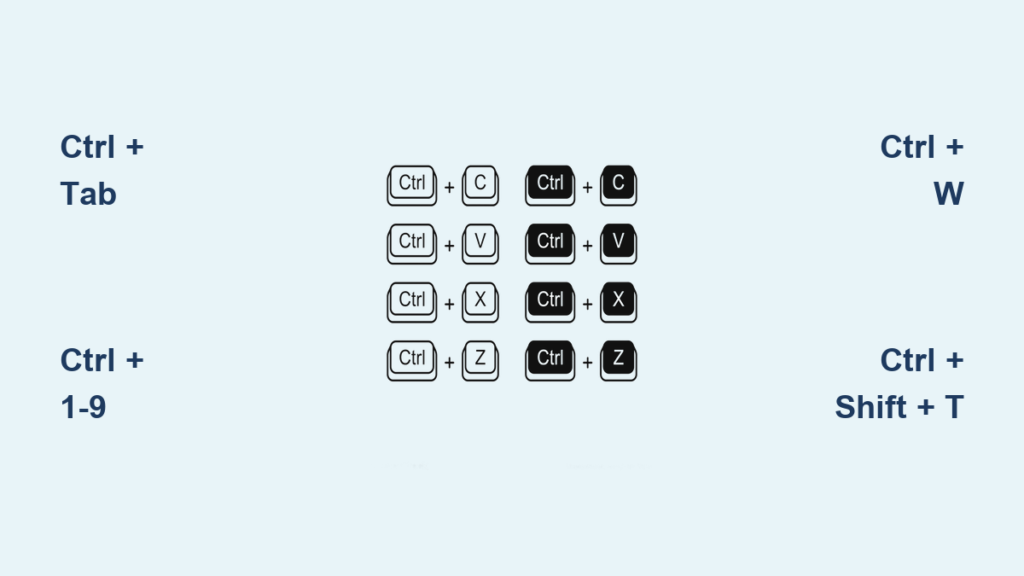
Ctrl + Tab moves you to the next tab in sequence (use Cmd + Option + Right Arrow on Mac). Hold the modifier key while tapping Tab to preview each tab before selecting. For quick backward navigation, Ctrl + Shift + Tab (or Cmd + Shift + [ on Mac) returns you to your previous tab—essential when you overshoot your target.
Many browsers support Ctrl + Page Up and Ctrl + Page Down as alternatives for Windows/Linux users, while Mac users can employ Cmd + Option + Left/Right Arrow. These keyboard combinations create muscle memory similar to document navigation, making them intuitive for experienced computer users.
Target Specific Tabs in One Keystroke
Stop wasting time counting tabs when you have eight or more open. Ctrl + [Number] shortcuts (use Cmd + [Number] on Mac) take you directly to that tab position—Ctrl + 1 for the first tab, Ctrl + 2 for the second, and so on up to Ctrl + 8. The game-changing Ctrl + 9 shortcut (works identically on Mac) always jumps to your rightmost tab, perfect for frequently accessed tools like email or chat applications.
This technique transforms tab management from sequential hunting to instant teleportation. When researching across multiple sources, assign your primary reference to Ctrl + 1, secondary sources to Ctrl + 2-5, and communication tools to Ctrl + 6-9. You’ll navigate complex workflows without ever lifting your hands.
Open, Close, and Rescue Tabs Efficiently
Ctrl + T opens a new tab instantly—far faster than hunting for the “+” icon. When you accidentally close a crucial tab, Ctrl + Shift + T becomes your lifeline by reopening the last closed tab (and works repeatedly to restore multiple tabs in reverse order).
Close unnecessary tabs with Ctrl + W (Windows/Linux) or Cmd + W (Mac) instead of reaching for the tiny “X” button. For complete window management, Ctrl + Shift + W closes your entire browser window while Ctrl + N opens a fresh window when needed.
Switch Between Applications and Browser Windows Like a Pro
Tab navigation is just the beginning—master these system-level shortcuts to move seamlessly between all your open applications.
Jump Between Running Applications in Seconds
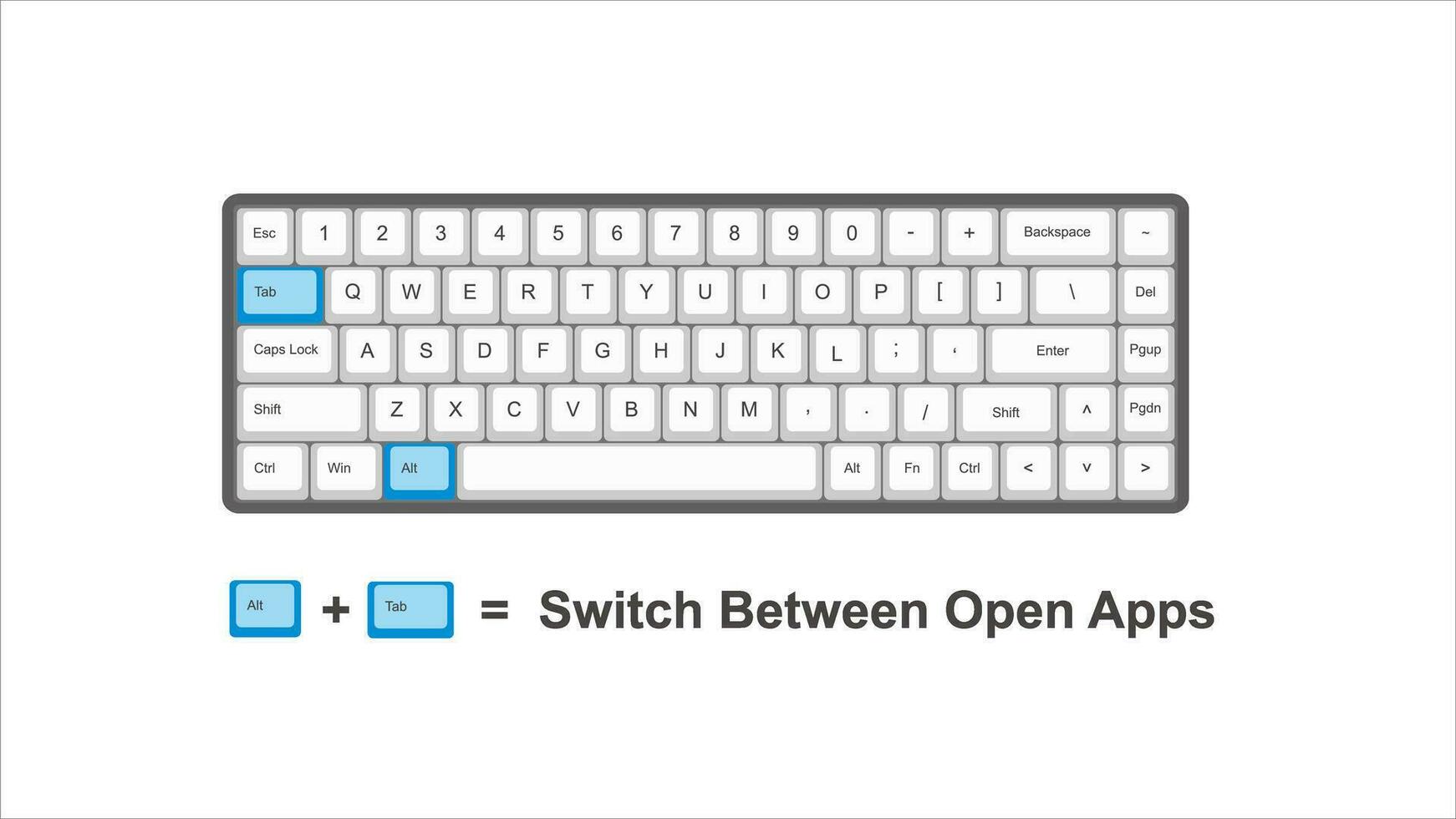
Alt + Tab (Windows/Linux) or Cmd + Tab (Mac) activates your operating system’s application switcher. Hold the modifier key while tapping Tab to cycle through all open applications—perfect when you need to toggle between your browser, document editor, and communication tools. On Windows, adding arrow keys while holding Alt provides finer control through your application list.
This shortcut becomes indispensable during presentations or collaborative work when you must rapidly access different tools without disrupting your flow. Practice until you can switch between your three most-used applications without looking at the screen.
Navigate Multiple Windows of the Same Application
When you have multiple Chrome windows open for different projects, Cmd + ``** (the key above Tab on Mac) cycles through windows of your active application. Windows users can often employ **Alt + “ for similar functionality, though this varies by application.
This technique creates powerful workflow segmentation: dedicate one browser window to client work, another to research, and a third to communications. Switch between contexts without tab overload by using application window navigation rather than trying to manage everything in a single tab bar.
Browser-Specific Tab Navigation Power Moves
Chrome and Edge users gain extra efficiency by pinning essential tabs (right-click > Pin Tab), which shrinks them to icon-only size while keeping them accessible via Ctrl + [Number]. Firefox users can create tab groups for complex projects, while Safari’s `Cmd + Shift + “ shows all tabs in grid view for visual navigation.
Chromium-based browsers (Chrome, Edge, Brave) support Ctrl + 9 to jump to your last tab regardless of position—a hidden gem for frequent tab switchers. These browser-specific enhancements build on core shortcuts to create specialized workflows for different use cases.
Customize Your Tab Navigation System
Default shortcuts work well, but personalizing your tab navigation creates unmatched efficiency for your specific workflow.
Extend Browser Capabilities with Shortcut Managers
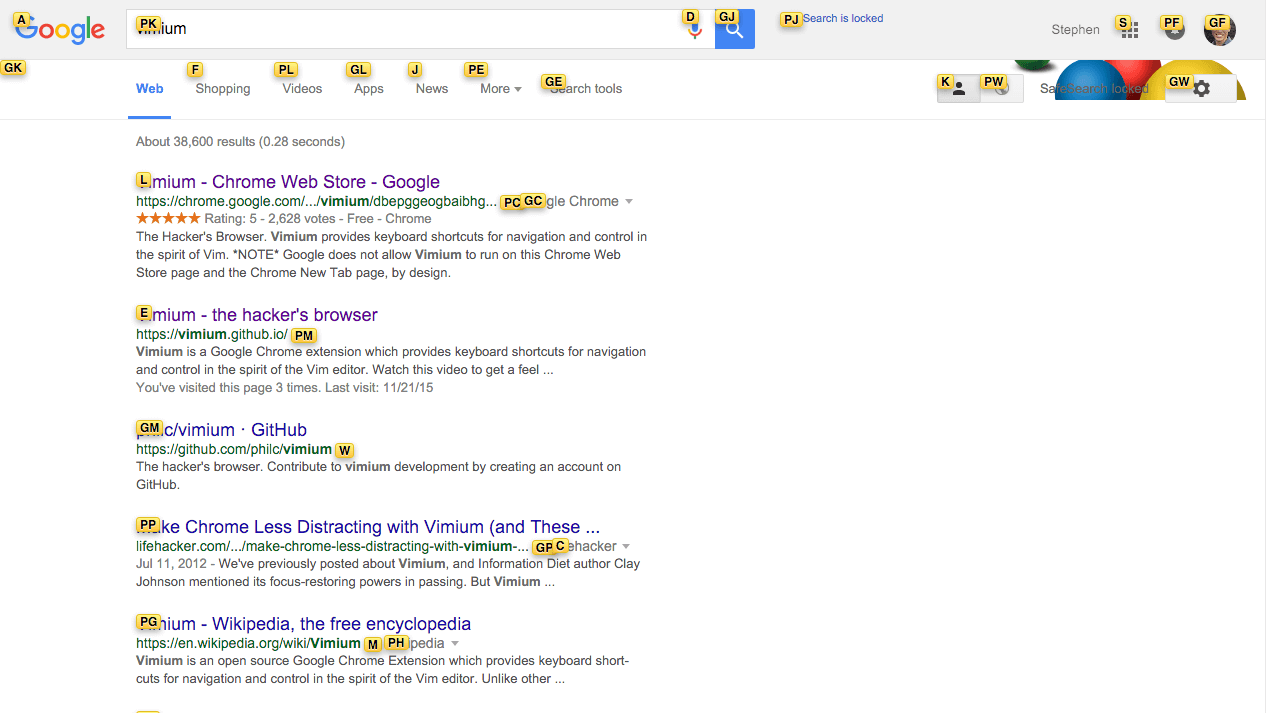
Install Vimium or Shortkeys to create custom tab navigation commands that fit your muscle memory. These extensions let you assign single-key shortcuts for common actions like moving tabs, duplicating pages, or jumping to specific sites—eliminating complex modifier combinations.
Windows power users can employ AutoHotkey scripts to create global hotkeys that work across all applications, while Mac users should explore Karabiner-Elements for advanced remapping capabilities. System Preferences > Keyboard > Shortcuts also allows Mac users to customize application switching behaviors to match their workflow patterns.
Build Unbreakable Tab-Switching Muscle Memory
Knowledge of shortcuts means nothing without consistent application. Follow this proven progression to make tab navigation automatic.
Start with Two Foundational Shortcuts Today
Commit to using Ctrl + T for new tabs and Ctrl + W for closing tabs exclusively for one week. Place a sticky note reminder on your monitor until these become automatic. During this phase, intentionally avoid clicking the “+” or “X” buttons—even if it feels slower initially.
Layer Advanced Shortcuts Gradually
After mastering basic tab management, add Ctrl + Tab and Ctrl + Shift + Tab for sequential navigation. Once these feel natural, incorporate numbered tab shortcuts starting with Ctrl + 1 and Ctrl + 2 for your most frequently accessed tabs. The key is deliberate practice: consciously choose keyboard navigation over mouse clicks until new neural pathways form.
Fix Common Tab Navigation Roadblocks Immediately
Rescue Unresponsive Shortcuts in Seconds
When shortcuts stop working, first ensure your browser has focus—shortcuts won’t function if another application window is active. Restart your browser to clear temporary glitches, and check for conflicting extensions that might override standard shortcuts. On Mac systems, verify that System Preferences > Keyboard hasn’t assigned your shortcut to another function.
Overcome Shortcut Forgetfulness Permanently
Create a physical cheat sheet with your top 5 shortcuts and keep it visible until they become automatic. Most users achieve permanent recall after 21 consecutive days of consistent use—track your progress with a simple calendar checkmark system. Remember that initial discomfort is temporary; within two weeks, keyboard navigation will feel more natural than mouse usage.
Mastering keyboard shortcuts for switching tabs delivers immediate productivity gains with minimal learning investment. The time saved during each tab switch compounds into hours of reclaimed focus time monthly—time that translates directly into higher quality work and reduced physical strain. Start implementing just one shortcut today, and within weeks you’ll navigate your digital workspace with the speed and precision of a true power user. Your future self will thank you every time your fingers effortlessly jump between tabs without breaking your workflow rhythm.



