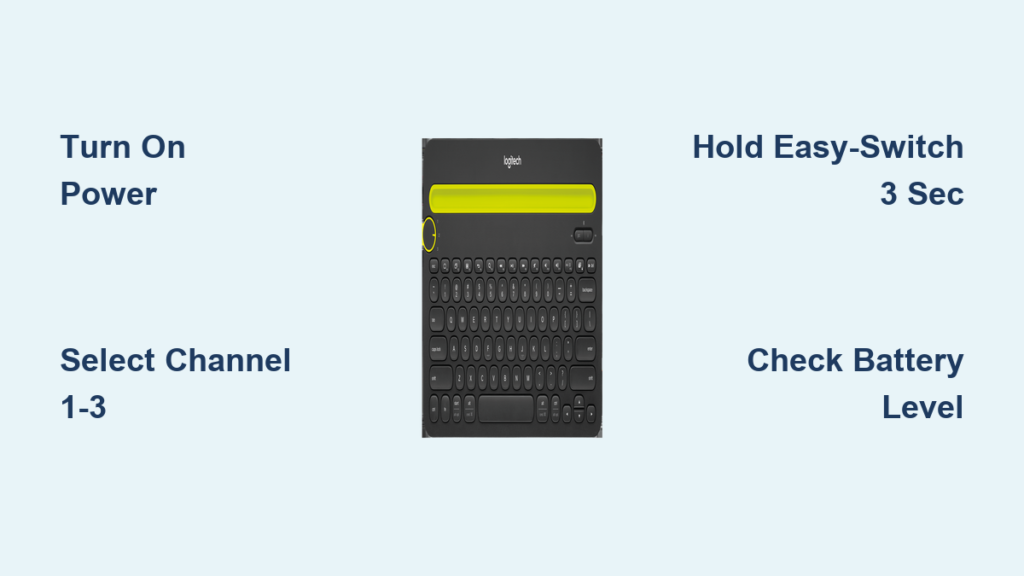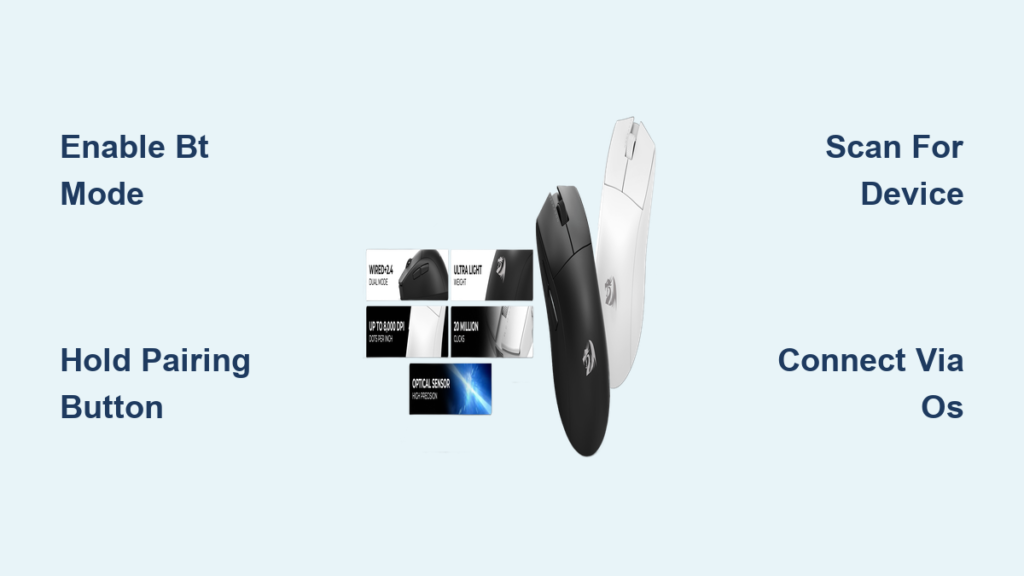
You just unboxed your King Lite mouse, ready to go wireless, but there is no cable in sight and your USB ports are full. You are not alone. Many modern wireless mice, including models like the King Lite, support Bluetooth connectivity, allowing you to pair them without a receiver or cable. Whether you lost the USB dongle or simply want a cleaner desk setup, connecting your King Lite mouse wirelessly is fast and simple if you know the exact steps.
This guide walks you through how to connect your King Lite mouse without a cable, using only Bluetooth. You will learn how to activate pairing mode, connect to Windows, macOS, Linux, or ChromeOS, troubleshoot invisible devices, and avoid common pitfalls. No fluff, no generic advice, just the precise actions needed to get your cursor moving in minutes.
Activate King Lite Bluetooth Pairing Mode

Before your computer can detect the mouse, you must put the King Lite into Bluetooth discovery mode. This tells the device to broadcast its signal so your laptop or desktop can find and pair with it.
Locate the Mode Switch and Pairing Button
Flip the King Lite mouse over and look for:
– A mode switch labeled BT, 2.4G, or Wired
– A small pairing button, sometimes recessed into the housing
Enter Bluetooth Discovery
- Slide the mode switch to the BT position.
- Press and hold the pairing button for 3 to 5 seconds.
- Watch for the LED indicator. A rapid blue flash means pairing mode is active.
⚠️ Pro Tip: If the light blinks slowly, the mouse is trying to reconnect to a previous device. Hold the button longer until the flash becomes rapid.
Connect to Windows via Bluetooth

If your King Lite is not showing up on your PC, follow these steps, even without a working mouse.
Step-by-Step Keyboard-Only Setup
- Press Windows + I to open Settings.
- Press Tab or use arrow keys to navigate to Bluetooth & devices.
- Press Enter, then select Add device.
- Choose Bluetooth from the list.
- Wait for “King Lite” or “KL-Mouse” to appear.
- Press Enter to pair.
✅ Success Signal: The cursor moves smoothly. No driver installation is needed. Plug and play works instantly.
Fix: Device Not Showing Up
- Ensure Bluetooth is enabled on your PC.
- Press Windows + B to focus the system tray and verify Bluetooth status.
- Press Shift + F10 to right-click and refresh the device list.
- Update Bluetooth drivers in Device Manager if pairing fails repeatedly.
Pair King Lite with macOS (No Mouse Needed)

Mac users can connect without touching a trackpad using keyboard shortcuts.
Use Spotlight to Open Bluetooth
- Press Command + Space to open Spotlight.
- Type “Bluetooth” and press Enter.
- In the Bluetooth window, press Tab to highlight available devices.
- When King Lite appears, press Enter on Connect.
Alternative: Full Keyboard Access
If navigation feels stuck:
1. Press Control + F7 (or Control + Fn + F7) to enable full keyboard control.
2. Use arrow keys to select the mouse.
3. Press Spacebar or Enter to connect.
💡 Expert Note: Rapidly clicking the left and right mouse buttons 5 to 6 times can sometimes force reconnection on Macs, especially after sleep.
Connect to Linux or ChromeOS
Linux and Chromebook users can pair efficiently using built-in tools.
Linux: Terminal Pairing (Fastest Method)
- Open terminal with Ctrl + Alt + T.
- Type
bluetoothctland press Enter. - Run these commands:
–power on
–agent on
–scan on - Wait for the device name or MAC address to appear.
- Pair and connect:
–pair XX:XX:XX:XX:XX:XX
–connect XX:XX:XX:XX:XX:XX
–trust XX:XX:XX:XX:XX:XX
ChromeOS: Settings Menu
- Click the clock in the bottom-right corner.
- Go to Settings then Bluetooth.
- Turn Bluetooth On.
- Wait for King Lite to appear.
- Click Connect.
ChromeOS enables Bluetooth discovery with minimal input, so no keyboard navigation workarounds are needed.
What If Your King Lite Has No Bluetooth
Not all wireless mice support Bluetooth. Confirm your model supports dual-mode or tri-mode connectivity.
Check These Signs
- Label says “Bluetooth 5.0”, “BT Mode”, or “Multi-Device”
- Mode switch has BT, 2.4G, and Wired options
- No USB receiver is included, or it is stored under the battery cover
❌ Critical Fact: If your King Lite only uses a USB receiver and that receiver is lost, you cannot connect without a cable or dongle. Bluetooth is the only cable-free option in that case.
Lost Dongle Recovery Steps
- Contact King Lite Support with your model and serial number.
- Ask if they sell replacement receivers.
- If not, use Bluetooth as your permanent wireless solution.
⚠️ Generic USB receivers will not work. Pairing is factory-locked to the original dongle.
Fix King Lite Not Connecting

Even with correct steps, issues can arise. Use this troubleshooting ladder.
Mouse Not Detected
- Battery Check: Replace or charge. Weak power kills Bluetooth signal strength.
- Reset Pairing: Hold the pairing button for 10 seconds to clear old connections.
- Interference: Move away from Wi-Fi routers, USB 3.0 ports, or metal surfaces.
- OS Compatibility: Older PCs without Bluetooth 4.0+ may fail to detect BLE devices.
Cursor Lagging or Skipping
- Surface Issue: Use a mousepad. Avoid glass, mirror, or glossy desks.
- Mode Confusion: Accidentally in 2.4G mode without a dongle? Switch to BT.
- Polling Rate: High sensitivity drains battery faster. Lower DPI if available.
Connected But Not Moving
- Flip the mouse and ensure the power switch is ON.
- Try wired USB-C mode to charge and test the sensor.
- Test on another computer to isolate hardware versus software failure.
Use Wired Mode as Backup
If Bluetooth fails or the battery is dead, use the USB-C cable.
Connect and Charge
- Plug the USB-C cable into the mouse and computer.
- The mouse works immediately in wired mode.
- The internal battery charges simultaneously.
✅ No switch needed: Most King Lite models auto-prioritize wired input.
This approach is ideal for long work sessions or when wireless performance lags.
Optimize for Your Use Case

Choose the right mode based on your needs.
Gaming or Fast Work
- Use 2.4GHz with receiver for the lowest latency.
- Bluetooth may add 10 to 30ms lag, which is noticeable in FPS games or fast typing.
🔧 Tip: If you have the receiver, do not use Bluetooth for gaming.
Travel or Multi-Device
- Bluetooth wins. Switch between laptop, tablet, and phone with one click.
- No dongle to lose. Ideal for Chromebooks and MacBooks with limited ports.
Office or Daily Use
- Bluetooth for a clean setup.
- 2.4GHz if your workspace has heavy Wi-Fi traffic.
Prevent Future Connection Issues
Avoid the “mouse not working” panic with simple habits.
Store the Dongle Safely
- Use the magnetic compartment under the mouse.
- Or keep it in a USB case labeled “King Lite.”
Manage Battery Life
- Charge when the LED turns red or slow-blinks.
- For long storage, charge to 60%, power off, and store in a dry place.
Label Your Devices
If you use multiple Bluetooth mice or keyboards:
– Rename your King Lite in OS settings (e.g., “King Lite – Work”).
– This prevents accidental pairing to the wrong device.
Frequently Asked Questions About King Lite Wireless Connection
Can I connect my King Lite mouse without a USB receiver?
Yes, if your King Lite supports Bluetooth. Slide the mode switch to BT, hold the pairing button until the LED flashes rapidly, then pair through your computer’s Bluetooth settings. If your model is RF-only, you cannot connect without the original dongle.
How do I know if my King Lite has Bluetooth
Check the underside for a mode switch with BT labeling, look for “Bluetooth 5.0” on the packaging, or consult the model specifications. Mice with only a 2.4G switch and no BT option cannot use Bluetooth.
Why is my King Lite mouse not showing up in Bluetooth settings
Common causes include the mouse not being in pairing mode (LED should flash rapidly), weak batteries, outdated Bluetooth drivers, or a host computer running Bluetooth 3.0 or older. Try resetting the pairing by holding the button for 10 seconds.
Is Bluetooth slower than the USB receiver for gaming
Yes. Bluetooth can introduce 10 to 30ms of input lag compared to 2.4GHz RF. For competitive FPS or fast-paced games, always use the 2.4GHz receiver. Bluetooth is best for productivity and casual use.
What if I lost my King Lite USB dongle
Contact King Lite support with your serial number. Some manufacturers sell replacement dongles for specific models. If unavailable, switch permanently to Bluetooth if your mouse supports it. Generic receivers will not work because pairing is factory-locked.
Can I connect King Lite to multiple devices
Yes, if your model supports multi-device Bluetooth profiles. Short-pressing the mode button cycles between paired devices (Device 1, Device 2, Device 3). This is ideal for switching between a work laptop and a personal tablet.
Key Takeaways for Connecting Your King Lite Mouse Without a Cable
Connecting your King Lite mouse without a cable comes down to confirming Bluetooth support, activating pairing mode correctly, and using the right keyboard shortcuts to navigate your operating system. For Windows, press Win + I and head to Bluetooth settings. On macOS, use Command + Space to open Spotlight. Linux users can pair through the terminal with bluetoothctl, while ChromeOS offers a simple settings menu.
If your mouse does not appear, check the battery, verify the LED is flashing rapidly, and ensure your PC supports Bluetooth 4.0 or higher. For gaming or low-latency needs, prefer the 2.4GHz receiver over Bluetooth. When all else fails, the USB-C cable provides instant wired operation while charging the battery.
Your next step is simple: flip your King Lite over, slide the switch to BT, hold the pairing button, and follow the OS-specific instructions above. Within minutes, your wireless workflow will be active, clutter-free, and fully functional.