You just unboxed your Apple Magic Mouse, excited to ditch the trackpad on your MacBook, but nothing happens when you flip the switch. No cursor movement. No blinking light. Frustrating, right? The reason is that Apple’s Magic Mouse does not pair like standard Bluetooth devices. Instead of pressing a button to connect, it requires a wired handshake first, even if you plan to use it wirelessly. This guide walks you through the exact steps to connect your Magic Mouse to any MacBook, whether it is brand new, purchased separately, or acting up after a reset. You will learn which cables to use, how to avoid common pairing traps, and how to fix connection issues in minutes.
Required Cables and Compatibility
:max_bytes(150000):strip_icc()/USB-C-vs-Lightning-4fdb7ae93da14192a156a60dc47b17d5.jpg)
Before attempting to pair your Magic Mouse, confirm you have the right cable. Using the wrong one is the number one reason pairing fails.
USB-C to Lightning Cable
Use this cable if your MacBook has USB-C ports and your Magic Mouse has a Lightning port. This is the most common setup today. The cable handles both charging and the initial data handshake required for pairing. It is the same cable used for iPhones and older iPads. Do not use a charging-only cable, because data transfer is required for the handshake to complete.
USB-A to Lightning Cable
For older MacBooks with standard USB-A ports, such as MacBook Air models from 2015 or earlier iMacs, use a USB-A to Lightning cable. Plug it into any available USB-A port on your machine. Confirm the cable supports data sync, since some third-party cables only deliver power.
USB-C to USB-C Cable
You only need this cable for the newest Magic Mouse models released after 2024 that feature a USB-C charging port instead of Lightning. Check the bottom of your mouse. If the charging port is oval-shaped USB-C, use this cable type.
Legacy Models With AA Batteries
Older Magic Mouse units from before 2015 use AA batteries and lack a charging port entirely. These pair via Bluetooth without a cable but require a working trackpad or external mouse to navigate your Mac’s Bluetooth settings during setup.
Pro Tip: If you do not have the original cable, buy Apple-certified (MFi) versions. Cheap cables often fail the pairing handshake even when they charge properly.
Step-by-Step Pairing Process

Follow the steps below based on your specific Magic Mouse model and setup scenario.
Initial Setup With Cable
This method works for all Magic Mouse models with a Lightning or USB-C port, even if you plan to use the mouse wirelessly afterward.
- Connect the cable from your Magic Mouse to your MacBook.
- Flip the power switch on the bottom of the mouse to the “On” position. A green indicator will appear beneath the switch.
- Wait 5 to 10 seconds. The mouse should respond immediately when you move it.
- Open System Settings on macOS Ventura or later, or System Preferences on older macOS versions.
- Go to Bluetooth and look for “Magic Mouse” in the device list. It should show the battery level.
Once the mouse appears and responds to movement, you are ready to go wireless.
Disconnect and Go Wireless
After the initial connection succeeds, unplug the cable from both the mouse and MacBook. The Magic Mouse will automatically switch to Bluetooth mode. Move the mouse to confirm the cursor still responds.
✅ Success: No further steps needed. The pairing is saved. Next time, just turn the mouse on and it connects automatically.
Factory-Paired Setup for New Macs
If your Magic Mouse came bundled with your MacBook, follow these steps:
- Flip the power switch to “On.”
- Wait 5 seconds.
- Move the mouse.
It should connect instantly without a cable. This only works if the mouse was originally bundled with this specific Mac and has not been paired to another machine. If it does not work, fall back to the cable method above.
Legacy Mouse Setup Without a Cable
For older AA battery models, the process differs:
- Insert fresh batteries.
- Turn the mouse on. A blinking green LED means it is in pairing mode.
- On your Mac, go to Apple Menu () > System Settings > Bluetooth.
- Wait for “Magic Mouse” to appear in the list.
- Click Connect.
If the LED is solid rather than blinking, the mouse is already paired to another Mac. You must forget it on that device first before pairing will work.
Troubleshooting Common Connection Issues
Even with the right steps, pairing can fail. Here is how to fix the most common problems quickly.
Mouse Won’t Connect After Cable Plug-In
Check these basics first:
- Is the power switch on with a visible green light?
- Is the cable firmly inserted into both ends?
- Try a different USB port on your MacBook.
- Restart Bluetooth by turning it off and on in System Settings.
- Reboot your MacBook entirely.
If the mouse still does not respond when plugged in, the issue is likely hardware or cable-related.
Appears in Bluetooth But Won’t Connect
If the Magic Mouse shows up grayed out or labeled “Not Connected”:
- Click the (i) icon next to the device name.
- Select Remove or Forget This Device.
- Unplug the mouse if it is still connected via cable.
- Turn it off, then on again.
- Reconnect via cable and repeat the pairing steps.
This clears corrupted pairing data that often causes stubborn connection failures.
Connects to Wrong Mac Automatically
The Magic Mouse remembers the last Mac it paired with. If it keeps connecting to another MacBook:
- On the other Mac, open Bluetooth settings.
- Find the Magic Mouse in the list.
- Click Remove or Forget This Device.
- Power cycle the mouse by turning it off and on.
- Pair it again with your MacBook using the cable method.
⚠️ Warning: Without removing it from the old Mac, your mouse may randomly disconnect when both machines are nearby.
No Response and No Light
When the mouse shows no signs of life at all:
- Dead battery: For Lightning models, charge for 15 minutes via cable.
- Faulty cable: Test the cable with an iPhone or iPad to confirm it works.
- Dirty charging port: Use a dry toothbrush to gently clean debris from the port.
- Hardware failure: If nothing works after trying multiple cables and ports, contact Apple Support.
Verify and Monitor Your Connection
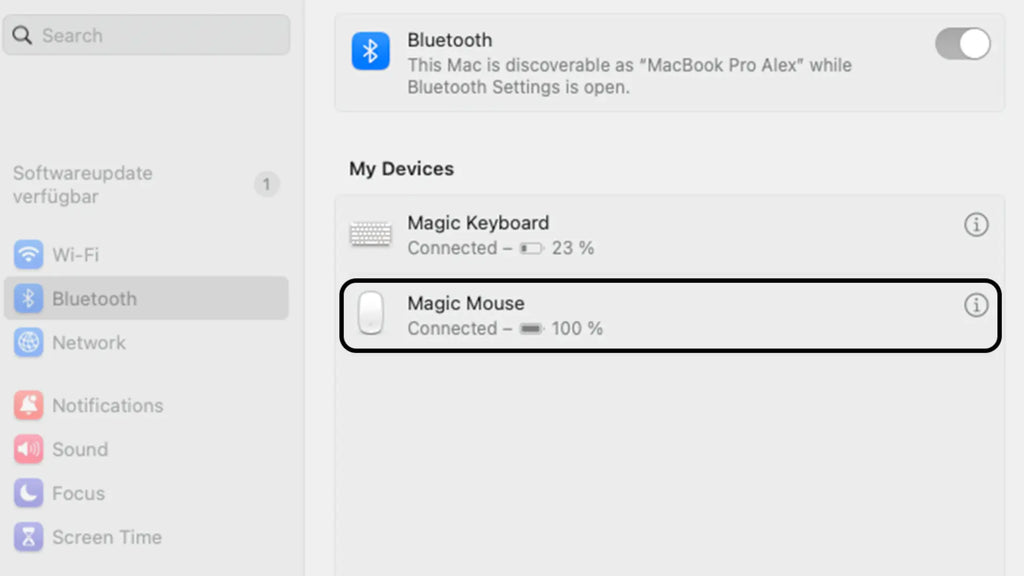
Once paired, confirm everything works properly and keep tabs on performance.
Check Battery Level
Navigate to Apple Menu () > System Settings > Bluetooth and find your Magic Mouse in the device list. The battery percentage appears next to the device name. Low battery? Connect via cable to charge. A full charge takes roughly 2 hours.
Test Cursor and Click Functions
Move the mouse across the screen and try these actions:
- Left click
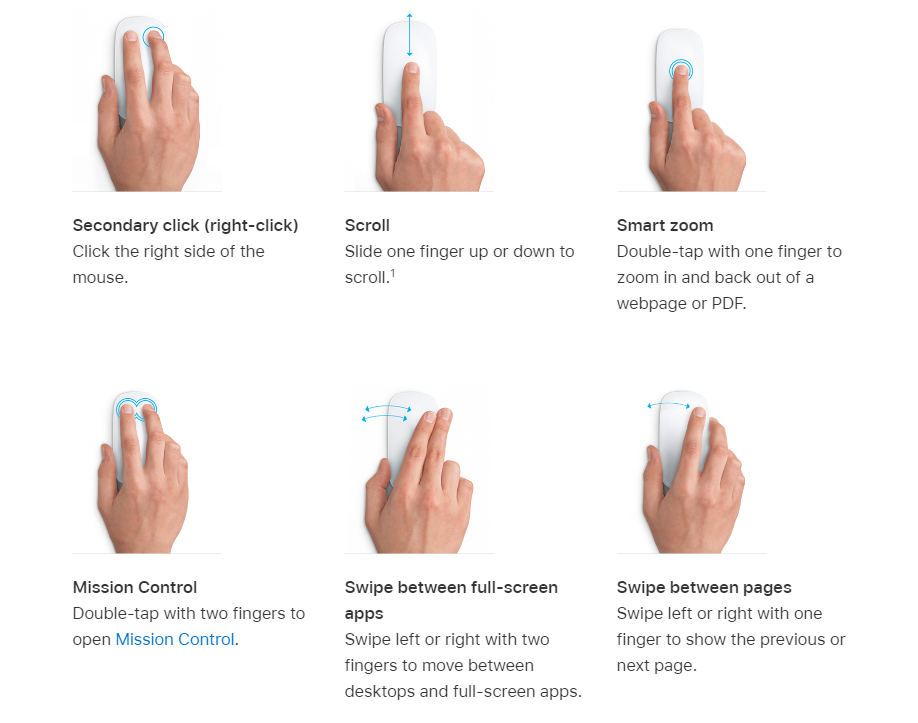
- Right click (two-finger tap or secondary click in settings)
- Scroll up and down with two fingers
If scrolling feels reversed, fix it by going to System Settings > Mouse > Scroll & Zoom and toggling off “Scroll direction: natural.”
Prevent Future Connection Problems
Keep your Magic Mouse working smoothly with these simple habits.
Always Use Trusted Cables
Stick with Apple or MFi-certified cables. Knockoffs may charge your mouse but fail data transfer, which kills the pairing process entirely.
Keep macOS Updated
Apple occasionally patches Bluetooth bugs in system updates. Update your Mac by going to System Settings > General > Software Update.
Avoid Bluetooth Interference
Other wireless devices can disrupt Bluetooth signals. Keep USB 3.0 drives, Wi-Fi routers, and cordless phones away from your MacBook’s side ports during pairing.
Reset the Bluetooth Module
If multiple Bluetooth devices act up, try this advanced fix:
- Hold Shift + Option and click the Bluetooth menu bar icon.
- Choose Debug > Reset the Bluetooth module.
- Confirm and restart your Mac.
This clears all Bluetooth caches, so you will need to re-pair your devices afterward.
Frequently Asked Questions About Connecting Magic Mouse to MacBook
Can I pair a Magic Mouse without a cable?
Only if the Magic Mouse came bundled with your MacBook and has never been paired to another machine. All other situations require a wired connection for first-time pairing.
Why does the Magic Mouse have no pairing button?
Apple uses a force-pairing protocol for security and simplicity. The wired connection ensures only trusted devices can pair, which reduces Bluetooth spoofing risks.
How long does the pairing process take?
Less than 2 minutes with the correct cable. Most of that time is waiting for the Mac to detect the device after you plug it in.
Does the Magic Mouse work with Windows or iPad?
Yes for Windows, but it requires third-party tools and may lack full gesture support. For iPad, only models running iPadOS 13.4 or later support mice, including iPad Pro and iPad Air. Pair through the iPad’s Bluetooth settings.
Can I use one Magic Mouse with multiple Macs?
Yes, but only one at a time. To switch Macs, turn off the mouse, connect via cable to the new Mac to re-pair, then repeat whenever you want to switch back. There is no native multi-host switching like some Logitech mice offer.
What if my Magic Mouse keeps disconnecting randomly?
Check for Bluetooth interference from nearby devices, update macOS to the latest version, and reset the Bluetooth module. Also verify the battery is charged above 20 percent, since low battery can cause drops.
Key Takeaways for Connecting Your Magic Mouse to MacBook
The Apple Magic Mouse is not truly plug-and-play, but once you understand the wired-first pairing rule, setup becomes fast and reliable. Use the correct cable for your specific Mac and mouse combination, power the device on, let macOS detect it, then unplug and switch to wireless mode. Avoid common pitfalls like wrong cables or forgetting the device on another Mac, and your Magic Mouse will deliver seamless control for years. Bookmark this guide for quick reference whenever you set up a new Mac or replace a mouse, and you will never struggle with pairing again.