You’re sitting at your desk, ready to work, and suddenly realize the mouse pointer has vanished. You move the mouse, nothing happens. You tap the touchpad, still no sign of the cursor. It is frustrating, but you are not alone. The mouse pointer not showing up is a common issue across Windows 10 and 11 systems, affecting both laptops and desktops. Whether it disappears entirely, hides while typing, or vanishes on a second monitor, the root cause is usually fixable without replacing hardware.
The good news? Most cases stem from simple software glitches, driver issues, or misconfigured settings, not broken hardware. With the right steps, you can restore your cursor in minutes. This guide walks you through every proven solution, from quick physical checks to advanced system repairs, all using keyboard navigation so you can troubleshoot even without a working mouse.
Check Physical Connections First

Before diving into software fixes, rule out hardware issues. Many missing cursor problems are caused by loose cables, dead batteries, or disabled touchpads. A quick physical inspection often solves the issue in seconds.
Inspect Wired Mouse Setup
If you are using a wired mouse, start with these steps:
• Unplug and replug the USB cable. This forces Windows to re-detect the device.
• Try a different USB port. Some ports fail over time or lose power.
• Look for cable damage like fraying or kinks. A damaged wire interrupts signal transmission.
• Test the mouse on another computer. If it does not work there, the mouse is likely faulty.
Reset Wireless Mouse and Receiver
For wireless mice, follow these checks:
• Remove the USB receiver and plug it back in.
• Replace the batteries with fresh ones. Low power often causes intermittent cursor loss.
• Power the mouse off and on again.
• Clean the optical sensor underneath. Dust or glossy surfaces can prevent tracking.
• If using Bluetooth, go to Settings, then Bluetooth, and repair the device.
Unlock Laptop Touchpad
Laptop touchpads often get disabled by accident. Press the function key combo that toggles the touchpad:
• Fn plus F5
• Fn plus F7
• Fn plus F9 (varies by brand, so look for the touchpad icon on your F-keys)
You can also open Settings with Win plus I, go to Bluetooth and devices, then Touchpad, and ensure it is turned on.
Navigate Without a Mouse
When the cursor is gone, you need keyboard shortcuts to access settings and tools. Mastering these commands lets you fix the problem even when your mouse is unusable.
Essential Keyboard Commands
Use these shortcuts to move around Windows:
• Win plus I: Open Settings
• Win plus R: Open Run dialog
• Win plus X: Access Quick Link menu (includes Device Manager)
• Tab or Shift plus Tab: Move between buttons and fields
• Arrow keys: Navigate menus
• Enter: Select an item
• Spacebar: Toggle switches or checkboxes
• Shift plus F10: Right-click context menu
• Ctrl plus Alt plus Delete: Open security screen (use to restart)
Restart Without a Cursor
To reboot when the mouse is not working:
- Press Ctrl plus Alt plus Delete
- Use Tab or arrow keys to highlight the power icon (bottom right)
- Press Enter, then choose Restart
Alternatively, press Win plus D to reach the desktop, then Alt plus F4 to open the shutdown menu.
Update or Reinstall Mouse Drivers

Outdated or corrupted drivers are a top cause of cursor disappearance. Managing these drivers through Device Manager often restores functionality quickly.
Update via Device Manager
- Press Win plus X, then press the Down Arrow to Device Manager and hit Enter
- Press Tab to focus the device list
- Arrow down to Mice and other pointing devices, press Right Arrow to expand
- Highlight your mouse or touchpad, then press Shift plus F10 to open the context menu
- Select Update driver, then Search automatically for drivers
- Let Windows install any available update, then restart
Reinstall the Driver Completely
If updating fails:
- In Device Manager, highlight the mouse device
- Press Shift plus F10, then Uninstall device
- Confirm deletion
- After uninstalling, go to Action, then Scan for hardware changes (or just restart)
- Windows will reinstall the default driver automatically
Pro Tip: If the issue started after a Windows update, a driver reinstall often fixes compatibility glitches.
Fix Hidden Cursor in Settings
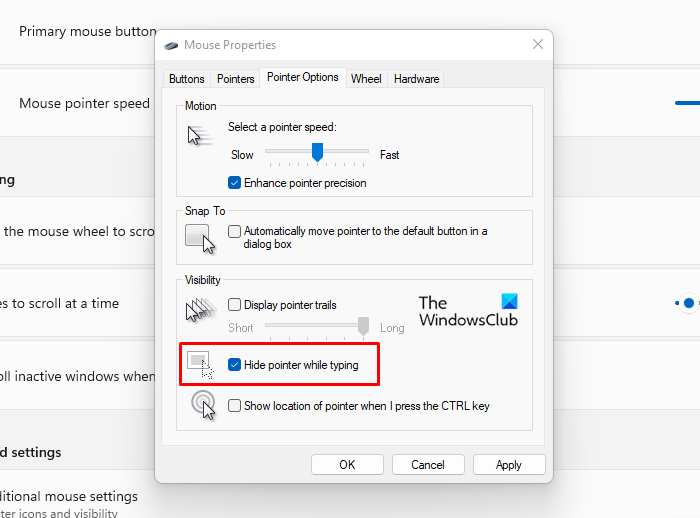
Sometimes Windows hides the cursor intentionally. These settings can make it reappear with a few quick adjustments.
Disable “Hide Pointer While Typing”
This feature turns off the cursor when you type, but users often think it is gone for good.
- Press Win plus R, type
control mouse, press Enter - Press Tab to the Pointer Options tab (use Right Arrow if needed)
- Tab to Hide pointer while typing and press Spacebar to uncheck
- (Optional) Check Show location of pointer when I press Ctrl. Pressing Ctrl will flash a circle around the cursor
- Tab to Apply, then OK
Reset Pointer Scheme and Shadow
A transparent or mismatched cursor can blend into the background.
- In Mouse Properties, go to the Pointers tab
- Change Scheme to None or Windows Default
- Uncheck Enable pointer shadow
- Click Apply, then OK
Turn Off Tablet Mode
On 2-in-1s and tablets, Tablet Mode disables the cursor.
- Press Win plus A to open Notification Center
- Find Tablet mode and ensure it is Off
- Or go to Settings, System, Tablet, and disable it there
Troubleshoot Multi-Monitor and App Issues
The cursor might not be gone, just misplaced or blocked by software. These steps help you locate it or fix app-specific issues.
Find Cursor on Second Screen
If you use dual monitors, try these methods:
• Move your mouse vigorously to the far left, right, up, or down. This can pull the cursor back from an extended display.
• Press Win plus P, then press Enter on Duplicate to mirror screens and locate the pointer.
Fix Cursor Disappearing in Chrome or Edge
If the cursor vanishes only in a browser:
- Press Ctrl plus L, type
chrome://settings/system(oredge://settings/system) - Tab to Use hardware acceleration when available
- Press Spacebar to turn it off
- Tab to Relaunch and press Enter
- Test the cursor. If it works, consider updating your graphics driver before re-enabling
Why? Faulty GPU drivers can cause rendering issues that hide the cursor in GPU-accelerated apps.
Run System Fixes and Scans
If basic fixes fail, deeper system issues may be to blame. These tools repair corrupted files and update critical components.
Check for Windows Updates
Microsoft regularly patches input device bugs.
- Press Win plus R, type
ms-settings:windowsupdate, press Enter - Tab to Check for updates and press Enter
- Install any available updates and restart
Run Hardware Troubleshooter
For Windows 10 and 11 (22H2 and earlier):
- Press Win plus R
- Type
msdt.exe -id DeviceDiagnostic, press Enter - Press Tab to Next, press Enter
- Let the tool scan and apply fixes if found
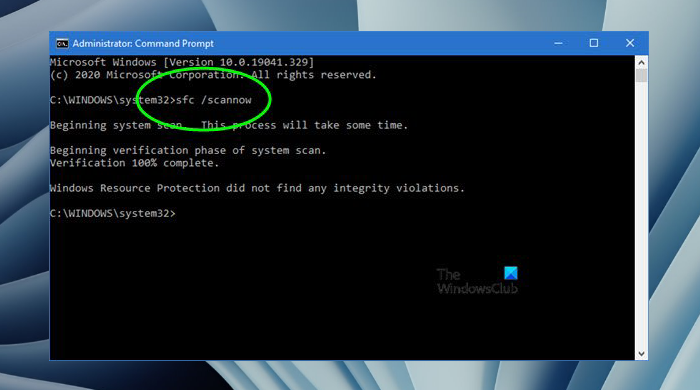
Repair System Files with SFC
Corrupted files can break input functionality.
- Press Win plus X, arrow to Windows PowerShell (Admin), press Enter
- If prompted, press Right Arrow to Yes, then Enter
- Type
sfc /scannowand press Enter - Wait for completion (can take 15 to 20 minutes)
- Restart after repair
Clear Temporary Files
Corrupted cache can interfere with drivers.
- Press Win, type Disk Cleanup, press Enter
- Tab to Files to delete, arrow down to Temporary files
- Press Spacebar to select
- Tab to OK, press Enter, confirm deletion
Prevent Future Cursor Disappearance
Avoid repeating this frustration with simple maintenance habits. A few minutes of upkeep saves hours of troubleshooting later.
Keep Drivers Updated
• Use Lenovo Vantage, HP Support Assistant, or Dell Command Update for laptop-specific drivers
• Visit Logitech, Razer, or other peripheral makers’ sites for gaming mouse firmware
Maintain Your Hardware
• Clean the mouse sensor weekly with a soft cloth
• Replace wireless batteries at the first sign of lag
• Avoid sharp bends in cables. They damage internal wires
Avoid Risky Software
• Do not use third-party “driver updaters” from unknown sites. They often install malware.
• Stick to Windows Update and official manufacturer tools.
When to Seek Hardware Help
If none of the above works, the issue may be physical. Try these final diagnostic steps:
- Test with a different mouse. If it works, your original mouse is dead.
- Boot into Safe Mode (hold Shift while clicking Restart). If the cursor appears, a third-party app is interfering.
- Contact manufacturer support. You may have a faulty USB port, touchpad ribbon, or motherboard issue.
Frequently Asked Questions About Mouse Pointer Not Showing Up
Why does my mouse pointer disappear only when I type?
This is caused by the “Hide pointer while typing” feature in Windows. It is designed to reduce distraction during text entry. Open Mouse Properties through the Run dialog (control mouse), go to Pointer Options, and uncheck this setting.
Can a Windows update cause the mouse pointer to stop showing?
Yes. Driver compatibility issues after updates are a common trigger. Reinstalling the mouse driver through Device Manager usually resolves the problem. You can also check the manufacturer’s website for an updated driver version.
How do I restart my computer if the mouse pointer is not showing up?
Press Ctrl plus Alt plus Delete, then use Tab or arrow keys to highlight the power icon. Press Enter and select Restart. Alternatively, press Win plus D to reach the desktop, then Alt plus F4 to open the shutdown menu.
Why does my cursor vanish in Chrome or Edge but work everywhere else?
Hardware acceleration conflicts with unstable GPU drivers often cause this. Open Chrome or Edge settings, navigate to the system page (chrome://settings/system), and toggle off “Use hardware acceleration when available.” Relaunch the browser to test.
Is a missing cursor always a hardware problem?
No. Most cases are software related, including driver corruption, settings misconfigurations, or system file errors. Only a small percentage of cases involve actual hardware failure, and this is usually confirmed only after software fixes fail.
Key Takeaways for Fixing Your Mouse Pointer
The mouse pointer not showing up rarely indicates permanent failure. Start with the simplest checks: reconnect cables, replace batteries, and toggle the touchpad function key. If those fail, move to driver management through Device Manager, which solves the majority of post-update glitches. Adjusting pointer visibility settings in Mouse Properties fixes the common “cursor vanishes while typing” complaint.
For persistent issues, run the SFC scan to repair corrupted system files and check for Windows updates. If software solutions do not work, test with a different mouse to confirm whether the original device is faulty. With these steps, you can restore your cursor and prevent future disappearances.