Changing your mouse cursor is one of the quickest ways to personalize your computer or improve visibility if you struggle to track the pointer on screen. Whether you want a bolder color, a larger size, or a completely custom design, every major operating system offers built-in tools to make it happen. This guide covers step-by-step methods for Windows, macOS, and Linux, along with safety tips and troubleshooting advice. By the end, you will know exactly which method fits your device and skill level.
Windows: Change Cursor Color and Size

Windows 10 and 11 include native accessibility settings that let you adjust your pointer without installing extra software. These options live inside the Accessibility menu and work for most users right out of the box.
Enable Pointer Color Options
If you do not see color choices, your operating system is likely outdated and needs an update first.
- Press Win + I to open Settings.
- Click Accessibility, then select Cursor & pointer.
- Under “Change pointer color,” choose Black, White, Inverted, or Custom.
- Drag the pointer size slider to enlarge the cursor up to 4x its default size.
Note: This color feature requires Windows 10 version 1903 or later. Older builds will not display the color option at all.
Check Your Windows Version
Before troubleshooting, confirm which build you are running.
- Press Win + R, type winver, then press Enter.
- Look for Version 1903, 2004, or higher in the dialog box.
- If your version is below 1903, download the Windows Update Assistant from Microsoft’s official site and run it.
After updating and restarting, return to the Cursor settings and the color options will appear.
Install Custom Cursors on Windows
Want a unique design? Windows supports .cur (static) and .ani (animated) files from trusted sources like DeviantArt.
Safe Installation Steps
- Download and extract your cursor files. Avoid any package that includes
.exeattachments. - Press Win + R, type shell:cursor, then press Enter.
- Paste your
.curor.anifiles into the folder that opens. - Return to Settings > Accessibility > Cursor & pointer.
- Select your new cursor from the dropdown menu.
Pro Tip: Animated cursors use more CPU power. On older PCs, stick to static .cur files to prevent lag or stuttering.
macOS: Adjust Size and Color Only

Apple keeps cursor customization limited to accessibility-focused tweaks. Full custom designs require third-party apps or risky system edits that Apple does not support.
Increase Size and Contrast
For better visibility on a Mac:
- Click the Apple menu and choose System Settings.
- Go to Accessibility, then select Display.
- Drag the Cursor Size slider to the right.
- Toggle Cursor Color to enable high-contrast mode.
This feature dynamically adjusts the pointer based on the background behind it, which helps on both light and dark screens.
Install Custom Cursors on macOS
macOS does not allow drag-and-drop cursor themes. You will need external apps or manual system edits.
Use Third-Party Tools
Recommended apps include:
- CursorFX for Mac
- CursorChanger
These tools safely inject custom graphics and manage theme switching without touching protected system files.
Manual Method (Advanced Only)
Only attempt this if you fully understand the risks:
- Convert your design to
.icnsformat. - Boot into Recovery Mode and disable System Integrity Protection (SIP).
- Copy the file to
/System/Library/CoreServices/. - Reboot and re-enable SIP afterward.
Warning: This process can cause system crashes, boot failures, or lost changes after macOS updates. Apple does not support this workflow.
Linux: Full Cursor Theme Control

Linux offers the most flexibility of any operating system. You can switch cursor themes through a graphical interface or the terminal, depending on your desktop environment.
Install Themes via GUI

Most modern distributions include a visual theme switcher in system settings.
Step-by-Step Setup
- Download a cursor theme like ComixCursors or Bibata as a
.tar.gzor.zipfile. - Extract the folder.
- Move it to one of these locations:
– User only:~/.icons/
– All users:/usr/share/icons/(requires sudo) - Open Settings, then go to Appearance or Look and Feel.
- Select Cursors and pick your new theme from the list.
Changes apply instantly with no reboot required.
Apply Themes via Terminal
For automation or headless setups, the gsettings command works in GNOME-based environments.
Useful Commands
List installed cursor themes:
bash

ls /usr/share/icons/
Apply a specific theme:
bash

gsettings set org.gnome.desktop.interface cursor-theme 'YourThemeName'
Adjust cursor size:
bash

gsettings set org.gnome.desktop.interface cursor-size 24
Replace YourThemeName with the exact folder name of your theme.
Cursor File Formats Explained
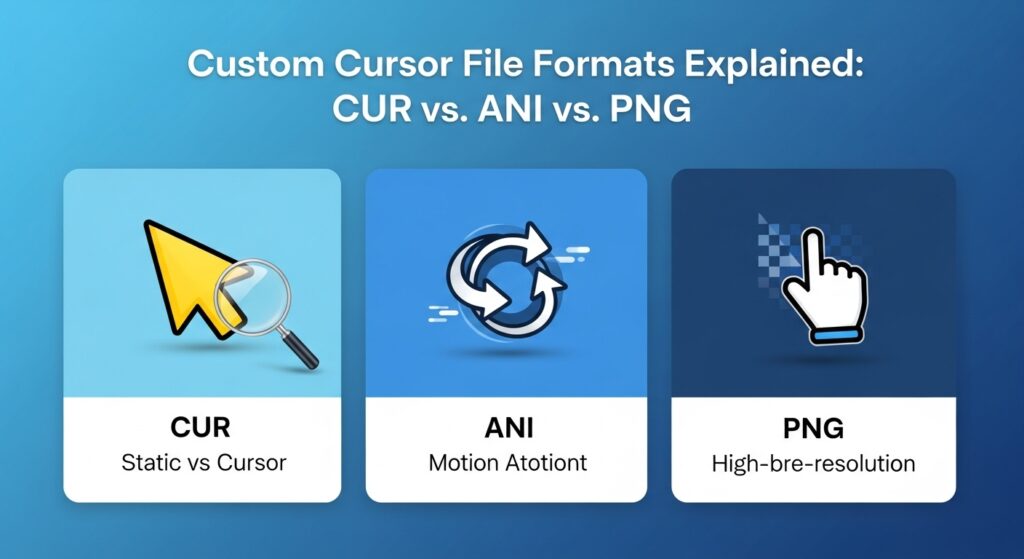
Knowing which file format works on your system prevents installation errors and wasted downloads.
- .cur: Static cursor files used by Windows
- .ani: Animated cursor files for Windows (higher CPU usage)
- .icns: Native icon format required for macOS custom cursors
- .svg / .png: Common formats inside Linux theme folders
- .zip / .tar.gz: Compressed archives that must be extracted before use
Security and Best Practices
Custom cursor files can carry malware if downloaded from untrustworthy sites. Following a few simple rules keeps your system safe.
Where to Download Safely
Stick to reputable communities like DeviantArt or well-known software repositories. Avoid any download that includes executable files bundled with cursor assets.
Scan Before Installing
Always run downloaded .cur, .ani, or .icns files through an up-to-date antivirus program before placing them in system folders.
Performance Tips
Animated cursors look great but consume system resources. If your cursor feels sluggish after a theme change, switch back to a static .cur file to rule out performance issues.
Troubleshooting Common Issues
Even with the right steps, things sometimes go wrong. Here are fixes for the most frequent problems.
Color Option Missing in Windows
Run winver to confirm your version. If it is older than 1903, install the latest Windows update through the Update Assistant.
Custom Cursor Not Appearing
Double-check that the file lives in the correct directory. Windows uses shell:cursor, while Linux uses ~/.icons/ or /usr/share/icons/. Make sure the file extension matches your operating system.
Cursor Lag After Custom Install
Revert to the default static theme. Animated cursors often cause lag on older hardware, and switching back usually solves the problem immediately.
Linux Theme Not Loading
Check the folder permissions. System-wide themes in /usr/share/icons/ need read access for all users, or the desktop environment will ignore them.
Frequently Asked Questions About Changing Mouse Cursor
Can I change my mouse cursor without downloading anything?
Yes. Windows, macOS, and Linux all include built-in settings to change cursor color and size. You only need third-party tools or downloads if you want a fully custom design.
Why does Windows not show the pointer color option?
Your Windows version is likely older than 1903. Run winver to check, then update through the Windows Update Assistant if needed.
Are animated cursors bad for performance?
They can be. Animated .ani files use more CPU than static .cur files. On older computers, this may cause slight lag or stuttering.
Is it safe to install custom cursors on macOS?
Using third-party apps like CursorFX or CursorChanger is generally safe. Manual installation by disabling System Integrity Protection is risky and can break after macOS updates.
Where is the cursor folder in Windows?
Press Win + R, type shell:cursor, and press Enter. This opens the system folder where Windows stores cursor files.
Can I make my cursor bigger without changing the theme?
Yes. Both Windows and macOS have sliders that increase cursor size independently of any theme changes. Linux also supports size adjustments through gsettings.
Final Thoughts on Changing Your Mouse Cursor
Changing your mouse cursor is a small tweak that delivers big results, whether you want a more visible pointer, a stylish design, or a fully personalized setup. Windows users get the easiest path with native color and size controls plus .cur file support. macOS users should rely on built-in accessibility sliders or trusted third-party apps and avoid manual system edits. Linux users enjoy the most freedom, with both GUI and terminal options for installing and switching themes.
Start by adjusting the built-in size and color settings on your current system. If those options meet your needs, you are done in under a minute. If you want a custom look, choose a trusted source, scan the files, and follow the installation steps for your operating system. Your perfect cursor is only a few clicks away.