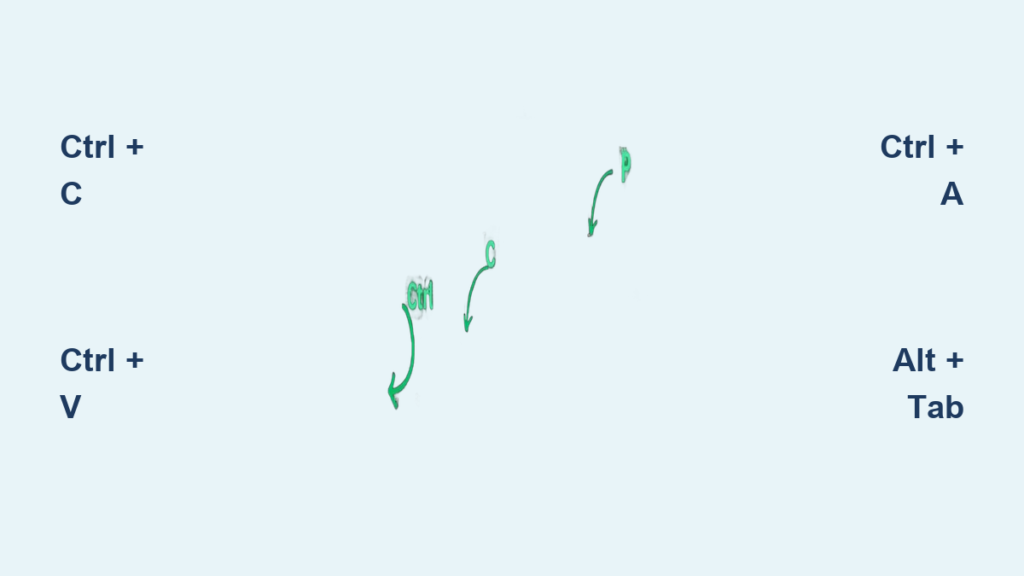
Your mouse freezes mid-task, or maybe your laptop trackpad stops responding right when you need to move a paragraph. Instead of stopping your workflow, you can keep going using only your keyboard. Knowing how to copy and paste without a mouse keeps you productive during hardware failures and speeds up daily work even when everything works fine.
Keyboard-only copying works across Windows and macOS, in browsers, documents, and code editors. This guide walks you through the exact shortcuts for selecting, cutting, copying, pasting, and navigating between apps. You will learn muscle-memory techniques that make your fingers do all the work.
Master Core Copy-Paste Shortcuts
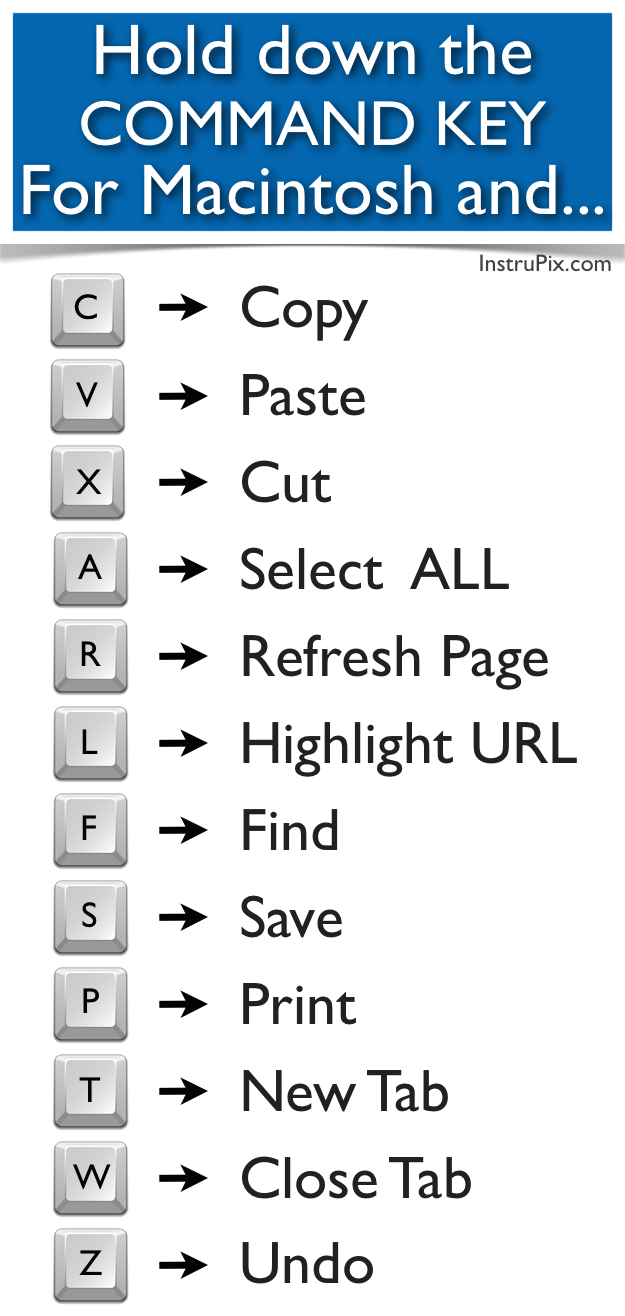
The foundation of mouse-free copying is three universal commands: Copy, Cut, and Paste. These shortcuts work in nearly every app, from word processors to file explorers.
Use Universal Keyboard Commands
On Windows, use the Ctrl key:
– Copy: Ctrl + C
– Cut: Ctrl + X
– Paste: Ctrl + V
On macOS, use the Command (⌘) key:
– Copy: Cmd + C
– Cut: Cmd + X
– Paste: Cmd + V
These shortcuts send data to the system clipboard, which is the temporary storage holding your copied content until you paste or copy something else.
✅ Pro Tip: After pressing
Ctrl/Cmd + C, the original text stays in place. UseCtrl/Cmd + Xonly when you want to move content.
Follow the 5-Step Workflow
To transfer text without a mouse, follow this sequence:
- Select the content using keyboard navigation.
- Copy (
Ctrl/Cmd + C) or Cut (Ctrl/Cmd + X) to store it on the clipboard. - Navigate to the destination with arrow keys or app-switching shortcuts.
- Position the cursor exactly where you want the content.
- Paste (
Ctrl/Cmd + V) to insert it.
This workflow works whether you are moving a sentence in a document or copying a URL from a browser.
⚠️ Warning: Each new copy overwrites the previous clipboard content. For multiple items, use clipboard history tools like
Win + Von Windows 10/11.
Select Text Efficiently by Keyboard

Copying starts with selection. Arrow keys alone are slow. Combine them with modifier keys to highlight text quickly and precisely.
Select Character by Character
Start with basic selection:
– Hold Shift and press ← or → to highlight one character at a time.
– Hold Shift and press ↑ or ↓ to select entire lines vertically.
This method gives fine control and works best for small adjustments.
Select Word by Word
Speed up selection with word-level shortcuts:
- Windows:
Ctrl + Shift + →selects one word right;Ctrl + Shift + ←selects one word left. - macOS:
Cmd + Shift + →or←selects whole words.
Use these to highlight phrases or code elements without counting characters.
Select Lines and Paragraphs
Need to grab more than a word? Try these shortcuts:
- Select to line start/end:
Ctrl/Cmd + Shift + ←goes to the beginning of a line;Ctrl/Cmd + Shift + →goes to the end. - Select entire paragraphs: Place the cursor inside a paragraph and press
Ctrl/Cmd + Shift + ↓to expand selection line by line.
Repeat to grow the selection downward or use ↑ to move upward.
Select Large Blocks Instantly
For full documents or big sections:
– Select all: Ctrl + A (Windows) or Cmd + A (Mac)
– Select from cursor to top: Ctrl/Cmd + Shift + Home
– Select from cursor to bottom: Ctrl/Cmd + Shift + End
– Select screen-sized chunks: Shift + Page Up or Shift + Page Down
These shortcuts save time when copying logs, articles, or code files.
Navigate Between Apps and Windows
You cannot paste until you reach the destination. When the mouse fails, keyboard shortcuts let you switch apps, manage windows, and jump between documents.
Switch Applications Fast
Jump between open programs instantly:
– Windows: Alt + Tab cycles forward; Alt + Shift + Tab cycles backward.
– macOS: Cmd + Tab switches between apps in the same way.
Release the keys to land on the selected window.
Manage Windows Without Clicking
Open, close, and arrange windows using only the keyboard:
- Close current window:
Alt + F4(Windows) orCmd + W(Mac). - Minimize or show desktop:
Win + Dshows the desktop on Windows;Cmd + Mminimizes on Mac. - Force quit unresponsive apps (Mac):
Cmd + Option + Esc.
Snap Windows for Side-by-Side Work
On Windows, use split-screen snapping:
– Win + ← snaps the window to the left half.
– Win + → snaps it to the right half.
– Win + ↑ maximizes; Win + ↓ restores or minimizes.
This setup lets you view source and destination side by side, perfect for copying between browsers and documents.
✅ Pro Tip: After snapping two windows, use
Alt + Tabto toggle between them and paste content seamlessly.
Access Menus Without a Mouse
Even without a pointing device, you can open context menus, access ribbons, and trigger commands using keyboard equivalents.
Open the Right-Click Menu
Simulate a right-click with:
– Windows: Shift + F10 or the Menu key (usually between right Ctrl and Alt).
– macOS: Trackpad settings or Ctrl + click remapping may be required.
Once the menu opens, use ↑ and ↓ to highlight Copy, Cut, or Paste, then press Enter to execute.
Use Ribbon Shortcuts in Word and Docs
In Microsoft Word or Google Docs:
– Press Alt (Windows) to reveal key tips over menu items.
– Press H to open the Home tab.
– Then press C for Copy, X for Cut, or V for Paste.
On Mac, enable full keyboard access in System Settings for similar functionality.
⚠️ Note: This method varies by app and works best when learning shortcuts or confirming actions.
Boost Productivity With Advanced Tools
Once you master the basics, supercharge your workflow with system features and customizations.
Use Clipboard History (Windows)
Windows 10 and 11 support clipboard history:
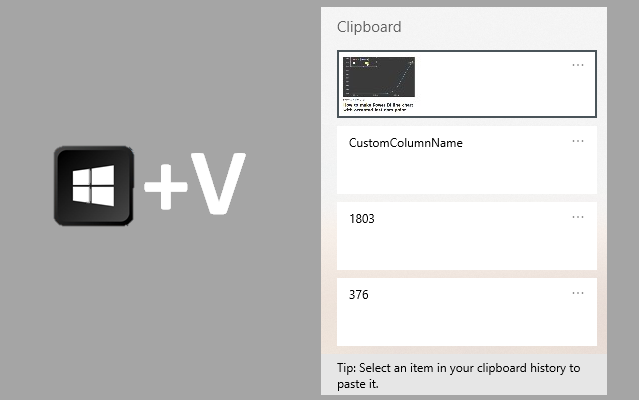
– Press Win + V to open the clipboard panel.
– View and paste from recently copied items.
– Pin frequently used snippets.
Enable this feature in Settings > System > Clipboard.
✅ Pro Tip: This bypasses the one-item limit of standard copying.
Customize Shortcuts With Automation Tools
Create powerful macros to automate repetitive tasks:
- Windows: Use AutoHotkey to create scripts. For example, map
F12to “Select All + Copy” with a simple script. - macOS: Use Karabiner-Elements or Keyboard Maestro to paste signatures or code blocks with a single key combo.
These tools turn complex actions into single keystrokes.
Master Browser-Specific Shortcuts
In Chrome, Firefox, or Safari:
– Ctrl/Cmd + L focuses the address bar.
– Ctrl/Cmd + T opens a new tab.
– Ctrl/Cmd + W closes the current tab.
– Ctrl/Cmd + Shift + T reopens the last closed tab.
– Ctrl/Cmd + Tab switches to the next tab.
Use Ctrl/Cmd + F to find text before copying, which is ideal for long articles or documentation.
Troubleshoot Common Issues
Even with the right shortcuts, copy-paste can fail. Here is how to fix common problems.
Fix Clipboard Not Working
If Ctrl + V does nothing:
– Restart the app or your computer.
– On Windows, restart Windows Explorer via Task Manager.
– Check for conflicting software like gaming overlays or screen recorders.
✅ Quick Fix: Press
Win + R, typeexplorer.exe, and press Enter to restart the shell.
Resolve Shortcut Conflicts
Some apps override global shortcuts:
– Discord, OBS, or Steam may hijack Ctrl + C.
– Check settings in system tray apps.
– Disable or reassign their hotkeys.
Handle Missing Keys on Laptops
Compact keyboards often lack Home, End, Delete, or Insert:
– Use Fn + ← for Home and Fn + → for End.
– Fn + Delete may act as Forward Delete.
– Check your laptop manual for function key mappings.
On MacBooks, Fn + ← equals Home and Fn + → equals End.
Optimize for Long-Term Efficiency
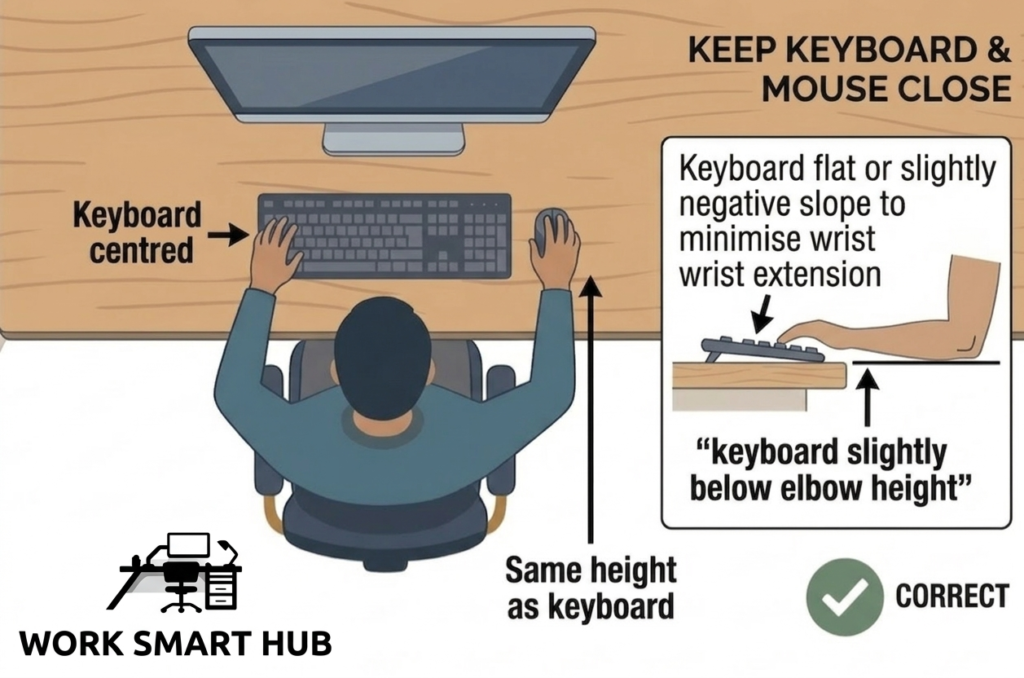
Copying without a mouse is not just a workaround. It is a skill that saves time and reduces injury risk over years of typing.
Build Muscle Memory
Practice these daily:
– Use Ctrl/Cmd + C, X, and V instead of touching the mouse.
– Use Ctrl/Cmd + A to select all before pasting.
– Use Ctrl/Cmd + Z to undo mistakes instantly.
Within a week, these actions become automatic.
Prevent Repetitive Strain
Reducing mouse use lowers the risk of:
– Carpal tunnel syndrome
– Shoulder and wrist strain
– Neck tension from hand switching
Keep hands on the keyboard and let your fingers do the work.
Enable Accessibility Features
Both operating systems support full keyboard navigation:
– Windows: Enable Filter Keys and Mouse Keys in Ease of Access settings.
– macOS: Turn on Full Keyboard Access in System Settings > Keyboard.
This ensures every menu, button, and dialog is reachable without a pointer.
Frequently Asked Questions About Copying and Pasting Without a Mouse
What is the shortcut to copy and paste without a mouse?
On Windows, press Ctrl + C to copy and Ctrl + V to paste. On macOS, use Cmd + C and Cmd + V. You must first select the text using keyboard navigation shortcuts like Shift + Arrow keys.
How do I select all text with the keyboard?
Press Ctrl + A on Windows or Cmd + A on macOS. This instantly highlights all content within the active document, text field, or browser window.
Why is my Ctrl C and Ctrl V not working?
Common causes include conflicting apps like Discord or OBS hijacking shortcuts, a stalled clipboard, or a frozen Windows Explorer process. Restarting the app or computer usually resolves the issue.
How do I copy and paste on a laptop without a right-click button?
Use Shift + F10 on Windows to open the context menu, then arrow down to Copy or Paste and press Enter. On macOS, enable keyboard navigation in System Settings or use Cmd + C and Cmd + V directly.
Can I copy multiple items to the clipboard?
Standard clipboards hold only one item at a time. On Windows 10/11, press Win + V to access clipboard history and paste from recent items. Third-party tools on macOS offer similar functionality.
How do I paste into a remote desktop session?
Ensure clipboard sharing is enabled in your Remote Desktop Protocol (RDP) or VNC connection settings. Once enabled, local keyboard shortcuts like Ctrl + C and Ctrl + V will work across both systems.
Key Takeaways for Mastering Mouse-Free Copy and Paste
Learning how to copy and paste without a mouse transforms how you work. The three core shortcuts, Ctrl/Cmd + C, X, and V, handle most situations once you pair them with smart selection techniques. Use Shift + Arrow keys for character-level precision and Ctrl/Cmd + Shift + Arrow for word-level speed.
Navigation matters just as much as the shortcuts themselves. Alt + Tab and Cmd + Tab move you between apps, while Win + Arrow keys snap windows for side-by-side workflows. When problems arise, restart the app, check for conflicting software, or use Win + V for clipboard history.
Start practicing these shortcuts today. Within a week, your fingers will move faster than any mouse ever could, and you will wonder why you ever relied on clicking in the first place.