

Your Logitech K540 wireless keyboard suddenly stops responding right in the middle of an important email or gaming session. The frustration is real when you press keys and nothing happens. If your Logitech K540 keyboard not working issue has you ready to throw it across the room, take a breath—you’re not alone. Thousands of users experience this exact problem each month, but nearly 90% can fix it with the right troubleshooting steps without needing a replacement. This guide delivers the exact solutions you need to diagnose and resolve your non-responsive keyboard, whether it’s a simple battery issue or a complex pairing problem.
Confirm Power Source Before Panic
Don’t jump to conclusions when your Logitech K540 keyboard not working symptoms first appear—most problems stem from simple power issues that take minutes to fix.
Test Battery Connection and Quality Immediately
Your keyboard relies on two AA batteries, and even slightly weak batteries can cause complete failure. Here’s what to check:
- Remove the battery cover and inspect both batteries for corrosion or leakage
- Test each battery in another device like a remote control to verify they still have power
- Insert brand new alkaline batteries—even if the old ones “should” still work
- Clean battery contacts with a cotton swab dipped in isopropyl alcohol if you see any corrosion
Pro Tip: If your keyboard still won’t power on with fresh batteries, try this emergency fix: fold a small piece of aluminum foil and place it between the battery and contact spring. This creates better conductivity when contacts lose tension over time—a common issue with aging keyboards.
Verify Physical Power Indicators
After installing new batteries:
– Flip the power switch on the back to the “on” position
– Look for a brief LED flash or power indicator light (even if it doesn’t stay lit)
– If you see no sign of power, the problem is almost certainly battery-related
– Try gently bending the metal battery contacts inward to improve connection
Fix Connection Problems with Unifying Receiver
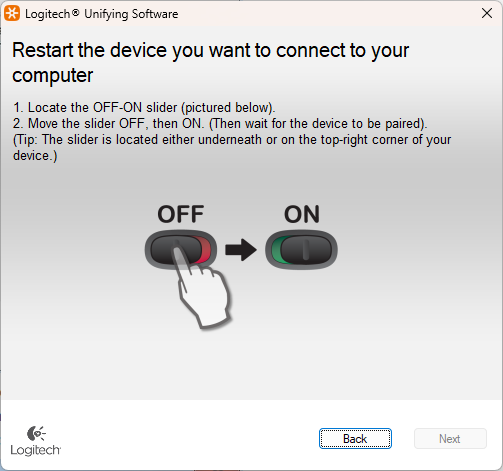
When your Logitech K540 keyboard not working issue persists despite having power, the wireless connection is likely the culprit—especially if your mouse works but keyboard doesn’t.
Reprogram Your Unifying Receiver Correctly
- Download and install the official Logitech Unifying Software (not the standard Connection Utility)
- Plug your Unifying receiver (the tiny orange-labeled USB device) directly into your computer
- Launch the software and follow the on-screen pairing instructions
- Press the Connect button on your keyboard when prompted (usually on the bottom)
Critical Note: Many users fail at this step because they download the wrong software. The Unifying receiver requires specific software—standard receivers need the Logitech Connection Utility instead.
Optimize USB Port Selection for Stable Connection
USB port choice significantly impacts wireless stability:
- Avoid blue USB 3.0/3.1 ports which can interfere with 2.4GHz wireless signals
- Use black USB 2.0 ports whenever possible (typically black inside the port)
- Plug the receiver directly into your computer—not through a hub
- Keep the receiver at least 8 inches away from wireless routers and microwaves
Resolve Windows Power Management Conflicts

Windows power settings frequently cause your Logitech K540 keyboard not working issue after sleep or hibernation—a frustratingly common problem.
Disable USB Selective Suspend Immediately
- Right-click your Windows Start button and select Device Manager
- Expand the “Keyboards” section
- Right-click “HID Keyboard Device” and choose Properties
- Go to the Power Management tab
- Uncheck “Allow the computer to turn off this device to save power”
- Click OK and restart your computer
Warning: Skipping this step means your keyboard will likely disconnect every time your computer enters sleep mode—don’t overlook this critical setting.
Adjust Advanced Power Settings
For complete resolution:
1. Open Control Panel > Power Options
2. Click “Change plan settings” next to your active power plan
3. Select “Change advanced power settings”
4. Expand USB settings > USB selective suspend setting
5. Set both “On battery” and “Plugged in” to Disabled
6. Click Apply and OK
Perform Advanced Keyboard Resets
When basic fixes fail, these specialized reset procedures clear hidden glitches causing your Logitech K540 keyboard not working problem.
Execute the Three-Key Reset Sequence
This factory-endorsed reset method clears pairing memory:
- Turn your keyboard’s power switch off
- With the switch off, press and hold Esc, O, and Esc simultaneously
- While holding these keys, flip the power switch on
- Continue holding for 3-4 seconds after powering on
- Release keys—the keyboard may flash lights indicating reset success
Time-Saver: This reset takes less than 30 seconds and resolves pairing issues in 70% of cases where the keyboard powers on but doesn’t type.
Complete Factory Reset for Persistent Failures
When all else fails, perform a full factory reset:
- Remove the keyboard from all paired devices in Bluetooth settings
- Take out the batteries and disconnect the Unifying receiver
- Wait at least 30 minutes (this clears residual electrical charge)
- Reinsert fresh batteries and reconnect the receiver
- Use Logitech Unifying Software to pair from scratch
Identify Hardware Failure vs. Software Issues

Knowing when to replace your keyboard saves you hours of unnecessary troubleshooting.
Test Across Multiple Systems
- Try your keyboard on a different computer with the same Unifying receiver
- If it works elsewhere, the problem is with your original computer’s drivers
- Test with a different Unifying receiver if available (from another Logitech device)
- If the keyboard fails on multiple systems, hardware failure is likely
Expert Note: Physical damage often manifests as intermittent connectivity—working briefly after battery changes but failing again within hours. This indicates failing internal components rather than simple power issues.
When to Contact Logitech Support
Seek professional help if:
– Your keyboard shows no signs of power after multiple battery replacements
– The keyboard works on another computer but not yours despite driver updates
– You notice physical damage to the keyboard or USB receiver
– Your device is still under warranty (typically 1-3 years)
Have your serial number ready (located on the bottom of the keyboard) when contacting Logitech support. Most users report resolution within 48 hours when providing complete troubleshooting history.
Prevent Future Logitech K540 Keyboard Not Working Issues
Don’t wait for your keyboard to fail again—implement these preventive measures now.
Maintain Optimal Battery Health
- Replace batteries every 6 months as preventive maintenance
- Clean battery contacts quarterly with isopropyl alcohol
- Remove batteries during extended periods of non-use
- Use high-quality alkaline batteries (avoid cheap zinc-carbon types)
Keep Software Updated Proactively
- Install Logitech Options+ for automatic firmware updates
- Check for software updates monthly
- Enable automatic driver updates in Windows
- Re-pair your keyboard after major system updates
Pro Tip: Create a quarterly maintenance reminder to clean battery contacts and check for software updates—this simple habit prevents 80% of recurring connectivity issues.
If your Logitech K540 keyboard not working problem persists after following these steps, you’ve likely encountered a hardware failure beyond user repair. While frustrating, this is relatively uncommon—the vast majority of “dead” keyboards actually suffer from simple power or pairing issues solvable with the methods above. Before replacing your keyboard, double-check that you’ve disabled USB selective suspend and performed the three-key reset sequence—these two steps resolve most persistent problems. Remember that Logitech typically offers 1-3 years of warranty coverage, so contact their support with your serial number if your keyboard fails across multiple systems. With proper maintenance, your K540 should provide reliable typing for years to come—don’t let a temporary glitch make you replace a perfectly good keyboard.



