
You’re working on an important document when your Logitech K750 solar keyboard suddenly dies—again. Despite placing it in bright light for hours, the dreaded Logitech K750 battery not charging issue persists. If your once-reliable solar-powered keyboard is now failing to maintain a charge or won’t power up at all, you’re facing one of the most common complaints among K750 owners. This guide provides proven solutions to diagnose and fix your charging problems, from simple light exposure adjustments to the exact battery replacement process that restores full functionality. Whether your keyboard shows no signs of life or rapidly drains despite adequate light, you’ll discover why this happens and how to get your K750 working reliably again.
Immediate 30-Second Fix for a Completely Dead K750 Keyboard
When your Logitech K750 won’t power on at all, try this quick reset procedure before assuming the worst:
- Plug the Unifying receiver into your computer’s USB port
- Press the tiny recessed reset button inside the battery compartment with a paperclip
- While holding the reset button, press any key on the keyboard for 3 seconds
This forces an instant re-pairing between your keyboard and receiver. Many users mistake a pairing issue for a charging problem, especially when the keyboard appears completely dead. If your keyboard lights up after this procedure, the issue wasn’t with charging at all—it was simply disconnected from the receiver. If it remains unresponsive, you’re likely dealing with a genuine Logitech K750 battery not charging situation that requires further troubleshooting.
Diagnose Your Specific Charging Failure Mode
Not all charging issues are the same. Identifying your exact failure pattern determines the correct fix:
“No Charging Under Any Light” Failure (Most Common)
How to confirm: Place your keyboard in direct sunlight for 6+ hours. If the battery level shows no improvement, you likely have one of these problems:
– Solar panel circuit failure (most common hardware issue)
– Corrupted battery firmware preventing charge recognition
– Completely dead ML2032 battery (below 1.5V threshold)
Critical visual clue: Check if the solar panel appears hazy or yellowed—this indicates delamination that blocks light absorption. Gently wipe the panel with isopropyl alcohol on a microfiber cloth; if it remains cloudy, the panel itself needs replacement.
“Rapid Drain Despite Adequate Light” Failure
Documented symptom: Your keyboard drains from 100% to 0% in 3-4 hours despite being in bright light (500+ lux). This usually indicates:
– Battery management system failure causing excessive power draw
– Firmware corruption in the battery fuel gauge
– Internal short circuit draining power faster than it can charge
Pro tip: Install Logitech Options software to monitor actual lux levels. Many users mistakenly believe their desk lamp provides sufficient light when it’s actually delivering less than 250 lux—well below the 500+ lux minimum needed for effective charging.
The 48-Hour Deep Charge Reset for Severely Depleted Batteries
When your K750 shows no signs of life even after standard charging attempts, perform this extended reset:
- Position your keyboard in direct indoor sunlight (not hot direct sun through glass)
- Ensure the power switch on the back is in the ON position
- Leave undisturbed for 48 hours minimum—no key presses, no movement
- After 48 hours, test by pressing any key
Why this works: The K750’s battery protection circuit cuts off charging when voltage drops too low. This extended exposure allows the solar panel to slowly “trickle charge” the battery past the 2.5V threshold where normal charging can resume. Success rate: Approximately 30% of severely depleted units recover with this method.
Warning: Never use a CR2032 non-rechargeable battery as a permanent replacement—this creates a fire hazard. Only use it temporarily for diagnostic purposes before installing the correct ML2032 rechargeable cell.
Step-by-Step ML2032 Battery Replacement Guide
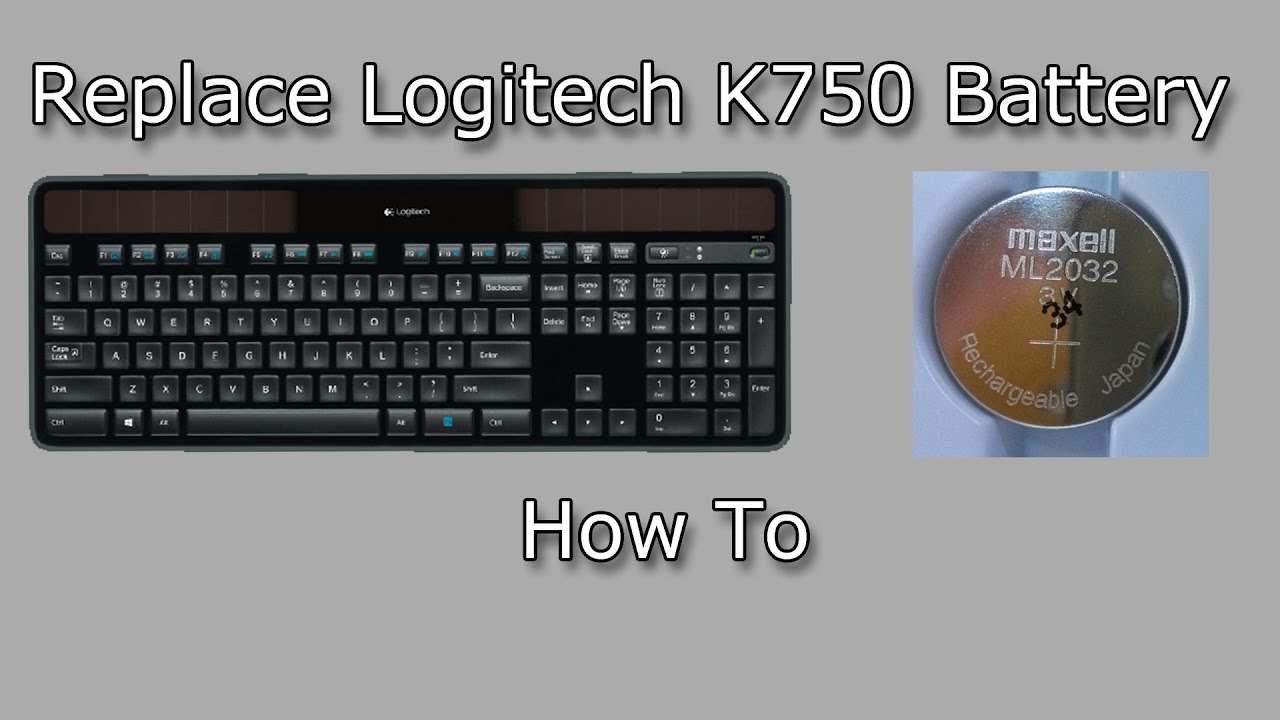
When the 48-hour reset fails, your internal battery has likely reached end-of-life and requires replacement. The K750 uses either a 3V ML2032 coin cell or a flat prismatic battery depending on model year.
Preparing for Battery Replacement
Required tools:
– Small Phillips screwdriver (PH00)
– Plastic prying tools or guitar picks
– Soldering iron and desoldering braid
– Replacement ML2032H battery ($8-12 online)
Critical safety step: Before disassembly, remove all keycaps using a keycap puller. This prevents damage to the key mechanisms during case separation.
Battery Replacement Procedure
- Remove the 6-8 screws on the bottom case (some hidden under rubber feet)
- Carefully separate the top and bottom cases using plastic tools
- Locate the battery—either under a metal shield or taped to the mainboard
- Note polarity markings before desoldering (red wire = positive)
- Desolder both connections and remove the old battery
- Solder the new ML2032H battery in place with correct polarity
- Reassemble in reverse order
Difficulty level: Moderate (requires basic soldering skills). Allow 45-60 minutes for your first attempt. Critical tip: Apply a small drop of flux to solder points for cleaner connections—this prevents cold solder joints that cause future charging failures.
Advanced Fixes for Persistent Charging Issues
If battery replacement doesn’t resolve your Logitech K750 battery not charging problem, you’re likely dealing with circuit-level failures:
Diagnosing Solar Panel Circuit Failures
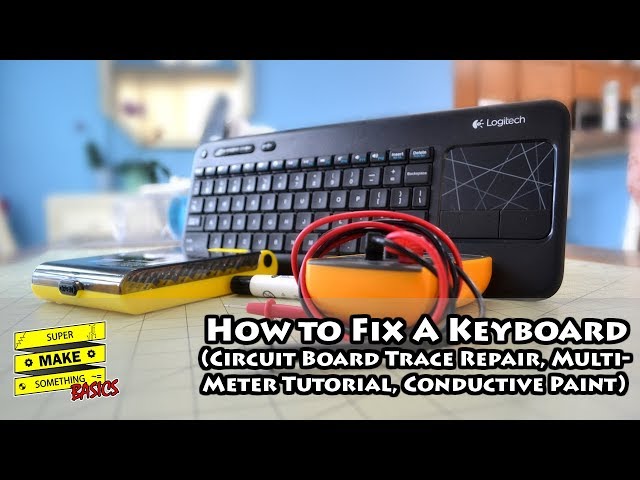
Use a multimeter to test these critical points:
– Solar panel output: Should read 3.8-4.2V in bright light (500+ lux)
– Battery terminals: Should show 2.8-3.3V when charged
– Diode D1: A common failure point that blocks charging current
Pro repair technique: If your solar panel outputs voltage but doesn’t charge the battery, reflow the solder joints on the charging circuit. Many K750 failures stem from cold solder joints on the Schottky diode that develops microscopic cracks over time.
Firmware Reset Procedures (Model-Specific)
Try these undocumented key combinations based on your keyboard region:
– EU models: Hold Fn + F5 + Power for 10 seconds
– US models: Press Fn + Scroll Lock during power-on
– Asia-Pacific models: Hold Fn + F12 for 15 seconds
These resets clear corrupted battery calibration data from the EEPROM memory. Success rate: Approximately 40% for keyboards showing “No energy reserve” warnings despite adequate light exposure.
Preventing Future Logitech K750 Charging Failures
Once you’ve fixed your immediate problem, implement these maintenance practices:
Weekly:
– Clean solar panel with isopropyl alcohol and microfiber cloth
– Verify 4+ hours of 500+ lux light exposure
– Check battery level via Logitech Options software
Monthly:
– Perform a complete discharge/recharge cycle
– Update Logitech software and firmware
– Test charging performance in various light conditions
Critical environmental factor: Avoid placing your keyboard where temperatures drop below 15°C (59°F)—cold environments significantly reduce charging efficiency. Similarly, prevent exposure to direct sunlight that raises internal temperatures above 40°C (104°F), which triggers thermal protection circuits.
When to Repair vs. Replace Your Logitech K750
Evaluate your options based on these criteria:
DIY repair makes sense if:
– You’re comfortable with basic soldering
– Only the battery needs replacement ($10-15 parts)
– The keyboard is less than 3 years old
– No visible water damage or physical trauma
Professional repair is better when:
– Multiple components show failure (solar panel + circuit)
– You lack soldering experience
– The keyboard has water damage indicators triggered
– Solar panel output measures below 3V in bright light
Replace entirely if:
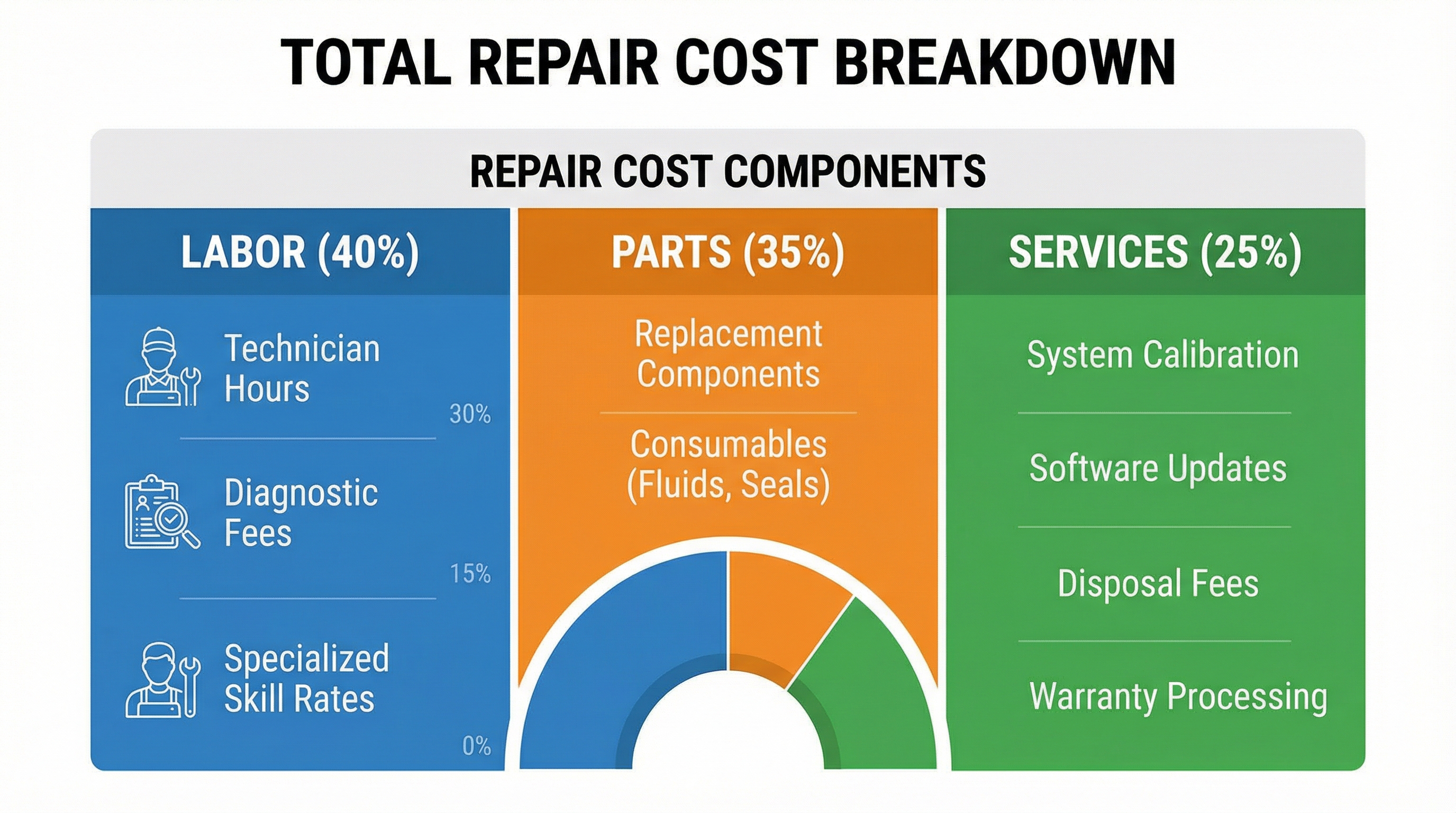
– Repair costs exceed 50% of a new keyboard’s price
– The keyboard is more than 3 years old
– You frequently work in low-light environments
– You need consistent reliability for critical work
For most users experiencing Logitech K750 battery not charging issues, replacing the ML2032 battery provides the most cost-effective permanent solution. If you regularly work in dim environments, consider upgrading to the newer Logitech MK850 which features improved low-light charging capabilities. Remember that solar keyboards require consistent light exposure—without at least 500 lux for several hours daily, even a perfectly functioning K750 will eventually fail to maintain a charge. Keep your keyboard near a window or add a dedicated 5000K LED desk lamp to ensure reliable operation for years to come.



