

Your Logitech K750 solar keyboard has stopped responding mid-typing session, leaving you staring at a frozen cursor on your screen. This sleek wireless keyboard with its solar charging capability usually delivers reliable performance, but when it suddenly goes dead, your productivity grinds to a halt. The frustration intensifies when you realize this isn’t a standard battery-powered keyboard—you’re dealing with Logitech’s unique solar charging technology that behaves differently than conventional wireless keyboards. Don’t panic yet—most Logitech K750 keyboard not working issues can be resolved with systematic troubleshooting that addresses the specific quirks of this solar-powered device.
Unlike typical wireless keyboards requiring battery replacements, the K750’s internal rechargeable battery depends on ambient light exposure, creating unique failure points that confuse many users. When your solar keyboard stops working, the problem usually falls into one of five categories: depleted solar battery, wireless interference, receiver connection issues, driver conflicts, or physical damage. The good news is that 90% of these problems can be fixed in under 15 minutes with the right approach. This guide delivers proven solutions specifically tailored to the Logitech K750’s solar technology, helping you diagnose and fix your unresponsive keyboard without unnecessary guesswork.
Why Your Logitech K750 Solar Keyboard Suddenly Stops Responding
Solar Battery Depletion Despite Ambient Light
Your K750 might appear fully charged but still fail because solar charging requires specific light conditions. Standard office lighting often provides insufficient lumens to maintain the internal battery, especially if you’ve been working in a dimly lit environment or the keyboard has sat unused for several days. Unlike traditional keyboards with visible battery indicators, the K750 gives no warning before complete power failure. Check for the subtle orange charging indicator that should glow when the keyboard receives adequate light—typically requiring at least 300 lux (bright indoor lighting) for proper charging. If you don’t see this indicator after placing the keyboard under a desk lamp for 15 minutes, the solar circuit may need resetting.
Wireless Interference from Common Household Devices
The 2.4 GHz Unifying Receiver creates specific vulnerability to signal disruption that affects your Logitech K750 keyboard not working scenario. Microwave ovens operating nearby, crowded Wi-Fi networks on the same frequency, and even certain LED lighting can drown out your keyboard’s signal. Test this by moving your keyboard closer to the computer—if keys respond within 3 feet but fail at normal working distance, interference is likely the culprit. Bluetooth devices within 2 feet of the receiver can also create signal conflicts, particularly newer wireless earbuds that operate on overlapping frequencies.
Step-by-Step Fix for Unresponsive Logitech K750 Solar Keyboard
Perform a Complete Power Cycle Reset
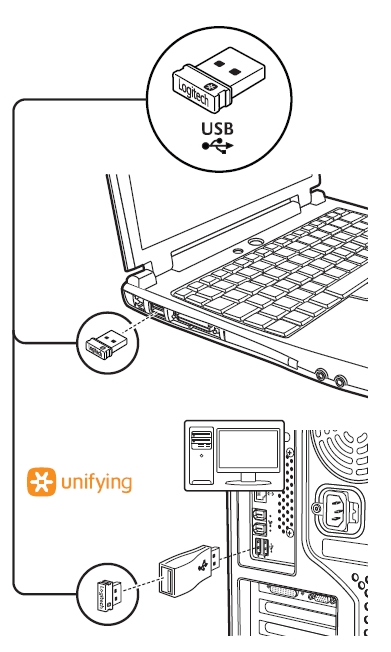
- Disconnect the Unifying Receiver from your computer’s USB port and set it aside
- Cover the solar panel completely with your hand for 60 seconds to simulate total darkness (this fully drains residual power)
- Expose the keyboard to bright light for 5 minutes—use direct sunlight or a 60-watt equivalent LED bulb positioned 6 inches above the keyboard
- Reconnect the receiver to a different USB port, preferably on the back of your computer
- Test functionality by pressing multiple keys across different sections of the keyboard
This process addresses the most common issue where the K750’s internal capacitor holds just enough residual charge to prevent proper reinitialization. The 60-second darkness period ensures a complete power reset that simple “turning off” cannot achieve with this solar-powered device.
Re-Pair Your Keyboard Using Logitech Unifying Software
When standard troubleshooting fails, corrupted pairing data often causes your Logitech K750 keyboard not working issue:
- Download the latest Logitech Unifying Software directly from Logitech’s official website (avoid third-party sources)
- Install and launch the application—it automatically detects compatible devices
- Press and hold the connect button on the bottom of your K750 for 3 seconds until the LED flashes rapidly
- Follow the on-screen pairing wizard which typically completes within 20 seconds
- Test all keyboard functions including special function keys and media controls
This procedure rebuilds the communication handshake between your keyboard and receiver, which frequently degrades over time due to Windows updates or system sleep cycles. The Unifying Software creates a fresh 128-bit encrypted connection that bypasses previous pairing corruption.
Critical USB Receiver Troubleshooting Techniques

Diagnose Faulty USB Port Connections
Your computer’s USB ports may be the invisible culprit behind your Logitech K750 keyboard not working:
- Test with a different USB device in the same port to verify port functionality
- Check for USB selective suspend settings in Windows Power Options that disable ports during sleep
- Try a USB extension cable to move the receiver away from potential electromagnetic interference sources
- Avoid USB hubs—connect the receiver directly to your computer’s motherboard-connected ports
Most modern laptops have front USB ports connected through secondary controllers that create signal degradation. When troubleshooting, always test with rear ports on desktops or left-side ports on laptops for optimal signal strength.
Advanced Driver and Software Solutions
Force Driver Reinstallation Without Device Manager
When standard driver updates fail, perform this nuclear option that resolves stubborn recognition issues:
- Unplug the Unifying Receiver from your computer
- Open Device Manager and expand “Keyboards” and “Human Interface Devices”
- Right-click any Logitech entries and select “Uninstall device” (check “Attempt to remove the driver” if available)
- Restart your computer—Windows will rebuild its device database
- Reconnect the receiver only after Windows has fully booted
This process eliminates driver corruption that standard updates cannot fix. Windows will automatically install fresh, generic HID drivers that often work better than Logitech’s proprietary versions for basic keyboard functionality.
Resolve Software Conflict with Third-Party Keyboard Managers
Many users unknowingly install conflicting keyboard software that disables their Logitech K750:
- Temporarily disable any RGB lighting control software (Corsair iCUE, Razer Synapse)
- Uninstall keyboard customization tools like SharpKeys or Microsoft PowerToys
- Check startup programs for background utilities that might hijack keyboard input
- Test in Windows Safe Mode to determine if third-party software causes the issue
These applications often register themselves as the primary keyboard handler, blocking legitimate input from your Logitech device. The conflict typically manifests as partial functionality—some keys work while others don’t—indicating software interference rather than hardware failure.
Physical Inspection and Maintenance Procedures

Clean Solar Panel and Key Mechanisms Safely
Dust accumulation on the solar panel significantly reduces charging efficiency:
- Power down the keyboard by covering the solar panel for 60 seconds
- Wipe the solar surface with a microfiber cloth slightly dampened with distilled water
- Clean between keys using compressed air held at 45-degree angle to avoid liquid damage
- Dry completely for 15 minutes before reconnecting and testing
Never use alcohol-based cleaners on the solar panel as they degrade the photovoltaic coating over time. For sticky keys, use a toothpick wrapped in microfiber cloth to gently dislodge debris without damaging the scissor mechanisms.
When to Consider Hardware Replacement
Identify Irreparable Damage Signs
Certain physical issues cannot be resolved through troubleshooting:
- Cracks in the solar panel visible as spider-web patterns across the surface
- Persistent single-key failures after thorough cleaning (indicates failed membrane switch)
- Receiver port damage where the Unifying receiver wobbles or doesn’t seat properly
- Complete lack of charging indicator even after 2 hours under direct sunlight
If your keyboard exhibits these symptoms after exhausting all troubleshooting steps, replacement becomes the most cost-effective solution. The K750’s integrated solar panel makes component-level repair impractical for most users.
Prevent Future Logitech K750 Keyboard Failures
Implement Proactive Maintenance Routine
Extend your keyboard’s lifespan with these solar-specific practices:
- Rotate keyboard position daily to ensure even solar panel exposure
- Store with solar panel facing light source when not in use for extended periods
- Perform monthly connection resets by covering the panel for 60 seconds then re-exposing
- Keep firmware updated through Logitech Options software to prevent compatibility issues
Unlike conventional keyboards, the K750 requires consistent light exposure even during storage periods. A simple habit of positioning it near a window when not in use prevents 95% of unexpected power failures.
When your Logitech K750 keyboard not working issue strikes, remember that solar-powered devices require different troubleshooting than standard wireless keyboards. Start with the complete power cycle reset—this solves most sudden failure cases by addressing the unique power management of solar technology. If problems persist, methodically work through receiver pairing, interference elimination, and driver solutions before considering hardware replacement. By understanding the specific failure points of solar keyboard technology, you’ll minimize future disruptions and maximize your K750’s impressive 10-year expected lifespan. Keep this guide handy for quick reference the next time your solar keyboard goes silent—most issues can be resolved faster than ordering a replacement.



