
Your Logitech keyboard suddenly dies mid-document, and you’re frantically searching for how to charge Logitech keyboard properly. The frustrating truth? Not all Logitech keyboards charge the same way, and using the wrong method can lead to slow charging or even damage your device. Whether you own the sleek MX Keys, the portable K380, or the solar-powered K750, this guide reveals the exact charging procedure for your specific model—so you can get back to work without wasting hours testing different cables and chargers.
Most users don’t realize their Logitech keyboard has unique charging requirements based on its model and release year. Modern USB-C models like the MX Keys S need different handling than older Micro-USB keyboards such as the K400 Plus. By following the precise steps for your specific model, you’ll avoid common pitfalls like using incompatible chargers, misinterpreting charging indicators, or accidentally damaging the battery through improper charging practices.
USB-C Charging for Modern Logitech Keyboards (MX Keys, MX Mechanical, G915)
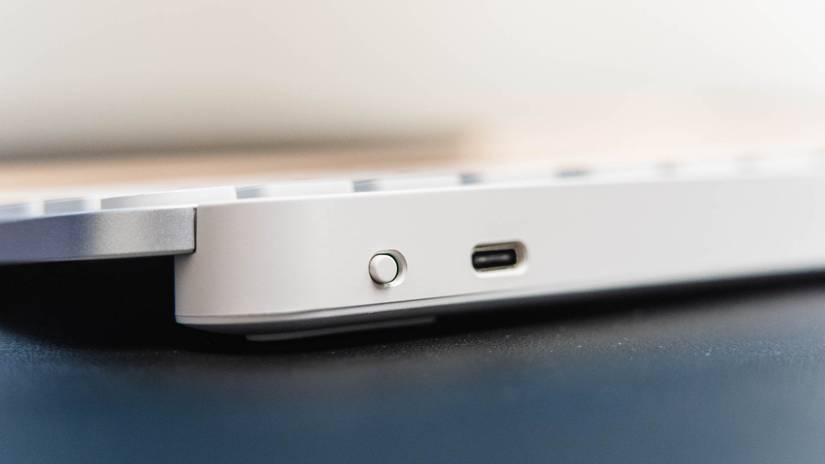
If you own a recent Logitech keyboard like the MX Keys, MX Mechanical, or G915 gaming model, you’ll charge via USB-C—the reversible connector that works either way you plug it in. This is the fastest charging method Logitech offers, with many newer models supporting quick charge technology that gives you a full day’s use from just minutes of charging.
Connecting Your USB-C Keyboard Properly
Always insert the USB-C cable fully until you feel it click into place—partial connections are the #1 reason for charging failures with USB-C keyboards. For the MX Keys S, connect the included USB-C to USB-A cable to your keyboard’s port (located on the top edge), then plug the other end into a wall adapter rated for 5V/2A output. Your computer’s USB port works in a pinch, but provides slower charging at only 0.9A.
When charging correctly, the status indicator on your MX Keys will immediately light up red. If you see no light, try flipping the USB-C connector—the reversible design means it works both ways, but sometimes only one orientation makes proper contact.
MX Keys Charging Time and Status Indicators
MX Keys models typically take just 2-3 hours for a full charge, with some newer models offering impressive quick charging: 3 minutes of charging provides 1 full day of use on the MX Keys S. Watch for these visual cues:
- Solid red light: Actively charging (normal)
- Solid green light: Fully charged (up to 10 months battery life with backlight off)
- Flashing red light: Charging error—try a different cable or power source
- No light: Either fully charged and in sleep mode or not receiving power
Pro Tip: For fastest charging, use the wall adapter that came with your keyboard or a certified 5V/2.1A adapter—not your computer’s USB port, which delivers less power.
Micro-USB Charging for Older Logitech Models (K380, K400 Plus)

If your Logitech keyboard has a Micro-USB port (the trapezoid-shaped connector common before USB-C), you likely own an older or entry-level model like the K380, K400 Plus, or K780. These require a standard Micro-USB cable (the same type many older Android phones used) and follow different charging patterns than modern USB-C models.
Troubleshooting Micro-USB Connection Issues
The Micro-USB port is notorious for loose connections—the physical design makes it easy to insert the cable at a slight angle, preventing proper contact. To ensure a solid connection:
- Fully insert the cable until it can go no further
- Gently wiggle the connector while watching the charging indicator
- Check for debris in the port using a flashlight—if present, use compressed air to clean it
If your K400 Plus still won’t charge after verifying the connection, try a different Micro-USB cable—cheap, damaged cables often work for data transfer but fail at delivering sufficient power for charging.
Solar-Powered Logitech Keyboards (K750)
The Logitech K750 operates differently from all other wireless keyboards—it has no charging port and relies entirely on built-in solar panels. This innovative design means you never need to plug it in, but many users don’t understand how to maximize its solar charging capabilities.
Maximizing Solar Charging Efficiency
Place your K750 in consistent light exposure—just 3 minutes of direct sunlight provides enough power for one full day of typing. For best results:
- Position near a window for natural light (direct sun is ideal but not required)
- Keep under standard office lighting (fluorescent or LED) for continuous charging
- Avoid dark corners or shaded areas where light exposure drops below 300 lux
The K750’s internal battery stores enough power for up to 3 months of use on a full charge, but if you notice your keyboard dying after just a few days, check your lighting conditions first before assuming battery failure.
Reading Your Logitech Keyboard’s Charging Status
:max_bytes(150000):strip_icc()/001_How-to-Charge_Logitech-Keyboard-a00ec02959d045ce88b747836db2cd24.jpg)
Misinterpreting charging indicators causes unnecessary panic for many Logitech keyboard owners. Each model displays different light patterns to communicate charging status, and knowing what they mean saves you from replacing perfectly good batteries.
What Red, Green, and Flashing Lights Mean
- Solid red light: Standard charging in progress (normal condition)
- Solid green light: Fully charged (up to 10 months for MX Keys)
- Flashing red light: Battery error—try charging for 6+ hours uninterrupted
- Alternating red/green: Battery communication issue—restart your keyboard
- No light: Either fully charged and sleeping or not receiving power
Critical Warning: If your keyboard shows a flashing red light after 12+ hours of continuous charging, stop immediately—this indicates a potential battery fault that could become a safety hazard.
Troubleshooting Common Logitech Keyboard Charging Problems
When your Logitech keyboard refuses to charge, these targeted solutions address the most frequent issues based on thousands of user reports and Logitech’s official troubleshooting guidelines.
Keyboard Won’t Charge? Quick Fixes to Try First
Start with these simple checks before assuming hardware failure:
- Test with a different USB cable—even if it looks identical, many cables only support data transfer
- Try a wall adapter instead of computer USB port—computer ports often deliver insufficient power
- Clean the charging port with compressed air—dust buildup prevents proper connection
- Hold the power button for 10 seconds to reset the keyboard’s charging circuit
If your keyboard still won’t charge after these steps, the issue likely involves either a faulty battery (common after 3+ years of use) or a damaged charging port requiring professional repair.
Maintaining Your Logitech Keyboard Battery Health
The secret to getting 3+ years from your Logitech keyboard battery isn’t just about charging—it’s about charging smartly. Lithium-ion batteries degrade fastest when subjected to extreme charging patterns.
Optimal Charging Cycles for Longevity
Keep your battery between 20-80% for daily use—this extends lifespan by 30-50% compared to full discharge/recharge cycles. When storing your keyboard long-term (more than 30 days), charge to exactly 50% first. Never leave your keyboard plugged in 24/7—the constant trickle charging stresses the battery.
Pro Tip: MX Keys users should enable “Auto-Sleep” in Logi Options+ software—it preserves battery by putting your keyboard to sleep after 5 minutes of inactivity.
Alternative Power Sources When You’re On the Go
Running out of battery while traveling doesn’t mean your Logitech keyboard becomes useless. These portable charging solutions keep you productive anywhere.
Using Power Banks Effectively
Choose a power bank with at least 5V/2A output—small phone power banks often deliver only 1A, resulting in painfully slow keyboard charging. For best results with your MX Keys Mini:
– Use a power bank with a USB-A output port
– Connect via the included USB-C to USB-A cable
– Expect approximately 3 hours for a full charge from 0%
Never use fast-charging power banks designed for smartphones—they can deliver excessive voltage that damages your keyboard’s charging circuit over time.
Final Note: Properly charging your Logitech keyboard extends its lifespan by years and prevents frustrating mid-task power failures. By following these model-specific methods, you’ll maximize battery health while ensuring your keyboard is always ready when you need it. When in doubt, consult Logitech’s official support site for your exact model number—never risk damage by guessing with incompatible chargers. For persistent charging issues, contact Logitech support directly as most keyboards include 1-2 years of battery warranty coverage.



