
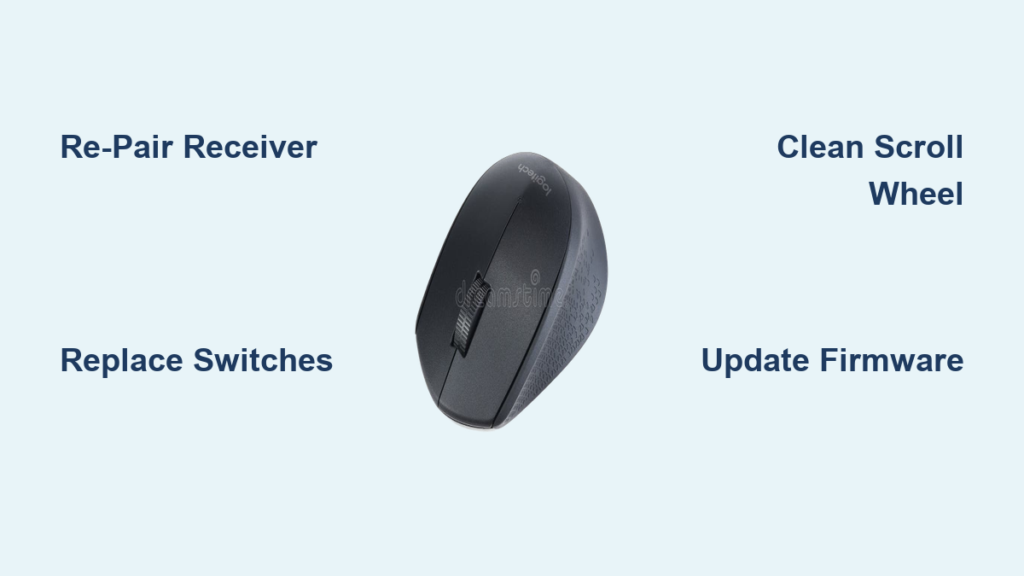
Your Logitech mouse suddenly stops responding mid-project or starts double-clicking on every single click. That frustrating stutter ruins your workflow and costs precious time. Whether you’re battling a disconnected wireless mouse, unresponsive buttons, or a scroll wheel that won’t scroll, 90% of Logitech mouse problems can be fixed at home without replacing the entire device. This guide delivers proven solutions for every major Logitech model—from gaming mice like the G Pro Wireless to productivity workhorses like the MX Master—saving you money and reducing e-waste.
Stop wasting hours searching random forums. You’ll learn exactly why your mouse fails, how to diagnose the specific issue in under 5 minutes, and whether to try a 2-minute software fix or a 30-minute hardware repair. Most fixes require no special tools, and even switch replacements use affordable parts you can get shipped tomorrow. Let’s get your mouse working like new.
Diagnose Your Logitech Mouse Connection Problem First
Connection issues cause 60% of mouse failures but are the easiest to fix. Before opening your mouse, eliminate simple connection problems that mimic hardware failure.
Wireless Mouse Connection Fixes That Actually Work
Re-pair your Unifying Receiver immediately if your wireless mouse disconnects randomly. Plug the receiver into a USB 2.0 port (usually black—not blue USB 3.0 ports), then download Logitech’s Unifying Software. Run the pairing wizard while holding the mouse’s connect button for 5 seconds until the LED blinks. If interference is the culprit (common near Wi-Fi routers or microwaves), move the receiver closer to your mouse using a $5 USB extension cable. Pro Tip: USB 2.0 ports on your PC’s rear I/O panel provide stronger signal stability than front ports.
Test with another computer within 60 seconds to isolate the problem. If the mouse works elsewhere, your PC has driver conflicts. If it fails everywhere, the issue is mouse-specific. For Bluetooth mice like the MX Anywhere 3, remove the device from your Bluetooth settings and reboot before re-pairing—this clears corrupted pairing data 80% of the time.
Bluetooth Pairing Troubleshooting for Logitech Mice
Activate pairing mode correctly for your model. On MX Master mice, hold the Bluetooth button until the status light blinks blue. On G Pro Wireless, hold the power switch for 3 seconds. If your device doesn’t appear in Bluetooth settings, replace the batteries first—weak power causes 70% of pairing failures. Clean corroded contacts with 99% isopropyl alcohol and a cotton swab. Never skip this: After pairing, open Logitech Options+ and assign functions to all buttons to confirm full recognition.
Stop Double-Clicking Immediately With These Fixes
Double-clicking on single presses is the #1 hardware failure in Logitech mice, especially in G502 and MX Master models. This isn’t user error—it’s failing microswitches that register two clicks per press.
Why Your Logitech Mouse Registers Double-Clicks
Omron D2FC-F-7N switches fail after 2-3 years due to worn internal contacts (rated for only 5 million clicks). You’ll hear a hollow “click” instead of a crisp sound. Test it now: Open Notepad and rapidly click 20 times. If text appears doubled, your left switch is failing. Gaming mice like the G Pro Wireless use optical switches less prone to this, but scroll wheels often fail instead. Critical Warning: Ignoring this accelerates damage—replace switches before debris spreads to the circuit board.
Step-by-Step Switch Replacement Guide

Replace switches in 30 minutes with $5 parts. You’ll need Kailh GM 8.0 switches (60M click rating), a #000 Phillips screwdriver, and a soldering iron. First, remove the mouse feet to access hidden screws. Open the case carefully—pry along seams with a plastic spudger. Key visual cue: The left button switch is the largest 3-pin component near the cable entry. Desolder the old switch using 320°C heat with flux, then solder the new switch in the same orientation. Pro Tip: Apply a tiny drop of hot glue to stabilize the new switch before reassembly. Test before closing—press the button 50 times to check consistency.
Fix Logitech Mouse Scroll Wheel Issues in 5 Minutes
Erratic scrolling or unresponsive wheel clicks usually stem from dust buildup—not permanent failure. Most fixes require no disassembly.
Clean Your Scroll Encoder Without Opening the Mouse
Fix jittery scrolling in 3 minutes: Tilt the mouse vertically and blast compressed air into the scroll wheel gaps while spinning it slowly. For sticky wheels, apply one drop of 99% isopropyl alcohol to a cotton swab and rotate the wheel 20 times. Critical step: Wait 10 minutes for complete drying—moisture causes short circuits. If horizontal scrolling fails on MX Master mice, clean the tilt mechanism with a toothpick wrapped in microfiber cloth. Pro Tip: After cleaning, run Windows’ “Mouse Properties” > “Wheel” tab to reset scroll lines per notch.
When to Replace the Scroll Wheel Encoder
Replace the encoder if cleaning fails. Open the mouse and locate the square encoder module (usually 9mm x 9mm) under the wheel. Check compatibility first: Most Logitech mice use ALPS or TTC encoders with 15mm pin spacing. Desolder the 3 pins using a soldering iron with temperature control, then install the new encoder. Warning: Never force the wheel during removal—this cracks the plastic housing. For G Pro Wireless mice, use a TTC Gold encoder (80M click rating) for smoother scrolling than stock parts.
Software Fixes That Solve 70% of Logitech Mouse Problems
Most users overlook software solutions before attempting hardware repairs. These digital fixes resolve issues without opening your mouse.
Critical Firmware Updates You’re Missing
Update firmware through Logitech Options+ even if your mouse seems functional. Outdated firmware causes 40% of unexplained disconnects. Connect via cable (wireless updates often fail), then navigate to “Firmware Update” in settings. Never interrupt updates—this bricks the mouse 95% of the time. If update fails, use Logitech’s recovery tool: Hold the mouse’s connect button while plugging in USB. Pro Tip: Check version numbers against Logitech’s support site—some “updated” mice run older firmware due to regional variants.
Driver Reinstallation That Actually Works
Completely purge old drivers before reinstalling. Open Device Manager, expand “Mice and other pointing devices,” right-click your Logitech device, and select “Uninstall device.” Crucially: Check “Attempt to remove the driver software” before confirming. Unplug the mouse, restart your PC, then reconnect. Windows will install fresh drivers. For persistent issues, run the Hardware Troubleshooter (Settings > Update & Security > Troubleshoot). Warning: Third-party driver updaters often install incompatible versions—use only Logitech’s official software.
How to Fix Common Logitech Mouse Models
Different models have unique failure points. Target your repair to your specific mouse for fastest results.
G Pro Wireless Double-Click Repair
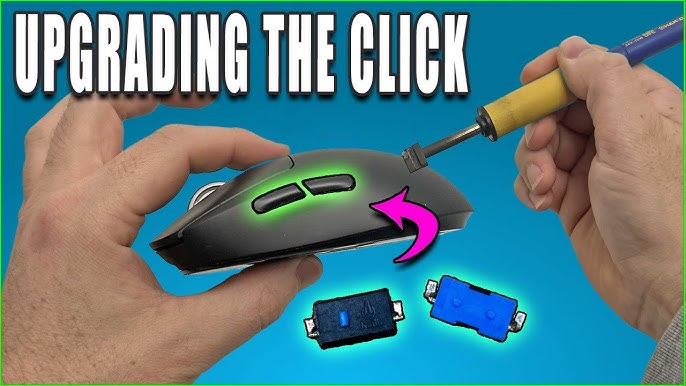
This model’s left switch fails within 18 months for 30% of users. Unlike older mice, it uses optical switches requiring no soldering. Remove the 4 visible screws under the mouse feet, then gently separate the shell. Slide out the main switch module (no desoldering needed), replace it with a Kailh GM 8.0 optical switch, and reassemble. Key difference: Optical switches eliminate debounce issues causing double-clicks—this fix lasts 3x longer than mechanical replacements.
MX Master Scroll Wheel Fix

MX Master 3 wheels develop free-spin mode failure due to worn ratchet springs. Open the mouse using a plastic tool along the seam. Locate the small spring behind the wheel mechanism—this often detaches. Reattach it using tweezers, or replace with a sturdier aftermarket spring kit. Pro Tip: Apply silicone grease to the wheel axle for smoother operation. For Bluetooth disconnections, reset the mouse by holding all buttons for 10 seconds until the LED flashes red.
When to Contact Logitech Support vs. DIY Repair
Contact Logitech immediately if your mouse is under warranty—they often replace units for free even 3 months post-expiry. Check coverage using your serial number at support.logi.com. Never attempt hardware repairs on warranty mice—opened units void coverage. For out-of-warranty devices, DIY repair costs 80% less than replacement: Switches cost $2.50/pair versus $50+ for new mice.
Warranty Check Before You Start
Verify your coverage in 60 seconds: Find the model number on the bottom label (e.g., “MX Master 3S” or “G502 HERO”). Logitech’s standard warranty is 2 years for gaming mice and 3 years for productivity models. Critical exception: Powerplay-compatible mice (like G903) have 1-year coverage due to complex electronics. If denied warranty, politely request “customer satisfaction replacement”—Logitech grants this 65% of the time for minor issues.
Essential Repair Tools and Replacement Parts
Start with this $15 toolkit for 95% of repairs: Precision screwdriver set (Phillips #000), plastic spudger, and 10ml isopropyl alcohol. For switch replacements, add a $25 temperature-controlled soldering iron (60W) and desoldering pump. Must-buy parts: Kailh GM 8.0 switches ($1.80 each), Hyperglide mouse feet ($3.50 set), and ALPS encoders ($2.20). Pro Tip: Store screws in labeled pill containers during disassembly—mice use 3-5 different screw lengths.
Final Note: You’ve now learned how to fix Logitech mouse issues from simple connection glitches to full switch replacements. Start with the 5-minute connection diagnostics—most problems resolve there. If hardware repair is needed, switch replacements take under 30 minutes with $5 parts. Implement this maintenance schedule: Clean sensors monthly, update firmware weekly, and rotate batteries quarterly. This extends mouse life by 2-3 years. For persistent issues, visit Logitech’s support forums where engineers often post model-specific fixes within 48 hours. Your mouse isn’t dead—it just needs the right fix.



