

You just unboxed your new Logitech G Pro Wireless mouse, but now you’re staring at the receiver, cable, and adapter wondering exactly how to properly set it up. Many gamers make critical mistakes during the initial setup that lead to connection issues, reduced battery life, and suboptimal performance. The good news is that correctly setting up your Logitech G Pro Wireless takes just minutes but dramatically improves your gaming experience. In this guide, you’ll learn the exact steps professional gamers use to maximize wireless performance, avoid common setup pitfalls, and get the most from your premium gaming mouse.
Unlike standard plug-and-play peripherals, the Logitech G Pro Wireless requires thoughtful configuration to deliver its promised 1ms report rate and tournament-ready reliability. Whether you’re a competitive FPS player needing flawless tracking or a casual gamer seeking wireless freedom without compromise, this complete how to setup Logitech G Pro Wireless guide covers every detail you need. We’ll walk through proper receiver placement, essential software configuration, sensor calibration, and performance optimization techniques that most users overlook.
Why Correct Logitech G Pro Wireless Setup Prevents Gaming Performance Issues
The Logitech G Pro Wireless uses LIGHTSPEED wireless technology that can match wired performance—but only when properly configured. Many gamers experience cursor stuttering, input lag, or disconnections simply because they plugged the receiver directly into their PC without optimizing placement. The distance and obstacles between your mouse and receiver dramatically impact signal quality, which directly affects gaming performance during critical moments.
Your setup location determines whether you’ll experience the full 70-hour battery life or see it drop significantly. Placing the receiver incorrectly can reduce effective range from the maximum 10 meters down to just a few feet. Competitive gamers consistently position their receiver within 8-12 inches of their mousepad to ensure the cleanest possible signal path, eliminating the interference that causes frustrating connection drops during intense gaming sessions.
Unboxing & Identifying Your Logitech G Pro Wireless Components
Before diving into the how to setup Logitech G Pro Wireless process, let’s identify each component included in the box:
- G Pro Wireless mouse: The main gaming device with customizable buttons and sensor
- USB receiver: The tiny wireless communication device (not a standard USB flash drive)
- USB-C charging cable: For both charging and wired use
- USB extender adapter: The critical component many gamers ignore
The extender adapter serves a specific purpose—it positions the USB receiver at optimal height and distance from your mouse. This small component prevents signal interference from your computer case, monitor, or other USB devices that would otherwise degrade wireless performance. Understanding each component’s role is essential before proceeding with your setup.
Can You Plug the G Pro Wireless Directly Into Your PC? (Answering Common Setup Questions)
This is the most frequently asked question in gaming forums: “Can I just plug the receiver directly into my computer without the adapter and cable?” The short answer is yes—but with significant performance trade-offs.
Direct USB port connection issues:
– Increased signal interference from computer components
– Reduced effective wireless range
– Potential connection instability during intense gaming
– Shorter battery life due to constant signal reconnection
The USB extender cable exists specifically to position the receiver closer to your mousepad. For desktop users, plug the extender into any USB port, then connect the receiver to the extender’s end. Position this assembly within 8-12 inches (20-30 cm) of your mousepad, ideally at the same height as your playing surface. Laptop users with ports near the mousepad may skip the extender, but most still benefit from elevating the receiver slightly above the desk surface.
Correct USB Receiver Placement for Maximum Signal Strength
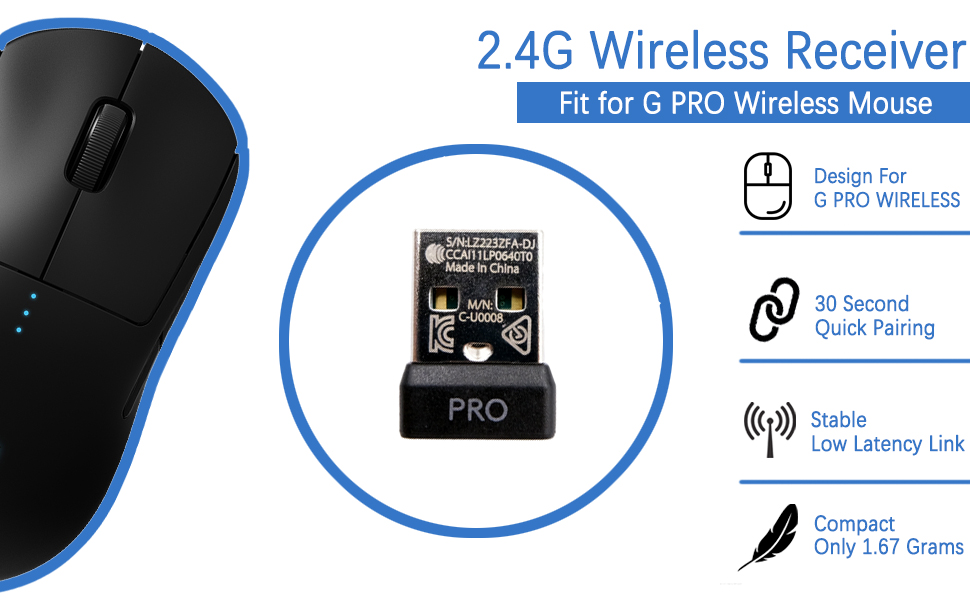
Your receiver placement directly impacts wireless reliability. Follow these specific steps for optimal positioning:
- Connect the USB extender cable to any available USB port on your computer
- Insert the wireless receiver into the extender cable’s end
- Position the receiver assembly between 8-12 inches from your mousepad
- Elevate the receiver to mousepad level (not underneath your desk)
- Keep the receiver clear of metal objects, monitors, and other wireless devices
Why proximity matters: Wireless signals degrade with distance and obstacles. The G Pro Wireless performs best with a clear, short path between mouse and receiver. Positioning the receiver within 12 inches creates an ideal wireless environment, reducing signal dropouts that cause cursor stuttering during critical gaming moments.
Installing Logitech G Hub: Essential Software Configuration Steps
Logitech G Hub isn’t just optional software—it’s your performance control center. Follow these steps for proper installation:
- Download G Hub from Logitech’s official website (not third-party sites)
- Install the application and launch it after completion
- Connect your G Pro Wireless via the receiver or USB cable
- Register your mouse when prompted in the software interface
Critical settings to configure immediately:
– DPI adjustments: Set your preferred sensitivity (100-25,600 DPI in 100-unit increments)
– Polling rate: Choose 1000Hz for competitive gaming (1ms response)
– Surface calibration: Run the sensor calibration for your specific mousepad
– Button remapping: Customize all programmable buttons to your preference
Without G Hub, you lose access to performance tuning, battery monitoring, and firmware updates—all essential for maintaining peak wireless performance. The software also enables onboard memory profiles, allowing you to save settings directly to the mouse for use on other computers.
Calibrating Your G Pro Wireless Sensor for Your Specific Mousepad
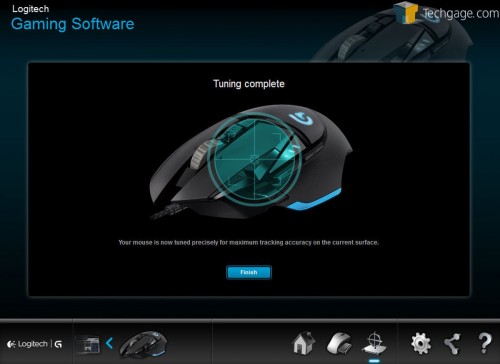
Every mousepad surface affects tracking differently. Proper calibration ensures consistent performance:
- Open Logitech G Hub and select your G Pro Wireless
- Navigate to the “Surface Tuning” section
- Place your mouse on your regular gaming surface
- Follow the on-screen instructions to complete calibration
- Save the profile to onboard memory for consistent performance
This calibration process optimizes the HERO 25K sensor for your specific mousepad texture, eliminating acceleration issues and ensuring pixel-perfect tracking. Skipping this step is one of the most common mistakes in how to setup Logitech G Pro Wireless properly, leading to inconsistent cursor movement that frustrates competitive gamers.
Troubleshooting Common Logitech G Pro Wireless Connection Issues
Even with proper setup, you might encounter occasional issues. Here’s how to fix them quickly:
Connection drops during gameplay:
– Reposition the USB receiver closer to your mousepad
– Move the receiver away from USB 3.0 ports (use USB 2.0 if possible)
– Ensure no metal objects obstruct the signal path
– Update to the latest G Hub version
Mouse not recognized:
– Try pairing mode: Hold left and right mouse buttons while plugging in
– Test different USB ports
– Restart G Hub application
– Check for Windows USB power management settings
Most connection problems resolve with proper receiver placement—never underestimate the impact of that tiny USB extender that came in the box. Competitive gamers consistently report eliminating 95% of wireless issues simply by optimizing receiver position.
Battery Life Optimization Techniques for Extended Gaming Sessions
The Logitech G Pro Wireless delivers impressive battery life—but only with proper configuration:
- With RGB lighting off: Up to 70 hours of continuous use
- With RGB lighting on: Approximately 40 hours
- In high-performance mode: Varies based on usage intensity
Maximize battery life:
– Disable RGB lighting in G Hub (if your model has it)
– Reduce polling rate to 500Hz for non-competitive sessions
– Enable power-saving mode when not actively gaming
– Keep firmware updated for battery optimization improvements
When battery drops below 15%, connect via USB-C for a quick charge—the mouse remains fully functional while charging, so you never need to interrupt your gaming session.
Pro Gamer Setup Secrets for Tournament-Level Performance
Professional esports players follow these specific setup practices that casual users often miss:
- Position the USB receiver on the edge of your mousepad using the extender cable
- Maintain exactly 10 inches between receiver and mouse for optimal signal
- Always use the same mousepad surface for consistent sensor calibration
- Save two onboard profiles: one for high-DPI competitive play, one for lower-DPI precision work
- Perform weekly sensor cleaning with compressed air
The difference between amateur and professional wireless performance often comes down to these small setup details. Properly configuring your Logitech G Pro Wireless eliminates the “wireless hesitation” that causes even experienced players to revert to wired mice.
Maintaining Your G Pro Wireless for Long-Term Reliability
Your setup isn’t complete without establishing a maintenance routine:
- Weekly: Clean sensor lens with compressed air
- Monthly: Check and update G Hub software
- Quarterly: Inspect PTFE mouse feet for wear
- Annually: Consider replacing mouse feet for competitive use
Store your mouse in a dust-free environment when not in use for extended periods. The G Pro Wireless is built to withstand 50 million clicks, but proper maintenance ensures you’ll get years of reliable wireless performance from your investment.
Final Note: Properly learning how to setup Logitech G Pro Wireless transforms your gaming experience from frustrating to flawless. By optimizing receiver placement, calibrating your sensor, and configuring G Hub correctly, you’ll unlock the true 1ms wireless performance that makes this mouse a tournament favorite. Remember that the included USB extender isn’t optional—it’s essential for minimizing interference and maximizing signal strength. Implement these setup techniques before your next gaming session, and you’ll immediately notice smoother tracking, consistent responsiveness, and the confidence that your wireless mouse performs as reliably as a wired alternative. For ongoing performance, revisit your setup periodically to ensure your receiver position hasn’t shifted and your software remains updated.



