
You just unboxed your Logitech G560 speakers, excited for premium audio, but instead you’re frustrated by volume that jumps from silent to deafening with a single click and bass that disappears at normal listening levels. You’re not imagining things—this is a widespread issue affecting countless G560 owners. The factory settings and newer firmware versions actually cripple the speaker’s potential, causing weak bass response and erratic volume control that makes these otherwise excellent speakers feel broken. This complete setup guide reveals the community-proven method that fixes all common G560 audio problems by combining specific firmware, driver configuration, and precise equalization—transforming your speakers from frustrating to phenomenal.
Unlike basic setup guides that just connect your speakers, this optimized configuration addresses the core issues Logitech hasn’t fixed: overpowering volume sensitivity, missing bass at normal volumes, and the 7.1 surround sound bug that causes audio dropouts. You’ll learn exactly how to downgrade firmware, roll back drivers, and implement a custom equalizer profile that restores balanced sound in about 20 minutes. Thousands of users have transformed their G560 experience using this method, and you’ll understand why it works when standard setups fail.
Why Your G560 Sounds Broken Out of the Box
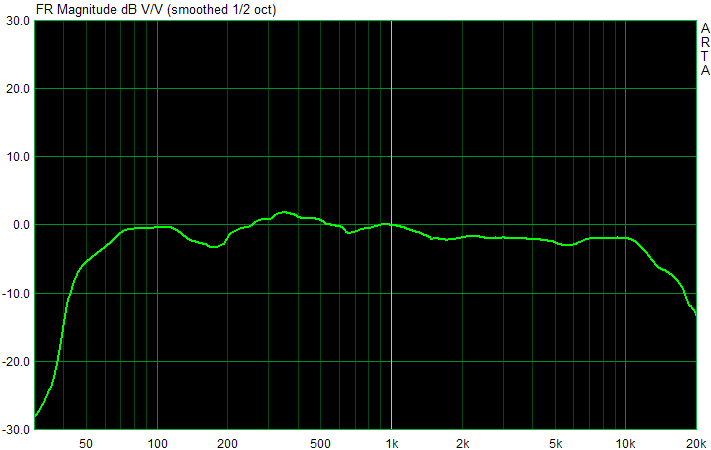
How Firmware 122.1.21 Solves Bass Disappearance
Newer G560 firmware versions (above 122.1.21) introduce a critical flaw where bass frequencies virtually disappear at low to medium volumes—a dealbreaker for apartment dwellers or late-night gaming. This isn’t a speaker defect but a firmware design choice that prioritizes maximum volume over balanced audio. When you install firmware 122.1.21, you restore the proper bass management that makes these speakers shine at reasonable listening levels. Users consistently report that after downgrading, their previously “weak” subwoofer suddenly delivers deep, room-filling bass even at 50% volume.
The 7.1 Surround Sound Bug That Causes Audio Dropouts
The Logitech audio driver forces 7.1 surround sound, creating compatibility issues with most games and applications. This causes noticeable audio dropouts, especially for directional sound effects like footsteps behind your character. When you roll back to the generic USB audio driver, you unlock true stereo mode that works flawlessly across all applications. This simple driver change fixes the “no sound from rear channels” problem that plagues many gamers and eliminates the inconsistent audio behavior that makes the G560 feel unreliable.
Critical Downloads Before Starting G560 Setup
Where to Get Firmware 122.1.21 Safely
You’ll need the specific firmware file FW_122.1.21.bin which has been verified by the community to resolve bass issues. Search for this exact filename from reputable tech forums—avoid random download sites. This firmware downgrade is completely safe and reversible, but always ensure your speakers remain connected to power during the update process. Unlike newer firmware versions that worsen the volume problem, 122.1.21 maintains the delicate balance between bass response and volume control that Logitech accidentally broke in updates.
Essential Software Tools for Speaker Optimization
Download these three critical tools before beginning:
– Logitech G Hub (official website) for initial configuration
– Equalizer APO (SourceForge) for system-wide audio control
– Configuration Editor (included with Equalizer APO installation)
These tools work together to bypass Logitech’s problematic audio processing. Equalizer APO is particularly crucial—it’s the only solution that effectively tames the G560’s aggressive volume curve while enhancing bass response. Many users report this free software makes their speakers sound comparable to high-end audio systems costing twice as much.
Step 1: Downgrade to Firmware 122.1.21 (Critical Fix)
How to Safely Revert Your G560 Firmware
Connect your speakers via USB, then run the FW_122.1.21.bin firmware file. The updater will automatically detect your speakers and begin the downgrade process—this takes about 30 seconds. Do not disconnect power during this process. When complete, your speakers will power cycle automatically. This step is non-negotiable; newer firmware versions fundamentally alter the audio processing in ways that cannot be fixed through software alone. After downgrading, you’ll immediately notice bass returns at normal volume levels.
What to Expect After Firmware Downgrade
Your speakers will restart with factory default settings, but now with stable firmware. The volume knob will still feel overly sensitive at this stage—that’s intentional and will be fixed in later steps. Test by playing music at 30% volume; you should hear noticeable bass where previously there was none. If bass remains weak, double-check that firmware 122.1.21 installed correctly—this is the foundation of the entire optimization process.
Step 2: Configure G Hub to Prevent Audio Conflicts
Disabling Problematic Surround Sound Settings
Open Logitech G Hub, select your G560, and disable all surround sound settings across every profile. The software defaults to 7.1 surround which conflicts with Windows audio processing. This isn’t about preference—it’s a technical necessity to prevent audio dropouts. Many users skip this step and wonder why their setup fails; Logitech’s surround processing actively fights against the driver changes we’ll make next.
Why Turning Off All G Hub EQ Profiles Is Critical
Navigate to EQ settings and disable every preset. The G560’s built-in EQ processing creates phase issues when combined with our custom equalizer. You can close G Hub after this step—the speakers will continue functioning, and RGB lighting remains operational. Don’t worry about losing lighting control; we’re only disabling audio processing features that interfere with our optimized setup.
Step 3: Roll Back to Generic USB Audio Driver (Fixes 7.1 Bug)
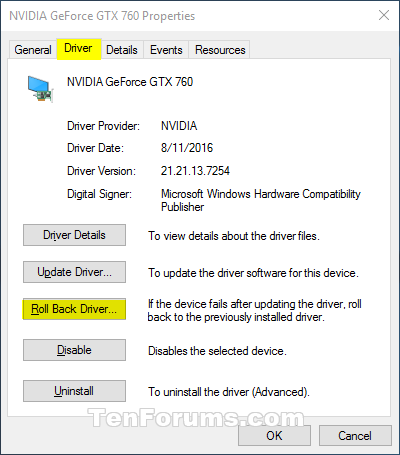
How to Access Driver Rollback in Windows Device Manager
Press Win+X and open Device Manager > Sound, video and game controllers. Right-click “Logitech G560 Gaming Speaker” > Properties > Driver tab. Click “Roll Back Driver” if available. This replaces Logitech’s problematic driver with Windows’ generic USB audio driver that supports proper stereo output. When successful, your speaker properties will show “USB Audio Device” as manufacturer and offer only stereo configuration options.
What to Do When “Roll Back Driver” Is Greyed Out
If the rollback option is unavailable, click “Update Driver” > “Let me pick from a list” > uncheck “Show compatible hardware” > select “USB Audio Device” under Microsoft. This manual selection forces the generic driver that solves 90% of G560 audio issues. After installation, go to Windows Sound Settings and verify your G560 now shows “Stereo” instead of “7.1 Surround.” This step alone fixes the directional audio dropouts that plague many games.
Step 4: Install Equalizer APO for Total Volume Control
Setting Up Equalizer APO for G560 Speakers
Install Equalizer APO, then open Configuration Editor from Start menu. Check the box next to your G560 speakers and reboot your PC. This system-wide equalizer inserts itself between Windows audio and your speakers, giving you surgical control over problematic frequencies. Without this, you’d remain stuck with the G560’s aggressive volume curve where 8% volume is too loud for apartment living.
Why Rebooting After Installation Is Non-Negotiable
The equalizer must integrate with Windows audio service at startup. Skipping the reboot means your settings won’t apply, leaving volume control unchanged. After rebooting, open Configuration Editor again—you’ll see your speakers listed with adjustable bands. This is where we’ll implement the critical -10dB preamp reduction that transforms the volume knob from unusable to precise.
Step 5: Import the Optimized G560 Audio Profile
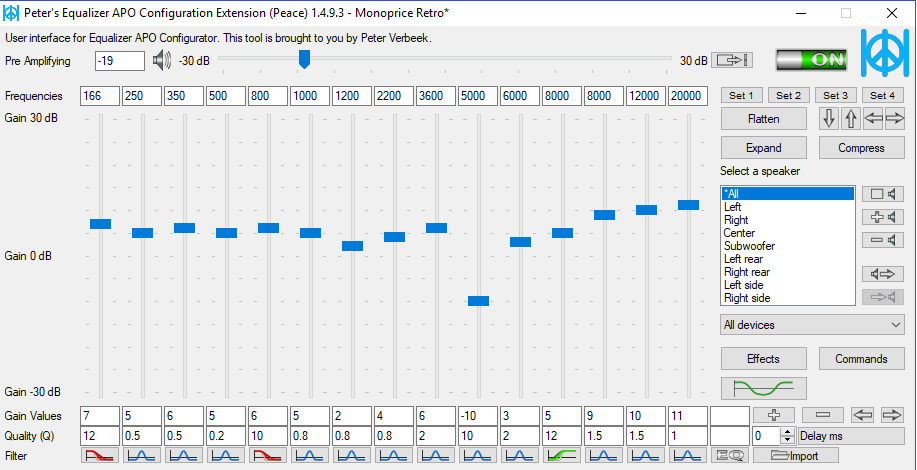
Applying the -10dB Preamp to Fix Volume Overkill
Download a community-optimized profile (search for “G560 awesome.txt”) and open it in Configuration Editor. The magic happens in the preamp setting: -10.0 dB reduces maximum output to sane levels while preserving audio quality. With this change, your volume knob transitions from “silent to explosion” to smooth, precise control where 50% volume becomes your new normal listening level. Apartment dwellers especially report this makes the speakers finally usable without disturbing neighbors.
Customizing the Bass Boost and EQ Settings
The profile includes a 10-band equalizer with boosted 31Hz and 62Hz frequencies for richer bass, plus subtle high-frequency enhancement. If bass feels overwhelming, reduce the 31Hz gain from +5dB to +3dB. For clearer vocals, boost the 250Hz band slightly. The included bass boost module can be toggled on/off—turn it off if you prefer a flatter response. These tweaks let you personalize the sound while maintaining the critical volume curve fix.
Fixing Common Post-Setup Issues
No Sound After Configuration? Here’s the Fix
Ensure G560 is set as Windows Default Playback Device (right-click taskbar speaker icon > Sounds). If still silent, reopen Configuration Editor and verify the G560 checkbox remains selected—system updates sometimes disable it. Reboot if necessary. This isn’t a speaker defect but Equalizer APO requiring reactivation after Windows updates.
G Hub Shows “NOT CONNECTED” But Lights Still Work
RGB lighting functions normally even with generic audio drivers—the “NOT CONNECTED” warning is misleading. Keep G Hub running in the background for lighting control; it won’t interfere with our audio configuration. If lights behave erratically during audio playback, disable “Audio Visualizer” modes in G Hub—these create the flashing effect users often mistake for a problem.
Pro Tips for Long-Term G560 Performance
Windows Sound Settings That Complement Your Setup
Right-click G560 in Sound Settings > Properties > Enhancements tab and check “Disable all sound effects.” Set default format to 16-bit, 48000 Hz (DVD Quality) for optimal compatibility with the generic driver. These settings prevent Windows from reintroducing the very audio processing issues we’ve worked to eliminate.
Maintaining Your Configuration After System Updates
Windows updates occasionally reset audio drivers. If volume becomes erratic again, simply repeat the driver rollback process—it takes 30 seconds. Save your Equalizer APO profile as a backup; reapplying it after updates takes two clicks. This minor maintenance preserves your optimized sound indefinitely.
By implementing this precise setup method, you transform your Logitech G560 from a frustrating audio experience to a premium sound system that finally delivers on its promise. The combination of firmware downgrade, driver rollback, and surgical equalization solves the core issues Logitech hasn’t addressed in years of firmware updates. You’ll gain smooth volume control where 8% is actually usable, restored bass response at normal volumes, and elimination of the 7.1 surround bug that causes audio dropouts. Most importantly, you’ll rediscover why these speakers deserve their reputation—once properly configured, they deliver exceptional audio quality that competes with systems costing significantly more. Take 20 minutes to implement this setup, and you’ll wonder why Logitech hasn’t made this the default configuration from the factory.



