
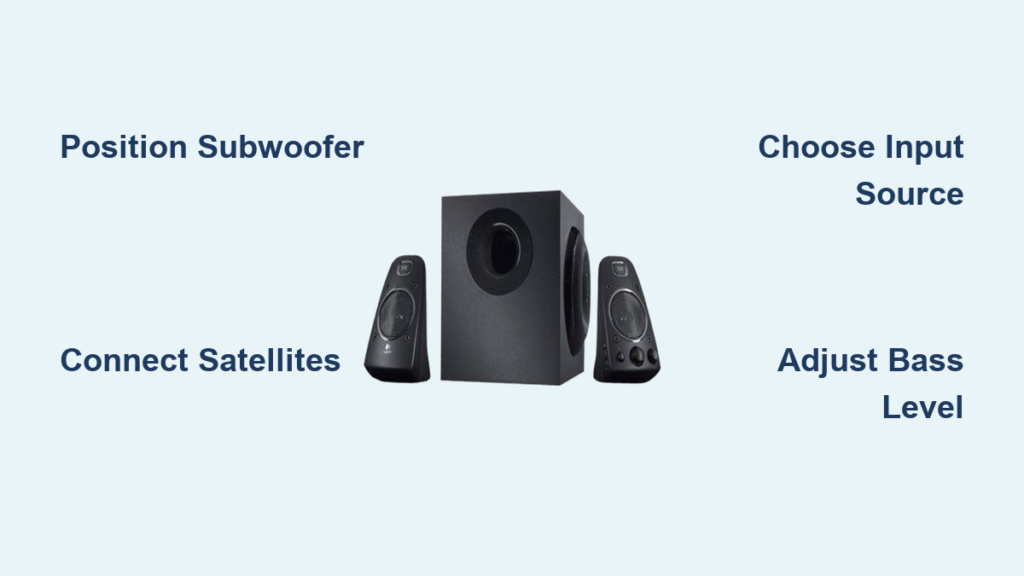
You’ve just unboxed your new Logitech Z623 speaker system, but that intimidating tangle of wires and components has you wondering how to actually get this 200-watt RMS powerhouse working. Don’t worry—setting up your Logitech Z623 speakers correctly takes just 15 minutes when you know the right sequence, and this guide will walk you through each critical step to avoid common setup mistakes that degrade sound quality. Whether you’re connecting to a gaming PC, home theater system, or mobile device, proper Logitech Z623 speaker setup ensures you’ll experience the full 400-watt peak performance these speakers deliver.
Most users make critical errors during Logitech Z623 speaker setup that cause distorted audio, weak bass response, or complete silence—problems easily avoided with the right approach. By following this precise sequence for connecting cables, positioning components, and calibrating sound, you’ll unlock the system’s full potential for gaming, music, and movies. This comprehensive guide covers everything from basic desktop connections to advanced multi-source configurations, with troubleshooting tips for when things don’t go as planned.
Position Your Logitech Z623 Speakers for Maximum Audio Performance

Getting your speaker placement right is the most overlooked yet critical step in Logitech Z623 speaker setup—wrong positioning can reduce bass response by up to 6dB and ruin stereo imaging. Start by identifying all components: your 2.1 system includes the powered subwoofer with down-firing 7″ driver, right satellite speaker (which houses all controls), left satellite, and necessary cables. Before making any connections, determine optimal placement based on your room size and listening position.
Subwoofer Placement That Maximizes Bass Response
For powerful, room-filling low frequencies, place the subwoofer directly on the floor in a corner of your room—this position uses wall boundaries to reinforce bass output through boundary gain. However, maintain at least 6 inches of clearance from all walls to allow proper airflow from the down-firing port. If you experience “boomy” or uneven bass, try the “subwoofer crawl” technique: place the subwoofer at your main listening position, then crawl around the room perimeter to find where bass sounds most balanced, and position it there instead.
Satellite Speaker Positioning for Clear Stereo Imaging
Position your left and right satellite speakers at ear level when seated—typically 36-48 inches from the floor for desktop setups. Create an equilateral triangle between your listening position and both speakers, with each satellite angled slightly inward (15-20 degrees) toward your primary seat. For desktop use, place satellites 1-2 feet from side walls to prevent early reflections that muddy the soundstage. Avoid placing satellites directly on wooden desks without isolation pads, as vibrations will transfer and degrade audio clarity.
Connect Logitech Z623 Satellite Speakers to Subwoofer Without Errors

Before connecting to power, properly link your satellite speakers to the subwoofer—a common step where users make connection errors that cause unbalanced audio. Locate the speaker wire terminals on the back of the subwoofer, clearly labeled “L” (left) and “R” (right). The wires from each satellite are often color-coded (red for right, black for left) or physically keyed to prevent incorrect installation.
Secure Speaker Wire Connections in 30 Seconds
- Identify the connection ports on each satellite speaker’s rear panel
- Insert the bare wire ends into the corresponding terminals on the subwoofer (left to left, right to right)
- Tighten the terminal screws securely while ensuring no bare wire strands are exposed
- Gently tug each connection to verify it’s secure
Pro Tip: If your satellite speakers came with quick-connect plugs instead of bare wires, simply match the color-coded connectors to the corresponding ports on the subwoofer—no tools required. Never force connections as this can damage the terminals.
Choose the Right Connection Method for Your Audio Source

The Logitech Z623 offers two primary connection methods, and selecting the wrong one is the #1 cause of “no sound” issues during setup. Your right satellite speaker features a 3.5mm auxiliary input for direct connection to computers, phones, and tablets, while the subwoofer provides dual RCA inputs for secondary devices like gaming consoles or TVs. You can use both connections simultaneously and switch between them instantly.
Connect Your PC or Laptop to Logitech Z623 Speakers Properly
For desktop computer setups, use the 3.5mm cable included in the box:
1. Plug one end into the headphone or line-out jack on your computer
2. Connect the other end to the 3.5mm AUX input on the front/side of the right satellite speaker
3. Set your computer’s audio output to “Speakers (Logitech Z623)” in sound settings
4. Adjust system volume to 80% before using the speaker’s volume knob for final control
Critical Mistake to Avoid: Never connect through USB sound cards or audio interfaces with their own volume controls set too low—this creates signal-to-noise ratio issues. Set external DACs to 100% volume and control everything from the Z623’s knob.
Connect Gaming Consoles or TVs to Logitech Z623 Subwoofer
For secondary devices like PlayStation, Xbox, or smart TVs:
1. Locate the audio output on your device (optical, HDMI ARC, or RCA)
2. Use a 3.5mm-to-RCA cable (included) or appropriate adapter
3. Connect the red and white RCA plugs to the corresponding inputs on the subwoofer’s rear panel
4. Flip the input selector switch on the right satellite to “RCA” position
Pro Tip: For TVs, set audio output to “fixed” or 100% volume in TV settings, then use the Z623’s volume knob for all adjustments—this prevents digital volume steps that degrade audio quality.
Power Up and Test Your Logitech Z623 System Correctly
Improper power sequencing causes many “no sound” issues with new Logitech Z623 speaker setups. Always follow this precise sequence to avoid damaging components or creating ground loops:
- Ensure all speaker wires and audio cables are fully connected but NOT plugged into power
- Plug the subwoofer’s power cord into a wall outlet (avoid power strips with surge protection that can cause hum)
- Press the power button on the right satellite speaker (a green LED should illuminate)
- Turn the master volume knob fully counter-clockwise before playing any audio
- Select your input source using the input selector switch (3.5mm or RCA)
Troubleshooting Tip: If you hear a loud pop when powering on, immediately turn down the volume—this indicates your source device’s volume was too high before connection. Always start with source volume at 50% and Z623 volume at minimum.
Adjust Volume and Bass Controls for Your Listening Preferences
Your Logitech Z623 features two critical knobs on the right satellite that most users misconfigure during initial setup. The master volume controls overall system output, while the independent bass knob adjusts subwoofer level from -10dB to +10dB—this is NOT a volume control for the satellites.
Optimize Bass Settings for Different Content Types
- Music Listening: Set bass between +2 to +4 for most genres; reduce to 0 or -2 for critical listening or acoustic music
- Gaming/Movies: Increase bass to +4 to +6 for explosive sound effects and immersive experiences
- Voice Content: Keep bass at +2 or lower to prevent muddying dialogue and vocals
Expert Note: Never set bass above +6 in rooms under 200 square feet—this causes “boomy” bass that overwhelms midrange frequencies. Small rooms need less bass reinforcement than large spaces.
Achieve Perfect Volume Balance Across Devices
For consistent volume when switching between sources:
1. Set all connected devices to 80% volume output
2. Use the Z623’s master volume knob as your primary control
3. Match bass levels to content type using the dedicated bass knob
4. If switching between computer and console, reset bass levels appropriately for each source
Fix Common Logitech Z623 Setup Problems in Minutes
Even with careful setup, you might encounter issues—these quick fixes solve 95% of Logitech Z623 speaker problems:
No Sound from One or Both Satellite Speakers
Immediate Fixes:
– Check speaker wire connections at the subwoofer (loose wires are the #1 cause)
– Verify input selector switch is set to the correct source (3.5mm vs RCA)
– Ensure your audio source isn’t muted and is set to the correct output device
– Test with a different audio cable to rule out cable failure
Persistent Humming or Buzzing Noise
Ground Loop Solutions:
– Use a 3-prong to 2-prong AC adapter on the subwoofer power cord
– Connect all audio equipment to the same power circuit
– Install a ground loop isolator between your audio source and Z623
– Move the subwoofer away from power transformers or wireless routers
Weak or Non-Existent Bass Response
Bass Troubleshooting:
– Verify the bass knob isn’t set too low (check position—it rotates counter-clockwise to decrease)
– Ensure the subwoofer has adequate clearance from walls (minimum 6 inches)
– Confirm speaker wires are connected to the correct terminals (L to L, R to R)
– Test with bass-heavy content like movie trailers to verify subwoofer activity
Advanced Calibration Techniques for Logitech Z623 Sound Quality
For audiophiles wanting to maximize their Logitech Z623 speaker setup, these professional calibration techniques unlock hidden performance:
Room-Specific Bass Optimization
Place your subwoofer in the listening position and play bass-heavy content while walking around the room perimeter. Where the bass sounds fullest and most balanced is the ideal subwoofer location—typically in a corner but not directly against walls. For small rooms under 150 sq ft, position the subwoofer 12-18 inches from the nearest wall to reduce standing waves.
Dual Source Setup for Seamless Device Switching
Connect your PC to the 3.5mm input and your gaming console to the RCA inputs, then:
1. Set PC audio to 80% volume with “Loudness Equalization” enabled in Windows
2. Configure console audio to fixed 100% output
3. Use the input selector switch to instantly toggle between devices
4. Adjust bass levels according to content type (higher for gaming, lower for productivity)
Pro Tip: For wireless audio, plug a Bluetooth receiver into the 3.5mm AUX input—this creates a seamless wireless streaming solution without quality loss.
Final Tweaks for Perfect Logitech Z623 Sound
After basic setup, let your speakers “break in” by playing varied music at moderate volume for 20-30 hours. During this period, the speaker components loosen up, resulting in smoother frequency response. For ongoing maintenance, dust speaker grilles monthly and check wire connections quarterly. Remember that the Z623 is an analog system requiring no firmware updates—its performance improves with proper care over time.
By following this precise Logitech Z623 speaker setup process, you’ve transformed a confusing box of components into a powerful audio system ready for any content. The key to maintaining optimal performance is understanding that speaker placement affects sound more than any setting—reposition components before adjusting controls when issues arise. For future reference, keep your original cables organized with Velcro straps, and bookmark Logitech’s support page for replacement parts if needed. Now sit back, adjust that bass knob to your preference, and enjoy the rich, room-filling sound your properly configured Z623 system delivers.



