Your iPad can do more than you think. With the right setup, you can connect a Bluetooth mouse and unlock precision control for editing, browsing, and working on long documents. Apple introduced full mouse and trackpad support in iPadOS 13.4 and later, turning the iPad into a serious productivity tool. No more struggling with finger taps when you need pixel-perfect accuracy.
In this guide, you will learn how to pair a mouse, fine-tune its behavior, and navigate apps like a pro. We will cover both the standard Bluetooth method and the accessibility-focused AssistiveTouch path. You will also discover keyboard shortcuts, customization tips, and quick fixes for common issues.
Check iPadOS Version and Compatibility
Before pairing anything, confirm your iPad supports mouse functionality. The feature requires iPadOS 13.4 or later. Most iPads released after 2018 qualify, but verifying takes only a moment.
Confirm Your iPadOS Version
- Open Settings.
- Tap General, then About.
- Look for “Software Version.”
- If it shows 13.4 or higher, you are ready.
- If not, return to Settings and tap Software Update.
Know Which Mice Work
Not every mouse delivers the same experience. Here is what to expect:
- Apple Magic Mouse (2nd gen and later) – Full support, including click, scroll, and gestures.
- Apple Magic Trackpad 2 and 3rd gen – Full gesture support.
- Apple Magic Mouse (1st gen) – Cursor moves, but no scrolling or gestures.
- Most third-party Bluetooth mice – Plug-and-play with left, right click, and scroll wheel.
- Wired USB mice – Not supported unless used with a USB-C hub and adapter.
Pro Tip: When buying new, choose a Bluetooth mouse with a scroll wheel and side buttons for the best results.
Pair a Mouse via Bluetooth
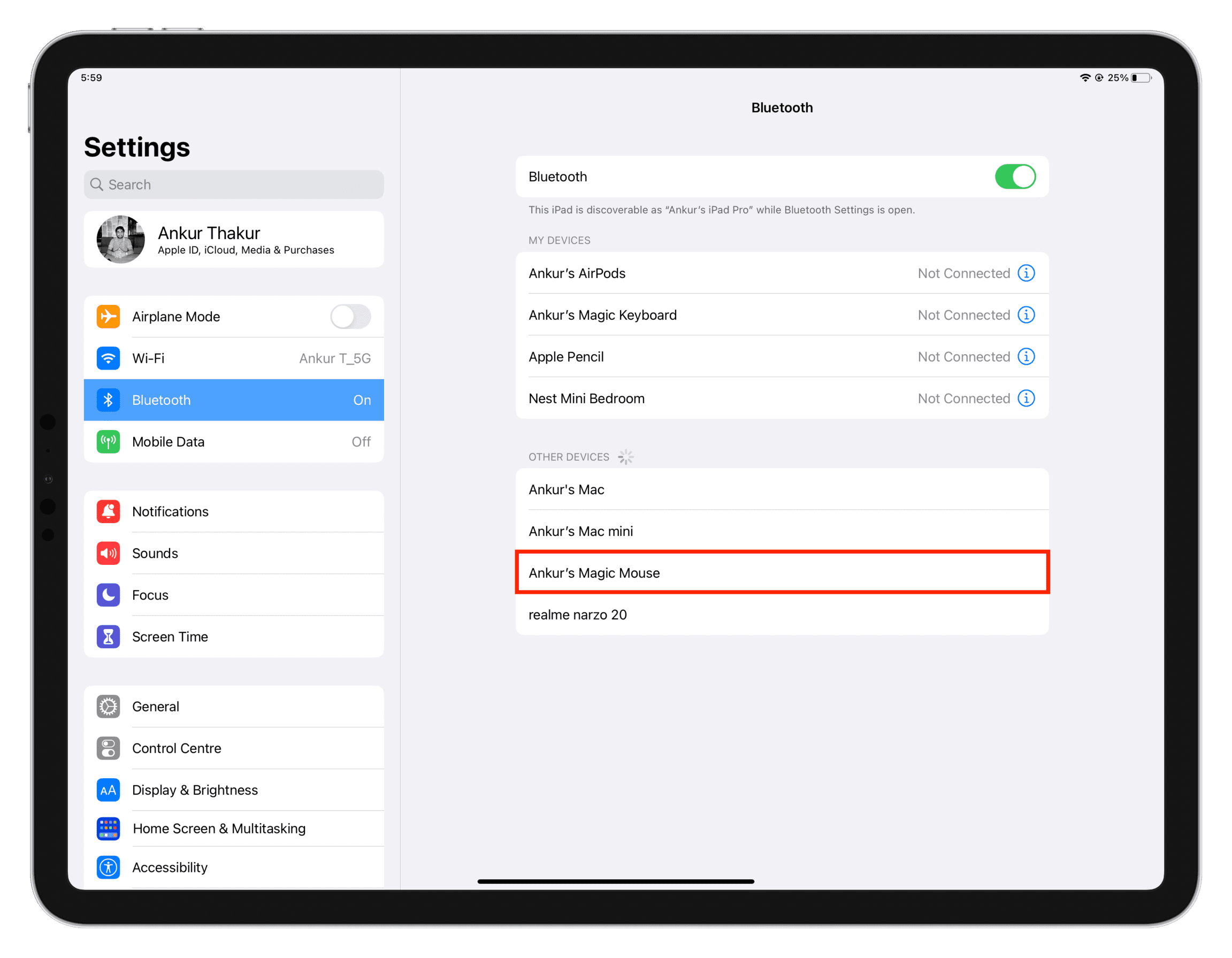
The fastest way to connect is through standard Bluetooth pairing. This method activates native cursor support with automatic pointer behavior and hover effects.
Enable Bluetooth and Pair
- Turn on your mouse and put it in pairing mode (check the manufacturer’s instructions).
- On your iPad, go to Settings, then Bluetooth.
- Wait for your mouse to appear under “Other Devices.”
- Tap the mouse name to pair.
Once connected, a small circular cursor appears on screen. You are now using a mouse on your iPad.
What Happens After Pairing
The system treats your mouse as a standard input device. Expect these behaviors immediately:
- A circular cursor appears on screen.
- Hovering over text turns it into an I-beam for editing.
- App icons on the Home Screen slightly enlarge when hovered.
- Buttons highlight on hover, just like on a Mac.
No extra steps are needed. Everything works out of the box.
Use AssistiveTouch for Advanced Control
If you want deeper customization, such as changing cursor color, size, or fade timing, use the AssistiveTouch method. Originally designed for accessibility, it offers granular control for any user.
Connect Mouse Through AssistiveTouch
- Go to Settings, then Accessibility, then Touch, then AssistiveTouch.
- Toggle AssistiveTouch ON.
- Tap Devices.
- Tap Add New Device.
- Select Mouse.
- Follow on-screen instructions to pair via Bluetooth.
This method displays a dot-in-circle cursor, which differs from the native solid dot.
Why Choose AssistiveTouch
This path offers benefits the native mode does not:
- Customize cursor size and color.
- Set fade delay for cursor visibility.
- Remap right-click menu actions.
- Work even when native mouse settings feel limited.
It works best for users who need high visibility or want to tailor the right-click menu for specific tasks.
Adjust Tracking Speed and Sensitivity

A cursor that moves too fast or too slow can ruin the experience. Adjust tracking speed to match your comfort level.
Change Speed in Native Mode
- Go to Settings, then General, then Trackpad & Mouse.
- Use the Tracking Speed slider.
- Move it left for slower, more precise control.
- Move it right for faster navigation.
Test the feel by moving across the screen. Find the sweet spot between agility and accuracy.
Adjust Speed in AssistiveTouch
- Go to Settings, then Accessibility, then Touch, then AssistiveTouch, then Devices.
- Select your paired mouse.
- Tap Tracking Speed.
- Adjust the slider.
Tip: If you use the mouse on different surfaces like your lap, a table, or a tray, you may need to tweak the speed depending on context.
Enable and Customize Right-Click
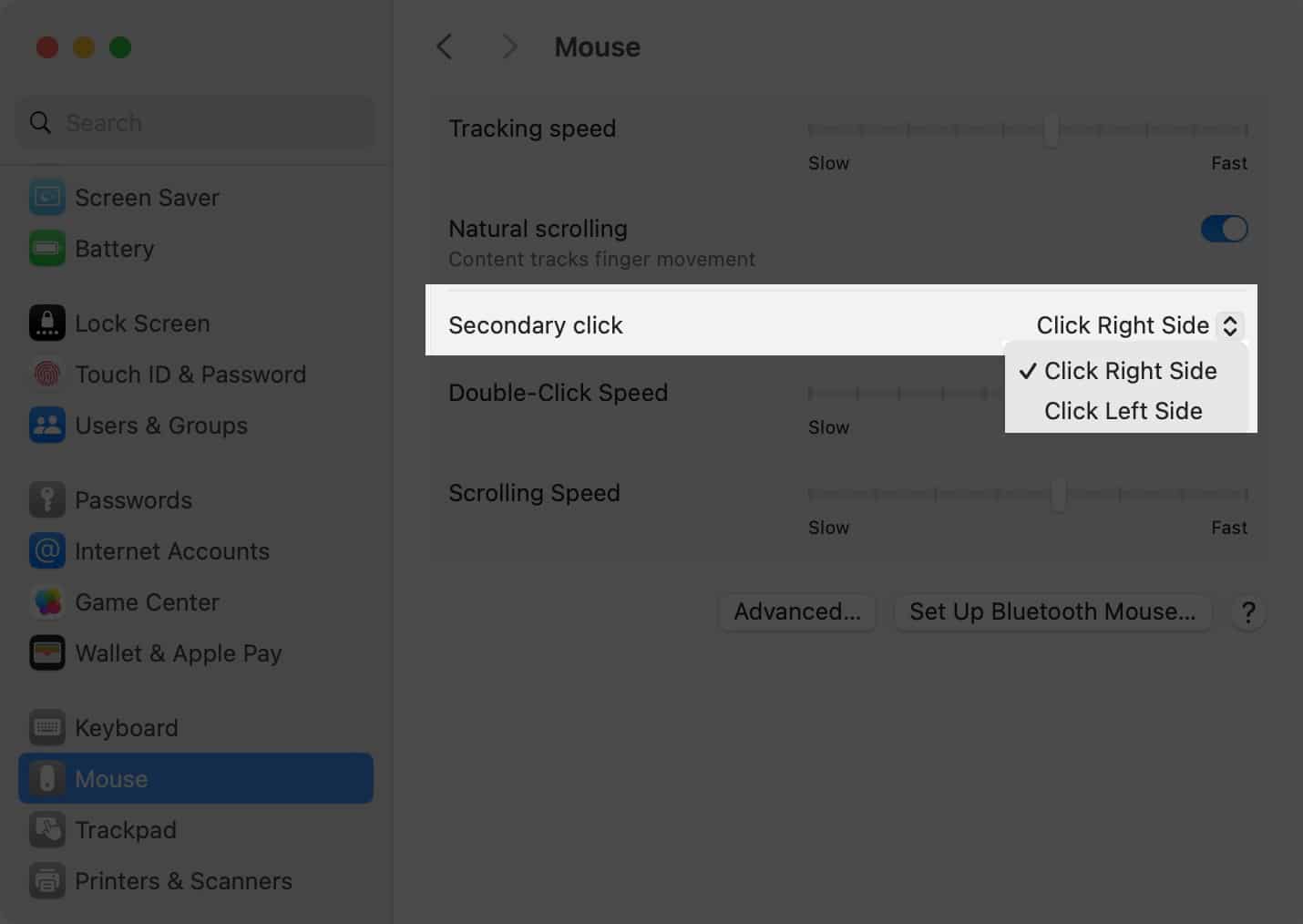
Right-clicking opens context menus just like on a Mac. You can delete apps, copy links, or access file info with one click.
Turn On Secondary Click
- Go to Settings, then General, then Trackpad & Mouse, then Secondary Click.
- Choose your preferred option:
– Right Side (default for right-handed users).
– Left Side (for left-handed users).
– Off (disable right-click entirely).
Now, clicking the opposite side performs a right-click action.
Use Control-Click Anytime
Hold the Control key on a connected keyboard and click. This triggers a right-click regardless of mouse settings. It works with any mouse or trackpad.
Example workflow:
– Hover over a Safari link.
– Hold Control and click.
– Choose “Open in New Tab” or “Copy Link.”
This shortcut is essential for users who rely on both keyboard and mouse.
Master Cursor Behavior and Hover Effects
The iPad cursor is context-aware. It changes shape and triggers UI feedback based on what you hover over.
Watch for Visual Feedback
Look for these visual cues:
- I-beam cursor: Appears over text fields for editing.
- Hand icon: Shows on tappable links or buttons.
- Magnified icons: On the Home Screen, apps grow slightly when hovered.
- Highlighted buttons: In apps like Notes or Mail, buttons glow on hover.
These cues make navigation intuitive and reduce misclicks.
Cursor Disappears? It Is Normal
After a few seconds of inactivity, the cursor fades to avoid screen clutter. To bring it back:
- Move the mouse.
- Tap the screen with your finger.
- Click any mouse button.
No need to worry. The cursor is not broken.
Enable Natural Scrolling Direction
Do you want to scroll like on a Mac or like on an iPhone? The choice is yours.
Toggle Natural Scrolling
- Go to Settings, then General, then Trackpad & Mouse.
- Find Natural Scrolling.
- Toggle On for touch-like scrolling (swipe up moves content up).
- Toggle Off for traditional mouse behavior (swipe up moves content down).
This setting affects scroll wheels and trackpad swipes.
How It Works in Practice
- Natural On: Swiping two fingers up on a trackpad moves the page up, like pulling content with your fingers.
- Natural Off: Swiping up moves the scrollbar down, which is classic desktop behavior.
Choose based on your muscle memory. Most Mac users prefer it On.
Optimize Keyboard and Mouse Together
When you pair a physical keyboard and mouse, the iPad adapts automatically. The on-screen keyboard often hides to maximize screen space.
Show or Hide On-Screen Keyboard
- Look for the keyboard icon in the lower-right corner.
- Tap it to open the menu.
- Choose your action:
– Show Keyboard brings back the software keyboard.
– Dismiss hides it again.
This is useful when you need quick text input without disconnecting your physical keyboard.
Pro Workflow Tip
Use a keyboard with a built-in trackpad, like the Magic Keyboard, for ultimate efficiency. You get full-sized keys and a built-in trackpad, so you do not need an external mouse. But if you prefer a mouse, it works seamlessly alongside any Bluetooth keyboard.
Troubleshoot Common Mouse Issues
Even with full support, things can go wrong. Here is how to fix the most frequent problems.
Mouse Not Pairing
Try these steps in order:
- Restart Bluetooth: Turn it off, wait 5 seconds, then turn it back on.
- Forget and Re-pair: Go to Settings, then Bluetooth. Tap the “i” next to your mouse and select Forget This Device. Then re-pair from scratch.
- Check Battery: Low power can prevent connection. Charge or replace batteries.
- Restart iPad: Hold the power button and swipe to restart.
Cursor Jumps or Lags
Try these fixes:
- Clean the mouse sensor on the bottom of the device.
- Avoid reflective or dark surfaces.
- Move away from Wi-Fi routers or other Bluetooth devices causing interference.
- Reduce tracking speed for better control.
No Scrolling with Magic Mouse 1
Unfortunately, 1st-gen Apple Magic Mouse and Trackpad lack driver support in iPadOS. You get basic movement but no scrolling or gestures. Upgrade to a 2nd-gen model or use a third-party mouse with a scroll wheel.
Maximize Productivity with Mouse Shortcuts
Once set up, use these tips to work faster on your iPad.
Speed Up Text Editing
- Hover over text to reveal the I-beam.
- Click and drag to select words or paragraphs.
- Double-click to select a single word.
- Triple-click to select a full paragraph.
- Right-click to copy, paste, or look up.
This is much faster than using touch alone.
Navigate with Precision
- Use the cursor to tap small buttons like “Back” in Safari.
- Hover over links to preview URLs before clicking.
- Open context menus to delete, rename, or share files.
This is ideal for spreadsheet work in Excel or Numbers.
Use in Supported Apps
Best performance occurs in:
- Pages, Numbers, Keynote – Full cursor and menu support.
- Safari – Right-click links and open in tabs.
- Files – Drag, right-click, and organize.
- Notes – Select text and format with menus.
Some creative apps like Procreate still rely on touch for gestures such as pinch-to-zoom.
Customize Cursor Appearance for Visibility
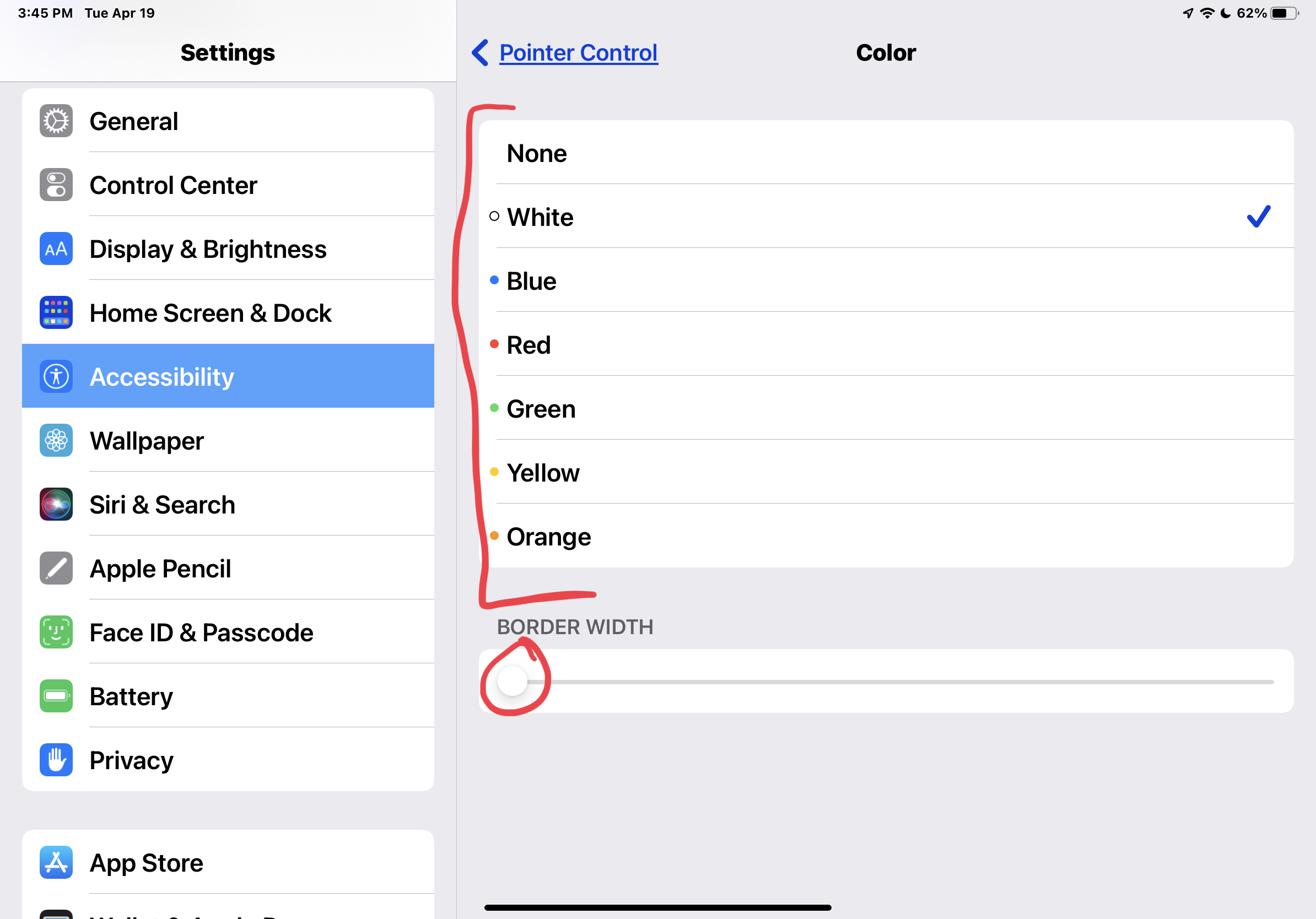
If the default cursor is hard to see, enhance it. This is especially useful for presentations or users with visual needs.
Increase Contrast (Native)
- Go to Settings, then Accessibility, then Pointer Control.
- Turn on Increase Contrast.
- The cursor becomes darker and less transparent.
Change Size and Color (AssistiveTouch)
- Go to Settings, then Accessibility, then Touch, then AssistiveTouch, then Devices.
- Select your mouse.
- Tap Cursor.
- Adjust the following:
– Size: Make it larger.
– Color: Choose high-contrast options like white or black.
– Fade Timer: Set how long it stays visible.
This is useful for teaching, accessibility, or low-light environments.
Frequently Asked Questions About Using a Mouse on iPad
What iPad models support a mouse?
Any iPad running iPadOS 13.4 or later supports mouse functionality. This includes most iPads released from 2018 onward, such as iPad Pro, iPad Air (3rd gen and later), iPad (5th gen and later), and iPad mini (5th gen and later).
Can I use any Bluetooth mouse with my iPad?
Most standard Bluetooth mice work with iPadOS. Apple Magic Mouse (2nd gen and later), Magic Trackpad 2, and Magic Trackpad (3rd gen) offer full support. Third-party mice from brands like Logitech and Microsoft generally connect without issues.
Why does my Magic Mouse 1 not scroll?
The 1st generation Apple Magic Mouse and Magic Trackpad lack driver support in iPadOS. You get basic cursor movement but no scrolling or gesture capabilities. Consider upgrading to a 2nd-gen model or using a third-party mouse with a scroll wheel.
How do I right-click on iPad with a mouse?
Enable Secondary Click in Settings > General > Trackpad & Mouse. Choose the right side or left side based on your preference. Alternatively, hold the Control key on a connected keyboard and click to trigger a right-click action.
Will using a mouse drain my iPad battery?
Bluetooth mice use their own battery, not your iPad’s. However, keeping Bluetooth active does consume some power. Disconnect your mouse when not in use to maximize battery life.
Can I use a mouse and trackpad at the same time?
Yes, you can pair multiple input devices. The iPad supports simultaneous connections, so you can use a mouse for precision work and a trackpad for gestures. Both will function independently.
Final Thoughts on Using a Mouse on iPad
Learning how to use a mouse on iPad opens a new level of precision and efficiency, especially when paired with a physical keyboard. The setup is straightforward: verify your iPadOS version, pair via Bluetooth, and adjust tracking speed to your liking. For deeper customization, explore the AssistiveTouch path to change cursor color, size, and fade behavior.
While not every app supports hover or right-click fully, core productivity tools work beautifully with a mouse. Start with native Bluetooth pairing for simplicity, then explore AssistiveTouch if you need extra control. With the right settings, your iPad becomes a true laptop alternative with no compromises. Take a few minutes to configure your mouse today and experience a faster, more precise workflow.