Your mouse suddenly stops working right before a deadline. Before you panic, know this: every modern computer is fully operable without a mouse. Built-in accessibility tools and keyboard shortcuts let you navigate your entire system, browse the web, manage files, and even control the cursor using nothing but your keyboard.
This guide walks you through how to use a computer without a mouse on both Windows and macOS. You will learn core navigation keys, essential shortcuts, how to enable Mouse Keys for full cursor control, and proven techniques to build speed and confidence over time.
Master the Basics of Keyboard Navigation
Understand the Focus Indicator
The focus indicator is your visual replacement for the mouse pointer. It highlights the active element on screen, whether a button, link, or form field, so you always know where your next action will land. This indicator typically appears as an outline, color change, or underline around the selected item.
Press Tab to move the focus forward through interactive elements. Press Shift + Tab to move backward. If the indicator is hard to see, adjust its thickness or color in your system’s accessibility settings.
Learn the Core Navigation Keys
These keys form the foundation of mouse-free control:
- Tab: Move forward to the next clickable item
- Shift + Tab: Move backward through items
- Enter: Activate or open the selected item
- Spacebar: Toggle checkboxes or scroll down a page
- Arrow Keys: Navigate within menus, lists, and documents
- Esc: Close pop-ups or cancel actions
- Menu Key: Open the right-click context menu on Windows
Practice these in any app or browser. You will quickly discover how much you can accomplish without lifting your hands from the keyboard.
Use Essential Windows Shortcuts
Access System Functions Quickly
Replace common mouse clicks with these shortcuts:
Win + R: Open the Run dialog boxWin + E: Launch File ExplorerWin + U: Open Accessibility settingsAlt + D: Focus the address bar in File ExplorerCtrl + C/Ctrl + X/Ctrl + V: Copy, cut, and pasteCtrl + Z/Ctrl + Y: Undo or redoCtrl + S: Save your current workCtrl + F: Search for text on a page
These shortcuts eliminate the need to click through menus or icons repeatedly.
Navigate the Web Without Clicking
In any browser, use these keyboard combinations:
Ctrl + L: Jump to the address barCtrl + T: Open a new tabCtrl + W: Close the current tabCtrl + Tab: Switch to the next tabShift + Ctrl + Tab: Switch to the previous tabSpacebar/Shift + Spacebar: Scroll down or up one page
To follow a link, press Tab until it is highlighted, then press Enter to open it.
Enable Windows Mouse Keys for Full Cursor Control
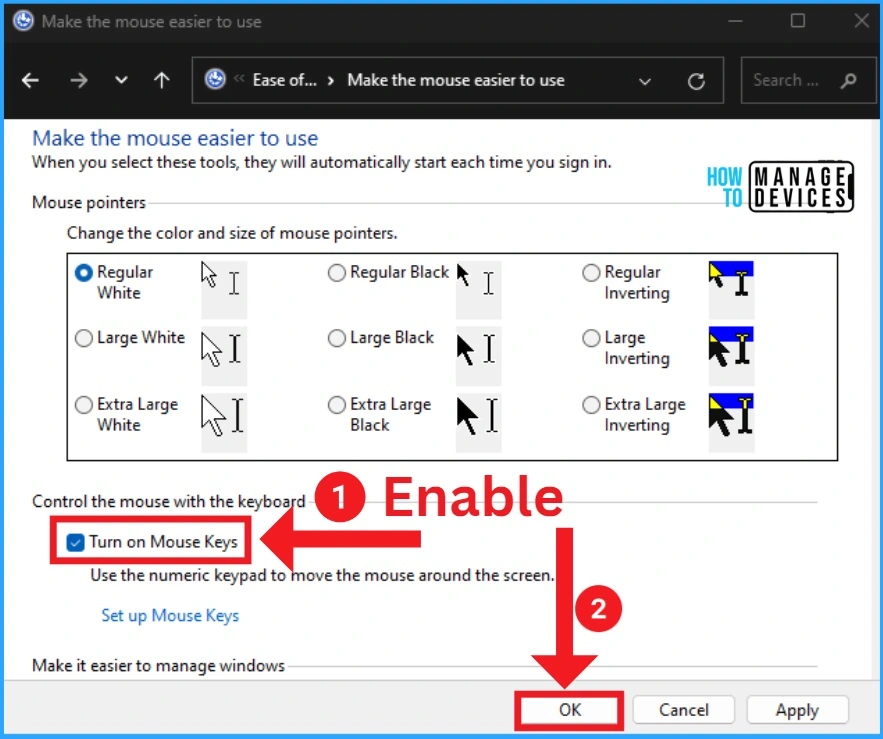
Turn On Mouse Keys
When you need precise cursor movement, Mouse Keys turns your numeric keypad into a mouse.
- Press
Win + Uto open Accessibility settings - Use arrow keys to select Mouse, then press
Enter - Tab to the Mouse Keys switch and press
Spacebarto enable
Your numpad now controls the cursor. Note that typing numbers is disabled while this feature is active.
Move and Click With the Numpad
8: Move up2: Move down4: Move left6: Move right7,9,1,3: Diagonal movement5: Left-clickCtrl + 5: Right-click
If pressing 5 opens a menu instead of clicking, press / on the numpad to disable the secondary function, then try again. Remember to disable Mouse Keys when you need to type numbers.
Use Essential macOS Shortcuts
Replace Mouse Actions on Mac
These shortcuts keep your workflow smooth:
Cmd + Spacebar: Open Spotlight searchCmd + C/Cmd + X/Cmd + V: Copy, cut, and pasteCmd + Z/Shift + Cmd + Z: Undo or redoCmd + S: SaveCmd + L: Focus the browser address barCmd + T: Open a new tabCmd + W: Close the current tab
Browse the Web on Mac
Use Tab to cycle through links and buttons. Press Enter to activate the focused item. Scroll with Spacebar (down) or Shift + Spacebar (up). Jump to the address bar instantly with Cmd + L.
Enable macOS Mouse Keys
Turn On Mouse Keys on Mac
The fastest method is pressing Option + Cmd + F5. On newer Macs with Touch ID, tap the sensor three times instead. In the Accessibility menu, use arrow keys to highlight Mouse Keys and press Spacebar to toggle it on. You can also navigate to System Settings > Accessibility > Pointer Control to enable it.
To turn Mouse Keys off quickly, press the Option key five times in rapid succession.
Use the Keyboard as a Mouse
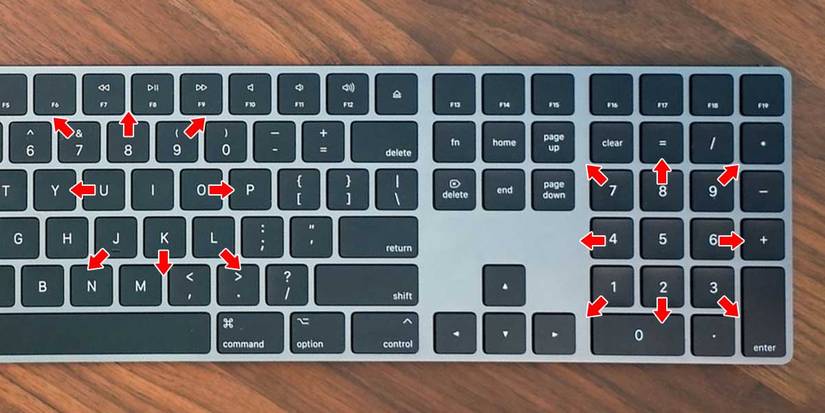
With Mouse Keys enabled, use the main keyboard for movement:
U: Move upO: Move downK: Move leftI: Move rightJ,7,9,L: Diagonal directionsIor5(numpad): Left-clickCtrl + 5: Right-click
The numeric keypad follows the standard layout: 7, 8, 9 for up directions, 4, 6 for left and right, and 1, 2, 3 for down directions. Keep in mind that you cannot type letters or numbers while Mouse Keys is active.
Access Context Menus Without Right-Clicking

Open Right-Click on Windows
Use the Menu Key, typically located between the right Ctrl and Alt keys. Press it to open the context menu just like a right-click. If your keyboard lacks this key, use Shift + F10 instead. With Mouse Keys active, press Ctrl + 5 on the numpad to right-click.
Right-Click on Mac
Use Ctrl + Click through Mouse Keys. Press Ctrl + 5 on the numpad or Ctrl + I on the main keyboard to simulate a right-click. Mouse Keys is the universal method across macOS applications.
Customize Your Setup for Better Visibility
Adjust the Focus Indicator
If the focus outline is hard to see, adjust your accessibility settings. On Windows, go to Settings > Ease of Access > Keyboard and increase the focus indicator highlight. On Mac, open System Settings > Accessibility > Display to adjust cursor size or enable cursor blinking.
Choose bolder colors or thicker outlines for better contrast against any background.
Create Custom Shortcuts
Both operating systems allow you to assign custom keyboard shortcuts. On Windows, use PowerToys or AutoHotkey for advanced remapping. On Mac, go to System Settings > Keyboard > Keyboard Shortcuts to modify app-specific commands. Map frequently used actions to single key combinations to save time.
Build Speed Through Daily Practice

Start With Essential Shortcuts
Begin by mastering these everyday commands:
Ctrl + C/Ctrl + V(orCmdon Mac)Ctrl + Zfor UndoCtrl + Sto SaveCtrl + Fto FindTabandEnterfor navigation
Use them consistently until they become automatic.
Practice Mouse Keys Gradually
Do not rely on Mouse Keys at first. Use them only when necessary, such as clicking a small button or dragging a file. Practice switching modes: disable Mouse Keys to type, enable it to click, then disable it again. This builds fluidity.
Try a “No Mouse Day”
Unplug your mouse and rely entirely on the keyboard for a full day. You will discover new shortcuts, improve your speed, and gain confidence. Over time, keyboard navigation often becomes faster and more precise than mouse-based workflows.
Troubleshoot Common Mouse-Free Issues
Focus Indicator Not Visible
Immediately adjust your accessibility settings to increase contrast or outline thickness. On websites with poor design, focus may skip elements. Use Ctrl + F to search for text near your target, then navigate from there.
Accidentally Scrolled Too Far
Press Shift + Spacebar to scroll back up a page. In most browsers, this reverses the last scroll action. If you lose your place, press Home to return to the top of the page.
Cannot Type Numbers With Mouse Keys
On both Windows and Mac, Mouse Keys disables number input when active. On Windows, disable Mouse Keys in Ease of Access settings. On Mac, press Option five times quickly to toggle it off. Always disable Mouse Keys after use to avoid input conflicts.
Frequently Asked Questions About Using a Computer Without a Mouse
What is the fastest way to right-click without a mouse?
On Windows, press the Menu Key (usually between the right Ctrl and Alt) or use Shift + F10. On Mac, enable Mouse Keys and press Ctrl + 5 to simulate a right-click.
How do I enable Mouse Keys on Windows?
Press Win + U to open Accessibility settings, select Mouse, then toggle the Mouse Keys switch with Spacebar. Your numeric keypad will now control the cursor.
Can I use my Mac without a mouse?
Yes. Use Tab to navigate, Cmd shortcuts for system access, and enable Mouse Keys through System Settings > Accessibility > Pointer Control for full cursor control using the keyboard.
Why can’t I type numbers when Mouse Keys is on?
Mouse Keys reassigns your numeric keypad for cursor movement and clicks. To type numbers again, disable the feature. On Mac, press Option five times quickly. On Windows, turn it off in Ease of Access settings.
How do I scroll down a webpage without a mouse?
Press Spacebar to scroll down one full page. Press Shift + Spacebar to scroll up. Use Home to jump to the top and End to jump to the bottom.
Is using a computer without a mouse faster?
Once muscle memory develops, keyboard navigation is often faster than mouse use. You eliminate the time spent switching between input devices, and many shortcuts execute actions more quickly than clicking through menus.
Final Takeaways for Mastering Mouse-Free Computing
Learning how to use a computer without a mouse is both a reliable backup plan and a genuine productivity upgrade. Start with the core navigation keys (Tab, Enter, Spacebar, arrow keys) and the most common shortcuts (Ctrl + C, Ctrl + V, Ctrl + S). Add Mouse Keys to your toolkit when you need precise cursor control for clicking small targets or dragging files.
Practice daily, customize your focus indicator for visibility, and gradually expand your shortcut vocabulary. Whether you are adapting to broken hardware, improving accessibility, or simply optimizing your workflow, these tools put complete control at your fingertips. Begin with one new shortcut today, and build from there.