Does your cursor jump across the screen while you’re typing? That frustrating drift happens when your palm or sleeve accidentally brushes the touchpad. Many users prefer an external mouse for precision work, but the built-in laptop mouse keeps interfering. Learning how to deactivate laptop mouse input gives you clean, uninterrupted control.
This guide walks you through every reliable method to disable your touchpad on Windows and macOS. You’ll learn built-in settings, keyboard shortcuts, manufacturer tools, and third-party utilities. We also cover troubleshooting when settings go missing and how to re-enable the touchpad if you ever need it back.
Auto-Disable the Touchpad When a Mouse Is Connected
The most convenient approach lets your operating system handle the switch automatically. Plug in an external mouse, and the touchpad turns off without any extra effort.
Windows 11 Built-In Setting
Windows 11 includes this feature natively, but only if your touchpad runs Precision Touchpad drivers.
Steps to enable auto-disable:
1. Press Windows + I to open Settings.
2. Click Bluetooth & devices, then select Touchpad.
3. Click the arrow beside the main toggle to expand extra options.
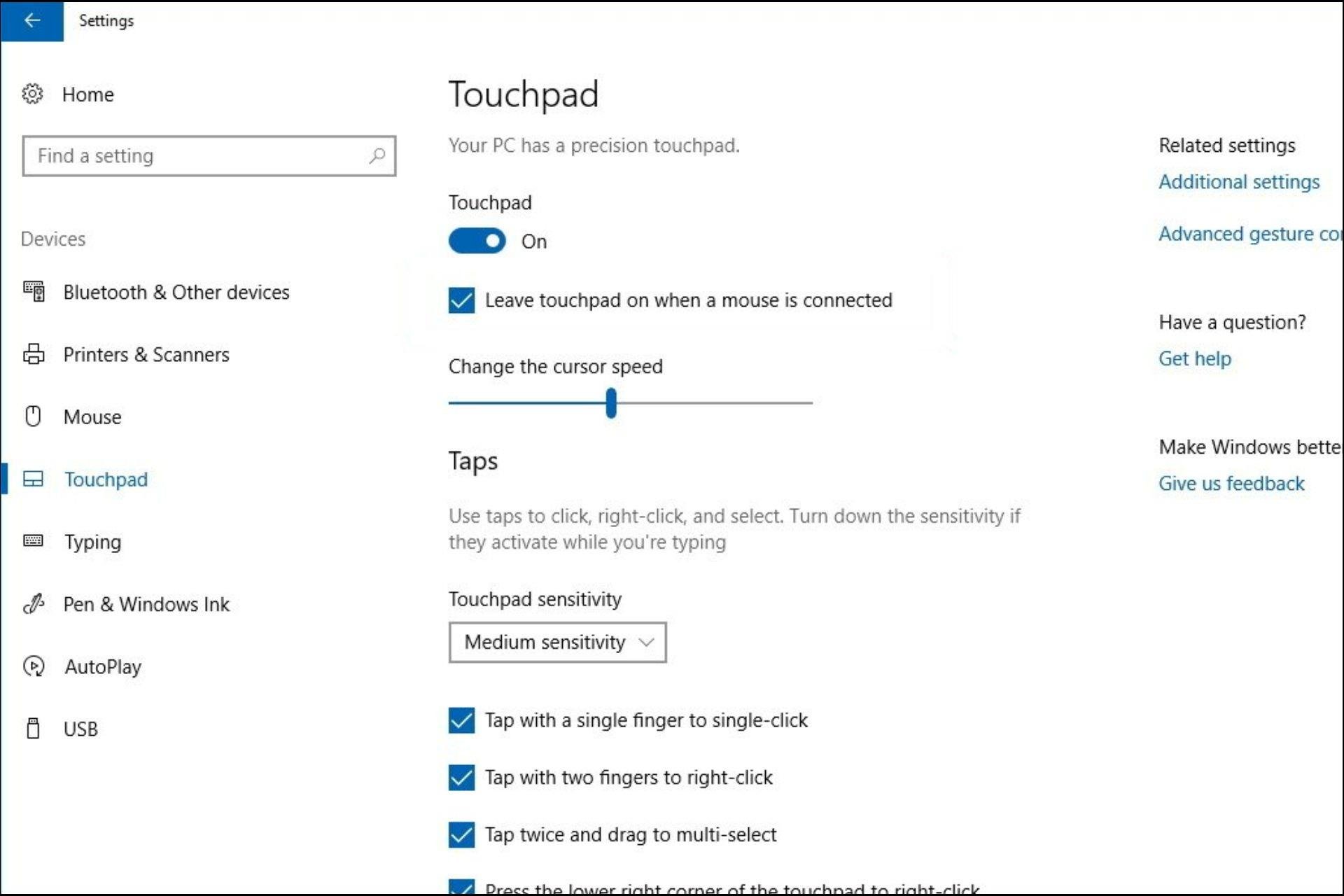
4. Find “Leave touchpad on when a mouse is connected.”
5. Toggle this setting Off.
Your touchpad now deactivates the moment Windows detects an external mouse.
Windows 10 Built-In Setting
Windows 10 follows a similar path with slightly different menu labels.
Steps to enable auto-disable:
1. Open Settings from the Start menu.
2. Choose Devices, then click Touchpad.
3. Locate “Leave touchpad on when a mouse is connected.”
4. Toggle the setting Off.
If the option does not appear, your laptop likely uses a legacy driver that needs updating.
macOS Trackpad Auto-Switch
Apple calls this feature “Ignore built-in trackpad.” It works seamlessly with both Bluetooth and USB mice.
Steps to enable on macOS:
1. Click the Apple menu and open System Settings (or System Preferences on older macOS).
2. Navigate to Accessibility, then Pointer Control.
3. Select the Trackpad tab.
4. Check “Ignore built-in trackpad when mouse or wireless trackpad is present.”
Your MacBook trackpad now disables automatically whenever an external pointer connects.
Use Keyboard Shortcuts to Toggle the Touchpad
Need a faster way to turn off the touchpad? Most laptops include a hardware-level shortcut that works without opening any menus.
Fn Key Combinations by Brand
Laptop makers typically pair the Fn key with a function key marked by a touchpad icon (a rectangle with a slash through it).
Common brand shortcuts:
• HP: Fn + F6 or Fn + F9
• ASUS: Fn + F6 or Fn + F9
• Lenovo: Fn + F6 or Fn + F8
• Acer: F10 on newer models, or Fn + F2/F6/F7 on older ones
If the shortcut fails, check whether Fn Lock is active. This setting reverses F-key behavior and blocks the toggle. Press Fn + Esc to disable Fn Lock and try again.