You click once, but your computer acts as if you clicked twice. Files open when you only want to select them, drag-and-drop operations fail unexpectedly, and accidental commands trigger without warning. This frustrating mouse double clicking issue affects users across Windows, macOS, and Linux, and the root cause is usually mechanical wear in the internal microswitch.
The good news is that most cases are fixable. This guide walks you through proven diagnostic steps, software workarounds, hardware repairs, and prevention strategies. You will learn how to identify whether the problem is a failing switch or a software conflict, when to clean or re-solder the components, and when replacement makes more sense than repair.
Diagnose the Real Cause Before Attempting Repairs

Applying the wrong solution wastes time and can worsen the issue. Before opening your mouse or installing software, determine whether the problem is hardware or software related.
Test the Mouse Across Devices and Reboots
Plug your mouse into a different computer. If the double clicking persists on another machine, the problem is almost certainly hardware failure. If the mouse works perfectly elsewhere, the issue lies with your operating system or drivers.
Reboot your main machine and observe the behavior. If the problem disappears temporarily after a restart, it points to driver corruption or operating system glitches. Also try logging into a new user profile to rule out profile-specific corruption that might be causing input issues.
Check the Physical Feel of the Click
Press the left button slowly and pay attention to the tactile feedback:
- Crisp, loud snap: Likely software or electrical bounce
- Mushy, soft, or delayed return: Classic sign of microswitch metal fatigue
This tactile feedback is a strong indicator of the underlying problem. Mechanical wear degrades the spring inside the switch, causing it to bounce and register multiple signals within milliseconds rather than producing one clean click.
Rule Out ESET Antivirus on Windows 11
A growing number of users report double clicking issues on Windows 11 Build 22631.2861 linked directly to ESET Antivirus. The problem starts suddenly, persists across reboots, and disappears when ESET is uninstalled.
Quick verification test:
1. Disable all startup applications
2. Uninstall ESET completely
3. Reboot and test the mouse
If the issue vanishes after uninstalling ESET, the security software is the culprit. Wait for a patch from ESET or switch to an alternative security suite to resolve the conflict.
Adjust Double-Click Speed in Windows
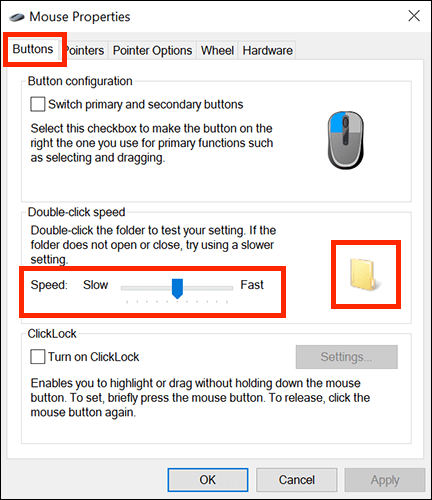
One of the fastest software fixes involves adjusting the double-click sensitivity in Windows settings. This approach works well for borderline cases but rarely fixes true mechanical failures.
Open the Mouse Settings Panel
Navigate to Settings > Bluetooth & devices > Mouse > Additional mouse settings, or open the classic Control Panel > Mouse dialog. In the Buttons tab, locate the Double-click speed slider.
Tune the Slider for Better Stability
Move the slider to the right to require faster double-click speed, which makes accidental double-clicks harder to trigger. Move the slider to the left for slower, more forgiving timing, though this may worsen phantom clicks.
Use the folder icon below the slider to test your adjustment. A healthy click highlights the folder once. A problematic click causes flickering or opens the folder on a single press.
Important limitation: This setting adjusts the time window for intentional double-clicks, typically around 500ms. Since mechanical switch bounce happens in less than 20ms, this fix often fails for true hardware issues, but it remains worth trying as a first step.
Reset Mouse Drivers on Windows
Corrupted or outdated HID (Human Interface Device) drivers can mimic hardware failure. Resetting these drivers often resolves software-related phantom clicks.
Uninstall the Mouse Driver in Device Manager
- Press Win + X and select Device Manager
- Expand Mice and other pointing devices
- Right-click HID-compliant mouse and select Uninstall device
- Reboot your computer
Windows automatically reinstalls the generic driver after reboot. Test your mouse in File Explorer afterward to verify the fix.
Use PowerShell to Verify Connection Status
Run PowerShell as Administrator and execute:
powershell

Get-PnpDevice -Class Mouse
Ensure the status shows OK. Then check USB connectivity:
powershell

Get-PnpDevice -PresentOnly | Where-Object {$_.FriendlyName -like "*USB*"}
If the receiver or port is not listed, try a different USB port or cable to rule out connection issues.
Fix Double-Clicking on macOS
Apple users experience the same issue, and the fix starts with system settings plus accessibility tools.
Adjust Double-Click Speed in System Settings
Navigate to System Settings > Mouse and move the Double-click speed slider to the left for a slower, more forgiving response. Test by single-clicking icons in Finder. One highlight indicates good behavior, while a flash or opening icon indicates the problem persists.
Enable Pointer Filters for Better Control
Go to System Settings > Accessibility > Pointer Control and turn on Ignore accidental input or adjust trackpad filters if you are using an external mouse. You can also enable Mouse Keys temporarily to rule out physical input issues with your primary device.
Configure Debounce Settings on Linux
Linux offers granular control over input devices, especially when using vendor utilities for branded mice.
Use Vendor Tools for Branded Mice
For Logitech devices, install Logi Options+ or Solaar. Look for the Debounce Time setting and increase from 5ms to 15ms or 20ms to filter out rapid signal repeats caused by switch bounce.
Configure X-Mouse Button Control for Custom Scripts
This tool allows custom scripting for input handling:
- Add a 10ms to 50ms delay after a left-click
- Ignore any second signal within that window
While effective, adding delays introduces input lag that makes this approach unsuitable for gaming or precision work.
Try Third-Party Debounce Software
When built-in tools fall short, dedicated applications can mask hardware issues by intercepting mouse signals.
How Debounce Tools Work
These programs detect a click and block any repeat signal from the same button for 20ms to 50ms. This prevents the operating system from seeing the bounce caused by a failing switch.
Recommended Debounce Applications
- ClickFix (Windows): Lightweight, runs in background
- Anti-Twin Mouse (Windows): Blocks duplicate clicks system-wide
- NoMoreClick (macOS): Filters rapid inputs
Trade-offs to consider:
– Stops double clicking effectively
– Adds noticeable input lag
– Temporary fix that fails as switch wear progresses
Best used as a stopgap while deciding whether to repair or replace the mouse entirely.
Clean the Mouse with Compressed Air
Dust, crumbs, or debris under the button can cause sticking or misalignment that mimics switch failure.
Blow Out Gaps Around the Buttons
- Turn off the mouse by unplugging it or powering it down
- Hold it upside down
- Spray compressed air into the seam between the left button and the housing
- Click the button repeatedly while spraying to dislodge particles
Focus on the front and rear edges of the button where debris accumulates most. Avoid using canned air excessively, since moisture can damage electronics. Use short bursts for safety.
Tap the Mouse for a Quick Physical Reset
A simple physical reset can temporarily fix minor misalignment issues without any tools.
Perform the Tap Test Safely
- Place the mouse on a hard, flat surface
- Gently tap the back or bottom with your palm or finger
- Avoid hitting the buttons directly
The vibration may reseat internal components or free a stuck spring. Effectiveness is low for advanced wear, but this trick works surprisingly well if the click feels slightly sticky.
Check USB and Wireless Connections
Faulty power delivery or wireless interference can cause erratic mouse behavior that resembles double clicking.
Troubleshoot Wired Mouse Connections
- Swap the USB cable if the model uses a detachable design
- Try a different USB port, preferably on the back of the PC for direct motherboard connection
- Avoid USB hubs that may not provide stable power
Troubleshoot Wireless Mouse Connections
- Move the receiver closer to the mouse
- Plug the receiver into a USB extension cable to reduce interference
- Replace batteries if the charge level is low
If the issue stops on a different port or receiver, the original connection was the problem rather than the mouse itself.
Replace Microswitches Through Soldering
This is the only permanent fix for mechanical microswitch failure. It restores the mouse to like-new condition but requires technical skill and proper tools.
Warning: Risks of DIY Switch Replacement
- Voids the manufacturer warranty
- Risk of cracking the casing or damaging the PCB
- Requires a soldering iron, desoldering pump, and steady hands
Only attempt this repair if the mouse is out of warranty and valuable, such as a Logitech G903 or Razer DeathAdder.
Tools Required for Switch Replacement
- Small Phillips screwdriver
- Plastic spudger or prying tool
- Soldering iron and solder
- Desoldering pump or copper wick
- Replacement switches: Omron D2FC-F-7N (3-pin, 50M click rating)
Pro Tip: Buy Japanese-made Omron switches because they last significantly longer than Chinese equivalents.
Disassemble Your Mouse Safely
Every mouse model is different, but the general disassembly process follows similar steps.
Remove Screws and Open the Case
- Flip the mouse over
- Remove all visible screws, including those hidden under rubber feet or labels
- Use a plastic prying tool to gently separate the top and bottom halves
- Work around the edges carefully without forcing the pieces apart
Caution: Ribbon cables connect the PCB to buttons or the battery. Do not yank the halves apart violently or you will damage these delicate connections.
Desolder and Replace the Faulty Switch
Access the PCB
- Disconnect the ribbon cable by flipping the small latch
- Lift the PCB out carefully
- Flip it over to expose the solder points
Remove the Old Switch
- Locate the left-click switch, usually positioned near the front of the PCB
- Heat each of the three pins with the soldering iron
- Use a desoldering pump or wick to remove molten solder
- Once all pins are free, pull out the old switch
Install the New Switch
- Insert the new Omron switch, matching the plunger position and pin layout
- Solder all three pins securely
- Ensure no solder bridges form between adjacent pins
Test before reassembly by plugging in the mouse and clicking. If it works correctly, proceed with reassembly.
Reassemble and Test the Repair
- Reconnect the ribbon cable securely
- Snap the housing back together
- Replace all screws and feet pads
Test thoroughly in File Explorer and during drag operations to confirm the fix. A successful repair extends your mouse’s functional life by years.
Try Optical Switches for Future Mice
For future-proofing against double clicking, choose mice equipped with optical switches rather than mechanical ones.
Why Optical Switches Prevent the Problem
Unlike mechanical switches, optical switches use a light beam to register clicks. No metal spring means no fatigue and no bounce effect. Examples include:
- Logitech G Pro X Superlight
- Razer DeathAdder V3
- Finalmouse Starlight-12
These mice are rated for 70 million to 90 million clicks and remain immune to the wear that plagues traditional switches.
Decide: Repair, Debounce, or Replace?
Use This Decision Matrix
| Scenario | Best Action |
|---|---|
| Under warranty | Contact manufacturer for replacement |
| Out of warranty, skilled with soldering | Replace microswitches |
| Out of warranty, no tools or skills | Replace the mouse |
| Need a temporary fix | Use debounce software |
Compare the Costs Involved

- Switch replacement: $5 to $10 for switches only
- Debounce software: Free
- New mouse: $60 to $150+
For most users, replacing the mouse is the safest and fastest option, especially if the current model is a budget device.
Prevent Future Double-Clicking Issues
Choose Durable Mouse Designs
Look for these features when shopping for a new mouse:
- Optical switches rather than mechanical
- 80M+ click rating
- Gaming-grade build quality with Omron Japan or Kailh switches
Maintain Your Mouse Regularly
- Clean around buttons monthly using compressed air
- Avoid eating over your desk to prevent crumb ingress
- Use mouse skates to reduce friction and casing stress
Update Firmware Through Vendor Apps
Use applications like Logi Options+ or Razer Synapse to:
- Check for firmware updates
- Adjust debounce settings
- Monitor device health over time
Frequently Asked Questions About Mouse Double Clicking
Why does my mouse click twice when I click once?
The most common cause is mechanical wear in the microswitch beneath the button. The metal spring inside the switch loses elasticity over time and begins to bounce, registering multiple signals within milliseconds when you press the button once.
Can double clicking be a software issue?
Yes. Corrupted HID drivers, operating system glitches, and certain security software like ESET Antivirus on Windows 11 can cause phantom double clicks. Testing the mouse on another computer helps determine whether the problem is hardware or software related.
How do I stop my mouse from double clicking on Windows 10?
Adjust the double-click speed slider in Settings > Bluetooth & devices > Mouse > Additional mouse settings. Move the slider to the right to require faster double-click timing. This works for borderline cases but rarely fixes true mechanical switch failure.
Is it worth replacing the microswitch in my mouse?
Replacing the microswitch is worth it if the mouse is expensive, out of warranty, and you have soldering skills. The repair costs only $5 to $10 and restores the mouse to like-new condition permanently. For budget mice, replacement often makes more sense.
What is the best mouse to prevent double clicking?
Mice with optical switches prevent double clicking entirely because they use light beams instead of metal springs. Top choices include the Logitech G Pro X Superlight, Razer DeathAdder V3, and Finalmouse Starlight-12, all rated for 70 million to 90 million clicks.
How long should a mouse microswitch last?
Standard microswitches are rated for 10 million actuations, while high-end switches reach 50 million or more. Heavy users like gamers and data entry workers can reach 20 million clicks within two to four years, which is when failures typically begin.
Final Thoughts on Fixing Mouse Double Clicking
Mouse double clicking is almost always caused by microswitch metal fatigue, a mechanical failure that no amount of software tweaking can permanently fix. While adjusting double-click speed or using debounce tools helps temporarily, the only real solutions are switch replacement or buying a new mouse with optical switches.
If you are technically inclined, soldering in new Omron switches restores full performance at minimal cost. If not, investing in a mouse with optical switches prevents the issue entirely and delivers better long-term value.
And if you are running Windows 11 with ESET Antivirus, do not waste time on hardware troubleshooting. Uninstall the security software and test the mouse. The fix might be that simple, and you can always reinstall ESET once a compatible update is released.
Start by diagnosing the cause using the cross-platform test, then choose the appropriate fix based on your skills, budget, and warranty status.