You’re gliding your mouse across the desk, and the cursor follows every movement with no cable in sight. This seamless experience feels almost magical, but it’s actually the result of careful engineering. So, how does a wireless mouse work without a physical link to your computer?
A wireless mouse detects motion and button presses through internal sensors, converts those actions into digital signals, and transmits them via radio frequency or Bluetooth to a receiver. This eliminates the cable while preserving responsive control. In this guide, you’ll learn how sensors capture movement, what separates RF from Bluetooth models, why some mice feel faster than others, and how to troubleshoot common issues.
Core Components Inside a Wireless Mouse
Every wireless mouse relies on a chain of internal parts working in sync to turn your hand movements into on-screen action.
Detecting Movement and Clicks
Inside the mouse, an optical or laser sensor captures thousands of images per second of the surface beneath it. A built-in processor compares these images to calculate direction, speed, and distance. Button presses and scroll wheel actions are registered by microswitches and encoded alongside motion data.
This combined information is sent to a microcontroller, which packages it into small data packets. These packets are then routed to the transmitter chip for wireless delivery.
Transmitting and Receiving Signals
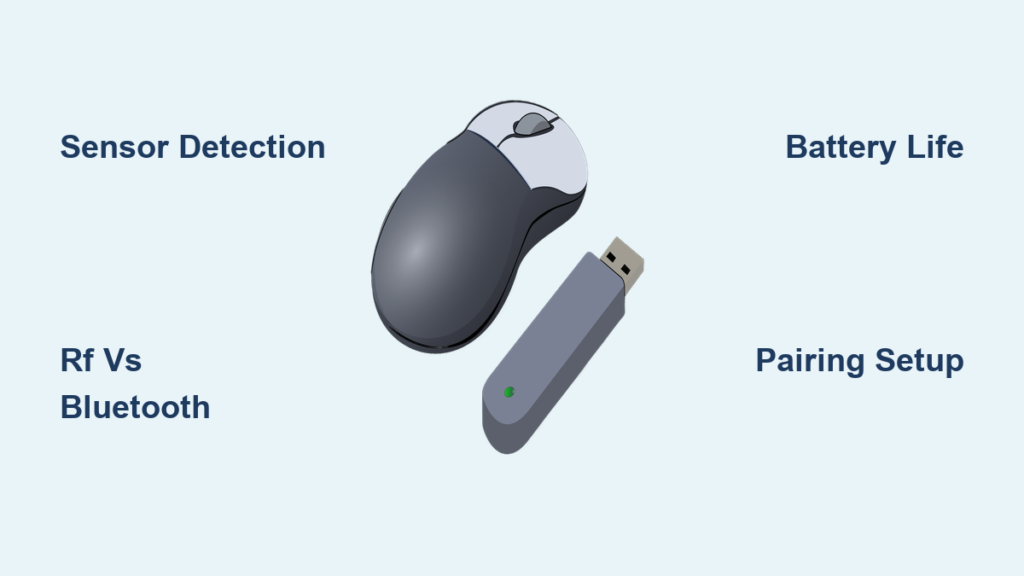
The transmitter sends the data using either 2.4 GHz RF or Bluetooth signals. If using RF, a USB dongle plugged into your computer receives the signal and forwards it to the operating system. With Bluetooth, the signal connects directly to your device’s internal radio.
Once received, the data is decoded and interpreted as cursor movement or a click. The entire process happens in milliseconds.
2.4 GHz RF vs. Bluetooth: What’s the Difference?

The two main wireless technologies offer distinct experiences based on performance, setup, and use case.
2.4 GHz RF: Speed and Stability
RF mice use a dedicated USB receiver operating in the 2.4 GHz frequency band. This creates a direct, low-latency link between the mouse and computer.
Key benefits include:
- Low Latency: Ideal for gaming and precision work.
- Stable Connection: Less prone to interference thanks to frequency hopping.
- Plug-and-Play: Most models work immediately after inserting the dongle.
- Battery Efficient: Typically offers longer battery life than Bluetooth.
The main drawback is that the dongle occupies a USB port, and losing it can render the mouse unusable.
Bluetooth: Port-Friendly and Versatile
Bluetooth mice connect directly to devices without a dongle, making them perfect for laptops and tablets with limited ports.
Key benefits include:
- No Dongle Needed: Frees up USB slots.
- Multi-Device Pairing: Switch easily between laptop, tablet, and phone.
- Universal Compatibility: Works with any Bluetooth-enabled device.
However, Bluetooth can have slightly higher latency and may struggle in crowded wireless environments.
Optical vs. Laser Sensors: Tracking Your Movement

The accuracy of your mouse depends on its sensor type, each suited to different surfaces and usage styles.
Optical Sensors: The Reliable Standard
Most wireless mice use LED-based optical sensors. They shine red light onto the surface and capture rapid image sequences with a tiny camera.
- Best On: Matte, non-reflective surfaces like mouse pads or wood.
- Avoid: Glass, mirrors, or glossy desks that reflect light too evenly.
- Pros: Affordable, accurate, and energy-efficient.
Laser Sensors: High Precision on More Surfaces
Laser sensors use infrared laser light, which penetrates deeper into surface textures.
- Tracks On: Wood, fabric, some glass, and even painted walls.
- Higher DPI: Allows for greater sensitivity for gaming or design work.
- Cons: Can be overly sensitive on certain surfaces, causing jitter.
Optical sensors remain the standard due to better consistency and lower power use.
Power Sources and Battery Management
Since wireless mice aren’t powered through a cable, battery performance is critical.
Battery Types and Lifespan
- Disposable (AA/AAA): Lasts months to years depending on usage. Easy to replace but creates waste.
- Rechargeable (Li-ion): Charged via Micro-USB or USB-C. Saves money long-term but requires regular charging.
High-end models can last six months to over a year on a single charge or set of batteries.
Power-Saving Features
To extend battery life:
- Auto-sleep mode turns off the mouse after inactivity.
- Physical power switch lets you disable it completely.
- Efficient sensors and radios reduce energy draw during operation.
Always turn off your mouse when not in use. This simple step can significantly extend battery life.
Pairing and Setup: Step-by-Step
Getting your mouse connected depends on its wireless type.
Connecting a 2.4 GHz RF Mouse
- Insert batteries or charge the device.
- Plug the USB dongle directly into your computer (avoid hubs).
- Turn the mouse on using the power switch.
- Wait for automatic recognition. Most operating systems detect it instantly.
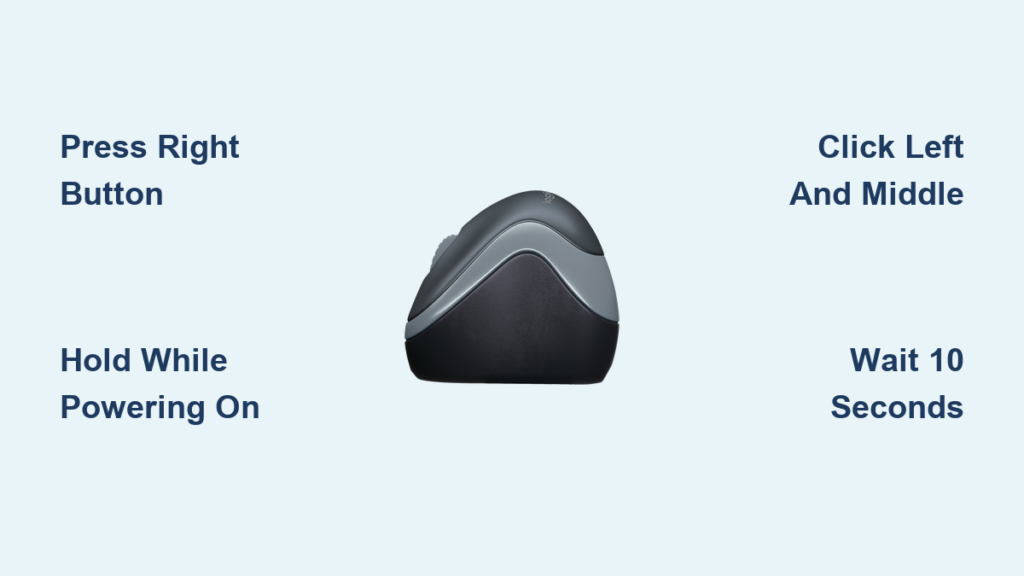
- Pair manually if needed by pressing a sync button on both devices.
If the mouse isn’t working, try a different USB port or reinstall drivers from the manufacturer’s website.
Pairing a Bluetooth Mouse
- Ensure Bluetooth is enabled on your device.
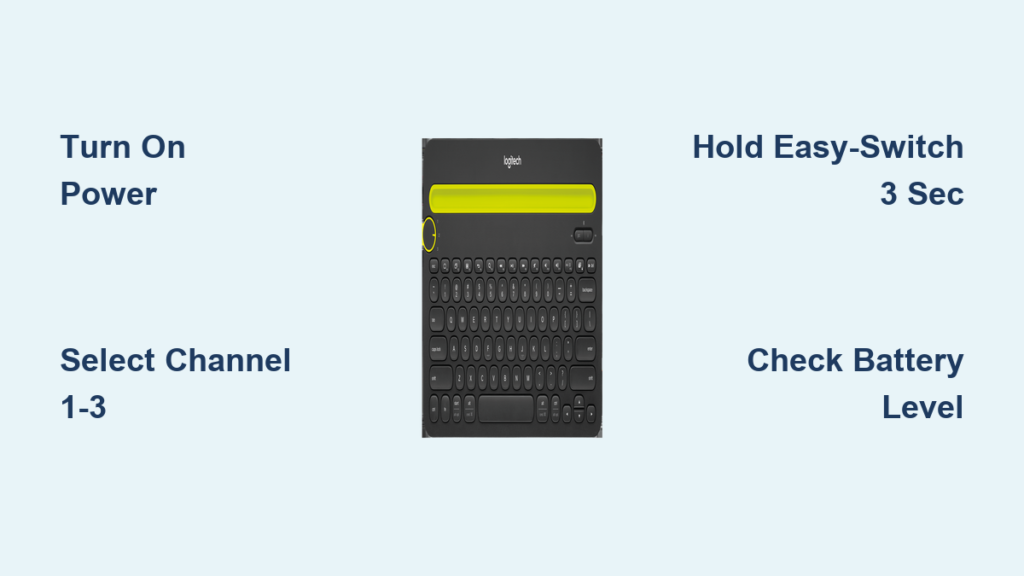
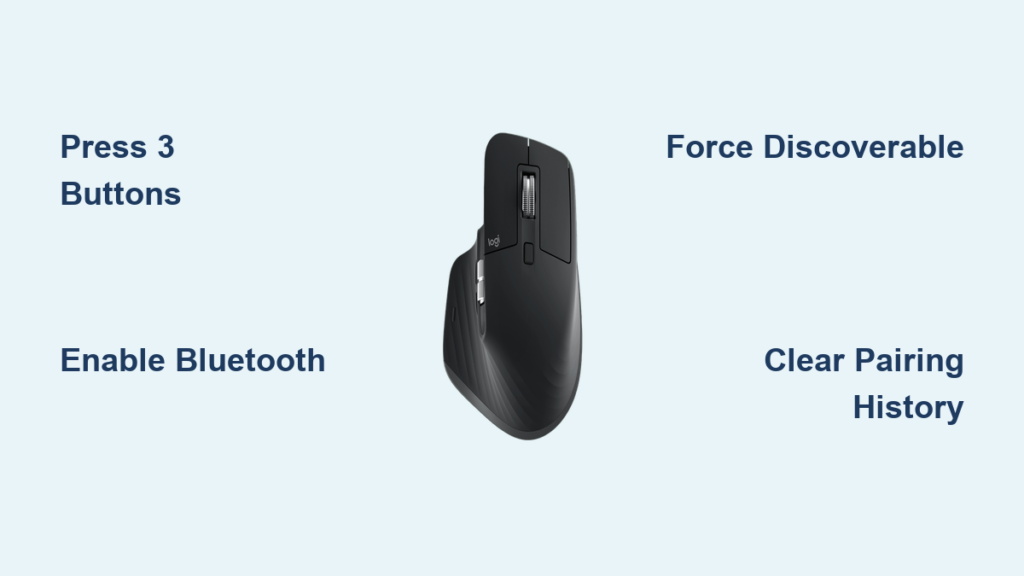
- Turn on the mouse and activate pairing mode (usually by holding a Connect button until an LED blinks).
- Go to Bluetooth settings on your computer or tablet.
- Select the mouse from the list of available devices.
- Wait for confirmation. The cursor should respond immediately.
If pairing fails, remove the device from your Bluetooth list and try again.
Troubleshooting Common Wireless Mouse Issues
Even reliable wireless mice can encounter problems. Here’s how to fix them quickly.
Mouse Not Responding
- Check power: Is the battery dead or the switch off?
- Re-pair or re-plug: Remove and reinsert the dongle or re-pair via Bluetooth.
- Test on another device: Helps isolate whether the issue is with the mouse or computer.
Cursor Jumps or Skips
- Clean the sensor: Use compressed air to blow dust from the lens.
- Change surface: Try a mouse pad instead of glass or carpet.
- Update drivers: Outdated firmware can cause erratic behavior.
Lag or Delay
- Reduce distance: Stay within 3 to 6 feet of the receiver.
- Eliminate interference: Keep away from routers, microwaves, or USB 3.0 devices.
- Switch connection mode: If using Bluetooth, try RF (or vice versa) for better stability.
Bluetooth Pairing Fails
- Confirm discovery mode: A flashing LED means it’s ready to pair.
- Restart Bluetooth service: Turn Bluetooth off and on.
- Forget and re-pair: Remove the mouse from saved devices and start fresh.
Gaming vs. Office vs. Travel Mice

Different users need different features, and wireless mice are tailored to specific needs.
Gaming Mice: Speed and Control
Designed for competitive play, gaming mice prioritize low latency and high polling rates up to 1000Hz.
- Use 2.4 GHz RF for near-instant response.
- Feature customizable DPI, programmable buttons, and RGB lighting.
- High-end models offer triple-mode connectivity: wired, RF, and Bluetooth.
Modern wireless gaming mice now rival wired ones in performance.
Productivity Mice: Comfort and Efficiency
Built for office and creative work, these emphasize ergonomics, battery life, and multi-device support.
- Silent clicks reduce noise in shared spaces.
- Bluetooth switching lets you toggle between laptop and tablet.
- Ergonomic shapes reduce wrist strain during long sessions.
Travel Mice: Compact and Portable
Small, lightweight, and often foldable, travel mice are made for on-the-go use.
- Dongle storage: Many have a compartment inside the mouse for the USB receiver.
- Bluetooth preferred: Saves USB ports on ultrabooks.
- Pocket-sized designs: Fit easily in bags or even pockets.
Advantages of Using a Wireless Mouse
Freedom of Movement
No cable means you can operate from across the desk or even stand up during a presentation. Presenters benefit greatly from walking around while controlling slides.
Clean, Tangle-Free Workspace
Eliminating cords reduces clutter and makes your setup look more professional. Fewer cables also mean less tripping hazard and easier cleaning.
Multi-Device Flexibility
Bluetooth mice can pair with laptops, tablets, and phones, letting you control multiple devices without switching hardware.
Portability and Convenience
Lightweight and cable-free, wireless mice are easier to pack and protect during travel.
Disadvantages to Consider
Battery Dependency
Even long-lasting models eventually run out of power. Running out mid-task can be disruptive, so always keep spares or charge regularly.
Potential Latency
While minimal in modern devices, some wireless mice (especially Bluetooth) may exhibit slight input lag. This is usually unnoticeable in office work but can affect gaming.
Interference and Range Limits
Wireless signals weaken with distance and can be disrupted by walls, metal objects, or other electronics. Staying within 3 to 6 feet of the receiver ensures optimal performance.
Higher Cost
Wireless mice cost more than wired ones due to added components like transmitters, batteries, and receivers.
Setup Complexity
Pairing and driver installation can be trickier than simply plugging in a wired mouse, especially for less tech-savvy users.
Maintenance Tips for Longevity
A well-maintained wireless mouse can last years.
Clean the Sensor Regularly
Dust and debris on the sensor lens cause skipping. Wipe it gently with a dry cloth or use compressed air every few weeks.
Keep Battery Contacts Clean
Corrosion from old batteries can damage contacts. Remove batteries during long storage and clean terminals with a cotton swab if needed.
Store Properly
Keep the mouse in a case or pouch when traveling. If using a dongle, store it in the mouse’s built-in compartment when available.
Update Firmware
Some brands offer software updates that improve performance and fix bugs. Check the manufacturer’s website periodically.
Frequently Asked Questions About Wireless Mice
Do wireless mice need WiFi to work?
No. Wireless mice use RF or Bluetooth radio waves, which are completely independent of WiFi or internet connections.
Can a mouse be both Bluetooth and RF wireless?
Yes. Many modern multi-mode mice support both 2.4 GHz via dongle and Bluetooth, letting you switch based on the device or environment.
Why is my wireless mouse lagging?
Common causes include low battery, excessive distance from the receiver, interference from other electronics, or outdated drivers.
Is wireless good for gaming?
Yes, provided it’s a high-quality 2.4 GHz model designed for gaming. These minimize latency to levels indistinguishable from wired mice.
How do I check if my wireless mouse is working?
Observe cursor movement, check LED indicators for battery and connection status, verify battery levels, and ensure the device shows as Connected in your operating system settings.
Do wireless mice work on any surface?
Most work well on non-reflective surfaces like mouse pads or wood. Optical sensors struggle on glass or glossy desks, while laser sensors handle more surfaces but may cause jitter on certain textures.
Key Takeaways on How a Wireless Mouse Works
A wireless mouse combines motion-sensing technology, wireless signal transmission, and efficient power management to deliver seamless cursor control without cables. Whether you choose 2.4 GHz RF for speed or Bluetooth for versatility, the right mouse depends on your needs, whether that’s gaming, office work, or travel.
Understanding how these devices function helps you troubleshoot issues, maximize battery life, and make informed purchasing decisions. As wireless technology continues to evolve, the gap between wired and wireless performance keeps narrowing, making cord-free computing smoother than ever.
Next time you glide your mouse across the desk, take a moment to appreciate the smart engineering working quietly beneath your fingertips.