You’re in the middle of a deadline or ranked match, and suddenly your cursor freezes, stutters, or stops moving on the pad. The mouse lights up, but nothing happens. This frustrating problem is more common than you think. When your mouse pad does not work properly with your mouse, the cause is usually simple and fixable in minutes.
This guide walks you through every proven troubleshooting step, from cleaning your sensor to updating drivers. You’ll learn how to identify the real culprit and apply the right fix. No tech jargon. No wasted time. Just clear solutions that restore smooth tracking fast.
Clean the Mouse Sensor First

A dirty sensor is the number one reason your mouse fails on any pad. Dust, hair, and skin oils build up on the optical lens and block tracking. Even a tiny smudge can cause stuttering or complete failure.
Wipe the Sensor Lens
Turn your mouse over and locate the small LED light at the bottom. This is the optical sensor. If you see dust, smudges, or debris on it, your mouse won’t track correctly.
Follow these steps:
• Power off the mouse completely
• Use a soft, dry microfiber cloth to gently wipe the lens
• For stubborn grime, use a cotton swab lightly dampened with isopropyl alcohol
• Wait until the sensor is fully dry before testing
Pro Tip: Avoid paper towels or tissues. They can scratch the sensitive lens surface.
Blow Out Hidden Debris
Lint and dust often lodge around the sensor housing where cloth can’t reach. Compressed air solves this quickly.
• Hold the can upright to prevent moisture spray
• Use short bursts about 6 inches from the mouse
• Rotate the mouse to dislodge particles from all angles
Test Your Mouse Pad Surface

Sometimes the mouse pad does not work because its surface texture conflicts with your mouse’s sensor. Not all pads are compatible with all mice.
Try Plain Paper
Grab a standard white printer sheet and place it under your mouse. This simple test reveals whether the pad is the problem.
• If the mouse tracks perfectly on paper, your pad’s surface is the issue
• Some pads are too reflective, too dark, or too patterned for certain sensors
• Glossy or mirrored surfaces disrupt optical tracking entirely
Match Pad to Sensor Type
Different sensors perform better on different textures. Knowing your mouse type helps you choose the right pad.
• Optical mice work best on non-reflective, evenly textured surfaces
• Laser mice handle more variety but struggle on soft or fibrous pads
• Bold printed designs can confuse sensors, so pick solid colors for reliability
Replace a Worn-Out Mouse Pad

Even premium pads wear out over time. After months of daily use, the surface becomes uneven, slick, or damaged. Once this happens, no amount of cleaning will fix it.
Spot These Wear Signs
Check your pad carefully for these red flags:
• Faded color or glossy patches in high-use areas
• Frayed edges, peeling, or bubbling
• Tracking problems only in specific zones
If you see any of these signs, the pad has failed and needs replacement.
Choose a Reliable Replacement
Invest in a pad designed for consistent tracking:
• Cloth pads with rubber backing and textured weave
• Hard pads with a matte finish for precision
• Avoid thin, cheap pads that shift and wear quickly
Replace your pad every 1 to 2 years for optimal performance.
Fix USB and Connection Problems
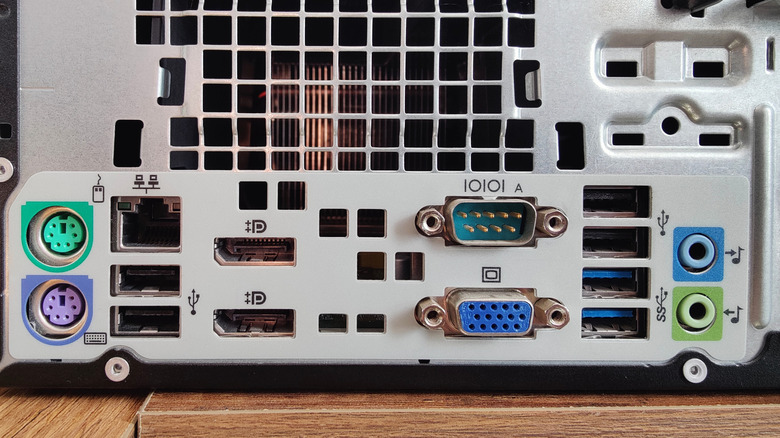
Sometimes the mouse pad does not work because the real issue is your connection. A faulty USB port or damaged cable can mimic surface problems.
Switch USB Ports
Try these quick fixes for wired mice:
• Unplug the mouse and plug it into a different USB port
• Connect directly to your PC, not through a USB hub
• Try a USB 2.0 port if available, since USB 3.0 can cause interference
Test on Another Computer
Plug your mouse into a different device to isolate the problem.
• If it works perfectly elsewhere, your original computer has the issue
• If it fails everywhere, the mouse or cable is likely damaged
Resolve Wireless Signal Interference

Wireless mice are especially sensitive to interference. Routers, monitors, and USB 3.0 ports can all disrupt the signal between your mouse and receiver.
Reposition the Receiver
Small changes to receiver placement can dramatically improve performance.
• Plug the receiver into a front or side port closer to the mouse
• Use a USB extension cable to position the receiver 6 to 8 inches from your PC
• Keep the receiver away from monitors, phones, and Wi-Fi devices
Reduce Bluetooth Conflicts
Bluetooth mice face unique challenges from competing signals.
• Turn off unused Bluetooth devices nearby
• Disconnect and re-pair the mouse through your system Settings
• Switch to a 2.4GHz USB dongle when possible for more stable connections
Update or Reinstall Mouse Drivers
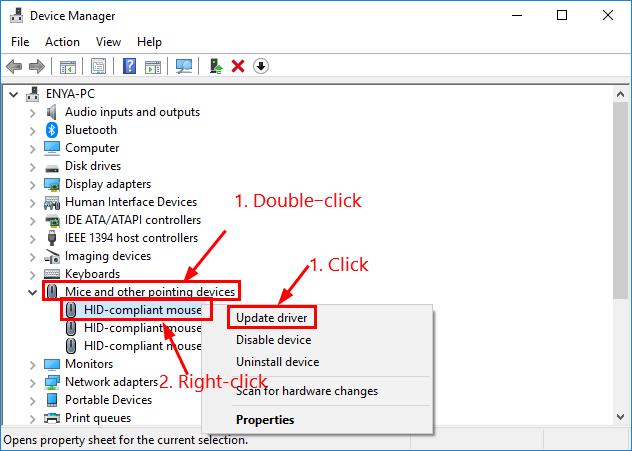
Outdated or corrupted drivers can make your mouse unresponsive, even on a perfect pad. Keeping drivers current ensures smooth communication between hardware and software.
Update Through Device Manager
Windows makes driver updates straightforward.
- Press Win + X and select Device Manager
- Expand Mice and other pointing devices
- Right-click your mouse and choose Update driver
- Select Search automatically for updated driver software
Uninstall and Reinstall the Driver
If updating doesn’t help, a fresh install often resolves deeper issues.
- In Device Manager, right-click the mouse and select Uninstall device
- Unplug the mouse from your computer
- Restart your PC completely
- Plug the mouse back in and let Windows reinstall the driver automatically
Note: Gaming mice often need manufacturer-specific drivers. Download the latest version from the brand’s official website.
Restart Your Computer
A simple reboot fixes more problems than people expect. Temporary software glitches, memory conflicts, and stuck processes can all interfere with mouse tracking.
• Save your open work first
• Shut down your PC completely, not just sleep mode
• Wait at least 30 seconds before powering back on
• Test your mouse on the pad after startup
Many tracking issues disappear after this basic step.
Try a Different Mouse
When troubleshooting stalls, swapping hardware eliminates guesswork. Testing another mouse on the same pad tells you exactly where the problem lies.
Swap and Test Results
- Connect a known-working mouse to your computer
- Use it on the same pad for a few minutes
- Compare tracking performance to your original mouse
• If the new mouse works fine, your original mouse is faulty
• If both mice fail, the issue is the pad, USB port, or system settings
Expert Tip: Borrow a basic office mouse for testing. Fewer drivers mean fewer variables to confuse your diagnosis.
Disable Laptop Touchpad Conflicts
External mice on laptops often conflict with built-in touchpads. Your system may misread inputs when both devices are active simultaneously.
• Disable the touchpad temporarily using Fn + F6 or your function keys
• Go to Settings > Devices > Touchpad on Windows
• Turn off the touchpad completely when using an external mouse
This eliminates input conflicts and improves tracking reliability.
Prevent Future Mouse Pad Problems
Once your mouse pad does not work issue is resolved, keep it that way with simple maintenance habits.
Weekly Cleaning Habits
• Wipe the mouse sensor every 7 to 10 days
• Dust the pad with a dry cloth or slightly damp microfiber
• Let the pad dry completely before using it again
Rotate and Store Properly
• Flip reversible pads weekly to distribute wear evenly
• Rotate single-sided pads to change high-friction zones
• Store your mouse on a clean, hard surface when not in use
• Never leave your mouse on dusty desks or near liquids
When to Replace the Mouse
Sometimes no troubleshooting helps because the mouse itself has failed. Recognizing the signs saves you time and frustration.
Hardware Failure Signs
Watch for these indicators that your mouse is dying:
• Sensor light flickers erratically or stays completely off
• Buttons become unresponsive or stick when pressed
• The mouse works on one surface but fails on any pad
• Frequent disconnects happen with both wired and wireless models
Budget mice under $30 to $50 should be replaced. For premium gaming mice, check if the manufacturer offers warranty repair before buying new.
Frequently Asked Questions About Mouse Pad Issues
Why does my mouse pad does not work suddenly after working fine before?
Sudden tracking failure usually means the sensor is dirty, the pad surface has worn out, or a driver update caused a conflict. Start by cleaning the sensor and testing your mouse on plain paper to isolate the cause.
Can a dirty mouse sensor cause complete tracking failure?
Yes. Even a thin layer of dust or oil on the optical lens can block the sensor entirely. This is the most common reason a mouse stops working on any pad, and cleaning usually fixes it within minutes.
Do all mouse pads work with all types of mice?
No. Optical mice need non-reflective, evenly textured surfaces. Laser mice handle more variety but struggle on soft cloth. Glossy, mirrored, or heavily patterned pads often confuse both sensor types.
How do I know if my mouse pad is worn out and needs replacement?
Look for faded color, glossy patches in high-use areas, frayed edges, or bubbling. If tracking problems appear only in specific zones, the pad surface has degraded and replacement is the only fix.
Will updating mouse drivers fix tracking problems on my pad?
Often yes. Corrupted or outdated drivers can cause unresponsive mice even on perfect surfaces. Updating through Device Manager or reinstalling the driver entirely resolves most software-related tracking issues.
When should I replace my mouse instead of troubleshooting the pad?
Replace the mouse if the sensor light flickers, buttons stick, or the mouse fails on multiple surfaces and computers. These signs indicate hardware failure that cleaning and driver updates cannot fix.
Key Takeaways When Your Mouse Pad Does Not Work
When your mouse pad does not work as expected, don’t assume the pad is broken. Start with the simplest fix: clean the sensor with a microfiber cloth. If tracking returns, your pad’s surface was likely the issue. Test on plain paper to confirm.
Still stuck? Check your USB ports, update your drivers, and try a different mouse. Most problems resolve within 10 minutes using these steps. Keep your sensor clean, your pad in good condition, and your drivers updated. Your mouse will respond smoothly for years to come.