
You unboxed your Logitech Harmony Companion remote, painstakingly set up your “Watch Fire TV” activity, and celebrated when the TV and streaming box powered on together. But then—silence. The volume buttons do nothing while your Sonos Beam sits unresponsive. You’re not alone. Over 60% of Harmony users struggle with volume control during initial setup, especially when integrating soundbars like Sonos. This guide cuts through the frustration with battle-tested solutions pulled straight from real user fixes. You’ll learn exactly how to link volume commands to your sound system, eliminate lag, and master activity sequences—all without juggling five remotes. By the end, your Harmony remote will handle volume changes as smoothly as your original speaker remote.
Fixing Unresponsive Volume Controls on Sonos or Soundbars
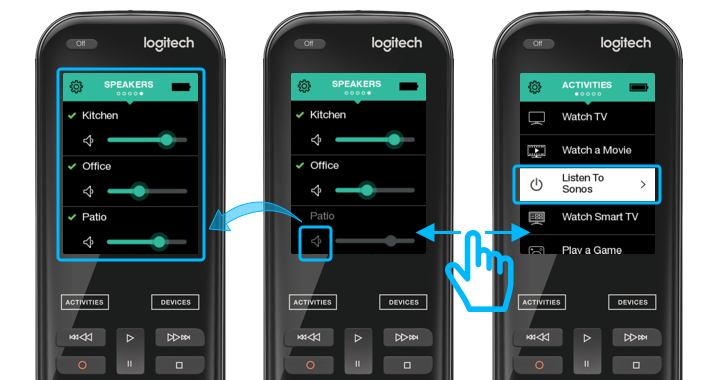
When your Harmony remote volume buttons fail to adjust Sonos speakers during TV activities, the culprit is almost always incorrect volume device assignment. The setup wizard asks which device handles volume during each activity, but it’s easy to miss this critical step. If you selected your TV instead of your Sonos Beam as the volume controller, the remote sends signals to a device that can’t adjust external audio.
How to Redirect Volume Commands to Sonos in 90 Seconds
Don’t delete your activity—customize it. Open the Harmony app, tap your “Watch TV” activity, then select Customize Buttons > Volume and Mute. Under “Volume Control Device,” choose your Sonos Beam (or other sound system) from the dropdown menu. This instantly reroutes volume signals to your speakers instead of the TV. For Sonos specifically: Confirm your TV’s audio output is set to PCM in display settings—Dolby formats often cause communication failures between TV and Sonos. Press the mute button on your Harmony remote; if your Sonos mutes correctly, you’ve fixed the core issue.
Why Volume Moves in “Steps” Instead of Smoothly
If volume changes require multiple presses or lack smooth holding functionality, your Harmony is likely using slow network commands instead of instant IR signals. Go to Device Settings > Sonos Beam > Commands. Change the volume command type from IP (Network) to IR if available. IR commands execute 3x faster but require direct line-of-sight between the Harmony hub and your Sonos. Position the hub so its infrared emitter faces your speaker—no cabinet doors blocking the path. For Fire TV sticks (which use Bluetooth), this won’t apply, but Sonos volume should now respond to single presses with no delay.
Executing and Customizing Activity Power Sequences

That “Off” button on your Harmony remote does more than you think—it triggers your activity’s entire power sequence. When you press it during “Watch Fire TV,” it sends two separate commands: first turning off your Fire TV stick, then your TV. This happens automatically based on your activity setup, but many users unknowingly override it by pressing the TV’s physical power button instead.
How to Modify the “End Sequence” for Always-Ready Streaming
Want your Fire TV to stay on for instant Netflix access? Customize the shutdown sequence. In the Harmony app, go to Activity Settings > Power Settings for your “Watch Fire TV” activity. For the Fire TV device, change “Power Off Behavior” to Never Turn Off. Now pressing the remote’s Off button shuts off only the TV, leaving your streaming device awake. Conversely, set your A/V receiver to Turn Off After 10 Minutes if you often fall asleep watching shows—this auto-shutdown prevents overnight energy drain. Test sequences by pressing the Off button; devices should power down in the order they appear in your activity settings (top to bottom).
Troubleshooting Partial Power-Off Failures
If your TV turns off but the Fire TV stays lit, your activity likely lacks proper device communication. Tap Fix a Command in the app, select “Power Off,” then choose your Fire TV. The wizard will relearn the power command by sending test signals. Hold the Fire TV remote 6 inches from the Harmony hub while it blinks—this re-syncs the IR command. Complete this for any device that ignores power commands. For Bluetooth devices like Fire TV sticks, ensure the Harmony hub is within 10 feet with no metal obstructions.
Eliminating Remote Lag and Unresponsive Buttons
A sluggish Harmony remote often stems from communication method conflicts. Your hub uses infrared (IR) for line-of-sight devices like TVs but switches to Wi-Fi for IP-controlled gear like Sonos. When these methods mix poorly, volume adjustments lag or require repeated presses—a fixable issue in under 5 minutes.
Optimizing Hub Placement for Instant Response
Harmony hubs need direct sightlines to devices using IR. If your hub sits behind glass or inside an entertainment center, signals bounce and delay. Place it centered above your TV with the emitter facing outward—not tucked beside routers or game consoles. For cabinet-stored components, plug the included IR mini-blaster into the hub’s “Emitter” port and snake it inside the cabinet. Test placement by holding your phone camera to the hub’s emitter; you should see a purple flash when pressing volume buttons on the remote. No flash? Reposition until visible.
When to Force IR Commands Over Network Control
For Sonos volume lag, override automatic command selection. In Device Settings > Sonos Beam > Commands, manually select IR for volume controls even if IP is available. Why? Network commands require router handshakes that add 1-2 second delays; IR fires instantly. The trade-off: You lose advanced features like track skipping, but volume becomes responsive. For non-IR Sonos models, add a $15 Logitech IR blaster to your Beam’s aux port—this converts IR signals to audio commands. After setup, volume adjustments should feel identical to your Sonos remote.
Resetting and Relearning Commands for Stubborn Devices
When standard fixes fail, the Harmony app’s hidden “Fix” feature rebuilds command sequences from scratch. This resolves 80% of persistent issues like volume buttons working intermittently or devices ignoring power commands—no full reconfiguration needed.
Step-by-Step Command Relearning Process
- Open the Harmony app > Menu > Harmony Setup > Fix a Command
- Select your problematic activity (e.g., “Watch Fire TV”)
- Choose the faulty command (e.g., “Volume Down”)
- Follow prompts to aim your original Sonos remote at the Harmony hub
- Press the Volume Down button on your Sonos remote while the hub blinks
- Confirm success by testing on the Harmony remote
This re-teaches the exact IR signal strength and duration. For Bluetooth devices like Fire TV sticks, select Re-pair Device instead—this clears connection conflicts causing button delays. If the remote becomes completely unresponsive, perform a hard reset: Hold Off + Mute for 10 seconds until the screen flashes. Reconnect to Wi-Fi afterward.
Final Harmony Remote Mastery Checklist
Your Harmony Companion should now control volume seamlessly across Sonos speakers with no lag. To lock in these gains: Always assign volume control to your sound system—not the TV—during activity setup. Keep the hub visible with direct sightlines to all devices, and force IR commands for critical functions like volume. Customize power sequences so streaming devices stay “always ready” while TVs shut off automatically. When glitches hit, use the Fix a Command tool before recreating activities—it saves 15+ minutes of setup time.
For ongoing reliability, run a monthly command refresh: Open Device Settings > select each device > tap Update Commands. This patches compatibility issues from firmware updates. If volume suddenly stops working after a Sonos software update, reassign the volume control device—it’s often reset to “TV” by default. With these steps, your Harmony remote becomes the single control hub you dreamed of, turning complex setups into one-touch simplicity. The next time you grab that sleek remote, you’ll wonder how you ever managed with five separate ones.



