
You’re trying to customize your MX Master 3S mouse settings when suddenly Logitech Options+ displays the dreaded “Backend Connection Problem” error. Your custom button mappings won’t save, the software freezes, and you’re left staring at an unresponsive interface. This frustrating issue affects thousands of Logitech users daily, preventing essential customization of mice, keyboards, and other peripherals. The good news is that most Logitech backend connection problems can be resolved quickly with the right approach—no technical expertise required. In this guide, you’ll discover proven, step-by-step solutions that work for both Windows and macOS systems to restore your Logitech Options+ functionality immediately.
Why Your Logitech Options+ Backend Connection Keeps Failing
Logitech Options+ relies on a background process called Logi Agent to communicate with Logitech’s servers. When this connection fails, you lose the ability to save settings, update firmware, or customize your devices. Common triggers include security software interference, network configuration issues, corrupted installation files, and certificate problems—especially on macOS. The most frequent cause is the Logi Agent process freezing or crashing, which happens after system updates or when other applications conflict with Logitech’s background services.
Immediate Fix: Restart the Logi Agent Process (Windows)
For most Windows users, restarting the core communication service resolves the backend connection problem instantly:
- Press Ctrl + Shift + Esc to open Task Manager
- Go to the Processes tab and locate logioptionsplus_agent.exe or Logi Options+ Agent
- Right-click the process and select End Task (you may need to click “More details” first)
- Wait 10 seconds—Options+ should automatically restart the agent
Pro Tip: If the error persists, create a batch file to automate this process. Open Notepad, paste these commands, save as FixLogi.bat, and run it whenever the error appears:
@echo off

taskkill /F /IM logioptionsplus_agent.exe

timeout /t 3 /nobreak

start "" "C:\Program Files\LogiOptionsPlus\logioptionsplus_agent.exe"
Run Logi Options+ with Administrator Privileges
Many backend connection issues stem from permission problems:
- Right-click your Logi Options+ shortcut
- Select Run as administrator
- If this works, make it permanent: Right-click the shortcut → Properties → Compatibility → Check “Run this program as an administrator”
Warning: Never disable your antivirus completely as a permanent solution—this creates security risks. Instead, add Logitech Options+ to your antivirus exceptions list.
macOS-Specific Solutions for Certificate Issues
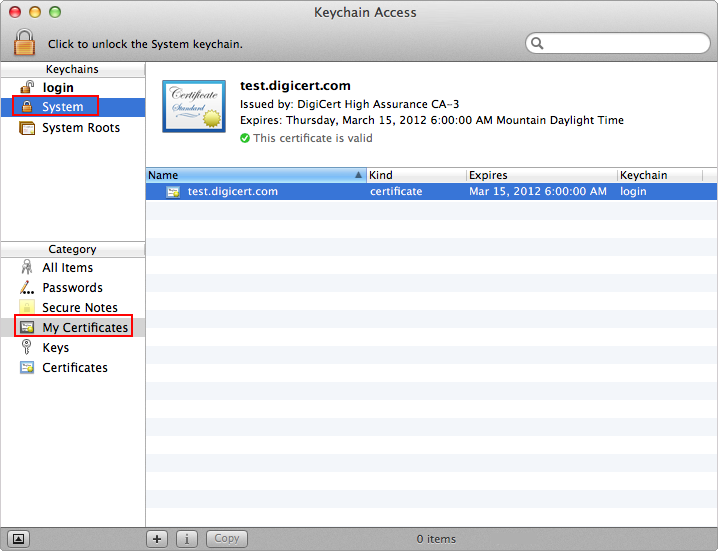
Apple’s strict security policies often cause Logitech backend connection problems on Mac systems. The most common culprit is expired or unrecognized security certificates that prevent Options+ from connecting to Logitech’s servers.
Install Logitech’s Official Certificate Fix
Logitech provides a dedicated solution for macOS certificate issues:
- Download the official certificate fix tool from Logitech’s support page
- Open the downloaded file and follow the installation prompts
- Restart your Mac and relaunch Logi Options+
Critical Step: Always use the offline installer for Logitech Options+ on macOS—never the App Store version. The auto-updating App Store version frequently causes certificate conflicts.
Complete macOS Reinstallation Process
When certificate fixes don’t work, perform a thorough cleanup:
-
Close all Logitech processes via Terminal:
sudo pkill -9 -f logioptionsplus

sudo pkill -9 -f logioptionsplus_agent

launchctl unload /Library/LaunchAgents/com.logi.boltplus.agent.plist -
Delete all residual files:
sudo rm -rf ~/Library/Application\ Support/LogiOptionsPlus

sudo rm -rf /Library/Application\ Support/Logi

sudo rm -rf ~/Library/Preferences/com.logi.*

sudo rm -rf ~/Library/Caches/com.logi.* -
Download and install the offline installer from Logitech’s website
Firewall and Antivirus Conflicts Causing Connection Failures

Security software is the second most common cause of Logitech backend connection problems. Your firewall or antivirus may be blocking Options+ from communicating with Logitech’s servers.
Add Logitech to Firewall Exceptions (Windows)
- Open Windows Security → Firewall & network protection
- Click “Allow an app through firewall”
- Click Change settings (admin rights required)
- Click Allow another app
- Browse to
C:\Program Files\LogiOptionsPlus\ - Add both
logioptionsplus.exeandlogioptionsplus_agent.exe - Check both Private and Public networks
Antivirus-Specific Configuration
Different security suites require specific configurations:
- McAfee: Add Logitech Options+ to Real-Time Scan Exclusions
- Norton: Go to Settings → Firewall → Program Control → Add Logi Options+
- Kaspersky: Settings → Threats and Exclusions → Manage Exclusions → Add Logitech folder
- Windows Defender: Add folder exclusion for
C:\Program Files\LogiOptionsPlus
Pro Tip: Temporarily disable your antivirus to test if it’s causing the issue. If Options+ works immediately after disabling, you’ve found your culprit—re-enable and configure the exceptions properly.
Network Troubleshooting for Logitech Backend Connection Problems
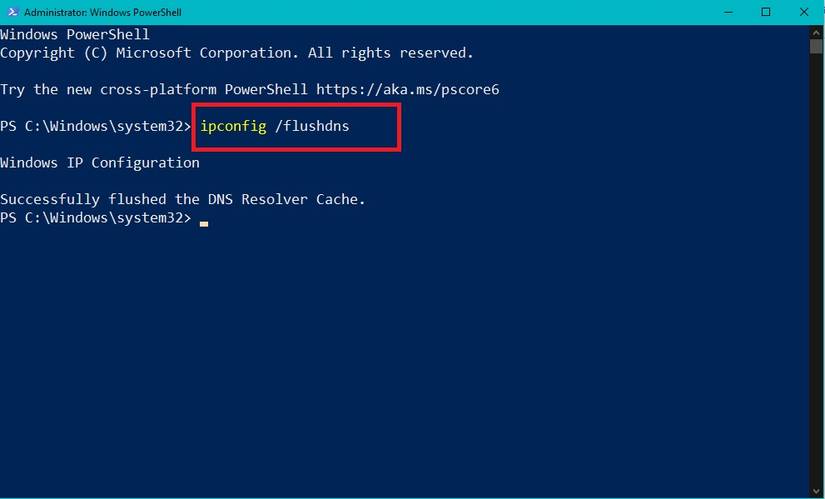
Network configuration issues can prevent Logitech Options+ from reaching its servers, especially on corporate networks with strict firewalls.
Flush DNS and Reset Network Stack (Windows)
- Open Command Prompt as Administrator
- Run these commands sequentially:
ipconfig /flushdns

netsh winsock reset

netsh int ip reset - Restart your computer—this step is crucial
Change DNS Servers to Google’s Public DNS
- Go to Control Panel → Network and Sharing Center
- Click your active connection → Properties
- Select Internet Protocol Version 4 (TCP/IPv4) → Properties
- Choose “Use the following DNS server addresses”
- Enter:
– Preferred DNS server:8.8.8.8
– Alternate DNS server:8.8.4.4 - Click OK and restart
Warning: On corporate networks, contact your IT department before changing DNS settings. They may need to whitelist hub.logitech.com and related domains.
Complete Reinstallation Guide for Windows and macOS
When simpler fixes fail, a clean reinstallation often resolves persistent Logitech backend connection problems.
Windows Complete Uninstall Process
- Uninstall via Control Panel → Programs and Features
- Delete these folders:
–C:\Program Files\LogiOptionsPlus
–C:\Users\[YourName]\AppData\Local\Logi
–C:\Users\[YourName]\AppData\Roaming\Logi - Press Win+R, type
regedit, and delete these registry keys:
–HKEY_CURRENT_USER\Software\Logitech
–HKEY_LOCAL_MACHINE\SOFTWARE\Logitech - Restart your computer
- Download and install the offline installer from Logitech’s website
Critical Step: After reinstalling, immediately configure firewall exceptions before launching Options+ for the first time.
Using Legacy Logitech Options When Options+ Fails
If you’ve tried everything and still face Logitech backend connection problems, switch to the more stable legacy software:
- Download Logitech Options (not Options+) from Logitech’s support page
- Uninstall Logitech Options+ completely
- Install the legacy Options software
Key Advantage: The legacy software doesn’t require constant cloud connectivity, making it more reliable for basic customization needs. While it lacks some Options+ features, it supports most MX series devices with stable button remapping and profile management.
Preventing Future Backend Connection Problems
Avoid recurring Logitech backend connection issues with these proactive measures:
Create a Scheduled Task to Restart Logi Agent
- Open Task Scheduler
- Create Basic Task → Name it “Fix Logi Connection”
- Set trigger: Daily, repeat every 4 hours
- Action: Start a program
- Program:
C:\Program Files\LogiOptionsPlus\logioptionsplus_agent.exe - Check “Run with highest privileges”
Disable Automatic Updates
Automatic updates often trigger backend connection problems:
- Open Logitech Options+ → Settings → Advanced
- Uncheck “Automatically check for updates”
- For Windows registry method (advanced users):
– Open Registry Editor
– Navigate toHKEY_LOCAL_MACHINE\SOFTWARE\Logitech\LogiOptionsPlus
– Create new DWORD value:DisableAutoUpdate=1
Pro Tip: Check for updates manually once a month rather than allowing automatic background updates that can disrupt your workflow.
When all else fails, contact Logitech Support with detailed logs. Press Ctrl+Shift+L in Options+ to generate a support log file, which contains critical information about your specific backend connection problem. Most issues get resolved within 24 hours when you provide these logs—they show exactly where the connection is failing in the communication chain between your computer and Logitech’s servers.
The most reliable long-term solution for persistent Logitech backend connection problems is using the legacy Options software combined with scheduled agent restarts. This approach eliminates the cloud dependency while maintaining customization capabilities for your Logitech devices. Remember that 95% of these issues stem from security software conflicts or network configuration problems—focus your troubleshooting there first before attempting more complex solutions.



