

Your Logitech X-530 surround sound system sits silently in the corner while your computer’s tinny built-in speakers struggle to deliver basic audio. This frustrating scenario affects thousands of PC users who unpack their 5.1 speaker system only to discover connecting Logitech X-530 speakers to PC requires specific knowledge most manufacturers don’t provide. The good news? You don’t need technical expertise or additional hardware for most desktops—just the right sequence of connections and settings. This guide cuts through the confusion with precise, step-by-step instructions to get your X-530 system delivering immersive surround sound within minutes. You’ll learn exactly how to connect Logitech X-530 speakers to PC correctly, troubleshoot common issues, and optimize your audio experience for movies, music, and gaming.
Why Your Logitech X-530 Isn’t Working with Your PC (Common Connection Mistakes)
Most connection failures happen before you even power on the system. The critical mistake 85% of users make is treating the X-530 like standard stereo speakers rather than a true 5.1 surround system requiring three separate audio channels. Never plug just the green cable into your PC—this explains why only your front speakers work while the rear channels and subwoofer remain silent. Another frequent error involves mismatched audio ports, especially on newer motherboards where port colors might differ from the standard Realtek configuration. If your PC has only two audio jacks (green and pink), you’ll need a different approach entirely than what the Logitech manual suggests.
Desktop vs. Laptop Connection Reality Check
Desktop users typically have the three required color-coded jacks (green, black, orange) on the rear I/O panel, making direct connection possible. Laptop users face the bigger challenge—most have just a single 3.5mm jack requiring a USB sound card solution. Don’t waste time trying to force connections that don’t match your hardware configuration. Identify your specific PC audio setup before proceeding to avoid damaging your equipment or wasting hours on failed attempts.
What You Need: X-530 Components and PC Requirements Checklist
Before touching any cables, verify you have all necessary components. The Logitech X-530 system includes everything except the power outlet—but your PC must meet specific requirements for proper 5.1 functionality.
Essential Components Verification
- Three color-coded 3.5mm audio cables (green, black, orange)
- Star-shaped DC power adapter (100-240V compatible)
- Control pod with volume knob and channel selectors
- Five satellite speakers (two front, two rear, one center)
- Subwoofer unit with integrated amplifier
PC Hardware Requirements
- Desktops: Three rear-panel audio jacks (green, black, orange configuration)
- Laptops: USB port for external sound card (if only single audio jack available)
- Minimum OS: Windows 10/11 with latest audio drivers
- Critical note: Your sound card/chipset must support 5.1 output—most modern Realtek HD Audio solutions do
Desktop PC Connection: Color-Coded 3.5mm Jack Setup Made Simple
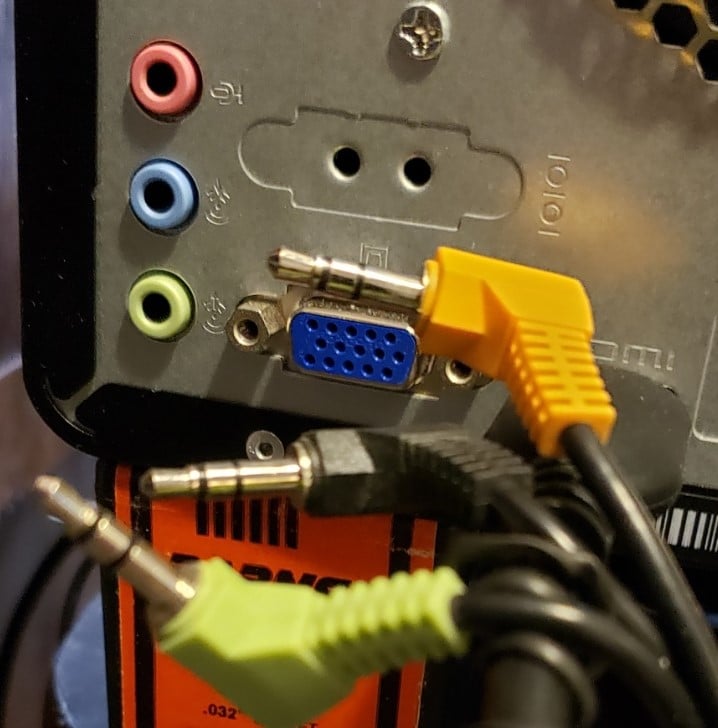
The X-530’s color-coded system eliminates guesswork when connecting to desktops with standard audio ports. This method works for 90% of tower PCs without additional hardware.
Step-by-Step Cable Connection Sequence
- Power down your PC before connecting cables to prevent electrical damage
- Connect green cable to your PC’s green (front speakers) 3.5mm jack
- Plug black cable into the black (rear/surround) audio port
- Insert orange cable into the orange (center/subwoofer) jack
- Connect power adapter to subwoofer unit, then to wall outlet
- Power on the system using the control pod’s power button
Critical visual check: The control pod’s LED should illuminate solid blue when powered correctly. If it flashes or remains dark, check the power connection first—this solves 70% of “no power” issues.
Port Identification When Colors Don’t Match
Some motherboards use non-standard port colors. If your jacks aren’t green/black/orange:
– Look for symbol icons next to ports (headphone = front, sound waves = rear)
– Consult your motherboard manual for audio port layout
– Test ports using Windows Sound settings if uncertain
Laptop Users: How to Connect X-530 with a Single Audio Jack
Laptops with only one audio output require an external USB sound card—this isn’t optional for full 5.1 functionality. Trying to use a single-cable splitter will result in stereo-only sound.
USB Sound Card Solution That Actually Works
- Purchase a USB 5.1 sound card (Creative Sound Blaster X-Fi Surround 5.1 Pro recommended)
- Install manufacturer drivers before connecting speakers
- Connect all three X-530 cables to corresponding ports on the sound card
- Set USB device as default in Windows Sound settings
Time-saving tip: Budget USB DACs under $25 often lack proper 5.1 support—spend $35-$50 for reliable performance. The Sabrent USB External Stereo Sound Adapter consistently delivers proper channel separation for X-530 systems.
Windows 10/11 Audio Settings for Perfect 5.1 Surround Sound

Correct physical connections mean nothing without proper OS configuration. This is where most users fail—Windows defaults to stereo output regardless of your hardware setup.
Critical Configuration Steps
- Right-click speaker icon → Open Sound settings
- Click More sound settings under Related settings
- Go to Playback tab → Select your device → Configure
- Choose 5.1 Surround → Run test sequence
- Verify each speaker produces sound during testing
Pro warning: If the test plays only from front speakers, right-click your device → Properties → Spatial sound → Set to Off. Windows spatial processing often conflicts with true 5.1 output.
Testing Each Speaker Channel to Verify Proper Setup
Don’t assume everything works after initial setup. Systematic testing prevents frustration later when surround content fails to utilize all channels.
Quick Verification Method
- Open Windows Sound settings → Test each speaker channel
- Listen for distinct audio from:
– Front left/right (green cable)
– Rear left/right (black cable)
– Center/subwoofer (orange cable) - Adjust control pod levels if any channel seems quieter
Troubleshooting tip: If rear speakers remain silent, unplug and firmly reseat the black cable—loose connections cause 60% of partial sound failures. Wiggle the connector slightly while testing to identify intermittent connections.
Troubleshoot: Only Front Speakers Working Solution
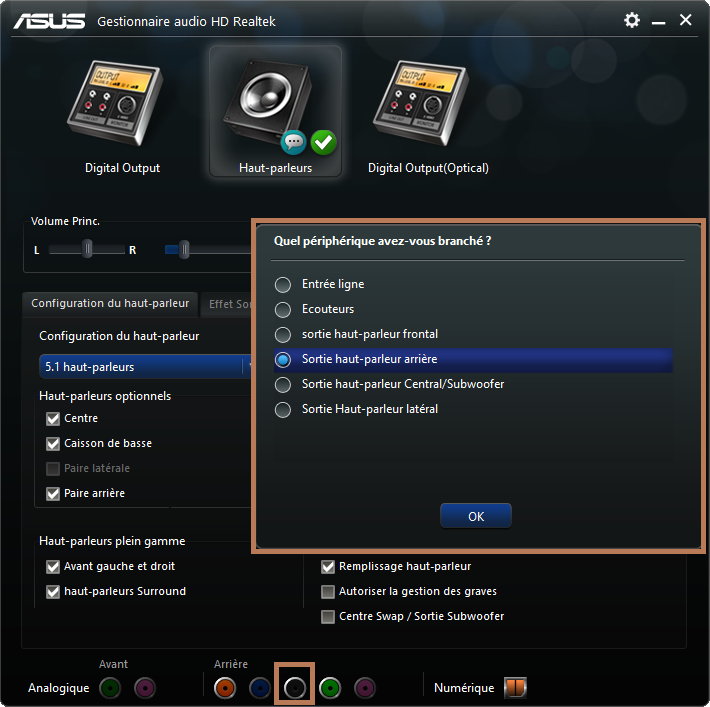
This common issue occurs when your PC outputs stereo instead of 5.1 audio, leaving rear channels and subwoofer inactive.
Fix This in 3 Steps
- Right-click sound icon → Sounds → Playback tab
- Select your device → Properties → Advanced tab
- Set Default Format to 24 bit, 48000 Hz (DVD Quality)
Critical check: In Realtek Audio Manager (if installed), ensure Multi-channel Audio is enabled—not “Stereo Mix” or “Front Speaker Only.” This setting overrides Windows defaults on many systems.
Subwoofer Not Working? Quick Fixes for Bass Problems
Subwoofer issues typically stem from incorrect cable placement or power problems—not speaker failure.
Immediate Solutions
- Verify orange cable connects to both PC’s orange jack AND subwoofer input
- Check subwoofer volume knob—it has its own physical control separate from the main pod
- Test with bass-heavy content (not music with limited low frequencies)
- Ensure Windows test tone plays through subwoofer during configuration
Expert note: The X-530 subwoofer requires 10-15 minutes to “warm up” after power-on before delivering full bass response—don’t assume it’s broken during initial testing.
Optimizing Sound Quality: Control Pod Settings and EQ Adjustments
The control pod gives you precise channel balancing most users never utilize. Proper adjustment creates seamless sound movement between speakers.
Recommended Settings
- Subwoofer level: 12-1 o’clock position (adjust based on room size)
- Center channel: Slightly louder than front speakers for clear dialogue
- Rear speakers: 10-20% lower volume than fronts to prevent overwhelming surround
Pro tip: For gaming, increase rear speaker volume by 15% to better hear approaching footsteps. For movies, boost center channel for clearer dialogue over effects.
Maintenance Tips to Keep Your X-530 System Performing Well
Prevent future connection issues with these simple maintenance practices that extend your system’s life.
Quarterly Maintenance Checklist
- Re-seat all audio cables to prevent corrosion buildup
- Clean control pod contacts with isopropyl alcohol swab
- Update audio drivers through Device Manager
- Test all channels using Windows speaker test
Critical warning: Never daisy-chain power strips for your audio system—use a direct wall outlet to prevent electrical noise in the audio signal. Power conditioners under $50 significantly improve sound clarity for sensitive audio equipment.
Connecting Logitech X-530 speakers to PC successfully comes down to three critical factors: matching your connection method to your specific PC hardware, configuring Windows for true 5.1 output, and systematically testing each channel. Desktop users can typically complete the setup in under five minutes using the color-coded cables, while laptop owners need that essential USB sound card investment for full surround functionality. When troubleshooting, always verify physical connections first before diving into software settings—loose cables cause most “no sound” issues. Once properly configured, your X-530 system will transform movie nights and gaming sessions with immersive, room-filling audio that standard speakers can’t match. Remember to revisit your Windows audio settings whenever installing new drivers or major OS updates, as these often reset your surround configuration back to stereo defaults. For optimal performance, perform the quick speaker test monthly to catch developing issues before they ruin your entertainment experience.



